Proxy Authentication Methods Explained: Username/Password vs IP Whitelisting
06.10.2026 10 min
A common requirement is to use curl with proxy settings. In day-to-day ops, curl serves as the first diagnostic step when a site seems down. To route HTTP or HTTPS requests, many developers and IT specialists must use an intermediary server. Because curl outputs both headers and bodies, troubleshooting becomes trivial. For instance, you may want to test your application from a different network via a proxy, or you may need to use a firewall that necessitates one. You can also use proxies for privacy purposes, such as concealing your IP address or making use of requests seem to originate from a different place. With curl, you can instantly verify the apparent source IP after each hop. We’ll walk you through the process of running curl through proxy servers in this guide. We’ll go over what cURL is, why proxies are helpful, how to set it up on different systems, and how to customize cURL for different types of proxies and configurations. You’ll learn about HTTP/HTTPS proxies, SOCKS proxies, using environment variables or config files for proxies, bypassing proxies for certain requests, quick ways to set on proxy use, and tips for choosing a good server.

cURL is a command-line utility that uses URLs to move data between network protocols. You can quickly download files from a terminal or in scripts because it can use various protocols, including HTTP and HTTPS. Due to its speed and versatility, cURL is frequently used in command lines. The fact that cURL also supports using tunneling servers is a useful feature. This implies that you can use an intermediary proxy to route your http requests. (If no protocol is supplied, cURL will use HTTP as the default protocol. When you need to cope with network constraints (such as a firewall), you wish to use a proxy to improve privacy by disguising your IP or want to test how requests behave from different places, running cURL with a proxy has its uses. Put simply, curl turns any terminal into a lightweight API client.

Check that cURL is already on your machine before you use it, with or without a proxy. For the most common operating systems, the following startup instructions are not sufficient:
See more:
10 and 11 come with cURL already installed. Run curl –version to verify. You can use a package manager like Chocolatey (choco install curl) or Scoop (scoop install curl) to set up or update it, or you can download the original curl binary and add it to your PATH.
cURL is already installed on macOS (use curl –version to see). You can use Homebrew (brew install curl) to get the latest version and then make sure your PATH finds the version that Homebrew loaded.
Most versions of Linux come with cURL already installed (use curl –version to check). You can use your package manager to install it if it’s not already there: sudo apt set up curl on Debian/Ubuntu or sudo dnf install curl on Fedora. You can use curl from any shell. Now curl is available system-wide for every user. The curl tool can be used right away in the terminal after it has been installed. You can freely use this approach in any shell script that calls cURL.
Getting ready to use proxies with cURL.
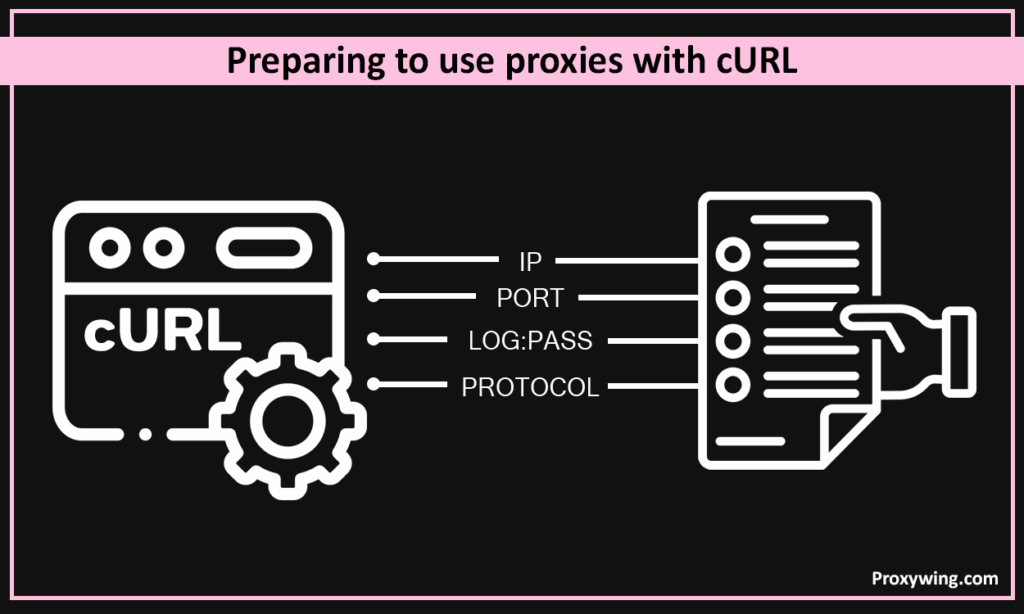
When preparing to use proxies with cURL, set up the necessary proxy details first:
Before going through each method in detail, here is the full set of options cURL gives you for proxy work. Most tasks come down to one or two of these.
| Option | What it does |
|---|---|
-x, --proxy | Sets the proxy for a single request. Accepts [scheme://]host[:port] |
--socks4, --socks4a, --socks5, --socks5-hostname | Shortcuts for the matching SOCKS scheme |
-U, --proxy-user | Passes proxy credentials as user:password |
--proxy-basic, --proxy-digest, --proxy-ntlm, --proxy-anyauth | Picks the proxy authentication method |
--noproxy | Comma-separated list of hosts that skip the proxy |
-p, --proxytunnel | Tunnels all traffic through an HTTP proxy with CONNECT |
--proxy-insecure | Skips certificate checks on an HTTPS proxy |
--proxy-cacert | Points to a CA bundle used to verify the proxy certificate |
--preproxy | Puts a SOCKS proxy in front of an HTTP/HTTPS proxy |
-q | Ignores .curlrc for that run |
You can specify the proxy in a curl command, in an environment variable, or in a config file. When more than one is present, the command line wins, the config file comes next, and environment variables are used last.
Once you have the proxy info, you can use it with cURL in a couple of ways. The simplest is to set up the proxy on the command line for a single request. The curl proxy command to do this is -x (or –proxy). You provide the proxy URL (including the port, and optionally the scheme and credentials). For example:
curl -x http://proxy.example.com:8080 http://example.comIn this curl proxy example, cURL will send the request to example.com through the proxy at proxy.example.com:8080. Here, curl using proxy is demonstrated by the fact that the request goes through the proxy before reaching the target. This curl proxy command tells cURL to route the request via that proxy server. If your proxy requires you to use a username and password, you can include them in the proxy URL (for example, http://user:password@proxy.example.com:8080) or use the –proxy-user user:password option. Remember to use verbose mode (-v) if you need to debug the proxy handshake. For an HTTPS proxy (a proxy that requires an SSL connection), you would use an https:// URL for the proxy. The usage is similar: cURL will handle connecting to the secure proxy and then relay your HTTPS request.
Another method is setting environment variables to set up a proxy globally. Most teams make use of environment variables to keep proxy credentials out of scripts. (for example, export http_proxy=”http://proxy.server:8080″ on Linux/Mac or set http_proxy=http://proxy.server:8080 on Windows). After this, cURL will automatically use that proxy for all HTTP requests — once it’s set up, you can proceed.” (essentially every command becomes curl with proxy by default) until you change or unset those variables. Environment-based configuration is an easy way to set curl proxy when you always need the gateway enabled. Just remember to unset or change these variables when you want to stop using the proxy.
A command that runs without an error message is not proof that traffic went through the proxy. cURL will fall back to a direct connection in more cases than you expect – a typo in the scheme, a variable that was never exported, a host caught by NO_PROXY. The fastest way to check is to ask the target what IP it sees:
curl -x http://proxy.example.com:8080 https://ipinfo.io/ip
Run the same command without -x and compare the two values. If they match, the proxy is not being used. You can do the same against our IP Checker if you also want the country, ASN and hostname behind the exit IP.
For SOCKS5 the check is identical, only the scheme changes:
curl -x socks5h://user:pass@proxy.example.com:1080 https://ipinfo.io/ip
When the IP looks right but requests still behave oddly, add -v and read the handshake. Verbose mode prints the proxy it resolved, the CONNECT request it sent, and the response code the proxy returned, which is usually enough to tell a bad password apart from a dead port:
curl -v -x http://user:pass@proxy.example.com:8080 https://example.com
Two more flags are worth keeping around. -I fetches headers only, so you are not dumping a whole page into the terminal while testing. And -w prints exactly what you ask for and nothing else, which makes it easy to time a proxy:
curl -s -o /dev/null -w “%{http_code} %{time_total}\n” -x http://proxy.example.com:8080 https://example.com
If you need to validate a batch of proxies rather than one, our Proxy Tester runs the same checks across a list and returns speed and availability for each entry.

cURL can also work with SOCKS type proxies. To use a SOCKS4 or SOCKS5 proxy, you set up it similarly but with a different flag or scheme. Developers often use a local SOCKS5 proxy while testing mobile apps on an emulator. For example, to use a SOCKS5 proxy on localhost port 1080:
curl --socks5 localhost:1080 http://example.comThis tells cURL to route the HTTP request through a SOCKS5 proxy running at localhost. You can do the same with –socks4 for a SOCKS4 proxy. Alternatively, using the -x option, set up the scheme in the proxy URL:
curl -x socks5h://localhost:1080 http://example.comIn this case, socks5h tells cURL to use a SOCKS5 proxy and to perform DNS resolution through the gateway (the socks protocols allow the proxy to handle DNS if the h flag is used). SOCKS4 proxies are older and don’t support authentication or IPv6, whereas SOCKS5 supports various features including user authentication. If the proxy needs a login, provide credentials just like with an HTTP proxy (using –proxy-user). With socks proxy support, cURL gives you flexibility to route traffic through different kinds of intermediary servers. cURL supports both SOCKS4 and SOCKS5, so it can work with these different protocols of proxies as easily as with HTTP proxies.
The difference between socks5:// and socks5h:// is one letter and it decides where DNS resolution happens. With socks5://, your machine resolves the hostname first and sends the resulting IP address to the proxy. With socks5h://, cURL sends the hostname itself and the proxy resolves it.
curl -x socks5://proxy.example.com:1080 https://example.com
curl -x socks5h://proxy.example.com:1080 https://example.com
The --socks5-hostname flag is the same thing as socks5h://, written differently:
curl –socks5-hostname proxy.example.com:1080 https://example.com
| Scheme | DNS resolved by | Auth support | Typical use |
|---|---|---|---|
socks4:// | Your machine | No | Legacy proxies, IPv4 only |
socks4a:// | Proxy | No | Legacy proxies with remote DNS |
socks5:// | Your machine | Yes | Local proxies, split-tunnel setups |
socks5h:// | Proxy | Yes | Geo-targeting, avoiding DNS leaks |
In practice, socks5h:// is what you want most of the time. It keeps your resolver out of the picture, so the target sees a lookup coming from the same region as the exit IP, and internal hostnames that only the proxy network can resolve start working. The one case for plain socks5:// is a proxy running on your own machine where local resolution is what you actually want.
Credentials go in the same string for either scheme, or in a separate flag if you prefer to keep them out of the URL:
curl -x socks5h://user:pass@proxy.example.com:1080 https://example.com
curl –socks5-hostname proxy.example.com:1080 –proxy-user user:pass https://example.com
If you leave the port out, cURL falls back to 1080 for every SOCKS version.
Most commercial and corporate proxies require a login. cURL gives you two ways to pass it. The first is inline in the proxy URL:
curl -x http://user:pass@proxy.example.com:8080 https://example.com
curl -x http://user:pass@proxy.example.com:8080 https://example.com
The second keeps the credentials in their own argument, which is easier to read and easier to swap out in a script:
curl -x http://proxy.example.com:8080 –proxy-user user:pass https://example.com
-U is the short form of --proxy-user. Do not confuse it with -u, which authenticates against the target server rather than the proxy.
Passwords with special characters are the most common reason a correct-looking command fails. Anything that means something inside a URL has to be percent-encoded when you put credentials inline: @ becomes %40, : becomes %3A, # becomes %23. Using --proxy-user avoids the problem entirely, since the value is not parsed as a URL.
By default cURL uses Basic authentication with the proxy. Corporate gateways often expect something else, and you can name the scheme directly:
curl -x http://proxy.company.com:8080 –proxy-ntlm –proxy-user domain\user:pass https://example.com
curl -x http://proxy.company.com:8080 –proxy-digest –proxy-user user:pass https://example.com
--proxy-anyauth lets cURL negotiate whichever method the proxy advertises, at the cost of one extra round trip.
A word on shell history: any credential typed on the command line ends up in ~/.bash_history and is visible in the process list to other users on the machine. For anything beyond a quick test, put the proxy line in a config file with restricted permissions or read it from an environment variable set outside the script.

There are several methods to set up a proxy for cURL. You can do it per command, via environment, or with a config file. Here are the different ways:
The first method is using command-line flags each time you run cURL. As mentioned, the primary flag is -x (or –proxy) followed by the proxy URL. You can include credentials if needed (for example, –proxy http://user:pass@proxy.company.com:8080). You can also add –noproxy in the command to exclude certain hosts for that particular request (more on –noproxy below). Command-line options give precise control on a per-request basis. When performance matters, use the –parallel flag together with your proxy settings. If you don’t want to always use an intermediary server, this method lets you set when to use it by specifying the proxy only when needed.
Another method is setting environment variables to set a proxy globally. For scripted jobs, you can preload these variables before any curl step runs. For example, you can set http_proxy=”http://user:pass@proxy.company.com:8080″ (and similarly https_proxy). The same syntax applies to curl –proto if you need to limit allowed schemes. After this, cURL will automatically use that proxy for all HTTP requests. Internally, curl reads the variable once per new transfer, so changes apply immediately. This environment-based approach acts as a persistent curl proxy setting for your session. You can also combine it with CURL_CA_BUNDLE to force curl to trust a custom root CA. Setting CURL_HOME lets curl isolate config files when you automate across user accounts. It is easy when you always need the proxy enabled. Just remember to unset or change these variables when you no longer want cURL to use the proxy. A quick unset http_proxy https_proxy returns curl to a direct-connect state. If you require granular control, prefix a single command with http_proxy= to make curl pick a one-off proxy without touching global variables.
The third method is to use cURL’s configuration file to set aside the proxy settings permanently. On Linux/macOS, this file is ~/.curlrc (and on Windows, _curlrc in the user profile). You can add your proxy details there – for example:
proxy = http://proxy.company.com:8080
proxy-user = username:password
After that, every time you run cURL it will use that proxy by default. It’s a way of storing a persistent curl proxy setting in your environment. If you need to bypass it occasionally, run curl -q to prevent cURL from loading the config file for that run. This method is handy if you always need an intermediary serverenabled (such as on a corporate network). Just be sure to set up the config file secure if it contains login info.
The three methods above work everywhere, but the exact syntax and file paths differ by system. Here is what each one looks like in practice.
Export the variables in your shell, then run cURL normally:
export http_proxy=”http://user:pass@proxy.example.com:8080″
export https_proxy=”http://user:pass@proxy.example.com:8080″
export all_proxy=”socks5h://user:pass@proxy.example.com:1080″
curl https://example.com
http_proxy covers requests to http:// URLs, https_proxy covers https://, and all_proxy is the fallback for anything not matched by a protocol-specific variable. Note that the names describe the target protocol, not the proxy protocol — an http_proxy variable can perfectly well hold a socks5h:// address.
One quirk worth knowing: cURL only reads http_proxy in lowercase. Every other variable accepts either case, but the uppercase HTTP_PROXY is deliberately ignored to avoid a header-injection issue in CGI environments. If a proxy silently fails to apply, check the case first.
To make the settings survive a reboot, add the same lines to ~/.bashrc or ~/.profile. On Debian and Ubuntu you can also drop them into /etc/environment to apply them system-wide.
macOS behaves the same way as Linux, except that the default shell is zsh, so the persistent file is ~/.zshrc:
echo ‘export http_proxy=”http://user:pass@proxy.example.com:8080″‘ >> ~/.zshrc
echo ‘export https_proxy=”http://user:pass@proxy.example.com:8080″‘ >> ~/.zshrc
source ~/.zshrc
Keep in mind that the curl shipped with macOS is built against LibreSSL and lags behind upstream. If a proxy option in this guide is not recognised, run curl --version and consider installing a current build with brew install curl.
In PowerShell the variables are set through the $env: prefix and last for the current session:
$env:http_proxy=”http://user:pass@proxy.example.com:8080″
$env:https_proxy=”http://user:pass@proxy.example.com:8080″
curl.exe https://example.com
Use curl.exe rather than curl in PowerShell. Bare curl is an alias for Invoke-WebRequest, which takes completely different arguments and will reject the proxy flags.
For Command Prompt the syntax is set http_proxy=..., and setx http_proxy "..." writes the value permanently to the user environment.
The config file on Windows is named _curlrc and lives in %APPDATA%, usually C:\Users\<username>\AppData\Roaming\_curlrc. It takes the same content as .curlrc on Unix:
proxy = “http://user:pass@proxy.example.com:8080”
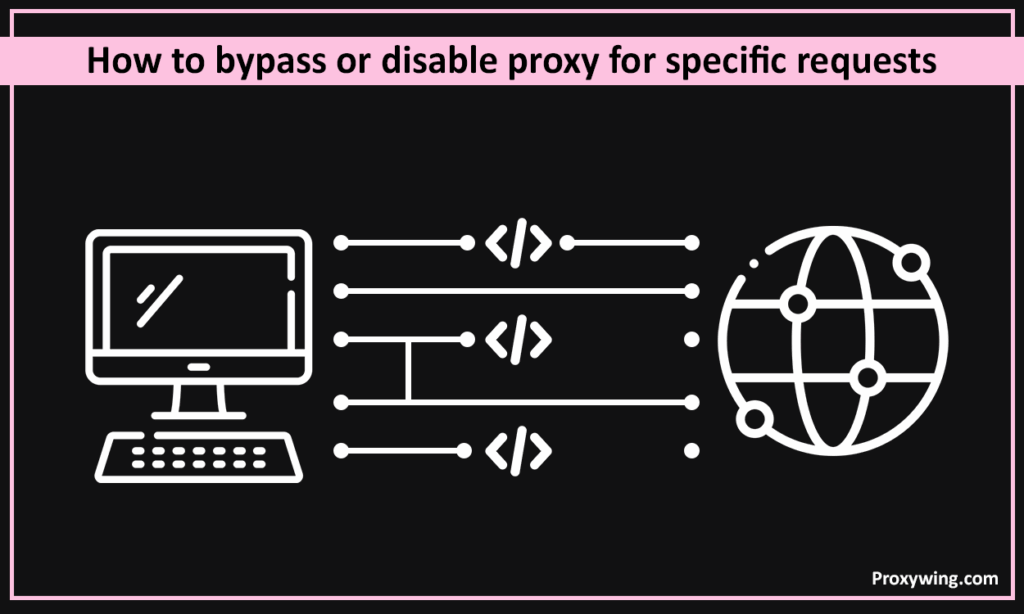
Even if you have a proxy configured, you may want to skip it for certain destinations. For example, you might not want to send requests for local hosts or an internal server through the gateway. One way to bypass the proxy on a per-request basis is using the –noproxy option in your cURL command. With –noproxy, you set up a list of hostnames that should not go through the proxy. For example:
curl --noproxy example.com,localhost http://example.comThis tells cURL not to use the proxy for any host matching example.com or localhost in that command. You can use * as a wildcard (or –noproxy ‘*’) to disable the proxy for that single request entirely.
Another way is to set the NO_PROXY environment variable (or no_proxy) with domains or IP addresses that should be accessed directly. For example:
export NO_PROXY="localhost,127.0.0.1,.internal.example.com"Once this is set, any curl requests to hosts that match those patterns will skip the proxy. This is useful for addressing scenarios where some addresses should be reached directly even though a proxy is generally in use. You can combine this with the earlier environment variables to fine-tune what goes through the proxy and what doesn’t. Essentially, NO_PROXY lets you maintain a list of exceptions so that you use the proxy for most requests but not for certain domains.
Proxy problems tend to produce a small set of recurring errors. Reading the exit code tells you where the request broke, which narrows the fix considerably.
curl: (5) Could not resolve proxy. cURL never reached the proxy because the hostname did not resolve. Check for a typo in the address, and check that your DNS is not itself behind the gateway you are trying to configure. Testing with the raw IP instead of the hostname confirms it in one command.
curl: (7) Failed to connect to proxy. The address resolved but nothing answered on that port. The usual causes are a wrong port number, a proxy that has gone offline, or a local firewall dropping outbound connections. Confirm the port is open before touching the cURL command.
HTTP 407 Proxy Authentication Required. The proxy is up and rejected your credentials. Verify the username and password with your provider, then check whether special characters in the password need percent-encoding, or switch to --proxy-user so they are not parsed as part of a URL. If the credentials are definitely correct, the proxy may expect NTLM or Digest rather than Basic.
curl: (97) Connection to proxy closed. This is a proxy handshake failure and almost always comes from SOCKS. It appears when the proxy speaks a different SOCKS version than the one you requested, when SOCKS5 authentication fails, or when the endpoint is actually an HTTP proxy being addressed as socks5://. Try the same request with -x http:// to identify which protocol the server really speaks.
curl: (35) or (60) SSL errors. Distinguish which certificate is failing. If the target certificate is the problem, -k skips verification for the target. If the HTTPS proxy presents a self-signed certificate, which is typical for corporate inspection gateways, you need --proxy-insecure, or better, point cURL at the internal CA:
curl –proxy-cacert /path/to/company-ca.pem -x https://proxy.company.com:8443 https://example.com
Disabling verification is fine while debugging and a bad idea in anything that runs unattended.
curl: (28) Operation timed out. The proxy accepted the connection and then stalled. Overloaded shared proxies are the usual reason. Set explicit limits so a stuck request fails fast instead of hanging a script:
curl –connect-timeout 10 –max-time 30 -x http://proxy.example.com:8080 https://example.com
403 responses or CAPTCHA pages. Here the proxy worked and the target rejected the IP behind it. Datacenter ranges that have been used heavily get flagged quickly. Switching to residential or mobile IPs, and rotating them across requests, is what changes the outcome — no cURL flag will.
The proxy is set but appears to be ignored. Check three things in order: whether NO_PROXY or a --noproxy entry matches the host you are requesting, whether the variable was written as uppercase HTTP_PROXY, and whether a .curlrc file is overriding your intent. Running curl -v prints which proxy was actually selected and settles it.
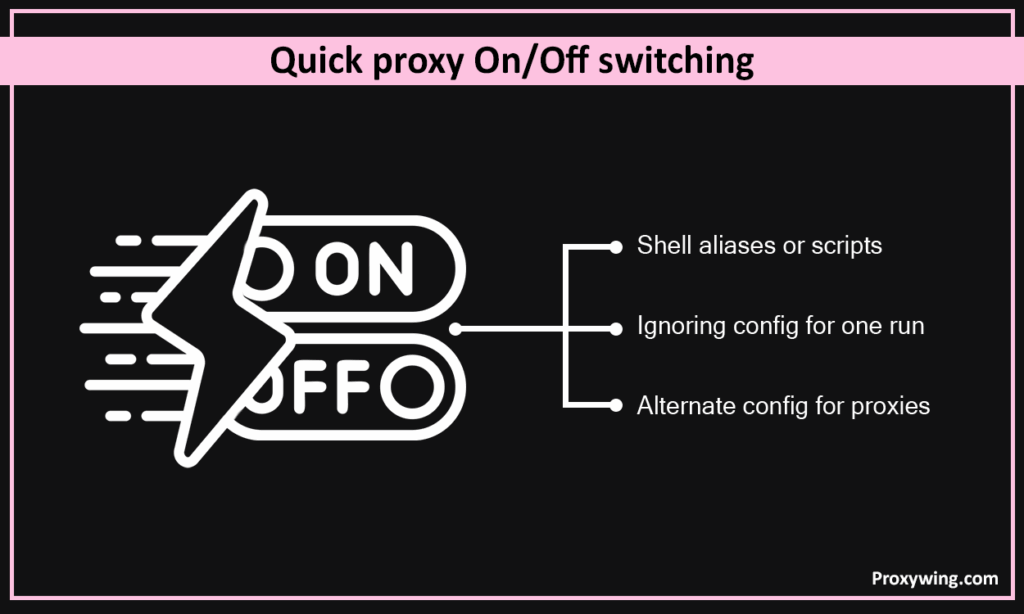
While using cURL, you may need to quickly turn on or off proxy use. Here are some tips that will save you time from having to change configurations every time:

Not every proxy is created equal. When choosing a intermediary server to use with cURL, consider the following factors:
With these curl patterns in mind, troubleshooting intermediary server issues becomes straightforward. Whichever path you choose, curl remains consistent across Unix-like systems.
Working in a variety of network environments requires the ability to use curl with proxy servers. This article explained what cURL is, why proxies are useful, how to set up curl on Windows, macOS, and Linux, as well as different ways of set up curl to use proxies. We examined how to set up an HTTP/HTTPS proxy, how to use SOCKS proxies, how to change proxy settings using environment variables and configuration files, and how to bypass the intermediary server when necessary. We also covered how to easily turn proxy use on or off as well as factors to consider when selecting a suitable intermediary server for your needs. After updating cURL, make use of –help to review any new proxy-related flags. You ought to feel at ease configuring curl to route traffic either directly or through an intermediary server as necessary. Depending on your needs and use cases, you can therefore safely run curl with proxy or without.
Article written by:

Full Stack AI Engineer
Full-stack engineer at Proxywing working across backend architecture, performance optimization, and AI-driven workflows. Node.js, React, cloud infrastructure, and RAG pipelines.
All articles by author (61)HTTP. If you write `-x proxy.example.com:8080` without a scheme, cURL treats it as `http://proxy.example.com:8080`.
1080, for HTTP proxies and every SOCKS version alike. It is not the port the proxy is most likely running on, so specify it explicitly unless you know otherwise.
No. They are the same option, and both accept the same `[scheme://]host[:port]` value.
Request an IP echo endpoint and compare the result with and without the proxy, or run the command with `-v` and read which proxy cURL reports in the handshake.
Yes. Use an `https://` scheme in the proxy URL. The connection between you and the proxy is then encrypted, which matters when the proxy sits on an untrusted network. If the proxy uses a self-signed certificate, add `–proxy-cacert` or, for testing only, `–proxy-insecure`.
It holds a comma-separated list of hosts that should be reached directly even when a proxy is configured. Entries can be hostnames, domain suffixes or IP addresses, and `*` disables the proxy entirely.
Yes. A `-x` flag overrides both environment variables and `.curlrc` for that run, and `-q` makes cURL skip the config file altogether.