Proxy Authentication Methods Explained: Username/Password vs IP Whitelisting
06.10.2026 10 min
Google Chrome is the most popular browser by a mile, even in 2025, all thanks to its reliability and the many useful features it packs. But despite this popularity, Chrome users still encounter issues once in a while, just like with other browsers. One of the common issues users face is the err_blocked_by_client error, which does interfere with the browsing experience whenever it pops up.
This err_blocked_by_client error essentially means Chrome has blocked the web page you are trying to access from loading. The err_blocked_by_client error can be caused by a couple of reasons, including the use of Chrome extensions, site settings, and more. If you’re searching for a solution for “how to fix this page has been blocked by Chrome,” this guide is for you. We will cover in detail all the potential causes for the err_blocked_by_client error codes and how to resolve them. Let’s dive in!
The error (this page has been blocked by chrome) means Google Chrome has blocked the web page from loading because it lists it as unsafe. Google Chrome has some built-in security features and tools that scan every web page in real time before loading it. These tools include Safe Browsing, HTTPS checks, malware or phishing detection, and more.
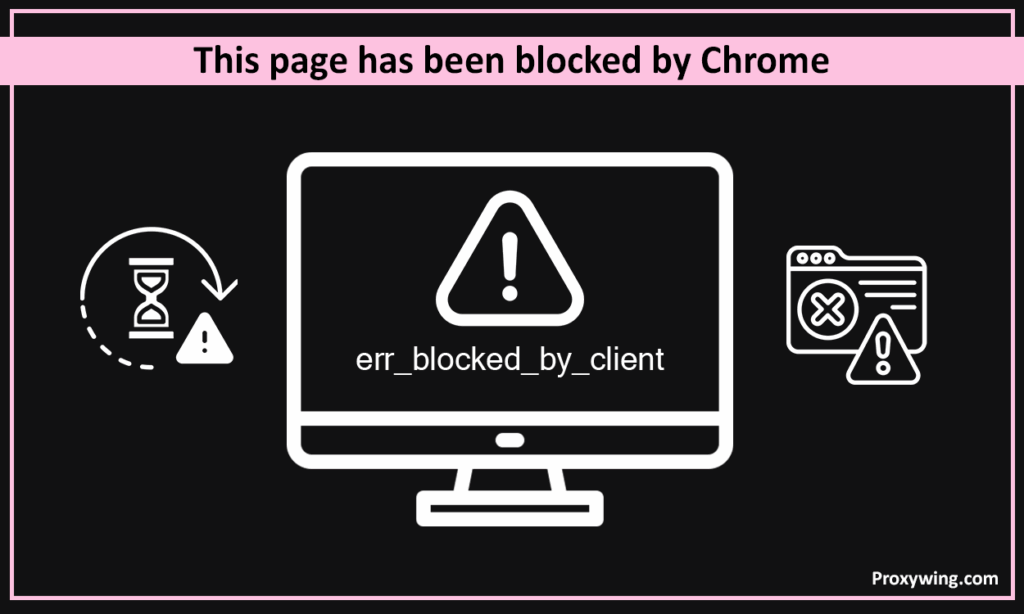
The err_blocked_by_client normally happens just before the page is loaded. If any of the above security tools detect danger, the page is automatically blocked from loading to safeguard the user. Of course, there could be some cases of false positives, but most of the time the blocked pages tend to be unsafe.
Let’s explore some popular causes for the err_blocked_by_client error include:
If a web page is detected to have some form of malware, it will be blocked before being loaded and the err_blocked_by_client error may pop up. Chrome also blocks websites and URLs to downloads that have been reported and confirmed to be unsafe to protect its users from being the next victims.
Blocking certain websites or webpages because of malware is pretty common as Google often does if it confirms that the website is unsafe to protect its users. When Google detects an unsecure webpage, all content available on that page will be blocked in Chrome causing the infamous err_blocked_by_client error to pop up.
SSL certificates are meant to encrypt user data between the browser and the server. Websites with expired or non-existent SSL certificates are deemed unsafe by chrome standards hence the err_blocked_by_client if you try to access them.
Some browser extensions like ad blockers, privacy tools, or antivirus add-ons can stop certain scripts or files from loading leading to the err_blocked_by_client error. Strict browser settings such as blocking pop-ups, cookies, or insecure web contents can also trigger Chrome security warnings such as the the err_blocked_by_client error.
Your work or school networks could also be the reason for the err_blocked_by_client error when you try to access certain websites. Network admins can configure the firewall to block network requests going to specific websites for security or other reasons. If the website you are trying to access is blocked by your network firewall, Chrome may display the err_blocked_by_client error, restricting you from accessing the site.
The err_blocked_by_client error may also appear if the website you are trying to access redirects your connection in a way Chrome finds malicious. For instance, if the website redirects you to insecure HTTP pages or known phishing websites, Chrome will automatically block the page from loading. These redirects are often used in phishing, fake login pages, or unsafe ads, so Chrome stops them to protect you triggering the err_blocked_by_client error to show up.
If you’re constantly seeing err_blocked_by_client error codes when trying to access a certain website or webpage, here are some fixes that you should consider trying:
Sometimes a weak or unusable internet connection could cause Google Chrome not to correctly load your page triggering the err_blocked_by_client error to show up. So, check your internet by trying to access other popular websites likegoogle.com to see if it loads them correctly. You may also need to reset your DNS by turning airplane mode on and off or restarting your router. If you confirm that your internet connection is not the problem, proceed to the next step.
Chrome regularly rolls out updates with the goal of fixing any bugs, including those that could potentially be causing some pages to wrongly be blocked. Updating Chrome to the latest version could fix this. You can fix the err_blocked_by_client error by updating your browser with just a few clicks.
To do the update Open Chrome > Click the three dots (top-right) > Go to Help > About Google Chrome > Click Update > Chrome will check for updates and install them. You should restart Chrome after the update and try accessing the webpage again. Besides fixing the “this page has been blocked by chrome” error, regularly updating chrome adds more utility to your browsing experience.
It is also possible that a webpage is being blocked by a certain extension you previously installed. This is possible with extensions such as ad blockers, VPNs, proxies, and other security tools. To fix this, you will need to turn on and off these extensions one at a time and then reload the webpage to see if it opens.
To access your extensions, Open the three-dot menu > Go to Extensions > Manage Extensions. Proceed to the next step if you still see the err_blocked_by_client error when you try reloading the webpage.
Old or corrupted browsing data such as cache and cookies can cause Chrome to misread a page leading to the err_blocked_by_client error. Deleting such data could help fix the false positives that are causing the webpage you’re trying to access to be blocked.
To clear cache and cookies, go to Settings > Open Privacy and Security > Click Clear browsing data > Select Cached images and files and Cookies > Click Clear data. Please note that clearing browser data may force you to sign in into specific websites again since their login data is also deleted in the process.
Chrome has several built-in security and privacy settings that are meant to protect users from loading unsecured pages that could bring malware to their devices or steal data. However, these settings can sometimes be too strict and block certain pages that may not necessarily be unsafe.
To review these settings, go to Settings > Privacy and Security > Open Security > Check your Safe Browsing mode.
Consider switching from Enhanced protection to Standard protection if you are sure the website you’re trying to access is safe. You can switch between the two modes by going to Chrome’s Privacy and Security Settings and then clicking the appropriate mode. If this does not fix the err_blocked_by_client error, proceed to the next step.
Google Chrome, like most web browsers, allows users to access blocked pages if they are sure of what they are doing. This option is usually just below the err_blocked_by_client error message. To bypass this error, click on Details > Visit this unsafe site.
If you choose to unblock websites that Chrome considers unsafe, make sure you’re 100% certain these sites are safe. You should even consider double checking the URL to avoid visiting a fake page that slightly tweaked the URL of the website you intend to access.
If you’re a website owner and several users are reporting your website being blocked by Google Chrome, then there could be something on your side that is causing the “this page has been blocked by chrome” error.
Any website owner that wants their site to load in all browsers without showing the err_blocked_by_client error should use these fixes to resolve the issue:
The first thing you need to do is confirm that your website is not hacked or affected by malware. Hackers usually inject malicious scripts in your site’s backend that run whenever a user tries to load any of your webpages. Some of the tools you can use to scan for malware include Google Search Console, Sucuri SiteCheck, or VirusTotal to scan your website.
These tools offer free versions, but you may need to subscribe for their premium options to do a more comprehensive malware scan. If this doesn’t fix the err_blocked_by_client error, proceed to the next step.
As we shared earlier, Chrome will block your website and show the err_blocked_by_client error if it has an expired or misconfigured SSL certificate. Try loading your website and make sure its HTTPs setup works as expected and with all browsers. If your SSL certificate has expired, you should renew it immediately. Organizations like Let’s encrypt offer SSL certificates for free.
Google has a database of unsafe websites that is updated in realtime. This database includes all URLs that are reported and confirmed to be unsafe. If your site is on this list, users will receive the err_blocked_by_client error if they try accessing it. To check, go to Google’s Safe Browsing site status page and input your URL. If your website is safe, you should have the “No unsafe content found” message under current status.
Suspicious redirects, pop-ups, or third-party ads can also cause Chrome to block your site form loading leading to the err_blocked_by_client error message. Go to your site’s redirects and make sure they point to trusted URLs.
Sometimes when hackers compromise your website, they can trigger some of your webpages to point to malicious URLs, forcing Google Chrome to block access when users try accessing your legitimate web pages. You should also consider checking for any external scripts such as ads, analytics, or third-party widgets.
These scripts can also cause your website to be blocked (triggering the err_blocked_by_client error) if they try to load scripts that Google Chrome considers malicious. Try temporarily disabling these scripts ( Ads and third-party widgets) one at a time to see if this fixes the “this page has been blocked by chrome” issue.
If your website has had security issues in the past or was previously blacklisted by Google, you must request a site review in Google Search Console. Open Google Search Console and go to the Security Issues section and confirm that you have resolved the problems. If not, request for a fresh review.
Google will rescan your website to determine if it is safe according to its standards. Please note that this process may take a couple of hours or even days, so you need to be patient as you wait for Google to remove your URL from its blacklist.
If all the above steps do not resolve the err_blocked_by_client errors, you may need an IT professional to do more advanced troubleshooting. This may include reviewing server logs, checking firewall and CDN settings, scanning for hidden malware in the server files and database, and confirming that DNS, SSL, and redirect rules are correctly set. They may also need to test the site from different networks, devices, or regions to spot configuration issues that non technical users may not see.
Here are some tips that site owners and users can use to prevent the “this page has been blocked by chrome” issue from reoccurring in the future and to ensure a secure browsing experience.
This comprehensive guide has covered all the common causes of err_blocked_by_client errors and other error messages that may cause Chrome to block certain websites. As you may have noticed, most of the causes are related to security. If Google Chrome considers a website unsafe, whether that is due to the lack of HTTPS or malware, it will automatically block it from loading to protect users.
But as we saw, there are some rare cases of false positives, so updating Chrome or deleting browser data can help fix the error in these scenarios. For users, it is always best to avoid visiting websites that Chrome blocks unless you are 100% certain that the website is safe after double-checking the URL. If you’re a website owner, you must ensure your site has updated SSL certificates and frequently scan for malware.
Article written by:

Full Stack AI Engineer
Full-stack engineer at Proxywing working across backend architecture, performance optimization, and AI-driven workflows. Node.js, React, cloud infrastructure, and RAG pipelines.
All articles by author (61)