Proxy Authentication Methods Explained: Username/Password vs IP Whitelisting
06.10.2026 10 min
cURL is one of the most powerful command-line tools, especially for tasks involving transferring data to or from a server, automating API interactions, and troubleshooting network connectivity. When using cURL, some of the common issues you may encounter involve SSL certificate errors.
These usually show up when the cert is self-signed, expired, or issued by an untrusted authority. If you still need to interact with a server despite showing the error, there are ways to do so using cURL. In this guide, we will discuss how to ignore self-signed SSL cert with cURL. Let’s dive in!
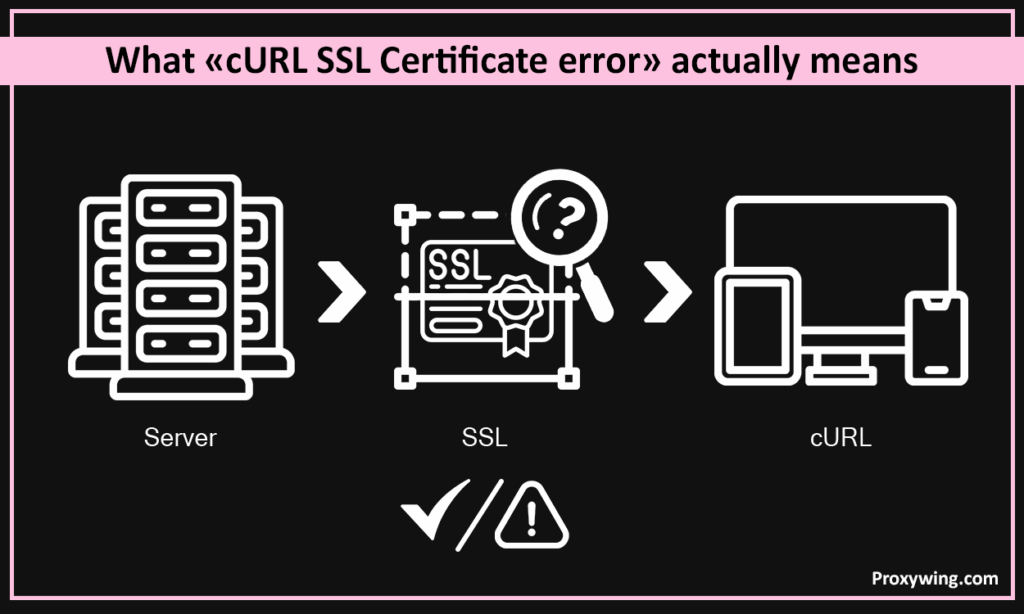
cURL returns an SSL bug due to a failed SSL handshake. The failed SSL handshake usually happens when the client is not able to verify the server’s identity. cURL acts as a strict gatekeeper. It will always block the connection if it cannot validate the SSL certificate’s trust chain, verify the hostname, or confirm the cert is within its validity period.
Some of the common SSL bugs you will encounter include:
Just like the bug suggests, this happens when cURL is not able to verify the root SSL Certificate Authority (CA). This issue happens when your local system is missing the required CA bundle. It may also happen if a corporate firewall is intercepting traffic using custom certificates that your client doesn’t recognize.
The self signed certificate error happens when cURL encounters a cert that was signed by itself, meaning it was not signed by a trusted SSL cert authority. Such SSL errors are pretty common in development environments or when a proxy server intercepts the connection.
When you see this bug, it simply means the domain name you are trying to reach does not match the names listed on the SSL cert. Some of the common triggers for this issue include misconfigured load balancers, missing Server Name Indication, or when you try to connect to a website using an IP address when the SSL cert is issued for a domain.
You will encounter this issue when the SSL certificate’s “Not Before” or “Not After” dates are outside the current time range. This can happen when the website admins forget to renew or deploy a new cert. This bug can also be triggered if your local system clock/timezone is set incorrectly.
This is a more generic failure that happens when the client and server cannot agree on how to communicate. Some common causes for this include cipher suite mismatches, the server requiring a newer SSL version than what your client currently supports, or old OpenSSL versions failing to negotiate.
In this section of the guide, we will discuss some of the quick and safe fixes you can use to resolve SSL issues:
This is one of the simplest fixes to start with. To ensure cURL has the latest list of trusted authorities, you can update the ca-certs package and trigger a refresh. Use the command shown below to update the certs store:
sudo apt update && sudo apt install ca-certificates
sudo update-ca-certificatesIf you are using a Red Hat-based system, you can use the update-ca-trust engine to manage the store. Use the command below:
sudo yum install ca-certificates
sudo update-ca-trust extractOn macOS devices, the default /usr/bin/curl uses the System Keychain for trust. However, if you installed cURL via Homebrew (don’t want to use defaults), it often uses its own CA bundle, which can typically find the in /usr/local/etc/ca-certificates directory.
If one works and the other doesn’t, you may need to update the Homebrew certs or point cURL to the Keychain. To update, Homebrew certs, run the following commands in your terminal:
# Update Homebrew's package database
brew update
# Reinstall/Upgrade the CA certificates package
brew install ca-certificates
# Force a relink to ensure the bundle is in the correct path
brew postinstall ca-certificatesOn Windows devices, modern cURL builds use Schannel. This means they automatically use the Windows cert Store. If you are using an older version or a manual binary, it may look for a file named curl-ca-bundle.crt in the same directory.
To force cURL to use the Windows store use the –ssl-revoke-best-effort flag in some environments.
Note: In Windows PowerShell (v5.1 and older), always use curl.exe instead of just curl.
In this section, we will cover the fixes that you can use to fix any SSL glitch when making requests.
Instead of disabling security entirely, you can tell cURL to trust a specific cert file. These are usually in .pem or .crt format. Use the commons below to use a custom CA certification.
curl --cacert /path/to/custom-certificate.pem https://example.comIf you have multiple internal SSL certs, use –capath. Using this flag tells cURL to look into a specific directory. You must ensure the certs in that directory are named using their hash value (generated via OpenSSL) for cURL to find them efficiently. Here is a sample command with the –capath flag:
curl --capath /etc/ssl/certs/ https://example.comSSL certs have strict “Not Before” and “Not After” timestamps. So, it is possible for a perfectly valid cert to be rejected as expired or not yet valid if your system clock is set to a date in the past or far future. The best practice is to always sync your time via NTP.
Hitting the wrong hostname can also lead to SSL glitches. For example if you request https://1.2.3.4 but the SSL cert is issued for website.com, the handshake will fail. Similarly, if a request involves redirecting the connection from one site to another, you must ensure cURL is able to verify the SSL cert of the final destination.
Using verbose mode makes it easy to see exactly where the trust chain breaks. You can also use OpenSSL’s s_client to print the full cert details. Below are sample cURL commands for these two fixes.
Using cURL verbose
curl -vI https://example.comUsing OpenSSL for a deep dive
openssl s_client -connect example.com:443 -showcertsIncluding the -k (or –insecure) flag in your command tells cURL to proceed with the connection even if the SSL cert is invalid. So, cURL ignores any certificate checks. Using this flag bypasses all certificate validations, making it possible to access any web servers with invalid or non-existent SSL certs.
curl -k https://website.comIn the above command, any possible hostname mismatch, SSL certificate expiry checks, and the entire trust chain verification was skipped. Skipping SSL verification means cURL will connect straight to the target server.
Whenever you are using verbose modes (-v or –trace) to debug SSL, it is important to be cautious about what you share. These logs can capture sensitive Authorization headers or session cookies that could be exposed to bad actors. Always use dummy data or test credentials when sharing logs for support.
If you are using an HTTPS proxy that uses a self signed SSL cert, using the -k flag will only ignore the target server’s cert. If you need to also ignore the proxy’s cert, use the command below:
curl --proxy-insecure -x https://my-proxy:8080 https://website.comThe secure alternative is to include the proxy’s CA cert in your command. This approach ensures your connection to the proxy is encrypted and verified. The sample command below includes the proxy’s cert:
curl --proxy-cacert proxy-ca.pem -x https://my-proxy:8080 https://example.comIt is never a good practice to include passwords directly in the command line (e.g., -U user:password), as they stay in your shell history on your machine’s disk. So, anyone having access to your machine or malicious scripts can run the history command or open that file to see your credentials. Use environment variables or a .netrc file to avoid having user credentials stored in shell history.
If you have projects that require high-performance and reliable HTTPS traffic management, using a reliable and trusted provider. ProxyWing is among the most trusted providers, ensuring secure, stable, and pre-configured proxy endpoints to minimize any possible handshake headaches. We offer different proxy types to suit different user needs.
Instead of turning off security, you can point cURL to the correct SSL certs using environment variables. Using this approach fixes the trust issue without exposing your systems to attackers. Some environment variables you can consider include:
When writing code using languages like Python, PHP, or Go that use libcurl, developers can set CURLOPT_SSL_VERIFYPEER to false. We recommend that you only do this within conditional blocks such as if (ENV == ‘development’) to ensure verification remains active in production.
Disabling SSL verifications is a big security risk. Such security risks don’t just affect cURL, but can also compromise Git, package managers (npm, pip), and browsers. These insecure connections give any malicious actor on your network the chance to intercept your traffic, steal API keys, or inject malicious code into your downloads via a Man-in-the-Middle (MITM) attack.
Use this steps to obtain and install the corporate root CA:
For internal tools or home labs use these steps to export the internal CA:
In this situation, you will need to test if the bug is caused by the proxy or the destination server. Use the following steps.
Bypassing SSL verification can be necessary in some situations, but you need to know the security risks it comes with. Some of these include:
Article written by:

Full Stack AI Engineer
Full-stack engineer at Proxywing working across backend architecture, performance optimization, and AI-driven workflows. Node.js, React, cloud infrastructure, and RAG pipelines.
All articles by author (61)The –insecure (or -k) flag tells cURL to ignore any cert issues from the target server. On the other hand, the –proxy-insecure flag tells cURL to ignore SSL cert bugs from the proxy server you are using to route your traffic (POST or GET requests) before sending it to the target server.
Browsers (like Chrome or Firefox) often have built-in cert stores or advanced logic to handle intermediate certs. cURL is much stricter and relies solely on your system’s CA bundle or the one provided via command line.
Not via a single flag. However, you can use a .curlrc file or a shell alias, but the safest way is to use –cacert specifically for that domain’s cert so you don’t compromise your security for other sites.
You should never use the -k (–insecure) flag in production. Instead of using such insecure options:
Securing your connection when using cURL should be made a priority.