Proxy Authentication Methods Explained: Username/Password vs IP Whitelisting
06.10.2026 10 min
The Python Requests library is the go-to option for most developers who need to integrate HTTP actions like GET and POST in their programs or scripts. It is the most popular library for such tasks, thanks to its simplicity and wide community support. If you’re keen to learn more about how Requests works and whether it’s worth trying out, this tutorial is for you.
This tutorial comprehensively provides information about what the Requests library does, how to install it, Python Requests examples, popular use cases, and more. Just make sure you read till the end.
It is a simple and easy to use third-party Python library that enables developers to integrate the ability to send HTTP requests into their programs and scripts. With Requests, you don’t need to deal with complex code to make web calls, since it gives you clean and readable functions like get(), post(), put(), and delete().
Using the above HTTP actions makes it seamless to interact with APIs, download data from various websites, or send information to a specific server on the internet. This library has been around since the early 2010s and has become popular because of its simplicity.
It handles things like managing headers, cookies, sessions, and error handling behind the scene, allowing you to focus on writing your logic. Today, Requests is widely used for tasks like automation, data scraping, API integrations, and several other Python projects.
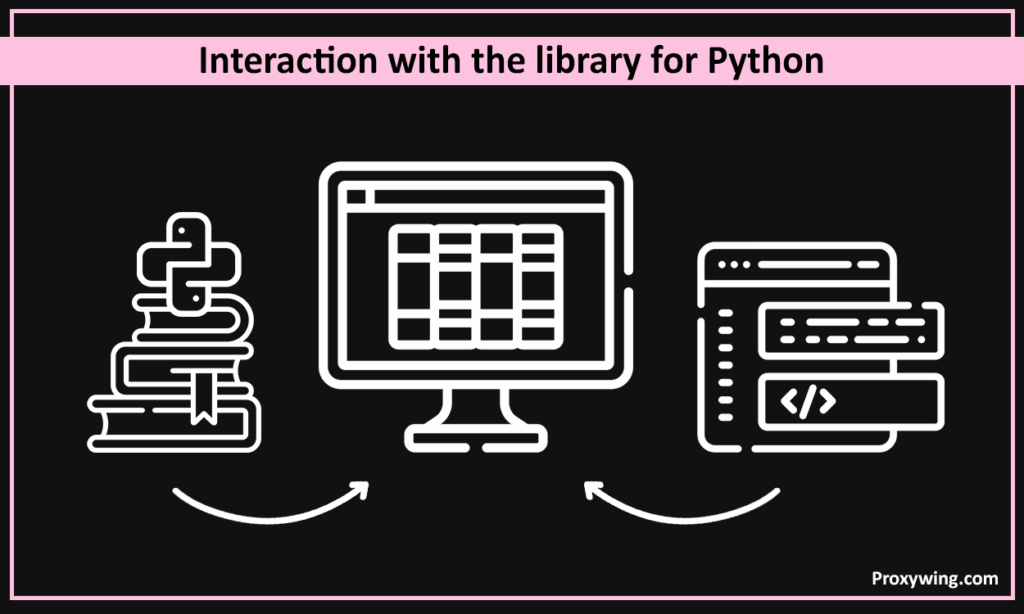
Just like it is easy to use, Requests is also easy to install. Since it is not included in Python by default, you will need to install it. Below is the simple command for installing Requests:
pip install requestsAfter the installation, you can then import it into your script using the command below:
import requestsOnce the importing is successful, you can now start making HTTP requests like the one shown in the example below:
response = requests.get("https://samplesite.com")
print(response.text)
We will share more of the other code examples in the next section.
In this section, we will cover some of the basic examples to help you understand how the Requests library works with different HTTP methods, including GET, POST, PUT, PATCH, and DELETE.
A GET request allows you to retrieve data from a server. It is the most common type of HTTP request you will need to use in your scripts or programs. Unlike some HTTP actions, GET requests are followed by responses from the server. Below is an example showing how this method can be implemented using Requests:
import requests
response = requests.get("https://api.samplesite.com/data")
print(response.status_code)
print(response.text)
In the example above, status_code shows whether the request was successful and prints the response body of the response.
As the name suggests, A POST request is used when you want to send (post) data to a server. The example code below shows how POST methods are implemented using Requests.
import requests
payload = {"name": "Tom", "age": 25}
response = requests.post("https://api.samplesite.com/users", json=payload)
print(response.status_code)
print(response.json())
In the above example, payload contains the data you’re sending and response.json() allows you to read the server’s response in JSON format.
These three methods are primarily used to update or remove data on a server. Let’s cover each of them with examples.
This method is used to replace an entire record on the server. Below is an example of how this HTTP method is used:
import requests
updated_data = {"name": "Tom", "age": 26}
response = requests.put("https://api.samplesite.com/users/1", json=updated_data)
print(response.status_code)
The command in the example above will replace both the name and age and update them to the new details provided.
Unlike PUT, the PATCH method is used to update part of a record. Sample code below:
import requests
partial_update = {"age": 27}
response = requests.patch("https://api.samplesite.com/users/1", json=partial_update)
print(response.status_code)
The command in the example above will only update Tom’s age.
This method is used to remove a record from the server. Example below:
import requests
response = requests.delete("https://api.samplesite.com/users/1")
print(response.status_code)
The sample code above will delete all the data of the specified user from the server.
When making HTTP requests, it is common for developers to send extra information such as query parameters or custom headers. The good news is the Requests library includes modules that make this process easy. In this section, we will explore how to use Request to query parameters and custom headers.
URL parameters (also known as query strings) allow you to add extra data to your GET HTTP calls. So, instead of manually building the URL, you can pass them as a dictionary. Below is an example of how this works.
import requests
params = {"search": "python requests", "page": 2}
response = requests.get("https://api.samplesite.com/results", params=params)
print(response.url)       # Shows the final URL with parameters
print(response.status_code)
In the above example, Requests will automatically format the parameters into a proper query string like: https://api.samplesite.com/results?search=python+requests&page=2.
In some scenarios, the API you’re trying to call may require specific headers such as authentication tokens, content type, or user-agent. Requests allows you to seamlessly add such details as shown in the example below.
import requests
headers = {
    "Authorization": "Bearer YOUR_TOKEN_HERE",
    "User-Agent": "MyApp/1.0",
    "Content-Type": "application/json"
}
response = requests.get("https://api.samplesite.com/user", headers=headers)
print(response.status_code)
print(response.text)
As you can see in the code above, using custom headers allows you to access the protected endpoints, tell the server what type of data you’re sending, and also identify your application. This gives developers more control and flexibility when interacting with APIs.
As a developer, you will often need to work with JSON when interacting with APIs. The Requests library also makes it easy to both send and receive JSON data. In this section, we will cover how you can read JSON data from a response and send JSON objects to the server.
If an API or web server returns data in JSON format, you can convert it directly into a Python dictionary using Requests as shown in the code below:
import requests
response = requests.get("https://api.samplesite.com/data")
data = response.json()
print(data)
In the above code, response.json() handles the parsing for you, so you don’t need to use json.loads() manually.
You can also use Request to send JSON by passing your data using the json parameter as shown in the code below:
import requests
payload = {"name": "Tom", "role": "developer"}
response = requests.post("https://api.samplesite.com/users", json=payload)
print(response.status_code)
print(response.json())
Requests will automatically convert the Python dictionary to JSON and set the correct Content-Type header.
When building certain solutions, you will notice that some APIs expect form-encoded data or uploaded files instead of JSON. In this section, we will explore how to send form data and upload files using Requests.
To send form fields, you will need to use the data parameter as shown in the code example below:
import requests
form_data = {"username": "tom", "password": "12345"}
response = requests.post("https://api.samplesite.com/login", data=form_data)
print(response.status_code)
print(response.text)
The code above will send the data as if it came from an HTML form.
Request also makes it easy to upload a file using the files parameter as shown in the command below:
import requests
files = {"profile": open("photo.jpg", "rb")}
response = requests.post("https://api.samplesite.com/upload", files=files)
print(response.status_code)
print(response.text)
Requests handles the file upload process for you, including setting the right headers.
Timeouts and error handling are some of the most powerful Requests features. As you work with APIs or external web apps in your code, there will often be times when their web servers may slow down or take longer than usual to send a response. Instead of letting your program hang, Request allows you to terminate the HTTP action and handle errors safely.
A timeout allows you to set how long you would like your program to wait for a response before terminating the request. It helps prevent your program from hanging forever if a server doesn’t respond. The code below shows how you can set a timeout (in seconds) using Requests:
import requests
try:
    response = requests.get("https://api.samplesite.com/data", timeout=5)
    print(response.status_code)
except requests.Timeout:
    print("The request timed out.")
In the sample code above, the program will abort the request after 5 seconds. After five seconds, the “The request timed out” error will be shown to the user.
Requests also gives you the option to set connect and read timeouts separately as shown in the code snippet below.
response = requests.get("https://api.samplesite.com/data", timeout=(3, 10))In this case, the request is allowed up to 3 seconds to connect and 10 seconds to read data from the server.
When it comes to error handling, Requests has built-in exceptions that help you catch different types of errors. This makes your program more reliable. Using exceptions also protects your program from crashing and helps you respond to issues gracefully. Let’s explore some of the common exceptions you can implement in your code.
This is raised when the server request takes too long than expected. The code snippet below shows how you can use Timeout to show the user what’s happening.
except requests.Timeout:
print("Request took too long!")The goal of this is to show users that their request couldn’t be made successfully because the server was unreachable. Example code snippet below:
except requests.ConnectionError:
print("Failed to connect to the server.")This exception is raised when the server you’re trying to reach returns HTTP status codes such as 404 or 500. The code for implementing this is shown below:
response.raise_for_status() This triggers HTTPError if status is 4xx or 5xx.
This is a general exception that catches any request-related error.
except requests.RequestException as e:
    print("Something went wrong:", e)
Session objects let you reuse the same connection for making multiple requests, making your code faster and more efficient. Sessions also help you persist cookies across requests, which can be useful when dealing with login-based APIs.
import requests
session = requests.Session()
session.headers.update({"User-Agent": "MyApp/1.0"})
response1 = session.get("https://api.samplesite.com/login")
response2 = session.get("https://api.samplesite.com/profile")
print(response1.status_code, response2.status_code)
When a session is used as shown in the above code:
This is implemented as shown in the code below.
session.cookies.set("theme", "dark")
print(session.cookies.get_dict())In this section, we will explore some advanced use cases you may encounter in real-world API integrations. For each, we will share some code examples for how it is implemented.
This allows you to send your HTTP requests along with authentication tokens when calling protected APIs. The code below shows how it can be implemented with Requests.
import requests
token = "YOUR_TOKEN"
headers = {"Authorization": f"Bearer {token}"}
response = requests.get("https://api.samplesite.com/secure", headers=headers)
print(response.json())This is useful when dealing with API results that are split across multiple pages instead of being returned all at once. The code below shows how you can use requests to effectively handle pagination.
import requests
page = 1
results = []
while True:
    response = requests.get("https://api.samplesite.com/items", params={"page": page})
    data = response.json()
    if not data["items"]:
        break
    results.extend(data["items"])
    page += 1
print(len(results))Requests also makes it possible to implement multipart uploads for your POST requests. The code snippet below shows how you can implement this:
files = {
    "file": ("report.pdf", open("report.pdf", "rb"), "application/pdf")
}
response = requests.post("https://api.samplesite.com/upload", files=files)Let’s briefly explore how you can handle some of the most common issues when using Requests:
These are some of the best practices if you need to get a seamless experience when using Requests.
This tutorial has gone in-depth to cover all the different ways the Requests library is used to integrate HTTP actions in your program. Requests mass the complexity of networking, allowing you to focus on writing your program. For all projects that involve making.
API calls, including those with more advanced workflows like pagination, authentication, and file uploads, Requests is one of the best tools you can use.
Article written by:

Full Stack AI Engineer
Full-stack engineer at Proxywing working across backend architecture, performance optimization, and AI-driven workflows. Node.js, React, cloud infrastructure, and RAG pipelines.
All articles by author (61)