Proxy Authentication Methods Explained: Username/Password vs IP Whitelisting
06.10.2026 10 min
Proxies have become the go-to solution for people who want to access the internet privately and without many restrictions. However, for the less tech-savvy user, the process of setting up a proxy on their devices or browsers can be a little complicated. That’s where a proxy script address comes in. A proxy script address is a special link that will automatically give your devices the right proxy settings to use based on how it is configured.
So, instead of inputting the proxy settings (port, IP address, username, and password) manually, this link will automatically configure these details. The link contains a file (PAC file) with all the necessary configurations that tell your device when to use a proxy and which proxy to use.
In this guide, we will explain how a proxy script address works, how to find it, the setup process, and more. Let’s start with a summary of the key details in the guide to get everyone up to speed.
A proxy script address is a special link (URL) that points to a PAC file (Proxy Auto-Config file). It is the PAC file that contains the configurations that tell your device the proxy to use and when to use it. So, instead of the user manually inputting the proxy details, the PAC file defines these details.
It also checks to confirm that your device traffic is being routed as configured by the proxy provider or network admin. Overall, using proxy scripts makes the process of configuring proxy settings easier and helps save time.
A PAC file is a small JavaScript-based file that includes the rules that tell your browser or device how to choose the correct proxy server for each request. It includes logic that can check the website’s URL or hostname and then decide the best route.
Here is a simple example of the key contents of a PAC file.
functionFindProxyForURL(url, host) {
    if(dnsDomainIs(host, "samplesite.com")) {
        return"PROXY 192.168.1.10:8080";
    }
    return"DIRECT";
}
In the above code example, your device will use a proxy only for the website samplesite.com and will connect directly for all other sites.
When you enter the script address in your network settings, the browser or device will download the PAC file from that URL. So, every time you want to access the internet, this file is executed to determine whether to use a proxy and which one to use based on the web services you intend to access. Your device or browser will check the rules inside this file and follow the correct path automatically without any manual intervention.
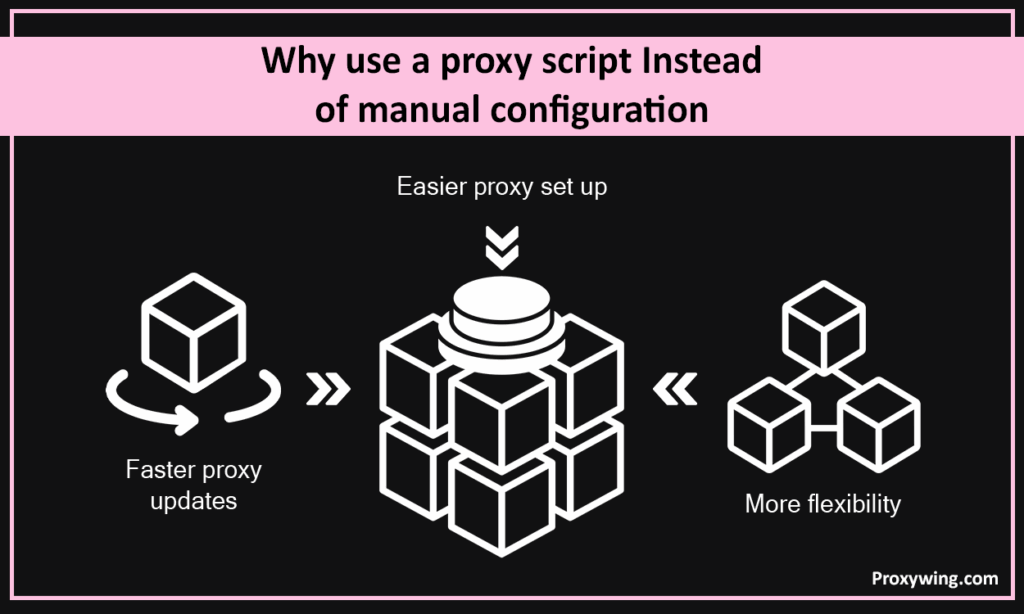
Some of the benefits of using a PAC file include:
The format of a script address depends on how the PAC file is stored and delivered. Users of proxy services may encounter local file paths, server-hosted URLs, or automatic discovery methods like WPAD. Each format points to the location of the PAC file that the device will download and use for proxy settings. Let’s explore some of the common formats that you will encounter.
With this format, the PAC file is stored on the user’s computer or a shared folder. When using the local fire paths, the script address points to a file location instead of a web URL since it doesn’t need any web data. So the URL will be something like:
Using this format is simple and direct, but it does require distributing the file manually to all the devices, which may not be scalable.
This is one of the common formats you will encounter. It is normally used in corporate or cloud environments with the PAC files hosted on a server. Users enter a URL of the server hosting the PAC file in their proxy settings, and the device retrieves the file from this server.
Here are some examples of PAC file URLs using this format:
Using server hosted files allows for easy distribution and updates since any change to the hosted file applies to all users automatically.
The WPAD protocol allows devices to automatically discover the script address for proxy without manual input. When WPAD is enabled, the device uses DHCP or DNS to search for a PAC file on the network. For instance, if you’re using DNS, the device looks for a host like wpad.company.com and retrieves a file such as wpad.dat. For DHCP, the server directly provides the PAC file URL.
This method makes proxy configuration seamless, especially for organizations running large networks where automatic management is important.
If your device or browser already has the script address added, you can find it within the settings. However, finding this proxy script address depends on the operating systems or browsers you are using. In this section, we will walk you through the steps for checking for the proxy script address on Windows, macOS, Linux, and major web browsers.
Depending on the Linux distro you’re using and desktop environment, you can check the proxy script using these steps:
Alternatively you can use terminal by running this command:
run echo $http_proxy, echo $https_proxy, or similar environment variables. If a PAC file is used, it will show the script address.
Here is how to find the script address on the major browsers.
In this section, we will walk you through the steps for setting up the proxy script address.
The first thing you need before getting started is obtaining the script address. Make sure you have the correct proxy script URL from your proxy provider before starting.
Once you have the PAC file URL, follow these steps:
After adding the PAC file to your settings, you need to now verify that the proxy works. Here are some steps for verification:
The main benefits for using a proxy script include:
In this section, we will discuss the common fixes you can use if your proxy script is not working as expected:
These pros and cons will help you determine when to use the proxy script and when to use manual settings.
| Method | Pros | Cons |
| Proxy Script (PAC file) | Automatic control. Centralized management. Easy updates. Can switch proxies based on rules. | Requires hosting the PAC file. Script must be valid. Needs internet connections to download. |
| Manual Proxy Settings | Full control by the user. No script required. Works offline once set. | Error-prone since you need to input lots of details. Harder to update across many devices. Cannot switch automatically. |
Using a proxy script address is a simple way to integrate proxy settings into your device or browser. With this method, users only need to input a link into the proxy configuration settings, and the PAC file will guide the device on which proxy to use and when to use it. Besides the easier setup process, using proxy scripts also gives admins room to create fine-grained rules on how and when proxies should be used.
However, it is important to note that sometimes manual settings may be a better option, especially for users who need more control over their proxy settings. But overall, using proxy scripts is a much more seamless method since it makes the proxy setups for proxies faster, cleaner, and easier to maintain. Proxy scripts can also be used with the different types of proxies, including datacenter, mobile, ISP, and residential proxy solutions.
Article written by:

Full Stack AI Engineer
Full-stack engineer at Proxywing working across backend architecture, performance optimization, and AI-driven workflows. Node.js, React, cloud infrastructure, and RAG pipelines.
All articles by author (61)