


Proxy Authentication Methods Explained: Username/Password vs IP Whitelisting
06.10.2026 10 min
If your pages load slowly, a service says you are on a proxy, or an app refuses to connect, a leftover proxy server is usually the reason. This guide shows you how to turn off proxy settings on Windows 10 and 11, macOS, Chrome, Firefox, Edge, Android, Phone, and Telegram, and how to remove a proxy that keeps switching itself back on.
You are probably in the right place if you recognise any of these:
If you already know your device, use the table below and jump straight to it. Full steps with every screen are further down the page.
| Device or app | Where the proxy setting lives | What to do |
|---|---|---|
| Windows 10 / 11 | Settings → Network & Internet → Proxy | Turn off Use a proxy server and Automatically detect settings |
| macOS | System Settings → Network → your connection → Details → Proxies | Uncheck every proxy type, then Apply |
| Google Chrome | Settings → System → Open your computer’s proxy settings | Chrome follows the system, so turn it off in Windows or macOS |
| Mozilla Firefox | Settings → Network Settings → Settings | Select No proxy |
| Microsoft Edge | Settings → System and performance → Open your computer’s proxy settings | Turn it off in Windows or macOS |
| Android | Wi-Fi → your network → Advanced → Proxy | Set Proxy to None and save |
| iPhone / iPad | Settings → Wi-Fi → (i) → Configure Proxy | Set to Off |
| Telegram | Settings → Data and Storage → Proxy | Turn off Use proxy and delete the saved server |
Two things worth knowing before you start. Chrome and Edge have no proxy switch of their own, they read whatever Windows or macOS is set to, which is why both of them send you to the system settings. Firefox is the exception: it keeps its own list, so it can still route through a proxy even when the system is clean.
Disabling is the right call when the proxy was left behind by an installer, a policy you no longer need, or a free server that stopped working. In those cases a direct connection is simply faster.
There are cases where the answer is a different proxy rather than none. Checking how ads or prices look in another country, running several accounts without them being linked, testing a site the way a user in another region sees it, all of these need a proxy to work at all. The problem is never the proxy itself, it is where it came from.
For everyday browsing, keep the direct connection if it works now. Regional price checks and website testing are a different case. There you may still need a specific exit location, so replace the unwanted proxy only in the browser you use for that work.
For these checks, ProxyWing residential proxies let you choose the country you need. Use code at checkout for a lifetime discount, then check the new IP before you go back to testing.
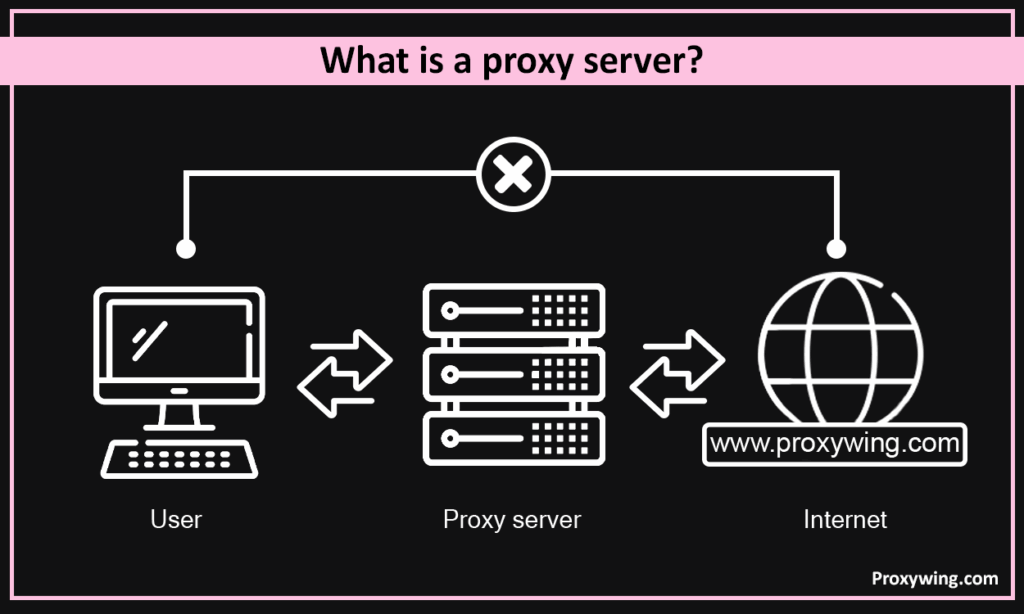
A proxy server is a middle layer between your device and the sites you open. It sends your web request online with its own address on the envelope. The delivery person quietly brings the package back after getting a message from the site. So, your real IP address never shows up. This middle layer helps companies keep track of their social media feeds, bandwidth use, and big downloads so they can get to them faster. People at home use proxies to get around region locks or to make their web browsing more private. A mistake in those gateway fields, on the other hand, can freeze all your tabs and stop normal pages from loading.
Windows 10 and 11’s Chrome and Edge don’t have the “master switch” inside the browsers themselves; it lives in Systems Settings. Press Win + I to open Settings, then click Proxy under Network & Internet.
Automatic proxy setup: turn off Automatically detect settings and turn off Use setup script.
Manual setup: click Edit, delete hosts and ports, and after changing the Use a proxy server toggle to Off, press Save.
Check that both Automatically detect settings and Use a proxy server now reads Off before you close Settings.
That one action removes the proxy from web browsers, launchers, and Steam. To feel the speed bump, close and reopen your favourite browser to check that your internet connection is back to full speed. Do the steps again if Group Policy or a sneaky script turns the gateway back on. Remove any leftover DNS information and lock the change by quickly restarting the computer.
Configuring Chrome is simple:
Firefox keeps a built-in switch for browser proxy settings.
If you haven’t already switched the global switch, choose “No proxy” (or “Use system proxy settings”) and then click “OK.” Restart Firefox. No more loops or hops when accessing websites; every tab now goes straight to the web.
To change proxy settings on your computer, go to the ⋯ menu, then Settings, then System & performance, and finally tap Open proxy settings. Turn off Use a proxy server, remove the address and port, click Save, close the window, and then restart Edge. There shouldn’t be any problems with proxies that make pages and sign-ins take a long time to load.
Chrome does not have its own proxy switch. It reads the system configuration, so
disabling a proxy in Chrome means disabling it in Windows or macOS. The Chrome menu
is just a shortcut to that screen.
proxy in the settings search bar, or open System in the left sidebar.If pages still behave oddly after the steps above, an extension is putting the proxy back. Open chrome://extensions and look for anything that manages traffic, routing, or connections — names with “optimizer”, “booster”, “secure surf”, “unblock” or “smart route” are the usual suspects. Remove it rather than just disabling it. You can also open chrome://policy and look for ProxyMode or ProxySettings. If they are listed there, the proxy comes from a company or school policy and Chrome will reapply it on every launch. On a managed laptop you will need your administrator to lift the policy.
If you have a stray gateway rule, Safari might freeze or download slowly. To open System Settings (Ventura/Sonoma) or System Preferences (Monterey and older), click on the logo. In the sidebar, select Network, then the green dot, which could be Wi-Fi, Ethernet, or Thunderbolt Bridge. Choose Details… (Ventura/Sonoma) or Advanced… then open the Proxies setup section to view every checkbox for HTTP, HTTPS, SOCKS, and other options. After unchecking all the boxes and deleting the host-and-port pairs, click OK and then Apply. If macOS asks for your admin password, type it in, close Settings, and then open the browser again. Finally, check that the padlock icon in the Network panel turns solid to confirm your new, direct connection. There are no middlemen or delays; traffic goes straight to the internet across all your network connections.
Chrome does not have its own proxy switch. It follows whatever the operating system is set to. To change your computer’s proxy settings, go to Open Settings System. The Proxies panel shows every active proxy setup you might still have. To get full speed while streaming or browsing, empty all the boxes, click OK, Apply, and then restart Chrome.
To adjust the settings in Firefox, go to ≡, then Settings, then Network Settings, and finally Configure. Select No Proxy or If you clear your proxy settings, use the system proxy settings. Click OK, restart the browser, and enjoy direct connections that don’t use caching.
Edge is based on Chromium. In macOS’s proxy settings, go to Settings > System and Performance and then click Uncheck all proxy types. Click OK, then Apply, and then restart Edge. There shouldn’t be any problems with proxies that make pages and login take a long time to load.
Phones store proxy settings per Wi-Fi network, not globally. A hotel, café, office or campus network can push a proxy onto your device, and it stays in that saved network long after you have left the building. That is why a phone can work fine on mobile data and break the moment it joins a particular Wi-Fi.
If the field shows Proxy Auto-Config with a URL in it, that is a PAC script.
Switch it to None as well.
iOS saves the change as soon as you go back one screen. There is nothing to confirm.
Do this for every Wi-Fi network you use regularly, not just the current one. If you move between home, office and a co-working space, only one of those networks may carry the proxy, and the problem will look random until you clear them all. On a work phone, check Settings → General → VPN & Device Management — a configuration profile can enforce a proxy that you cannot remove from the Wi-Fi screen.
Telegram keeps its own proxy list, separate from the system settings. Turning the proxy off in Windows, macOS or your Wi-Fi settings will not touch it. Most people end up with one after tapping a t.me/proxy link during a network block and forgetting about it afterwards.
A note on MTProto. Telegram supports its own MTProto proxies, and they show up in the same list as regular SOCKS5 entries. Removing one restores a direct connection, which is what you want if the proxy is slow or dead. If Telegram is blocked on your network and you need a working connection rather than a direct one, a stable MTProto proxy is the replacement, not a random public server from a channel.
Sometimes the proxy is already off and a service still refuses to let you in. Netflix shows a message about an unblocker or proxy, a game launcher fails to reach its servers, a bank asks for verification on every login. The wording differs, but the cause is usually one of four things.
A leftover system proxy. Go through the Windows or macOS steps above first. Most of these errors disappear at this point.
A VPN or antivirus with a web filter. Products with modules called web shield, HTTPS scanning or secure DNS insert themselves into your traffic the same way a proxy does, and detection systems read them the same way. Disconnect the VPN and turn the web module off temporarily to test.
Your IP address itself. If you are on a datacenter IP, or on a residential IP that
has been shared and abused before you, disabling your local settings changes nothing — the address is already on a list. This is the case behind most “you seem to be using a proxy” messages that survive every fix.
Your ISP or network. Corporate networks, campus networks, CGNAT and some mobile carriers route everything through their own gateway. You cannot switch that off from your device. Test on a phone hotspot: if the error disappears, the problem is upstream.
You can tell which of these applies in under a minute. Open our IP checker and look at how your address is classified. If it comes back as datacenter or hosting when you expect a home connection, something is still routing your traffic. Our connection checker goes further and gives a risk verdict along with WebRTC and DNS leak results.
If your IP itself is the problem and you genuinely need a different one, for ad
verification, price monitoring, or managing several accounts, the fix is a clean
address rather than no address. That is what residential proxies are for: real ISP-assigned IPs that are not sitting on a public blocklist. Free and public proxy lists are the fastest way back into the same error, because everyone else is using them too.
Turning a setting off and having it actually take effect are two different things.
Here is how to confirm.
Check the system directly. On Windows, open Command Prompt and run
netsh winhttp show proxy. A clean machine answers Direct access (no proxy server). On macOS, run networksetup -getwebproxy Wi-Fi in Terminal and look for Enabled: No.
Compare two browsers. Open the same site in Chrome and Firefox. If one loads normally and the other does not, the proxy is set inside that browser rather than in the system, almost always Firefox.
Look at your IP. Open our IP checker before and after. If the address and location change back to your real ISP and city, the proxy is gone. If they still show a server in another country, something is still in the path.
Restart the app that was failing. Some applications cache their connection method until you fully close them. Force quit and reopen rather than minimising.
Forget and rejoin the Wi-Fi. On a phone, tapping “Forget This Network” and joining again wipes every proxy rule stored for that network, including PAC scripts.
If all five checks come back clean and a service still blocks you, the proxy is not on your device. Jump back to the section on proxy detection above.
If the proxy reappears after a restart, something is putting it there on purpose.
There are four usual sources.
gpresult /r on Windows to see which policies apply. You will need an administrator to change it.chrome://extensions orabout:addons.Faster than clicking through menus, and it catches system-level rules that the
Settings app does not show.
Windows. Open Command Prompt as administrator:
netsh winhttp show proxy
netsh winhttp reset proxy
The first command shows what is configured, the second clears it. You can also confirm
the registry value at
HKEY_CURRENT_USER\Software\Microsoft\Windows\CurrentVersion\Internet Settings —
ProxyEnable should be 0.
macOS. In Terminal, replacing Wi-Fi with your interface name if you are on
Ethernet:
sudo networksetup -setwebproxystate Wi-Fi off
sudo networksetup -setsecurewebproxystate Wi-Fi off
sudo networksetup -setsocksfirewallproxystate Wi-Fi off
sudo networksetup -setautoproxystate Wi-Fi off
Then flush the DNS cache so nothing stale is left behind:
sudo dscacheutil -flushcache
sudo killall -HUP mDNSResponder
Even after you turn off proxy settings, problems can still happen. In Command Prompt, type ipconfig /flushdns to reset your DNS. In Terminal, type sudo dscacheutil –flushcache. Your computer gets new DNS information. For now, turn off any antivirus or firewall software that has “web-shield” modules. A lot of them add gateway layers in the background. Are you using a VPN? You can turn off the tunnel for your browser by disconnecting it or turning on the split tunnel. Check that your router or corporate gateway isn’t injecting an automatic proxy via WPAD or PAC scripts—delete any URL that pushes those settings. Adware often hard codes a bad gateway, so do a quick malware scan and delete any rogue gateway setups you find in browser extensions. No luck yet? Get in touch with your network administrator and ask for a policy push or a cleanup of user profiles.
Article written by:

CEO
Founder of Proxywing. Drives growth across EU, US, and Asian markets, combining B2B strategy with a hands-on focus on product quality, 99% uptime, and responsive support.
All articles by author (65)It stops your device from sending traffic through an intermediate server. Requests go straight from your computer to the site instead of taking a detour, so your real IP address is what the site sees, and one hop disappears from the route.
Off, unless you set it up yourself for a reason you can name. Windows and macOS ship with it off. If it is on and you did not enable it, it was added by a network policy, an installer, or a browser extension.
Yes. Nothing is deleted except the routing rule, and you can switch it back on in seconds. On a work machine the setting may be there for a reason, so check with IT before changing it.
Anonymous proxies are configured in the same places as any other. Follow the Windows, macOS or browser steps above. If a site keeps flagging you as anonymous after that, the IP address itself is on a blocklist, see the section on proxy detection.
Usually a stale DNS cache. Run `ipconfig /flushdns` on Windows or`sudo dscacheutil -flushcache` on macOS, then restart the browser. If that does not help, check that your VPN or antivirus web filter is not intercepting traffic.
No. They are separate systems. A VPN keeps running after you clear the proxy settings, and you have to disconnect it in its own app.
The same way as any other, it is a normal proxy configuration on your device, and the type of IP behind it makes no difference to how you remove it. If you are using a provider’s app or browser extension, disconnect it there as well.
No. Closing and reopening the browser is enough in almost every case. A restart only
helps when a background service is holding the old configuration.