




Best Proxies for OnlyFans in 2026
22.10.2026 12 min
If you need to bypass IP-based restrictions when using internet services, one of the tools that will effectively help you achieve that is a proxy. Proxies route your network traffic through a remote server, replacing your real IP address, which makes your connection seem like it is coming from the proxy’s IP. For a more seamless experience, you need to set up the proxy right.
Setting up proxy servers involves a few simple steps that anyone with basic computer knowledge can follow. In this comprehensive guide, we will discuss the detailed information you need to know to quickly set up a proxy on all the major platforms, including Windows, macOS, Android, and web browsers. Without wasting any more of your time, let’s delve right in!
A proxy server is an intermediary server that sits between your device and the internet. When using a proxy server, your real IP address is replaced, which makes your internet traffic seem like it is coming from the proxy’s IP address. It replaces your IP address and then forwards your traffic to the final destination. Common use cases of proxies include privacy protection, accessing restricted content, web scraping, account management, and traffic routing.
The perquisites before setup include:
Don’t have proxies yet? ProxyWing offers different types, including ISP, datacenter, and residential proxy services starting at $0.90/month with about 70M+ IP addresses across 190+ countries. Choose the appropriate type depending on your needs.
In this section, we will discuss the setup process of proxies on all the major platforms. Please note that the steps below are for manual setups — no need for setup scripts or configuration files.
On your Windows device, go to Settings > Network & Internet > Proxy and select Manual proxy setup. Toggle it on and enter the proxy IP address and port. Windows will prompt for credentials if authentication is required. Provide the credentials initially acquired from your provider.
For macOS, open System Settings (System Preferences for older versions) > Network > Click Details on Active network and Select the Proxies tab. Enable HTTP, HTTPS, or SOCKS as needed and then enter the IP and port. If your proxy requires password and username authentication, remember to input your login credentials.
On an Android device, open your settings > long-press your Wi-Fi network > Modify Network > Advanced > Proxy and tap the Manual option. Enter the details, including hostname (IP address) and port. With Android devices, settings apply per network, not system-wide.
Chrome and most major browsers, including Microsoft Edge and Safari, use system proxy settings by default. For per-browser control or quick switching, you may need to use an extension like Proxy SwitchyOmega to route the browser traffic.
Unlike most browsers, Mozilla Firefox has built-in proxy settings. To configure them, go to Settings > General > Network Settings and select Manual proxy configuration. Enter your proxy details, including the IP address and Port number. Firefox will now route traffic independently from the OS. Please note that this setup only works with Firefox and not any other major browser out there.
If you’re using Ubuntu Linux, follow these steps to setup to enable proxy routing on your device:
Start by installing Squid using the following commands:
| sudo apt update && sudo apt install squid -y squid -v |
The config lives at /etc/squid/squid.conf. Back it up before editing using the command below:
| sudo cp /etc/squid/squid.conf /etc/squid/squid.conf.bak |
Using the commands below to start and enable the Squid server:
| sudo systemctl start squid sudo systemctl enable squid |
To determine is the setup works as expected, check the Squid server status using the command below:
| sudo systemctl status squid |
Look for active (running). Any startup errors will appear here if there are any.
Once the Squid server is up and running, here how should configure the proxy:
| sudo nano /etc/squid/conf.d/custom.conf |
Keeping custom rules in a separate file makes edits and rollbacks easier. You may also use any other editor of your choice besides nano.
Use the commands below to configure the clients that should use the proxy server and any other
| rules you would like to set up. acl allowed_clients src 192.168.1.0/24 http_access allow allowed_clients http_access deny all |
For instance, the above command defines a rule that allows only devices within the 192.168.1.0/24 local network to use the proxy and blocks everyone else.
After the setup, you need to test the proxy if it works as expected. Use the curl command below:
| curl -x http://<proxy-ip>:3128 http://mywebsite.com |
A successful HTML response confirms the proxy is forwarding traffic.
If you need to enable authentication — which we recommend for privacy and security reasons — follow these steps:
| sudo apt install apache2-utils -y |
This command installs the Apache utilities package, which includes the htpasswd tool needed to create and manage proxy authentication credentials.
| sudo touch /etc/squid/passwd sudo chown proxy /etc/squid/passwd |
These commands create an empty password file and assign ownership to the Squid process to allow it to securely read and write authentication credentials.
| sudo htpasswd /etc/squid/passwd yourusername |
The above command creates a new proxy user and stores their hashed password in the Squid password file.
| auth_param basic program /usr/lib/squid/basic_ncsa_auth /etc/squid/passwd auth_param basic realm Proxy Authentication acl authenticated proxy_auth REQUIRED http_access allow authenticated |
Then reload: sudo systemctl reload squid
The above commands tell Squid to use the password file for basic authentication, require valid credentials for proxy access, and the reload command applies the changes without restarting the service.
After the above setup, you can test if the authentication works as expected using the command below:
| curl -x http://yourusername:yourpassword@<proxy-ip>:3128 http://example.com |
If you test without credentials, Squid will return 407 Proxy Authentication Required.
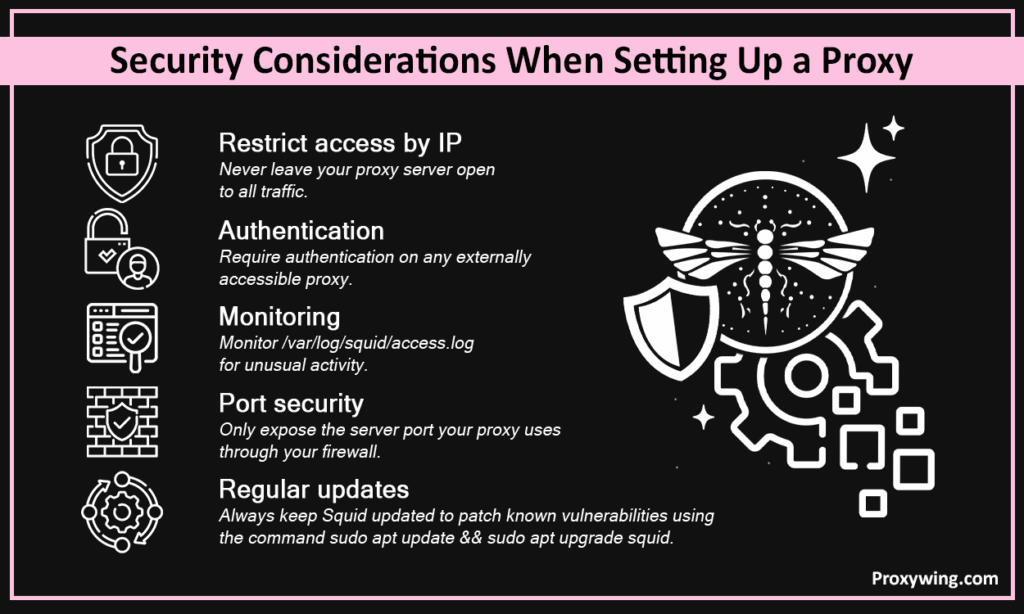
Enterprise proxy setups go beyond entering an IP and port on every device or browser like we earlier discussed. These large scale setups involve centralized servers, authentication policies, traffic logging, and scalability. When setting up a proxy server for your organization, it has to be set up in a way that supports multiple users simultaneously, enforces consistent access policies, and scales without manual setups on every endpoint.
Consumer setup means configuring a single device or browser. The steps shared earlier for Windows, macOS, browsers and Linux are all meant for consumer proxy setups. Enterprise deployment on the other hand covers centralized servers, team-wide authentication, policy enforcement, and audit logging.
You will need to work with your IT team or a managed proxy provider to design and maintain a deployment that meets your organization’s scale and security requirements.
Self-hosting works when you need full control and fixed internal routing to apply rules or monitor traffic on your local network. However, it doesn’t make sense if you need access to residential IPs, geo-targeting, or scale. In such cases, a managed provider is a much faster and cheaper solution. Managed providers usually have pools with millions of IP addresses, enabling more flexible and scalable proxy usage.
ProxyWing removes the overhead of running your own server. Plans start at $0.90/month, giving you instant access to residential, ISP, and datacenter proxies in 190+ countries.
Our proxies support popular protocols, including HTTP/S and SOCKS5 support, providing a wide range of use cases. We also support sticky and rotating sessions, and city-level targeting with no maintenance required, thanks to our automatic configurations with advanced IP addressing systems.
This comprehensive guide has covered the proxy setup process for the different platforms. For consumer setups, configure your proxies through device or browser settings. Deploying your own Squid server is a great solution for enterprise users that need full control. However, for residential IPs, geo-targeting, or scale without maintenance, a managed provider like ProxyWing is the simpler and recommended choice.
Article written by:

Head of Partnerships
Leads partnerships at Proxywing with hands-on knowledge of residential, ISP, datacenter, and mobile proxies. Works with affiliates, bloggers, and tech communities, bridging tech and partner needs.
All articles by author (23)Yes, you can. Any machine with a public IP and Squid installed can act as a proxy server. However, this requires more manual configurations than using mainstream providers.
Install Squid on Ubuntu, configure ACLs and authentication, then point your clients at the server’s IP and port.
Install Squid on a local machine, allow your subnet in the ACLs, then set that machine’s IP as the proxy on other devices.
Run a proxy server on a device connected to your Wi-Fi, then enter its local IP and port in the network settings of other devices on the same network.