




Best Proxies for OnlyFans in 2026
22.10.2026 12 min
If you care about privacy, one of the search engines you would love to use is DuckDuckGo. This search engine is considered the most private because it doesn’t track your searches, store your data, or build a personal profile to target you with ads. To further enhance your privacy while using DuckDuckGo, consider integrating residential proxies into your workflow as well.
Residential proxies route your traffic through IPs of real home devices, which makes your traffic seem like it is coming from these IPs and not your real one. A DuckDuckGo proxy also enables you to bypass geo-restrictions, allowing you to access this search engine in countries where it might be restricted.
In today’s guide, we will discuss how to use proxy with DuckDuckGo, including how to set it up, best use cases, common issues and their fixes, and more. Let’s jump right in!
It is a privacy-focused search engine that doesn’t track searches or build ad profiles. Its user base is currently around 80 million, making it one of the most popular Google alternatives.
Accessing this search engine with a proxy adds location control, multi-session support, and testing capability on top of that privacy layer. This can be important for the users that value these aspects.
The main difference between the two search engines mainly lies in how they handle user data. DuckDuckGo doesn’t personalize results based on browsing history since it doesn’t capture that data in the first place. On the other hand, Google’s entire business model is based around data collection since ads are their main source of revenue. Overall, Google captures way more user data than any other search engine.
This search engine uses your IP to serve local results and flag unusual traffic. Most users prefer having their search results tailored to their location for more relevance.
For instance, if you search for restaurants, it would be much better if they showed you options within your area and not those several miles away. Using remote residential IPs gives you the flexibility to view results as they would appear in any location of your choice.
Residential proxies route your traffic through IPs assigned to real home devices by ISPs. Traffic from these IPs looks like a regular user and not a server or bot. ISP-assigned IPs have a high trust score, which makes residential IPs the most effective for tasks that involve accessing strict platforms.
| Feature | Residential | Datacenter |
| IP trust level | High | Low |
| Detection risk | Lower | Higher |
| Speed | Moderate | Fast |
| Best for | Search access, SERP checks | Basic testing |
Static proxies maintain the same IP address, making them ideal for workflows that involve consistent browsing and repeated sessions. Rotating proxies on the other hand rotate IPs after a set period or per request, which makes them the better option for larger research tasks where fresh IPs reduce rate limit risks.
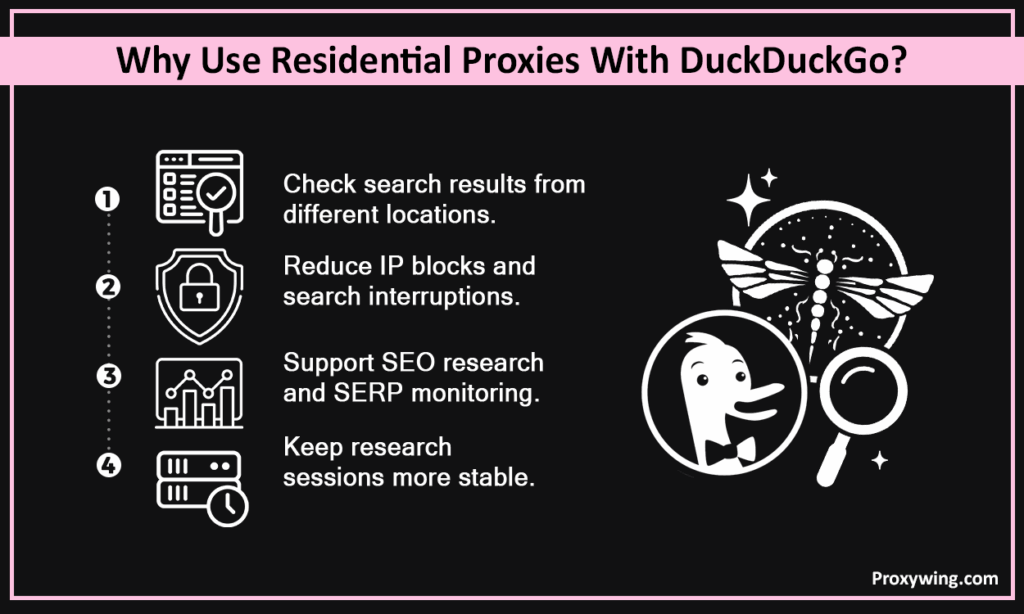
Some of the real world applications include:
Using a proxy enables you to route your traffic through a residential IP in the target country, allowing you to see exactly what local users see. This can be useful for SEO monitoring, ad verification, and regional audits. Businesses that target users in different locations will find this very useful.
Residential IPs carry higher trust than datacenter or public IPs, reducing rate limits during research sessions. When scraping data from this platform, distributing requests across different IP addresses makes your requests seem like they are coming from different users, lowering the chances of IP blocks.
Check rankings, snippets, and competitor visibility from specific regions without your real location skewing results. Businesses can view how their marketing campaigns and products are ranked by this search engine in different regions. This data can be used for further optimization to improve the performance of these campaigns.
A consistent residential IP reduces session interruptions and avoids the inconsistency of switching networks or using random proxies. Random IP changes will trigger security verifications on this search platform. You can overcome this by using static residential IPs.
Here are key steps to follow when choosing proxies for seamlessly accessing this search engine platform.
Pick a location matching your research target. Broad regional routing won’t deliver accurate local results. That’s why you need a provider that offers a large IP pool and more precise targeting in your preferred location for the best experience.
HTTP/HTTPS works for most browsers and extensions since it is geared towards handling web traffic. SOCKS5 is better for advanced tools and scripts needing protocol flexibility. SOCKS5 also handles UDP traffic that is sometimes used by certain applications.
Slow or overused proxies cause loading errors and inconsistent results. Choose a provider with documented uptime and refreshed IP pools. For the best performance and reliability, we recommend using dedicated IPs over shared ones — they cost more, but the overall performance improvements make the extra cost worth it.
ProxyWing offers clean residential IPs across 190+ countries with flexible location targeting and reliable uptime. Plans start at $1.0/GB. Our large pool of over 70 million IPs in different countries allows for more precise geo-targeting, which is useful for workflows like ad verification and SEO monitoring.
Install a trusted Chrome extension such as Proxywing Proxy Manager Extension from the Chrome Web Store. Before choosing what extension to use, consider its ratings and reviews to ensure you choose one with a good reputation.
Create a new profile in the extension and enter the server IP address, port, username, and password from your ProxyWing dashboard. Ensure to copy the correct details to avoid facing connecting issues down the road.
Activate the proxy profile, then open this search engine. Searches will now route through the residential IP. This allows you to view search results just like users in the location you chose.
Use an IP lookup tool like proxywing.com/ip-check to verify the IP and location before starting research. Make sure the IP displayed is different from the one that was shown before you connected the proxy.
Traffic routing configurations vary for different browsers:
Space out searches to keep activity looking natural. Despite their high trust scores, residential IPs can also still trigger rate limits under aggressive patterns. Configure your automation tools to send requests at a rate that mimics real humans.
Select a proxy in the exact country or city you’re researching for accurate local results. Ensure your provider offers IP addresses in your target location.
Sticky sessions hold the same IP for a set period, keeping sessions stable and reducing re-verification prompts. Random IP changes result in security triggers that will interrupt your sessions.
Rotate gradually for SEO monitoring or bulk collection. Rapid switching can look suspicious even with residential IPs, leading to IP blocks.
Free proxies are slow, flagged, and a privacy risk, which is the opposite of what a user of this search engine needs. They are also known for logging user data and selling it to data brokers, violating their user’s privacy.
Note: You can always turn the proxy on whenever you need to route your traffic through a remote IP address again. Even when disabled, the routing settings are saved and ready to be reused whenever you need to.
ProxyWing offers clean residential IPs across 190+ countries, city-level targeting, sticky and rotating sessions, and 99% uptime. HTTP/S and SOCKS5 are both supported. Plans start at $1.0/GB — lower than the industry average. Our support is also available 24/7 to assist you when setting up or using any of our services.
If you need a reliable traffic routing solution for your search engine traffic, residential proxies are the best solution. They rely on IPs assigned to real home devices by ISP. These IPs have a high trust score, which significantly increases their success rate on any platforms, including DuckDuckGo.
You also need to choose a provider that gives you access to a large pool of IPs to choose from, city-level targeting, and value for money through affordable pricing. We recommend staying away from free proxies as they are unreliable and often log sensitive user data.
Article written by:

Full Stack AI Engineer
Full-stack engineer at Proxywing working across backend architecture, performance optimization, and AI-driven workflows. Node.js, React, cloud infrastructure, and RAG pipelines.
All articles by author (62)Yes, it can. However, the chances of detection largely depends on the type. Clean residential IPs are much harder to detect than datacenter or public IPs.
No, they are not. They’re often slow since IPs are shared, unreliable, and compromise the privacy this search engine is built around.
Yes, they do. This search engine uses IP location to serve regional results, so a proxy in a different country returns different results. So, always make sure to choose an IP address in the region whose search results you intend to see.
Yes, you can. With proxies, you can check rankings and SERPs from specific locations without your real IP skewing the data.
Both can be used depending on the tasks at hand. Sticky IPs are ideal for consistent session-based research. Rotating IPs are good for larger workflows where fresh IPs reduce rate limit and IP blocks risks.