Proxy Authentication Methods Explained: Username/Password vs IP Whitelisting
06.10.2026 10 min
If you’re a fan of Travian and wish to play this game without restrictions, routing your traffic through a remote server is one of the ways to go about it. By using a proxy, you can route this game’s traffic, making your connection seem like it is coming from a different location. This allows you to get access to this game on networks and regions it is restricted to.
Besides bypass geo-restrictions, effective traffic routing also helps improve performance, especially if your ISP is currently implementing inefficient routing paths. Use proxy with Travian to enjoy all these benefits in addition to keeping your connection more private and anonymous.
In today’s guide, we will discuss how to set up a Travian proxy on all the major platforms, including Windows, macOS, iOS, and Android. So, without wasting any more of your time, let’s jump right in!
Yes, you can. Since this game runs in a browser, routing can be configured through a browser extension, system proxy settings, or mobile Wi-Fi settings and not inside the game itself. The set up process depends on your type of browser you are using and the operating system of your device. For most Chromium-base browsers, the setup process is done using an extension. Firefox has built-in routing capabilities, and for the rest, using system routing settings is the way to go.
Traffic routing gives players more control over their connection. By routing their traffic through a remote server, players achieve more privacy, stable connections, and also have the option to separate browser sessions. ProxyWing offers clean residential and ISP proxies for Travian that work well for browser-based gaming workflows. Let’s explore these use cases in detail:
A Travian proxy routes this game’s traffic through a different IP, keeping your real address out of the connection. The game servers will look at your traffic as though it is coming from a different IP address and location, providing a connection that is more private and anonymous.
If this game is blocked on school, office, or public Wi-Fi, a premium proxy can reroute traffic through an unrestricted connection. This makes it possible to access the game regardless of the network restriction.
There are a few countries where access to this game is restricted. If you’re in one of these regions, use an IP from one of the supported regions to access this game without any restrictions. Routing traffic also allows you to access region-specific features offered by this game.
They should only be used for private access and legitimate session management. Avoid any activity that violates this platform’s terms — including unregulated automation, multi-account abuse, or spam. Account bans apply regardless of the IP used. Following these best practices makes the user experience more seamless and stable.
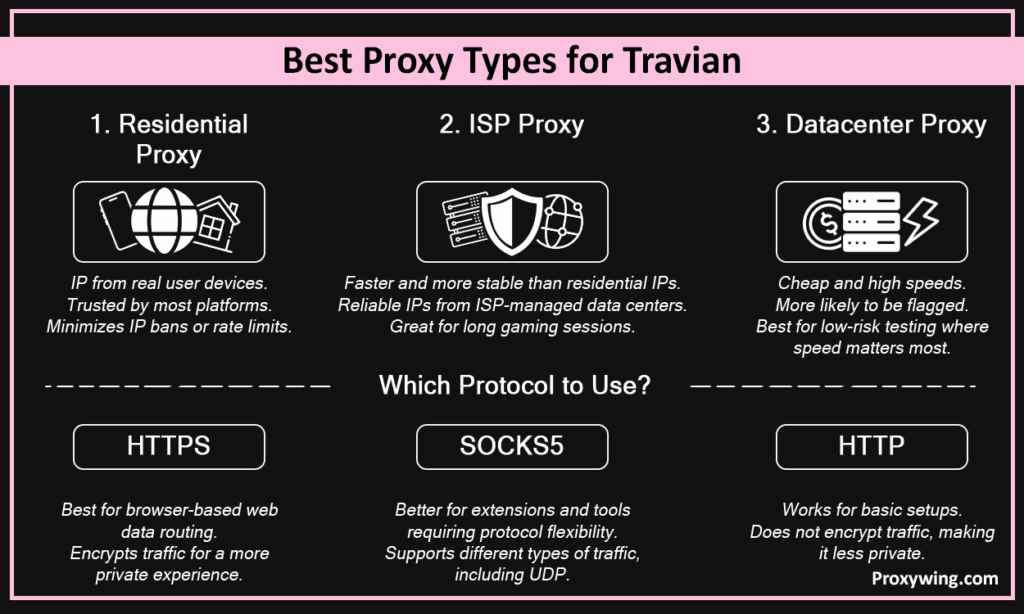
This type uses IPs assigned to real user devices, making them the safest-looking option for browser-based online gaming. These IPs are ISP-assigned hence trusted by most platforms, including this game. This minimizes the chances of IP bans or rate limits.
This type offers faster and more stable IPs than residential IPs. They rely on server IPs hosted in ISP-managed data centers. They are also more reliable than datacenter IPs since they use ISP-assigned IP addresses. IPs from ISP-managed datacenters are also an excellent choice for long gaming sessions that need a consistent IP.
Cheap and offer high speeds, but more likely to be flagged than residential or ISP IPs. This makes them only ideal for low-risk testing where having the fastest speeds is the most important metric.
Overall, HTTPS is the safest default for playing this game in most browsers. However, if you’re setting up routing on the system level, SOCKS5 is also the right solution if your Operating System supports it.
These two are the core details entered into any browser, system, or Wi-Fi routing configuration. Copy them exactly from your provider dashboard. Double check for any typos as these could result in internet connection errors.
Required for authenticated proxies. Enter these alongside the IP and port to authorize the connection if required.
Choose a location close to this game’s server for better connection speeds and fewer reliability issues. Remember to choose a country where this game is not restricted.
Install a proxy manager extension such as Proxywing Proxy Manager from the Chrome or Edge extension store.
Create a new profile in the extension and enter the server IP address, port number, protocol, username, and password.
Activate the profile before opening this game. Confirm the IP has changed using an IP lookup server like whatismyip.com.
Open the game with your routing settings active and confirm the game loads normally before starting your session.
On your Windows machine, go to Settings > Network & Internet > Proxy. This will load the traffic routing settings.
Under Manual proxy setup, toggle Use a proxy server on.
Paste the server IP address and port number exactly as provided in your dashboard. If authentication is required, Windows will prompt for the username and password the first time you try to connect to the internet using the above routing settings.
Save and restart your browser to implement the above traffic routing settings.
On your macOS device, go to System Settings > Network and select your active connection.
Click Details (or Advanced on older macOS versions) and open the Proxies tab. This allows you to input your traffic routing details.
Enable the relevant type and enter the server IP address, port, and credentials if required.
Save settings, reopen the browser, and confirm the game loads correctly when your configured routing settings are active.
Let’s explore the setup steps on Android and iOS respectively:
Standard traffic routing settings only apply to Wi-Fi. For mobile data, use a browser with built-in traffic routing capabilities or an app that routes traffic at the app level. There are a few Android OEMs that support mobile data routing — configured within the APN settings.
Visit an IP lookup server such as whatismyip.com in the same browser and confirm the visible IP matches that of the remote server you used during configuration.
Check that the map, village view, messages, and account pages all load without errors. If there are any slow downs, consider choosing IPs closer to the server. Using dedicated IPs over shared ones where every IP is shared with others also helps boost performance.
Watch for timeouts, slow loads, or disconnects. Browser-based online games need stable sessions to function properly.
| Problem | Likely Cause | Fix |
| Remote server not connecting | Wrong host, port, or protocol | Double-check all credentials |
| Game not loading | Game traffic being blocked | Switch protocol or try a different type or protocol |
| Slow page loads | Distant remote server | Switch to a closer location |
| Login keeps failing | IP mismatch or session conflict | Clear cookies and reconnect again |
| IP not changing | Remote server details not applied correctly | Verify extension or system settings are active |
The procedure depends on the platform you’re using:
Switch the active profile to Direct or disable the extension entirely and then restart your browser
Return to system routings settings (used in the setup process) and toggle off manual proxy configuration. Restart your browser to ensure no traffic is being routed through a remote server.
Return to Wi-Fi settings and set the proxy back to None or Off.
ProxyWing offers static and rotating residential and ISP proxy services across 190+ countries with clean IPs, stable uptime, and HTTPS and SOCKS5 support. This combination gives a perfect gaming experiences as it offers everything needed for reliable Travian browser sessions.
We also offer large IP pools (for creating more robust proxy lists) and city-level targeting that lets you match the location to your game server region. Plans start at $0.90/month.
Routing this game’s traffic is pretty straightforward if you know the setup process. As you may have noticed throughout this guide, the setup steps will vary based on the operating system of your device and the browser you choose to use. The easiest setup for routing this game’s traffic is through a browser extension — quick to configure and easy to switch on or off. This option is mainly supported by Chromium-based browsers.
System-level settings on Windows or macOS work better when you want all device traffic routed through the remote IP address. Mobile users should configure per Wi-Fi network — switching to a different network will require re-configuring the settings for that network as well. For mobile data routing, consider using a Travian proxy-enabled browser or a dedicated app designed for traffic routing.
Article written by:

Full Stack AI Engineer
Full-stack engineer at Proxywing working across backend architecture, performance optimization, and AI-driven workflows. Node.js, React, cloud infrastructure, and RAG pipelines.
All articles by author (61)