Proxy Authentication Methods Explained: Username/Password vs IP Whitelisting
06.10.2026 10 min
One of the most effective ways to improve privacy and anonymity when browsing the internet is by using a proxy. Using a proxy hides your IP address and location, making it hard for websites and other online services to track your browsing patterns unless you have an account with them. A Wi-Fi proxy server also makes it possible to access all content, such as Netflix shows, that may sometimes be restricted in certain regions.
If you’re keen to learn more about how Wi-Fi proxy servers work, this article is for you. In this detailed guide, we will explain how to configure a Wi-Fi proxy server, why you need to use it, the types of Wi-Fi proxies available, and more. So, without wasting any more time, let’s jump right in.
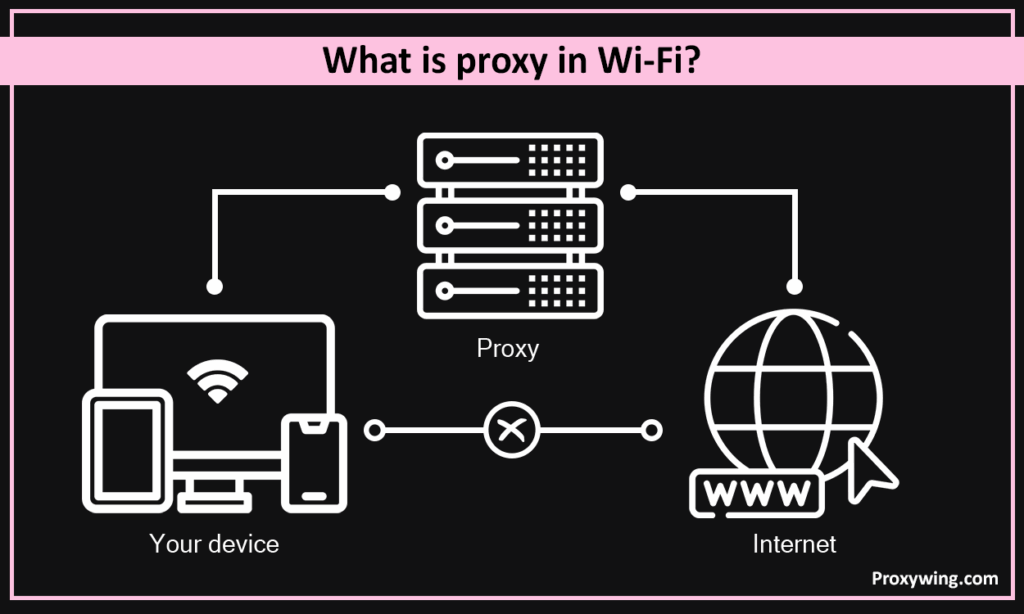
A proxy in WiFi networks is an intermediate server that sits in between your device and the internet. When using one, all the devices connected will first send web traffic to the proxy server that will then route it to the target website on your behalf. In the process, the device IP address and location are hidden from the target website, making the connection anonymous.
When using a proxy with public WiFi networks, your connection goes through these 4 major steps:
The primary reasons for using a proxy is to improve privacy and also bypass any geo-restrictions on the internet. Let’s explore them in detail:
Several platforms, including Netflix, Prime Video, and news websites show you content based on your region. By using a proxy, you can change your location to any region, allowing you to access or stream any content regardless of your location. Using our anonymous proxies makes it hard for these platforms to detect proxy usage.
They mask your IP address which in the process hides your location too. This makes it harder for websites to track your activity or build a profile based on your browsing habits. They also reduce the amount of data your WiFi network admins can view.
If a website or app blocks your device IP, you can maintain the connection by using a proxy. With a proxy, you can switch to another IP address, so the website won’t notice that it is the same device connecting to their servers. Proxies are even more useful when using tools for automation tasks like web scraping that often encounter IP bans. With a proxy, you can switch IP addresses to maintain connection every time one gets blocked.
There are several types that you can choose from based on your needs and budget. Some of the common ones include:
With this type, the proxy server IP address is shared among several users. This allows service providers to offer them at a significantly lower cost than dedicated proxies. However, this may come at the cost of getting slightly worse privacy, higher chances of IP bans, and occasional connectivity issues. This type is more ideal for less sensitive tasks like light browsing.
These are sometimes referred to as HTTPS proxies. They are designed to give you a secured connection by adding an encrypted layer between your device and the proxy server. With this encryption layer, even your network admin can’t see the data in your requests and responses. All they can see is the particular sites and online services you are using. This makes them ideal for accessing non-HTTPs websites.
This is similar to shared proxies in many ways. They are usually free to access and several users share the same IP address, which reduces privacy and can lead to connection issues, especially when using public networks. However, they help users get access to proxies at no cost. They are mainly ideal for less sensitive tasks.
These route your web requests through real residential devices, which makes websites trust them. Blocking access is less likely when using this type since it is hard for the online services you are using to detect proxy usage. This makes them ideal for secure browsing, accessing geo-blocked sites, and web scraping. Check out ProxyWing’s Residential Proxy.
It routes your requests through devices connected to mobile networks (4G or 5G) before forwarding them to the target online services. Since most websites trust mobile traffic, it is less common to experience IP bans with this type. You can use these proxy IP services to access blocked websites in your region or for mobile app geo-testing. Pricing for our mobile proxies.
These change the IP address of your request after a set time interval or after each request. They are commonly used for repeated tasks to bypass bans, captchas, and detection systems from blocking your access. Since your IP address is constantly changing, these proxies further make your connection more anonymous and private.
The steps to configure WiFi proxy vary based on the platform you are using. Let’s walk you the steps for Android, iOS, Windows, and macOS:
The easiest way to check if your proxy is working is to check your IP address using our tool, «IP Checker». Check before and after enabling the proxy and make sure the IP address displayed is different. If the IP address remains the same (before and after enabling the proxy), then there is some issue that you need to fix. In the next section, we explore some of the common proxy issues and how to resolve them.
Article written by:

Product & Support Operations Lead
Built Proxywing's support department from scratch — documented workflows, clear escalations, consistent quality. Now bridges the CEO and engineering, keeping infrastructure projects on track.
All articles by author (68)It means setting a proxy service to route your internet traffic through a proxy server before reaching the target online service. When you use a proxy with WiFi, your device IP address will be hidden from any website you access.
You can check your WiFi settings and look for any inputs under your device’s proxy settings. Use IP look up tool «IP Checker» to see if the IP address shown matches your current location.
You can find this address in the network settings of your device.
On Android or iOS, open your Wi-Fi network details and check the Proxy or HTTP Proxy section.
For Windows and macOS users, go to your device network settings and check the Proxy tab.
You set up your proxy with your device’s configuration settings for Wi-Fi networks:
On Android: Open Settings>Wi-Fi > Modify Network > Proxy and configure the proxy settings.
On iOS: Open Settings>Wi-Fi > Tap “i” icon > HTTP Proxy > Manual and configure the proxy setting.
On Windows: Go to Settings > Click Network Settings > Proxy > Manual setup and configure the proxy setting.
On macOS: Go to System Settings > Network > Wi-Fi > Click Details > Select Proxies tab > and configure the proxy settings.