Proxy Authentication Methods Explained: Username/Password vs IP Whitelisting
06.10.2026 10 min
A frequent problem that interrupts and interferes with the access of email accounts is the Gmail session expired error. It mostly occurs when a user session is rendered invalid because of security checks, browser problems, or unstable network conditions. This error is quite common, and many users may find themselves in it unknowingly when typing an email, opening attachments, or using an alternate device.
The present article describes what the error is, why it causes Gmail to reset the active logins, the impact on users, and the specific steps to fix and prevent the error. When you do not want to have frequent logouts and a stable Gmail environment, this tutorial will guide you through all the necessary information.
This section includes the most significant points of why the user session expired in Gmail that are discussed in the article. These takeaways allow readers to seek a rapid summary of the Gmail session expired issue.
It is imperative that one finds out what this Gmail user session expired error implies before using fixes.
The Gmail user session expired error is a problem that is caused by putting an ongoing session in the trash and forcing the user to re-log in. Gmail employs session tokens to identify users and to provide them with secure page access. On the expiration, corruption, or violation of security rules of these tokens, access is blocked temporarily.
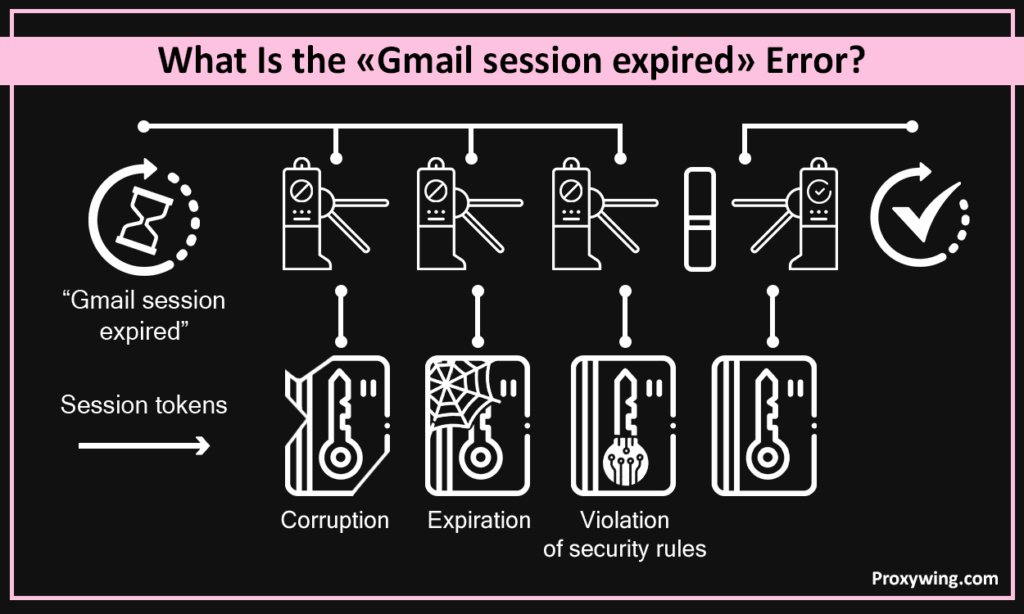
On the user side, this session may be initiated by prolonged inactivity, conflicts of browser data, IP change, or security update. An active session can be automatically reset to avoid unauthorized access and ensure the safety of sensitive information stored in the Gmail account.
The Gmail session expired error is not really a system failure, but a security response. The background knowledge of the gmail, browsers, networks, and authentication would enable users to have a stable session and avoid frequent disturbances. Minor changes in behavior and structure cause considerable variation in long-term accessibility.
There are various reasons why a Gmail user session expired and that is due to technical and security reasons. These reasons are normally associated with browsers, networks, devices, or account activity.
Browsers also save cookies and session information, which retain users in Gmail. Cookies are cleared, the authentication process is disrupted by extensions, or cache files are stale, and the active session expires.
Old browsers might not be capable of new authentication levels for sessions, leading to recurring messages about the expiry of user-authenticated access.
An active session is invalidated by unstable internet connections, by changing of IPs, using VPNs, or using public Wi-Fi. Google considers sudden changes in the network as one of its threats, which are solved by blocking the authenticated access and causing a logout.
New passwords, unusual logins, or Google security notifications automatically terminate the already existing session. This secures the Google account but may discontinue those who are not in use.
Unless the Google services are synchronized between the devices, there occurs conflicts in active session data. Synchronisation issues can still cause a Gmail user session expired error even without user intervention.
In cases where Gmail active logins are lost unexpectedly, the effect is not just a logout.
The users might lose their drafts without saving, or send messages with interruptions, or have problems with the devices syncing. Certain Gmail services will fail until re-authentication is done. The issue of frequent active session expiry can reduce the levels of productivity and cause frustration, particularly to those who may be using Gmail as a standard tool of communication in their day-to-day activities.
When the causes of why the user session expired are known, then specific solutions can be implemented to bring back normal access.
Destroying cookies gets rid of corrupted access state data. This will enable Gmail to start a new authenticated access, and the expired loop of user sessions will be overcome.
Check your internet connection and do not use those tools that rotate IP addresses. Maintaining the authenticated access duration and avoiding timeouts is made possible with the help of stable networks.
Newer browsers are more effective in the authentication of Gmail. Errors such as user session expired are usually solved by testing Gmail in a clean browser environment.
The passwords and security alerts need manual re-authentication. This makes sure that the identity of the user is authentic, and a valid active session is reinstated.
Turn off extensions that conflict with each other (AdBlock, Security Tools).
There are cookies or access token blockers. When they are disabled, they enable Gmail to store session information properly.
Log out and log in on mobile applications. Get rid of the old tokens so that you do not get the error of Gmail session expired again.
It is not sufficient to fix the issue once unless one changes their habits.
Periodic cleanup of cookies and frequent updates minimize threats of the active session timing out.
Stable behavior patterns make the use of Gmail not be considered suspicious and drop the active session.
Validated logins enhance trust in the authenticated access, as well as minimize forced expirations.
Stable networks that are secure maintain authentication tokens.
Access patterns can be stabilized with the help of dependable rotating proxies that will avoid unnecessary authenticated access expiration in frequent access.
Article written by:

Full Stack AI Engineer
Full-stack engineer at Proxywing working across backend architecture, performance optimization, and AI-driven workflows. Node.js, React, cloud infrastructure, and RAG pipelines.
All articles by author (61)The frequent authenticated access is timed out because of problems with browsers, changing IP addresses, or security updates.
Keep browsing patterns consistent, delete cookies, and keep browsers updated.
Yes. Rotating IPs tends to nullify authenticated access.
The active session duration is impacted by device-specific cookies and synchronization problems.
Not always. It typically means a security reset and not a compromise of an account.