Proxy Authentication Methods Explained: Username/Password vs IP Whitelisting
06.10.2026 10 min
If you need more freedom on the internet, using a proxy solution is one of the most reliable ways to achieve that. A proxy routes traffic through a remote server, replacing your device IP with the proxy’s in the process. This makes your traffic more anonymous, allowing you to bypass several restrictions. On macOS, ClashX is one of the most reliable proxy clients that you can use to connect to any proxy servers of your choice.
Through ClashX, users can define the rules of how they would love system traffic to be routed when leaving their device. Whether you’re routing traffic via the TCP or UDP protocol, this proxy client will help you achieve that. In this guide, we will discuss everything you need to know to effectively use ClashX on your Mac. Let’s dive right in!
ClashX offers two distinct ways to handle your traffic, and understanding the difference between the two is essential before changing any settings.
By design, macOS proxy settings only handle web traffic. When you enable ClashX as a system proxy, macOS routes all traffic through it by telling HTTP/HTTPS-aware applications to use the proxy address. That means your web browser and other applications that deal with web traffic will route it through the configured proxy.
This works fine for browsers and apps that respect system proxy settings. However, many applications, including games, VoIP clients, and DNS resolvers communicate over UDP. So, technically, the system doesn’t tell such apps to route the traffic through a proxy server even when it is configured in settings. They connect directly to the internet, completely bypassing ClashX.
TUN mode works at the network layer rather than the application layer. When enabled, this mode creates a virtual network interface on your Mac that intercepts all outgoing traffic regardless of protocol or application. Because it operates below the level where apps make their own connection decisions, it captures UDP packets that would otherwise slip through.
This is why TUN or Enhanced Mode is the correct setup path when your goal is full system-wide traffic routing. If you intend to route traffic coming from apps that are sending UDP traffic, enabling TUN mode in ClashX is the most effective way to do that.
Before you get started using ClashX on your Mac, here are some prerequisites that will make your experience better.
The Clash ecosystem has several builds, including ClashX, ClashX Pro, ClashX Meta, and others. Depending on the build you are using, TUN or Enhanced Mode may appear under different menu names. However, the underlying setup logic is the same across all of them. So, regardless of the build you choose to use, TUN mode (if available) will work in the same way.
Enabling TUN requires administrator approval. When you try to enable this mode in ClashX, macOS will prompt you to allow a network extension and may request your admin password or touch ID. Denying these prompts will prevent TUN from starting.
Enabling TUN alone is not enough. In addition to enabling TUN mode, you must also ensure your configuration file includes proxy nodes that explicitly support UDP relay. If your proxies do not support UDP, traffic will either fail or fall back to a direct connection. You may need to verify this with the proxy provider.
When using ClashX, there are several modes that you can enable depending on the type of traffic you’re dealing with and how you want it to be routed. This section discusses these modes in detail.
System Proxy mode routes HTTP(S) traffic from apps that honor macOS proxy settings. As shared previously, this is sufficient for browser-based traffic but does not capture UDP traffic. If the tasks you’re handling exclusively involve web traffic, then this mode is good enough.
TUN mode intercepts network traffic, covering both TCP and UDP across all applications. It is the correct mode to enable when you need complete system-wide routing. This mode handles more than just web traffic. When handling things like online gaming or VoIP that involve UDP traffic, TUN mode should be your choice.
Even with TUN enabled, how UDP traffic is routed depends on your selected mode. Rule mode routes traffic using the conditions you defined in the config file, meaning some UDP traffic may still go direct through default ISPs routes. Global mode sends all traffic through your proxy, which is the more viable choice when you need every UDP packet routed without exception.
In this section, we discuss the 7 simple steps you will go through to set up UDP traffic routing in ClashX.
Download the .dmg file from github.com/yichengchen/clashX/releases. Once the download is complete, Open the .dmg and drag ClashX into your Applications folder. Launch ClashX (from app drawer or the Applications folder in Finder) and approve any permission prompts macOS displays. A cat icon will appear in your menu bar confirming the app is running.
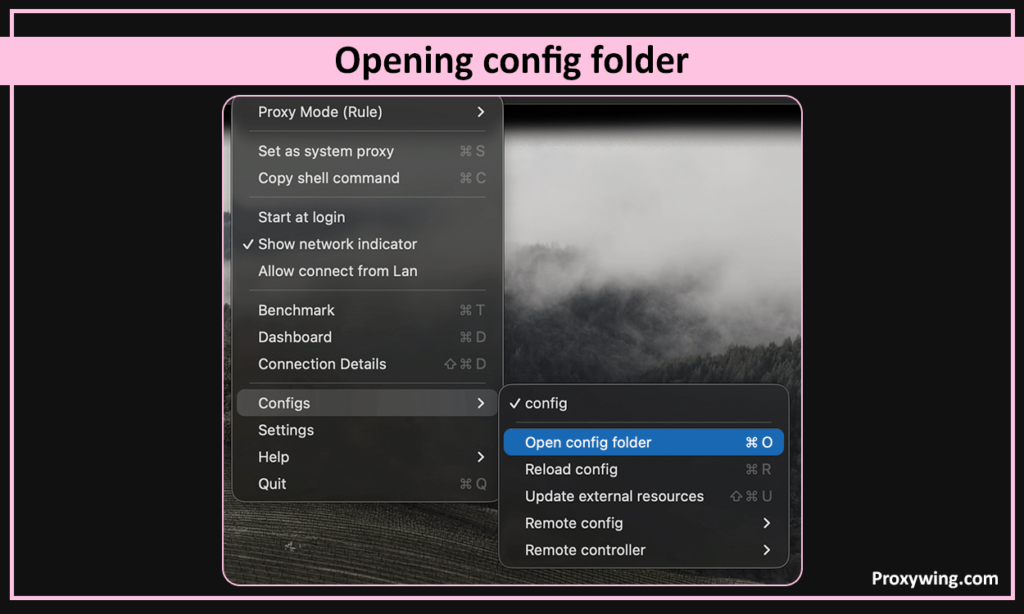
To import this configuration file, click the ClashX menu bar icon, select Configs → Open Config Folder, and open config.yaml in any text editor.
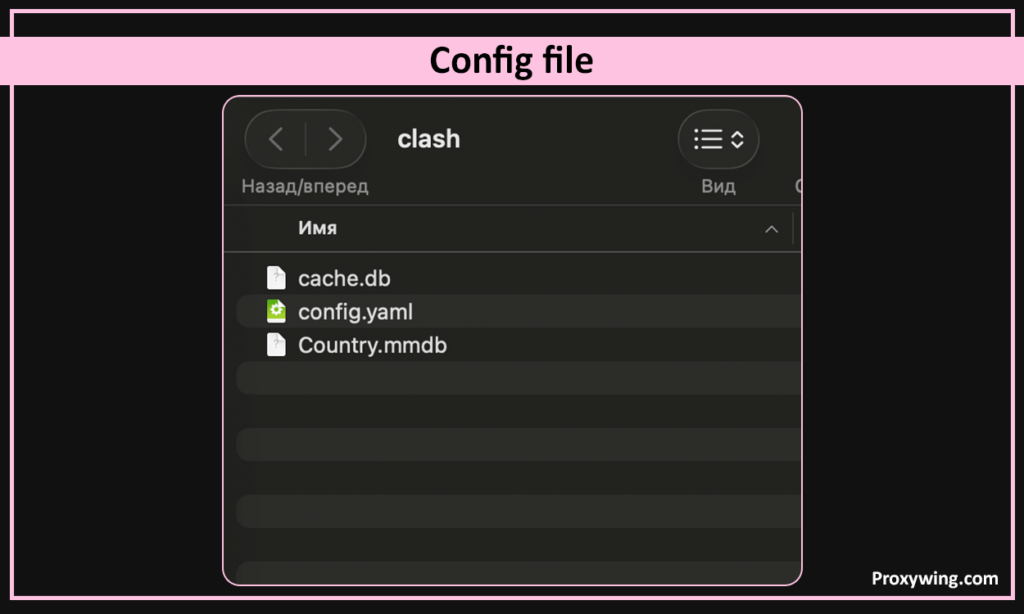
Below is a sample config file:
dns:
  enable: true
  enhanced-mode: fake-ip
  nameserver:
    -8.8.8.8
    -1.1.1.1
proxies:
  - name: "ProxyWing"
    type: socks5
    server: your-proxy-ip
    port: port
    username: login
    password: password
    udp: true
proxy-groups:
  - name: "Auto"
    type: select
    proxies:
      -ProxyWing
rules:
  -MATCH,Auto
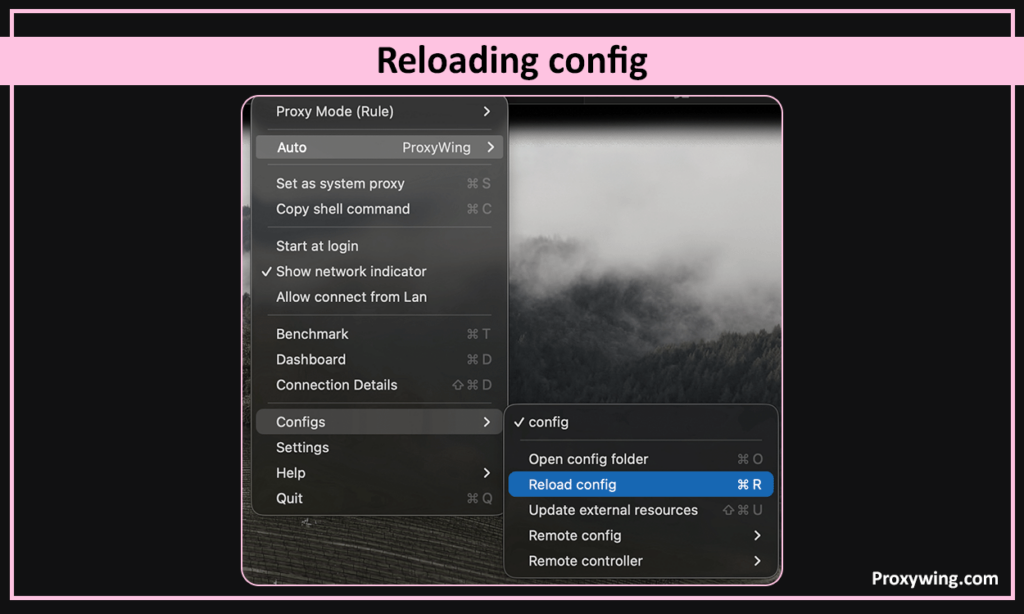
Replace the text in the file with your configuration, save the file, then click Configs → Reload Config. Confirm your nodes appear in the proxy menu before proceeding.
Your proxy node must have udp: true in the config (you can confirm this in the sample config file shared in the previous step). Without this, ClashX will only handle TCP traffic regardless of any other settings. After your config is loaded, select your UDP-capable node from the Proxies section in the ClashX menu.
Click the ClashX menu bar icon and enable Enhanced Mode. This activates a virtual network interface that captures network traffic, allowing ClashX to intercept UDP packets that the standard system proxy mode would miss. Please note that the Enhanced Mode feature is available in the ClashX Pro version. The standard ClashX version doesn’t include it.
macOS will display network extension prompts and could request your administrator password or fingerprint. Make sure you approve everything. If you dismiss these prompts, Enhanced Mode will appear active in the menu but will not function, which means UDP traffic will continue bypassing the proxy.
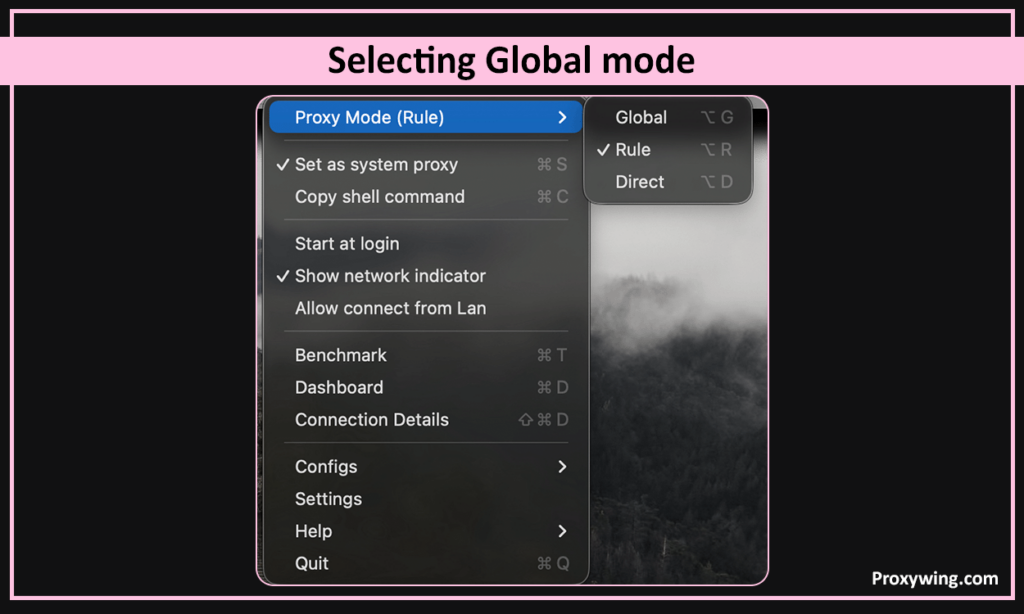
Select Global mode to force all traffic, including UDP, through the proxy without exception. You should only use Rule mode if you need selective routing and have reviewed your rules to ensure target traffic is not accidentally sent to DIRECT. Otherwise, you should always stick to the Global mode.
Visit Proxywing IP-check and confirm your proxy IP address is displayed instead of your device or local network IP. You can also open the ClashX Dashboard and check the Connections panel. Active UDP connections should appear alongside TCP if routing is working correctly.
Some ClashX builds require TUN declared explicitly in the YAML rather than just toggled in the UI. If Enhanced Mode behaves inconsistently, add a tun block with enable: true and stack: system to your config file.
Set enhanced-mode: fake-ip in your DNS block so domain resolution runs through Clash and now your system resolver. Without this, DNS queries can leak outside the proxy even when TUN is active.
Every node in your outbound chain must support UDP relay. If your provider’s server does not support it, traffic will fail or fall back to a direct connection, ignoring your ClashX settings. Check with your proxy provider to confirm that they support UDP relay.
If using Rule mode, check that no rule is accidentally sending target apps or destinations to DIRECT. A single mismatched rule can cause specific UDP traffic to bypass the proxy entirely, which defeats the purpose of this whole setup.
The table below shows some of the common problems you may encounter, their potential causes, and fixes for resolving them.
| Problem | Likely Cause | Fix |
| Real IP still shows | macOSnNetwork prompts denied during set up | Re-enable Enhanced Mode and approve all prompts. Enter your device password if prompted |
| UDP bypassing proxy | Rule sending traffic to DIRECT | Review and correct affected rules and make changes accordingly |
| Nodes not loading | YAML formatting error | Validate config.yaml indentation |
| DNS leaks detected | DNS not routed through Clash | Set enhanced-mode: fake-ip |
| Enhanced Mode not persisting | TUN not declared in YAML | Add explicit tun: enable: true block |
The choice you make entirely depends on the tasks you intend to use the proxy for. The standard System Proxy mode is more straightforward and sufficient if your needs are limited to browser traffic or apps that respect macOS proxy settings. So, for most of the tasks that happen in the web browser (besides streaming), this mode is good enough.
TUN becomes necessary if you’re handling apps that involve sending and receiving UDP traffic. These include games, VoIP clients, and other UDP-dependent services. If apps that involve UDP traffic need routing and have no built-in proxy support, TUN mode has to be enabled. If you are not sure, consider starting with System Proxy and Global mode, then move to Enhanced Mode only if you notice UDP traffic leaking.
Article written by:

Product & Support Operations Lead
Built Proxywing's support department from scratch — documented workflows, clear escalations, consistent quality. Now bridges the CEO and engineering, keeping infrastructure projects on track.
All articles by author (68)Yes, but only when Enhanced Mode (TUN) is enabled. Standard System Proxy mode handles TCP traffic only, so all your UDP traffic will connect directly to the internet without following your proxy settings.
System Proxy captures HTTP/HTTPS traffic from compatible apps. Enhanced Mode on the other hand intercepts all system network traffic, including UDP.
The most common causes are denied macOS network prompts, missing udp: true in the node config, or a rule sending traffic to DIRECT.
Most can, though menu labels vary across builds. ClashX Pro and Meta handle Enhanced Mode most reliably. The standard version of ClashX may not have the Enhanced Mode feature.
Yes. Your proxy server must explicitly support UDP relay, otherwise enabling TUN alone will not route UDP traffic successfully.