




Best Proxies for OnlyFans in 2026
22.10.2026 12 min
One of the most effective ways to get more freedom when browsing the web on your iPhone or Android device is by having the ability to change your location. By using proxies, your traffic is routed through a remote IP address, allowing you to bypass geo-restrictions and hide your real IP address to make your connection more anonymous and private.
The process to set proxy on mobile devices is pretty straightforward if you know what to do. In today’s guide, we will discuss in detail all the steps for setting up proxies on both iOS and Android devices.
We will also discuss some prerequisites you need before configuring proxies settings, common issues to be aware of and their fixes, plus some best practices you should follow for the best experience. So, without wasting any more of your time, let’s jump right in.
Setting proxies means routing your device’s internet traffic through a server before it reaches its destination. The process of setting up proxies on your mobile device involves inputting the remote server IP address and port into the proxies settings of your proffered WiFi network.
When it is active, your device sends requests to the remote server first, which then forwards them to the target site using a different IP address. That means the destination server will only see the remote server’s IP address and not your mobile device’s. This allows you to bypass any restrictions that depend on IP addresses.
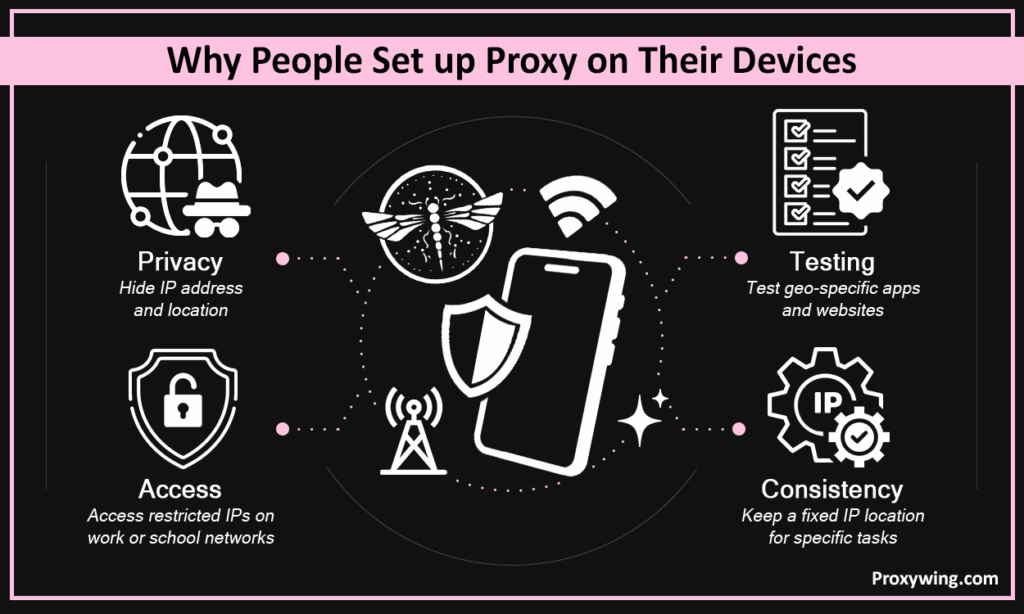
Common reasons include:
Have the following ready before starting:
You’ll need the server IP address and port number. ProxyWing provides both instantly after signup, with plans starting at $0.90/month for our datacenter proxies. Our coverage also includes 70M+ IPs across 190+ countries, enabling more flexibility for our customers.
Some proxies use credential-based authentication. For such proxies, ensure to have your username and password ready before opening your phone’s Wi-Fi settings.
Most built-in phone proxies settings only apply to Wi-Fi on both mobile platforms. Routing cellular data requires a third-party app or VPN-based solution. However, some Android devices support cellular data routing in their APN settings. This support also depends on the carrier.
On your Android device go to Settings > Wi-Fi and long-press your device connected network. You should then tap Modify Network, expand Advanced Options, and set the proxy mode to Manual. This allows you to input the server details acquired from your provider.
Enter the server details, including the hostname in the hostname field and the port in the port field. Add credentials (username and password) if required. Credentials are not required if you are using IP whitelisting.
Tap Save to implement the above configurations. Visit an IP checker like whatismyip.com to confirm your traffic is routing through the remote server’s IP and not your real device IP address.
On iOS and iPadOS devices, go to Settings > Wi-Fi and tap the ⓘ next to your network. Scroll
down to the HTTP Proxy section.
Switch from Off to Manual to enable the option to input your server details. You should then enter your server details, including the IP address and port. Toggle Authentication on if credentials are required.
To use the auto proxy option, select Automatic instead and enter the PAC URL supplied by your provider. This is useful when your provider manages server selection automatically. It is also the recommended method if you need automated IP rotation.
Built-in proxies settings on both platforms are tied to individual Wi-Fi networks. Cellular data connections have no equivalent native remote server routing field in standard phone settings. There are only a few devices and carriers that allow routing data on cellular networks. This option only works within the APN settings of a few OEMs and specific carriers.
To route cellular traffic, you’ll need a third-party app like Drony on Android or a VPN-based solution. This applies to all devices that don’t include routing configuration options under their APN settings.
Connection issues are mainly caused by a wrong server address, incorrect port, or inactive remote server routing. Before typing the server details, always remember to double-check the details with your provider. Also carefully look for any minor errors — even a small full-stop or comma in the IP address will cause connection issues.
Many apps manage their own network connections and ignore system proxies settings. These require using in-app configuration or a proxies manager to route their traffic.
These errors are often caused by incorrect credentials or an unsupported authentication method. Re-enter your usernames and passwords carefully and confirm the format your remote server routing service requires. We also recommend using IP whitelisting if your use case doesn’t specifically require using a username and password.
The connection speeds you will experience depend on IP quality, server load, physical distance to the server, and protocol. Switch to a closer server or a faster type if speeds are poor. Also consider switching to proxies with dedicated IP as they tend to offer better performance than shared ones.
Go to Settings > Wi-Fi, long-press the network, tap Modify Network, open Advanced Options, and switch the proxy mode back to None. The server details are maintained, so users can always enable routing if you need to.
Go to Settings > Wi-Fi, tap the ⓘ next to your network, scroll to HTTP Proxy, and switch it back to Off. Just like on Android, your server details will be maintained and ready for reuse if you ever need to.
Proxies and VPNs all route your network traffic through remote servers. However, they’re intended for different user cases.
It works well for tasks executed within web browsers such as testing geo-specific content, or routing traffic through a specific IP without needing full device encryption. Proxies are also ideal when you need more control on what IP address to use and when you need access to a large pool of IPs for rotation.
A VPN is better when you need device-wide encryption, want all apps covered, or require consistent protection across both Wi-Fi and cellular data. However, VPNs don’t give you the flexibility for IP choice and rotation, making them less ideal for certain tasks.
Safety depends on the quality and trustworthiness of the provider you use.
Using free or unknown proxies is not safe. These usually log your traffic, inject ads, or sell your data to data brokers to generate revenue. We recommend staying away from services that lack clear ownership or documentation.
As stated earlier, there are apps that bypass system network settings entirely. Test your target apps after proxy setup to confirm traffic is actually routing through the remote server IP address. For apps bypassing these settings, you may need to set up the IP configuration within the app’s network settings or use a tool like Proxifier or Drony to force traffic through the remote server at the system level.
Confirm whether your proxy is HTTP, HTTPS, or SOCKS5 before proxy setup. Entering the wrong protocol type is a common cause of failed Wi-Fi connections. For most use cases, SOCKS5 is usually the best option since it is designed to handle different kinds of traffic.
Visit an IP checker immediately after the setup to confirm that traffic routing is active and displaying the correct location. If everything was configured properly, the IP found should be that of the remote server you configured earlier.
Article written by:

Full Stack AI Engineer
Full-stack engineer at Proxywing working across backend architecture, performance optimization, and AI-driven workflows. Node.js, React, cloud infrastructure, and RAG pipelines.
All articles by author (62)On Android, go to Wi-Fi advanced settings and switch proxy mode to Manual. On iPhone, tap the ⓘ next to your network and configure the HTTP Proxy section. You should then input the details acquired from your provider.
For most devices, routing cellular data does not work with standard phone settings. Routing cellular data requires a third-party app or VPN-based tool. However, there are some Android devices on specific carriers that support this cellular data routing.
On Google’s mobile OS, go to Wi-Fi advanced settings for your network. On iPhone go to Wi-Fi network details under HTTP Proxy.
Most common causes are a wrong server address, incorrect port, expired credentials, or a protocol mismatch.
It depends on the use case. Proxies are lighter and better for tasks that need more granular IP control. VPNs offer broader coverage and encryption across all apps and connections. But if you need more IP address flexibility, proxies are the better choice.