Proxy Authentication Methods Explained: Username/Password vs IP Whitelisting
06.10.2026 10 min
A large number of browsers we use are built on the Chromium engine. To configure proxies on such browsers, you can read our article about Google Chrome, Edge, Yandex, Brave, Opera. The Firefox browser is built on a different engine, which allows you to set up proxies directly in the settings. We will provide a detailed guide on how to set up proxies in this browser.
Accessing browser settings
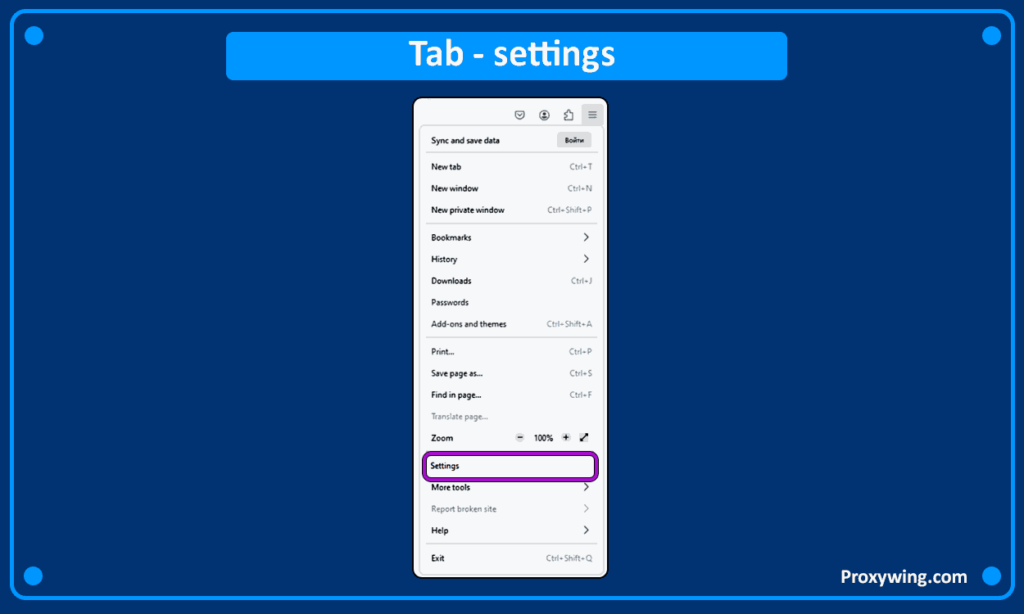
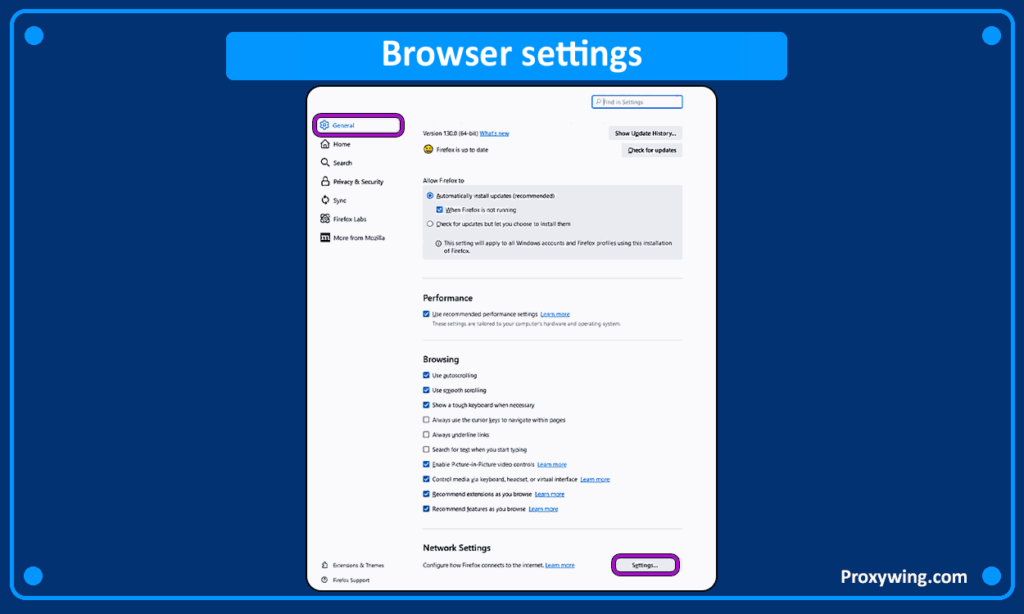
In the browser’s settings, go to the «General» tab. At the bottom of the page, you can find the «Network Settings» section; click the «Settings» button.
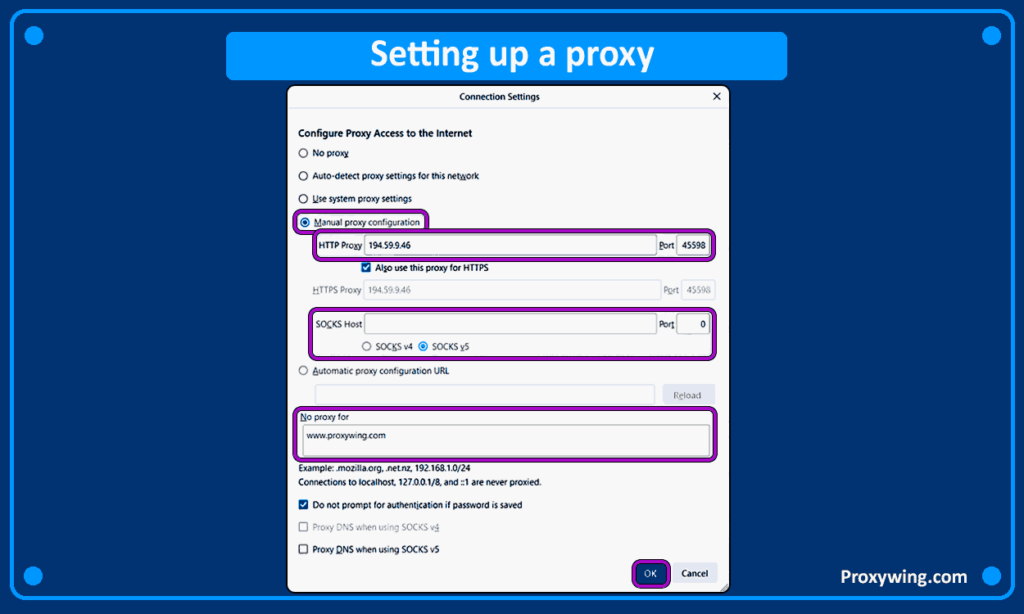
Select the «Manual proxy configuration» option, then enter your proxy details according to the protocol. Firefox supports HTTP, SOCKS, and HTTPS proxies. Enter the IP address and port of the proxy next to the corresponding protocol. If you do not want to use the proxy for certain websites, you can list them in the «No proxy for» section. Once you have finished configuring the proxy, click «ok».
Firefox lets you enter a separate address for each protocol, so it helps to know the difference before you fill in the fields.
HTTP and HTTPS proxies work at the level of web requests. They are the right choice for regular browsing, working with websites, and routing normal page traffic through the proxy.
SOCKS proxies work at a lower level and pass any type of traffic, not only web pages. Choose SOCKS if you need the proxy to handle connections beyond standard browsing. If you use a SOCKS5 proxy, you can also enable «Proxy DNS when using SOCKS v5» so that domain names are resolved through the proxy as well.
If you are not sure which one to use, enter the same proxy details next to HTTP and tick the option to use this proxy for all protocols.
You do not have to route every website through the proxy. The «No proxy for» field controls which addresses Firefox should always open with a direct connection, bypassing the proxy.
Enter the domains you want to exclude, one per line or separated by commas, for example example.com, internal.local. Firefox will use the proxy for every other site and connect directly to the ones listed here.
This is useful when you only need the proxy for a few resources, or when local and internal addresses should never go through it. There is no separate «only for these sites» list in Firefox: you set the proxy globally and use «No proxy for» to carve out the exceptions.
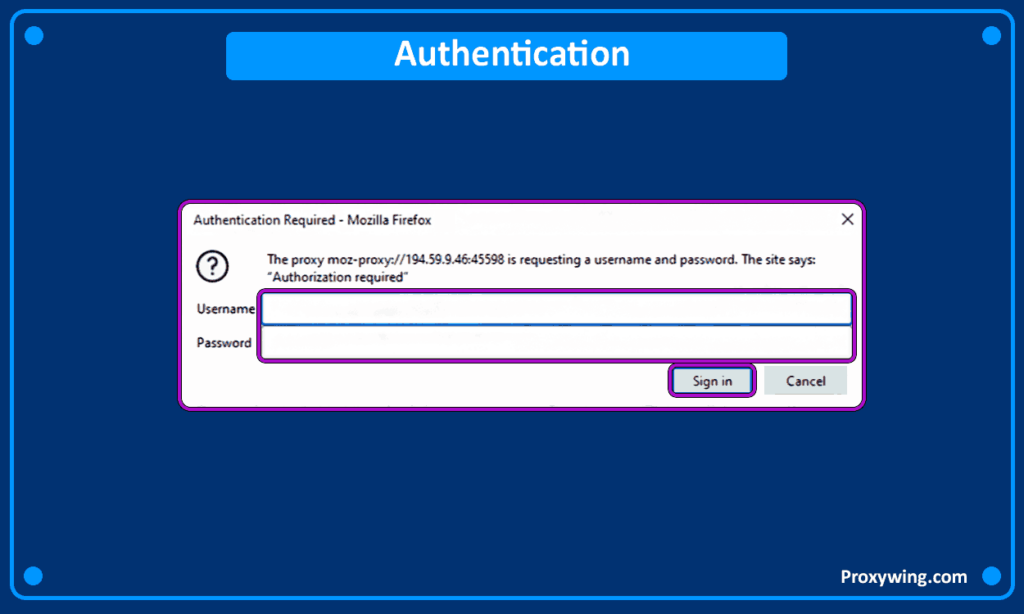
When accessing any website, if you are using private proxies that require authentication, a window will appear prompting you to enter a «Username» and «Password». To check the functionality of your proxy, you can use our IP Checker tool.
After entering your proxy, open any website and then check your connection with our IP Checker. If the tool shows the proxy’s IP address instead of your own, the proxy is working. If it still shows your real IP, re-open «Network Settings» and confirm that «Manual proxy configuration» is selected and the IP and port are correct.
You may find free public proxy servers, but using them does not ensure security. On the contrary, such proxies can threaten your privacy. A significant drawback is that these proxies are often used by multiple users simultaneously, leading them to be blacklisted and potentially causing your social media accounts to be blocked.
Firefox for Android does not have the same «Network Settings» screen as the desktop version, so the proxy is configured through the browser’s advanced settings.
In the address bar, type about:config and confirm the warning. In the search box, find and edit the following entries:
network.proxy.type to 1 (this enables manual proxy configuration).network.proxy.http to your proxy IP and network.proxy.http_port to the port.network.proxy.ssl and network.proxy.ssl_port. For a SOCKS proxy, set network.proxy.socks and network.proxy.socks_port.network.proxy.share_proxy_settings to true.Restart the browser to apply the changes. If your proxy requires authentication, Firefox will ask for a «Username» and «Password» the first time you open a site, just like on desktop.
For an easier setup without editing config values, you can manage proxies directly with our Firefox proxy add-on.
To switch proxies, open «Network Settings» again, keep «Manual proxy configuration» selected, and replace the IP address and port with the new ones.
To stop using a proxy, open the same screen and select «No proxy» to connect directly, or «Use system proxy settings» to follow your operating system. On Android, set network.proxy.type back to 0 in about:config to disable it.
At Proxywing, we understand the need for security and anonymity! It is important to us that every client is satisfied. We offer proxy servers at competitive prices suitable for both personal use and business needs. All our proxies are compatible with browsers, and importantly, all our proxies are private, no one else will use them except you.
Sing up today and experience the quality of our services!
Article written by:

Product & Support Operations Lead
Built Proxywing's support department from scratch — documented workflows, clear escalations, consistent quality. Now bridges the CEO and engineering, keeping infrastructure projects on track.
All articles by author (68)Open the browser settings, go to the «General» tab, scroll to «Network Settings» and click «Settings». Select «Manual proxy configuration» and enter the IP address and port for the HTTP, HTTPS, or SOCKS protocol.
Firefox applies the proxy to all sites, but you can list the addresses that should bypass it in the «No proxy for» field. Every other site keeps using the proxy.
On Android, open `about:config`, set `network.proxy.type` to `1`, then enter the proxy IP and port in the matching fields and restart the browser.
Some Firefox versions and add-ons request permission before they can control proxy settings. Grant the permission, or configure the proxy manually through «Network Settings» instead.
An HTTP proxy handles web traffic and is enough for normal browsing. A SOCKS proxy works at a lower level and can route other types of connections as well.
Open Proxywing’s IP Checker after setting the proxy. If it shows the proxy’s IP instead of yours, the proxy is active.