Proxy Authentication Methods Explained: Username/Password vs IP Whitelisting
06.10.2026 10 min
Over the last couple of years, Discord has become the centralized infrastructure for digital communities and one of the most popular social platforms on the internet. Features like Discord bots are among the major contributors to the platform’s success. However, like most online services, Discord has several restrictions that may affect your experience based on factors like your location.
To ensure a restriction-free Discord experience, using a Discord proxy is the way to go. With a web proxy, you can use the platform without revealing your IP address, making your connection more anonymous and private.
In this guide, we will discuss how to set up and use these proxies on all platforms, including Windows, macOS, and Android devices. So, without wasting any more of your time, let’s get started with this detailed guide.
A Discord proxy is an intermediary server that sits between your device and Discord’s servers. Instead of connecting directly, your traffic is routed through the proxy, so Discord sees the proxy’s IP address instead of your real one. That is what lets you hide your location, get around network blocks, and run more than one account without them being linked.
Discord has no built-in proxy option inside the app, which is why a lot of people searching for “Discord proxy settings” can never find one. You set the proxy at the system or browser level, and the Discord app picks it up from there. We cover the exact steps for each platform further down.
There are a few proxy types that work with Discord (SOCKS5, HTTPS, residential, ISP, and datacenter, and the right one depends on whether you mainly text chat or rely on voice and video calls. We break those down in the next section.
Both route your traffic through another server, and for simply getting Discord to load either will do. The difference shows up as soon as you want something more specific.
| Proxy | VPN | |
|---|---|---|
| What it covers | The app or browser you point at it | Everything on the device |
| Multiple accounts | One IP per account, kept separate | One IP for everything at once |
| Voice quality | SOCKS5 with UDP keeps latency low | Encryption adds overhead |
| Cost per IP | From under a dollar | Per subscription, not per IP |
| Best for | Account separation, precise control, bots | Blanket privacy on one device |
If your goal is to unblock Discord on one machine and nothing else, a VPN is simpler. If you run more than one account, need voice to stay clean, or want the rest of your traffic untouched, a proxy is the better fit, and it is the only one of the two that gives you a different IP per account.
The short answer is that there are none. Open Discord, go to User Settings, and you will not find a proxy field anywhere, not under Voice & Video, not under Advanced, not under Appearance. This is the dead end almost everyone hits, and it is worth knowing before you spend twenty minutes going through menus.
Discord reads its connection from the layer underneath it instead:
So configuring Discord proxy settings always means configuring them somewhere else and letting Discord inherit them. The methods further down are grouped exactly that way.
Country-level blocks are why a large share of people end up looking for a proxy in the first place. Discord has been restricted nationally in China, Iran, North Korea, the UAE, Oman, Egypt and Russia. The stated reasons usually fall into one of two buckets: VoIP calls competing with state telecom revenue, or communities that are difficult to monitor. Enforcement shifts over time, and in most of these countries the block is applied by local ISPs rather than by Discord.
Two things follow from that:
School and office blocks work differently and are covered further down.
Based on how this platform is built, it requires using proxies with protocols that can handle both text and high-speed voice/video data. Let’s explore some of the proxy protocol types to help you choose the best option based on your needs.
These proxies can handle UDP traffic, which is what the platform uses for voice and video calls to ensure fast and stable connections. Using proxies with this protocol ensures your calls (video and audio) don’t drop and your stream stays stable.
For the best performance, ProxyWing’s Discord proxies with dedicated IPs are needed for lag-free communication. They are available in all the major categories, including residential proxy, ISP proxy, and datacenter proxy solutions.
HTTPS proxies are a good option if you are accessing the platform through a web browser. Using HTTP proxies, allows users to bypass simple web filters, but they may struggle with the Discord desktop app’s voice features.
There are quite a number of websites on the internet that advertise free proxies. However, we recommend staying away from them for a few reasons:
Picking the protocol is only half the decision. The other half is the IP type, and each one behaves differently with Discord:
| IP type | Best for | Trade-off |
| Residential | Unblocking Discord on strict school, office, or country networks | Slightly higher latency than datacenter |
| ISP | Voice and video calls that need a stable, long-lived IP | Costs more than datacenter |
| Datacenter | Fast text chat and bots on a budget | Easier for networks to detect and block |
| Mobile | The hardest networks to get past, and mobile-only use cases | Usually the most expensive option |
A quick note before we start: there are no Discord proxy settings inside the app itself. Unlike a browser, Discord gives you no proxy field in its options menu. The desktop and mobile apps read the proxy from your system network settings, while the web version uses your browser’s proxy or a proxy extension.
The process for setting up proxies will vary depending on your platform. This section discusses how to set it up on different platforms:
If you use the web version of the app, browser-based setups are the fastest.
Download a reputable extension such as ProxyWing Proxy Manager into your Browser.
After installation, open the extension settings and input your ProxyWing IP address, Port, and your Username/Password. Most of the proxy extensions make this process pretty straightforward.
Switch the extension to your new profile and visit a site like whoer.net to confirm your IP has changed before opening Discord. ProxyWing offers fast IPs for different locations, so you can always switch to one that suits your location of choice.
If you’re using a Windows device, you will need to input the proxy details in the network settings since the desktop app typically inherits the settings from your system. Follow these steps:
On your Windows device go to Settings > Network & Internet > Proxy. Make sure you choose a network for which you need to set up the Discord proxy for.
Under the proxy settings, toggle “Use a proxy server” to On. You should then enter the proxy details, including IP address and Port. You should also enter your Username/Password if that’s an option you choose to use.
After setting up the Discord proxy settings, completely close the app from the System Tray and restart it to apply the new network path. This will ensure it reconnects through the Discord proxy.
Just like Windows, the Discord app on the Mac uses your system’s network settings. Follow these steps to set proxy for Discord:
Note for those using mobile devices: The option to set proxy for Discord when using mobile networks is available on Android. However, it is not available for iOS and desktop apps.
The Discord desktop app on Linux picks up the desktop environment’s proxy on most distributions and falls back to environment variables everywhere else.
export ALL_PROXY=socks5://user:pass@ip:port, then start discord from the same shell. Flatpak builds do not inherit shell variables, so use the desktop setting for those.Close Discord fully before testing. On Linux the tray icon keeps the process alive the same way it does on Windows, and a half-closed app will keep the old connection.
A lot of people searching for a Discord web proxy have something specific in mind: a proxy site where you paste discord.com into a box and the page opens inside it. Those sites exist, and with Discord they almost never work.
The reason is technical rather than political. Discord’s web client holds a live WebSocket connection open for messages and presence, then opens separate UDP streams for voice. Free proxy sites rewrite plain HTML pages — they do not carry WebSocket traffic, and they carry no UDP at all. You usually get as far as the login screen, then the app sits on “Connecting” indefinitely.
What does work in a browser is a real proxy applied to the browser itself:
Voice is the one limit worth knowing about. Browser voice chat runs over WebRTC, and an HTTP or HTTPS proxy will not carry it. If you need to talk rather than type, use a SOCKS5 proxy with UDP support and check the Connection Info panel inside a voice channel to confirm the route.
The same applies to lists of free Discord proxy sites. Those IPs are public, Discord’s abuse systems have seen them thousands of times already, and most are flagged before you finish pasting them in.
After setting your Discord proxy servers, you need to verify that it works as expected. To confirm your proxy is active, visit an IP checker like whoer.net or ip2location.com before and after enabling the proxy. The goal is to confirm whether the IP changes.
If the IP address and location change to match your proxy credentials, your connection is successfully routed. You should also check Discord’s “Connection Info” in a voice channel. A “Green” status with the new location indicates it’s working for voice traffic as well.
If the location remains the same, you need to revise the configuration process to ensure you entered the correct details and that proxy usage is enabled in settings.
School and office networks are the most common reason people look for a Discord proxy. Admins often block Discord at the firewall or DNS level, so the app simply won’t connect on the local Wi-Fi.
A proxy gets around this because your traffic leaves the network looking like an ordinary request to the proxy server, not a connection to Discord. Here is the approach that works most reliably:
One thing to keep in mind: bypassing a network block may go against your school or workplace acceptable-use policy. Using a proxy is legal, but check the rules you have agreed to before relying on one.
Two situations come up often enough to be worth calling out:
And the obvious caveat: getting around a network block may go against the acceptable-use policy you agreed to when you got the account. Using a proxy is legal; breaking a policy you signed is a separate question.
If you no longer need the Discord proxy, you must revert your settings to avoid routing your traffic through proxy servers. Here is how.
Open your proxy extension (like FoxyProxy) and select “Disable” or “Direct.” The verbiage may vary depending on the proxy extension you are using. You may even uninstall the extension entirely if you don’t intend to use it again.
Go to Settings > Network & Internet > Proxy. Under “Manual proxy setup,” toggle the “Use a proxy server” switch to Off.
Launch your System Settings (System Preferences on older Macs) > Network and click Details on your active connection. You should then select the proxies tab, and uncheck all active proxy protocols.
Go to Wi-Fi Settings, long-press your network name, select Modify Network. You should then change the Proxy setting from “Manual” back to None.
Launch Settings on your iOS devices and go to Wi-Fi then tap the (i) next to your network of choice. Scroll to Configure Proxy, and select Off.
For all the platforms, turning off proxy usage will still maintain the Discord proxy settings, but your traffic will no longer be routed. So, you can always turn them back on in future if you need to use similar settings.
%AppData%\discord\Cache, and relaunch.Most people arrive at this decision with one of four goals, and the right proxy is different for each one.
| Your goal | What to use | Starting price | Why this one |
|---|---|---|---|
| Unblock Discord on a school or office network | Residential or ISP, SOCKS5 | from $1.00/GB | Datacenter ranges are the first thing network filters block |
| Voice and video with no drops | ISP, SOCKS5 with UDP | from $1.70/month | Residential trust with datacenter routing on a static IP |
| Running several accounts | One dedicated ISP or fresh IP per account | from $1.70/month each | Shared IPs are what links accounts together |
| Text chat and bots on a budget | Datacenter, SOCKS5 | from $0.90/month | Cheapest option, fine while the network is not filtering |
| The strictest networks | Mobile 4G/5G | from $4.00/day | Carrier IPs are the hardest to filter, and the most expensive |
Whichever provider you end up with, four things are worth checking before you pay:
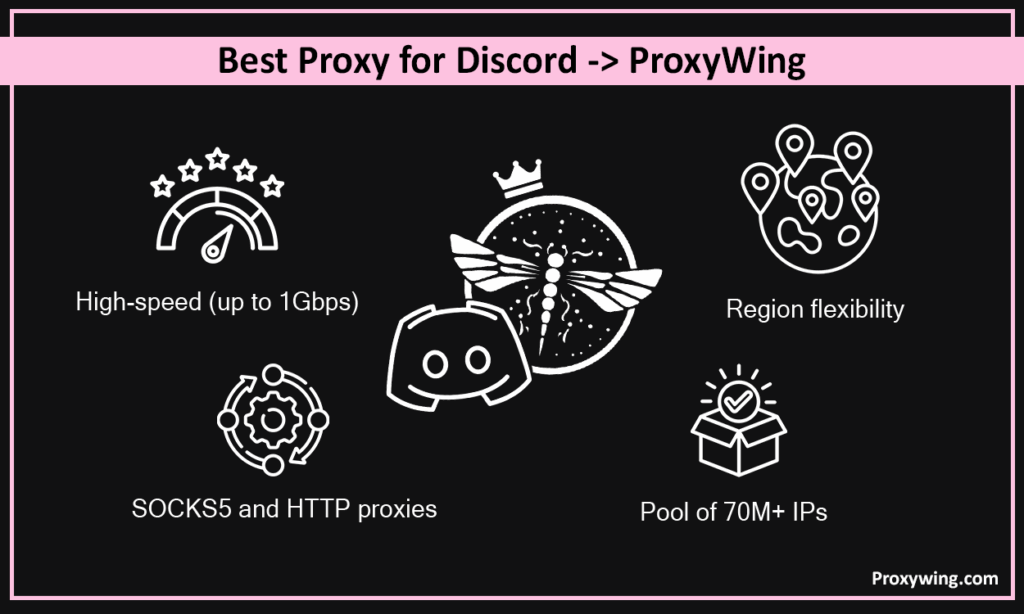
For a seamless and ban-proof experience, ProxyWing provides high-speed (up to 1Gbps) SOCKS5 and HTTP proxies. We have a pool of 70M+ IPs and 99.9% uptime, providing region flexibility. These include both static and rotating residential IPs as well as datacenter IPs.
There are plenty of proxy sites that claim to work with Discord, but most aren’t built for the voice and video traffic the platform relies on. Before you pick a provider, check that it ticks these boxes:
Article written by:

Product & Support Operations Lead
Built Proxywing's support department from scratch — documented workflows, clear escalations, consistent quality. Now bridges the CEO and engineering, keeping infrastructure projects on track.
All articles by author (68)Yes, it allows them for privacy and stability. However, they do not offer native in-app settings, so you must configure them at the system or browser level.
Most likely, your Discord proxy is an HTTP-only type trying to handle voice (UDP) traffic, or the IP address is already flagged for suspicious activity.
Generally, a proxy adds a “hop” which can increase ping. However, if your ISP is throttling Discord or has poor routing, a high-quality ISP or residential proxy can actually stabilize and improve your connection.
Yes. By assigning a unique proxy to each account (using browser profiles or anti-detect browsers), you can manage multiple identities without Discord flagging them as “linked” or “automated.”
You can, but it is not worth it. Free public proxies are shared by thousands of people, so the IPs are usually slow and already blacklisted by Discord. They also come with no real privacy guarantee, since the operator can log or sell your traffic. For anything beyond a quick test, a paid residential or ISP proxy is the safer choice.
A SOCKS5 proxy on a residential or ISP IP. SOCKS5 is the only common protocol that carries the UDP traffic Discord uses for voice and video, and a residential or ISP IP keeps the connection stable without getting flagged.
On Android, yes. You set the proxy in your Wi-Fi network settings and the app uses it. On iOS, the Discord app ignores manual Wi-Fi proxy settings, so the most reliable option is to open Discord in a mobile browser with a proxy instead.
A fresh, clean proxy IP can restore access if your home IP was banned, since Discord then sees a different address. It will not help with an account-level ban, though, because that is tied to your account rather than your IP.
That error almost always means your proxy can’t carry voice traffic. Switch to a SOCKS5 proxy with UDP support, and if it still hangs, try an IP closer to your location.
No. Discord has no proxy field in User Settings on any platform. The desktop app takes the proxy from your operating system, the Android app from your Wi-Fi settings, and the web version from your browser.