



Best Proxies for OnlyFans in 2026
22.10.2026 12 min
Odysseus is a self-hosted AI workspace that’s been released by Felix Kjellberg (PewDiePie) as an open-source alternative to all subscription-based tools out there, like ChatGPT and Claude. The main selling point here is raw control: your conversations, files and even the models you use all stay on the hardware you own, rather than getting stored on some third-party server.
Now, just because you’ve got the interface running doesn’t mean you’re ready to start chatting just yet – Odysseus ships without a model, so you’ll still need to get one either running locally on your own hardware or get one from an external API.
This guide will show you the features, walk you through setting up the workspace from scratch, and show you how to use ProxyWing proxies to grab web data for the tasks that really need it.
Odysseus doesn’t tag versioned releases – it updates on a rolling basis. This guide reflects the project’s GitHub repository (odysseus-dev/odysseus), AGPL-3.0-or-later licensed, as verified on 09.2026.
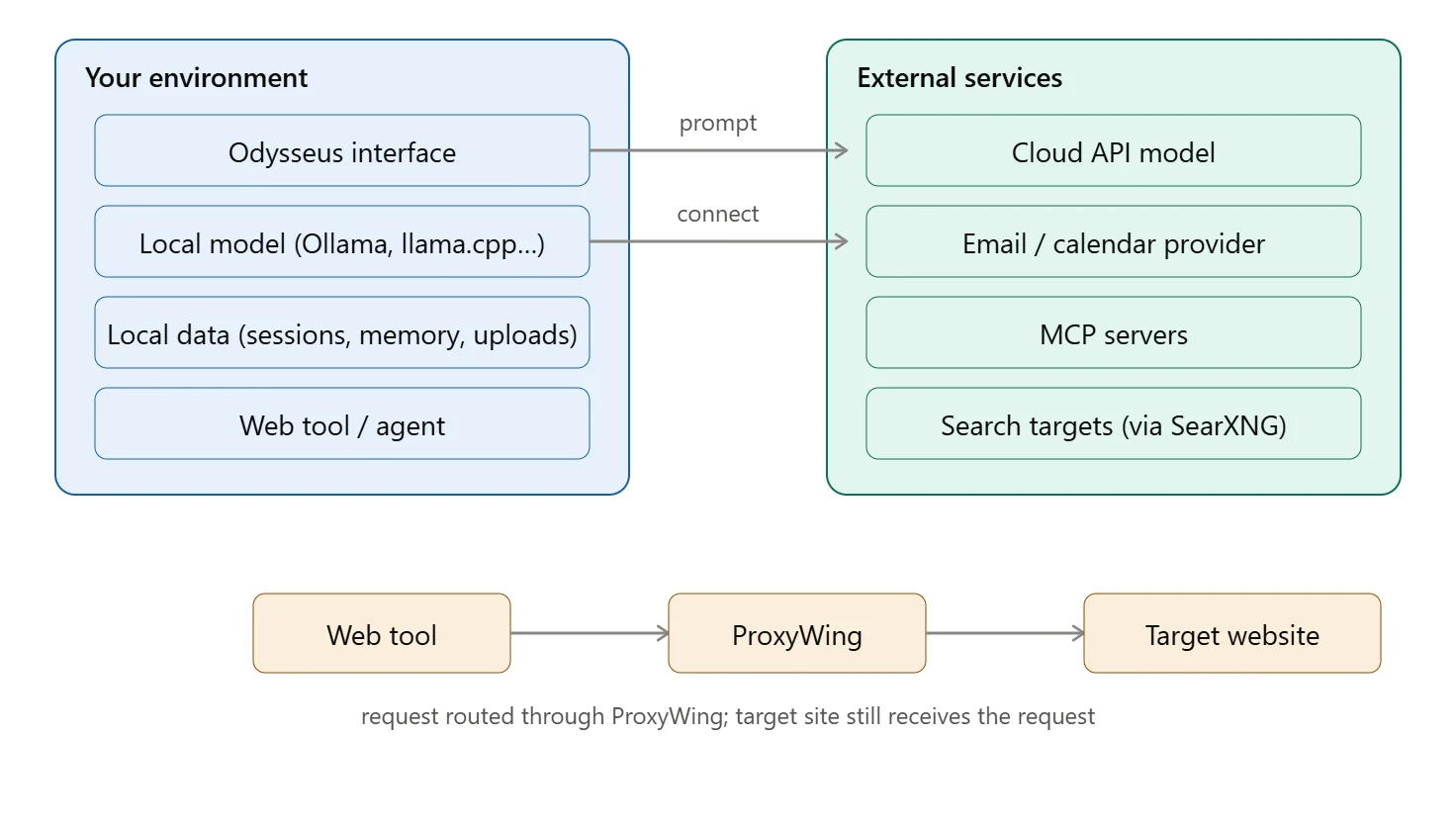
You operate within the interface, a linked model responds to your requests, and integrated tools retrieve data or perform actions on its behalf. Your entire setup, not just the application, determines what is truly available, including file access, real-time web data, and your inbox.
Chat is for everyday questions and follow-ups. You can send files and pictures, and also some extra instructions if you like. Generating an image is a different thing to attaching one.
Research mode is where you get a report written up, with loads of sources attached – all properly cited. Compare mode, on the other hand, sends one question to many different models at the same time, and there’s an option to hide which one said what. But whatever the models all agree on – that doesn’t necessarily mean it’s accurate. You still need to check out the sources for yourself.

In chat, a model will suggest some changes as text. But in agent mode, once you’ve given it permission, it can actually do stuff: reading and editing files, running commands, browsing the web. Odysseus can mess around with Markdown, HTML and CSV files directly – PDF is more limited: an optional add-on that handles viewing and form-filling, not full editing like the other formats.
A workspace folder lets an agent access a whole folder on your system – which is different to just saving a document inside the app. And that access is limited to what’s in that folder – think Docker-scoped. But, just to be clear, that doesn’t mean it can’t dig around a bit further – it can still get to other files inside Odysseus’s own path. So keep an eye on what an agent is up to rather than just assuming it’s all contained.
Let’s say you’ve got an editor set up as a persona that’s been instructed to flag passive voice. A second persona for fact-checking could share a group conversation with it – untested here, but a reasonable setup given how personas and group chats work.
Now, the system remembers things like your editing preferences and pulls them out of memory later on. But if it gets something wrong, you can correct or delete it right away.
A “skill” is effectively a repeatable procedure that can be written up by you, imported from somewhere, or even tweaked by the system itself over time. The one thing that’s a bit tricky is the confidence score that comes with self-developed skills – it’s all based on how well they’ve done in the past, but that’s no guarantee on a new task.
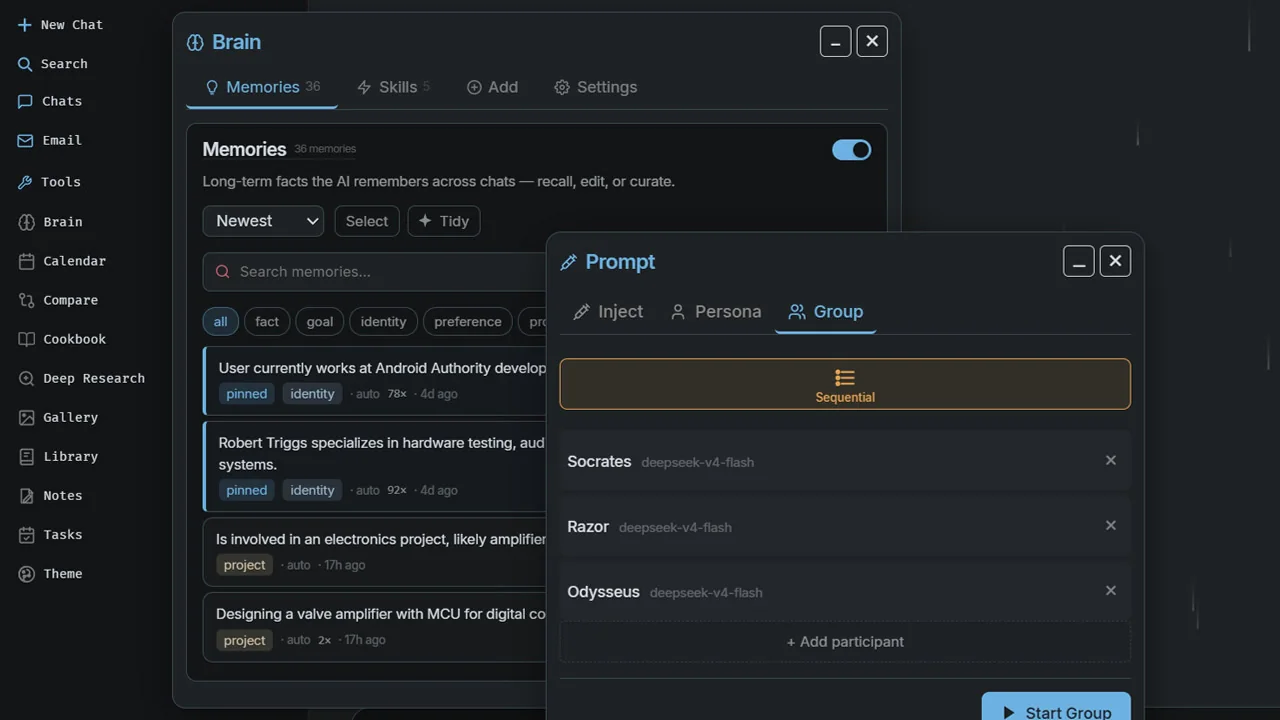
One of the actual human testers who got hands-on with this tried the email summarization feature and ended up getting nothing useful out of it – worth checking it out on your own email inbox before you try sending any real emails.
The resource requirements of the model and the interface are different. Odysseus is lightweight, what you need on top of it depends entirely on where the model runs and which tools you turn on.
Run Odysseus via Docker on any OS, or natively on Linux, macOS, or Windows. Apple Silicon needs the native path – Docker can’t reach the Metal GPU. Windows has a one-command launcher. Python 3.11+ either way, and storage needs are modest.
The real cost is the model: RAM and VRAM scale with size, quantization, and runner. Longer context adds more. Fitting your hardware doesn’t guarantee smooth performance – test with the context length you actually need.
A free license doesn’t cover everything: electricity for local, per-request cost for API, a proxy line if you’re pulling web data through ProxyWing proxies. Skip that last one if your workflow doesn’t touch the web.
Your data stays local by default – session messages and memory live in a local data directory unless you take a backup or expose the app to the outside world. This is storing data, not processing. So things like cloud model calls, searches, MCP connections, and email links are still going to send your data out. When we say “no telemetry,” that’s not saying Odysseus is not making any network requests at all. It’s just that it doesn’t report back on anything.
A workspace folder sets a boundary of what an agent can and can’t access, but if you use a shell command, you can still reach outside of that area and into Odysseus’s own files.
When you delete something, it doesn’t actually get deleted from a backup, a log or a third-party service that might have already grabbed a copy of it.
A ProxyWing proxy changes where a request appears to come from – not whether the site on the other end actually gets the request.
Before connecting anything real: pick a dedicated test folder for agent access, turn on only the tools you need, check what each external connection is actually authorized to reach, and confirm authentication is on before exposing Odysseus beyond your own machine.
Odysseus fits someone who wants chat, research, agents, email, and calendar tied into one self-hosted interface, and is willing to configure it. For just chatting with your own documents, Open WebUI and AnythingLLM cover the same ground, each leaning in a different direction.
| Workspace | License | Install | Core focus |
|---|---|---|---|
| Odysseus | AGPL-3.0-or-later | Docker, or native on Linux/macOS/Windows | All-in-one: chat, agents, research, email, calendar. No telemetry by default. |
| Open WebUI | Custom Open WebUI License (branding clause) | pip, Docker, or Kubernetes | Broadest feature set: RBAC, enterprise SSO, 9 vector databases, paid enterprise tier |
| AnythingLLM | MIT | Docker, desktop app, or an official hosted instance | Document-focused workspaces, multi-user permissions, built-in telemetry (opt-out) |
Open WebUI’s enterprise features target teams – Odysseus doesn’t compete there. AnythingLLM’s hosted option suits anyone who’d rather not run a server. For team or production use, check each project’s own access-control, backup, and update docs. And fixing typos in a demo doesn’t mean any of these replaces a dedicated coding agent.
This covers Odysseus’s official install process – Docker as the main route, native as the alternative.
Windows users should be using PowerShell commands instead of the bash ones listed below. And if you’re running a local model, then you’ll also need to set up its own server, regardless of where you’ve installed Odysseus – that’s a separate activity from the main install.
git clone https://github.com/odysseus-dev/odysseus.git
cd odysseus
cp .env.example .env
docker compose up -d --build
Check the containers are healthy:
docker compose psGet your first admin password:
docker compose logs odysseusOpen http://localhost:7000, log in as admin with that password, and change it in Settings – where model connections live too. This binds to your own machine only by default. Set APP_BIND=0.0.0.0 in .env only if you actually want LAN access.
Worth it if you don’t want Docker running, or need GPU-accelerated local serving on Apple Silicon – Docker can’t reach the Metal GPU there.
git clone https://github.com/odysseus-dev/odysseus.git
cd odysseus
python3 -m venv venv
source venv/bin/activate
pip install -r requirements.txt
python setup.py
python -m uvicorn app:app --host 127.0.0.1 --port 7000
setup.py creates your admin account and prints the first password – same login from there. Keep the terminal open. Ctrl+C stops it, and re-running the last command starts it again. This path isn’t easier, you’re maintaining Python and dependencies yourself instead of letting Docker handle it.
The interface can open without being able to answer – it needs a model, a running server for that model, and the correct connection between them. Picking a name in a dropdown isn’t enough on its own.
An endpoint is the server address Odysseus sends requests to.
Ollama listens on port 11434 with an OpenAI-compatible endpoint at /v1. Native Odysseus: http://localhost:11434/v1. Odysseus in Docker: localhost means inside the container, not your host – use http://host.docker.internal:11434/v1 instead, and make sure Ollama itself listens beyond loopback (OLLAMA_HOST=0.0.0.0:11434 ollama serve).
A cloud API works the same way – provider, key, model ID – except the provider processes your requests, not your hardware.
Cookbook’s fit score narrows options, but it’s not a performance guarantee. Test on your actual hardware.
A chat reply only confirms a connection to the model, not that the model is in agent mode or that it has access to file tools. Run two checks:
1. Plain chat:
2. Agent mode, on a throwaway file – make a small markdown file with a few typos and then:
Don’t trust a “done” message. Open the file and check what was actually done. If it suggests edits without saving them, that’s useful information to know too – some setups might require an extra confirmation before a file actually gets written.
An agent is going to need a tool that actually fetches pages before it can do anything useful with fresh web data – and that tool gets connected to Odysseus through MCP. The proxy gets set up directly on that tool, not on Odysseus. The flow goes like this: Odysseus → web tool → ProxyWing → target page → data gets sent back to be analyzed.
If you need to send requests from a specific location, or keep the same outbound IP for the entire session, a compatible web tool will route that request through ProxyWing – the tool does the collecting, Odysseus handles the analysis afterwards. For a full walkthrough of this setup, see our guide to building an AI web scraping pipeline with proxies.
Here are three situations where you really need one: when you’re trying to get requests from a specific country, when you need the same outbound IP for the entire session, or when you’re doing recurring collection across multiple addresses over time. Local tasks don’t need any of this – the only reason you’d want to buy proxies is when you’re actually pulling data from the web.
Let’s say you’re comparing prices across a region – the web tool retrieves pages through ProxyWing, which is set to route to that location. Then you’ve got the agent comparing what comes back, and you’re all set. Just to be clear, you’ve still got to set up the language, cookies and site settings in the tool itself – the proxy only sets the outbound IP.
For this kind of collection, you want to pick proxies for AI development that match the location, session length and request volume your task actually needs.
| Task | Product | Check before paying |
|---|---|---|
| Regional catalog research | Residential | Targeting options, session mode, traffic estimate |
| Recurring collection, one target | Datacenter | Whether the target accepts datacenter IPs, address count, term |
| One steady address | ISP | Country availability, term length, authentication |
For a regional price comparison in Odysseus, set up the residential proxy in the web-fetching tool you connect through MCP. Match the IP location to the market, then check the page’s language and currency before you compare results. You can order ProxyWing residential proxies with code for a lifetime discount and pass the fetched pages to Odysseus for analysis.
Check the chain one piece at a time: interface open but no response → model and connection address. Model responds but pages don’t load → web tool, network, proxies. Isolate before changing anything that already works.
| Symptom | Cause | Fix |
|---|---|---|
| AUTH_ENABLED=false ignored on Windows | .env saved with a UTF-8 BOM in Notepad – the first key silently fails to match | Re-save .env as UTF-8 without BOM |
| App not at localhost:7000 on macOS | AirPlay Receiver holds port 7000 by default | Use:7860, or disable AirPlay Receiver and free the port |
| Copy buttons do nothing over a LAN/Tailscale URL | Browser clipboard API only works on HTTPS or localhost | Serve over HTTPS, or use localhost directly |
| Email login fails: “plaintext authentication disallowed” | Mail server refusing unencrypted auth | Enable TLS on the mail server, or allow cleartext only on a trusted LAN |
| Calendar won’t sync | Pointed at the server root, not the full collection URL | Use the full collection URL with trailing slash from the calendar server’s UI |
| App fails to start after a dependency install | A conflicting lightweight package installed alongside the full one | Uninstall the conflicting package, force-reinstall the full one |
| GPU confirmed working, model still runs on CPU | GPU passthrough ≠ the runner having its GPU build installed | Reinstall the serve engine via Cookbook’s dependency manager |
| Proxy authentication fails | (possible cause) Bad credentials or a stray character in the config | Check credentials and format against the client’s documentation |
Sessions, memory, uploads, and settings are all stored in a local directory that is mounted from the host rather than integrated into the container. It is kept through a standard rebuild, but it isn’t kept by deleting that folder or removing volumes. Before making any changes you’re not sure about, make a backup.
Save your working configuration once everything checks out.
Ready to collect web data for your AI tasks? Choose ProxyWing proxies for the location and workflow your task needs.