


Proxy Authentication Methods Explained: Username/Password vs IP Whitelisting
06.10.2026 10 min
ISP proxies are one of the most common types offered by almost every provider in 2026. One of their biggest advantages is that they offer the speeds of datacenter proxies with high trust scores since their IPs are assigned by local ISPs. This makes them a great choice for sensitive tasks that require relatively fast speeds that cannot be achieved with residential IPs.
In today’s guide, we will discuss how to use ISP proxies on all the major platforms, including browsers, mobile, and desktop operating systems. We will discuss the setup process, issues you may face, the best practices for a great experience, and more. By the end, you will have all the information you need to get started routing your traffic through ISP-assigned IPs in different regions. Let’s get into this right away!
An ISP proxy routes traffic through IP addresses of servers running in an ISP-managed datacenter. They use IPs registered through ISPs but hosted on datacenter servers, which gives users residential-level trust at datacenter speeds. They may cost more than datacenter proxy servers, but they’re still cheaper than residential IPs. Best for stable sessions, account management, automation, and geo-specific browsing.
To use ISP proxies, these are some of the key details you need:
The host is the server IP address and the port number is the connection number. Both are found in your provider dashboard. Make sure you copy these details correctly as any typos could result in connection errors down the road. To use ISP proxies with IP rotation, contact your provider to get a rotating endpoint.
Generated in your provider dashboard after making your purchase and entered wherever the proxy is configured. If you choose to use IP whitelisting as your authentication method, you won’t need these login credentials. Also note that some platforms like Windows don’t provide an option to input login credentials during setup — you can only input them if you try to connect after setting up the other routing settings.
Choose one of these protocols based on what you need to use ISP proxies for:
If you were to only choose one protocol, we would recommend going for SOCKS5 as it is the most versatile and secure, making it ideal for more use cases.
As stated earlier, you will need to choose between two main authentication methods:
Enter these credentials into the proxy configuration if the platform offers this option. Works from any network, making them the more flexible options especially for users on the go. If you intend to use the proxy on your mobile device or laptop, this authentication option is what we recommend.
Add your IP to the provider’s allowlist. The proxy connects automatically without credentials — best for fixed workstations and servers. This is a more seamless setup, but it does not favor users who frequently change the networks they use to connect to the internet.
Choose username/password for flexibility across devices and IP whitelisting for fixed servers or team environments with a stable IP. For most users, the username/password authentication is what we would recommend as it gives you more flexibility.
In this section, we will discuss the set up process on all the major desktop and mobile platforms:
For Linux systems like Ubuntu, you can either create this setup via settings or using a terminal. Let’s explore both options.
Via Settings
For terminal use:
export http_proxy="http://username:password@host:port"
export https_proxy="http://username:password@host:port"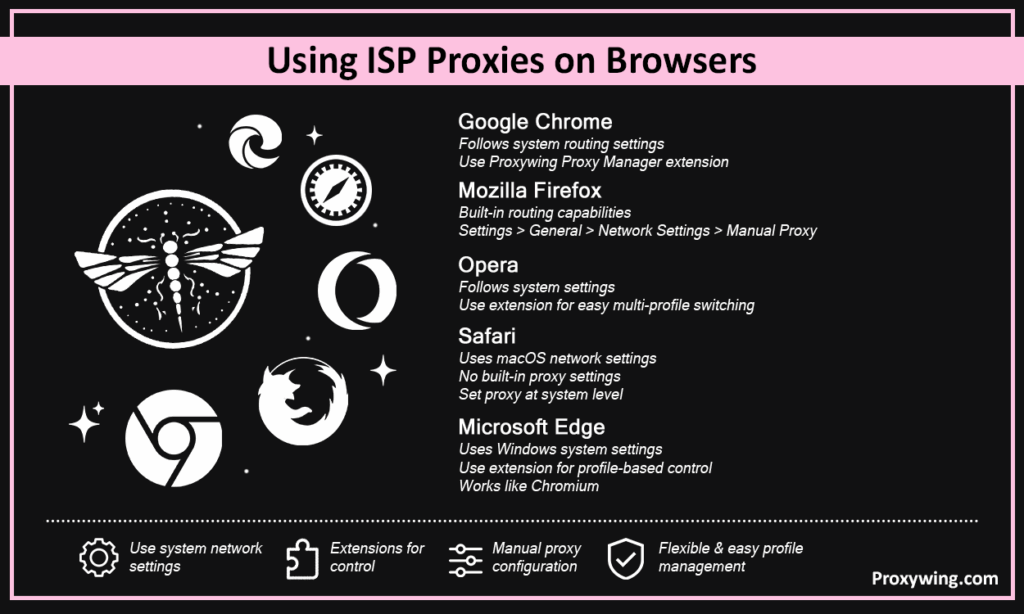
Chrome follows system routing settings. For profile-based control, use a proxy manager extension like Proxywing Proxy Manager. Extensions offer more flexibility as they allow you to create different profiles, which may come in handy especially for tasks like account management.
Mozilla comes with built-in routing capabilities. Go to Settings > General > Network Settings > Manual Proxy Configuration and enter host, port, and protocol. Works independently from system settings.
This browser also primarily follows system settings. Use a proxy manager extension for easier multi-profile switching. It works just like Google Chrome since it is also a chromium-based browser.
Uses Windows system settings. You can also install an extension for profile-based control without changing device-wide settings just like all the other chromium-based browsers.
Uses macOS network settings configured at system level. Unlike Firefox and chromium-based browsers, Safari doesn’t offer a separate in-browser proxy setting or extension.
Go to the routing settings for your automatic tools and paste your server IP address, port, and credentials into the tool’s proxy settings. These proxies suit long sessions needing a stable, consistent IP.
ISP IPs reduce blocks during compliant data collection since they enable the distribution of requests across several IP addresses. Enter credentials (IP address, port, username/password) in the scraper’s proxy configuration.
If you’re using these proxies for account management, remember to assign one dedicated IP address per account. Consistent IPs reduce session flags and account linking risks. Avoid random IP changes during each session.
import requests
proxies = {
    "http": "http://username:password@host:port",
    "https": "http://username:password@host:port"
}
response = requests.get("https://example.com", proxies=proxies)This issue seems obvious but typos in server details like the IP address and port are among the common causes of connection. Confirm that the server details are correct and also make sure you are using the right protocol. Finally, confirm that the proxy is active in your provider dashboard.
Verify the correct location is selected when choosing the IP address at the time of subscription. Clear browser cache and recheck to confirm that traffic is being routed through the remote IP address configured.
Recheck your authentication credentials for any typos. You can always reset these credentials in the setup dashboard offered by your provider. If you chose to use IP whitelisting, confirm your current IP is in the allowlist.
Switch to a server location closer to your target to reduce latency. Try HTTPS or SOCKS5 for better performance. We also recommend using dedicated IPs over shared ones for the best performance. Yes dedicated IPs cost more, but the performance gains make this extra investment worth it for some users.
For such cases, you may need to configure the proxy directly inside the app or script. Not all apps follow system proxy settings. You may also consider using the SOCKS5 protocol, especially for apps that involve streaming since these usually send both web and UDP traffic.
Choose a location in or near the target region for better accuracy and lower latency. For instance, if you intend to handle SEO monitoring in the UK, ensure the IPs chosen are from one of the UK cities.
One dedicated IP per account or project reduces flags on platforms that monitor login patterns. Using the same IP for all accounts will significantly increase the chances of account linking and potential bans.
ISP IPs are built for stability — only rotate when a session ends or a workflow specifically requires it. Constant IP switching can lead to frequent security triggers like re-authentication and re-captchas.
Use proxies for legitimate purposes only and stay within the terms of service of platforms you access. Violating the website rules could lead to IP bans and other legal implications.
Article written by:

Product & Support Operations Lead
Built Proxywing's support department from scratch — documented workflows, clear escalations, consistent quality. Now bridges the CEO and engineering, keeping infrastructure projects on track.
All articles by author (68)To get started, you first need to acquire details including the host, port, username, and password from your provider dashboard after purchase. You should then enter those details into your device, browser, or tool’s routing settings.
ISP proxies are faster and more stable. Residential proxies offer slightly higher trust on strict platforms. For most workflows, ISP proxies are the better default since they are relatively cheaper while offering reliability that almost matches residential IPs.
Check credentials, host and port number for any possible types. Confirm the proxy is active and your IP is whitelisted if using that method. Finally, make sure you choose the right protocol during setup.
By default, ISP proxies are static. Some providers do offer rotating ISP proxies, but the primary use case is stable, persistent sessions.