Proxy Authentication Methods Explained: Username/Password vs IP Whitelisting
06.10.2026 10 min
One of the most effective ways to bypass any restrictions when using a PS5 or PS4 console is by using proxies. Using PS4 or PS5 proxy servers hides your IP address, making your connection more anonymous and private. Sony and any of the online services you access with your console will not know your real IP address or location while your proxy is active.
For the best online experience, there are several best practices you must follow as you set up a proxy on your PS5 or PS4. In this guide, we will discuss how to set up and use a PS5 proxy server to bypass most restrictions on your gaming console. We will kick things off with a brief summary of the key details covered in this guide.
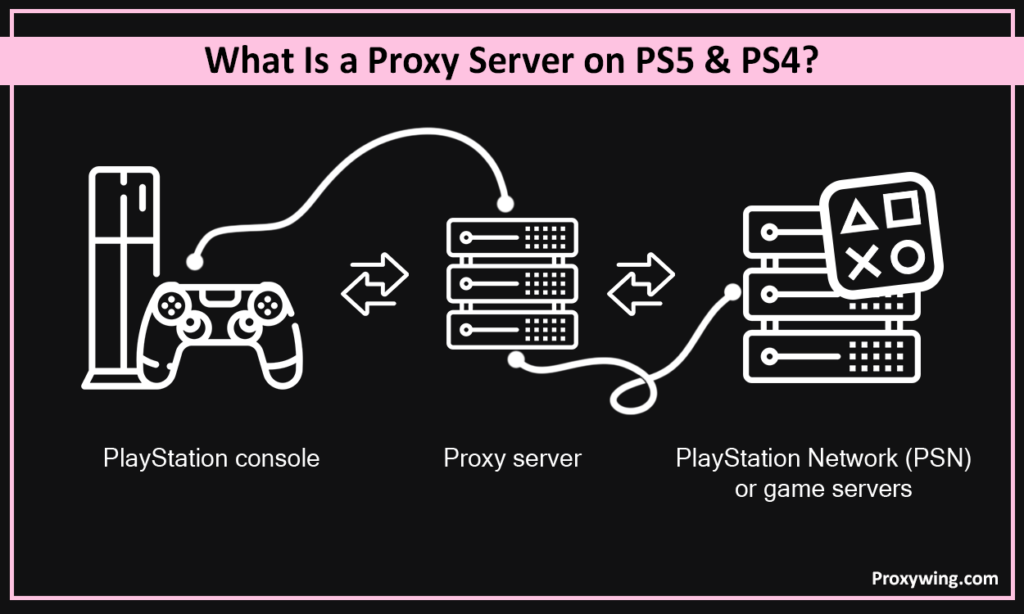
A proxy server acts as an intermediary between your PlayStation console and the internet. When using a proxy on your playstation, your internet traffic is routed through the proxy server before being sent to the PlayStation Network (PSN) or game servers. As a result, your console’s IP address is masked and replaced with the PS5 proxy server’s, making all your internet connections more anonymous and improving connection stability and speeds in some cases.
When using a proxy, your console sends data to the proxy server first before sending it to the game’s store or any other internet service you are accessing on your console. The PS5 proxy server masks your device IP with a new one and sends the data to the final destination. Ultimately, the game server thinks the request is coming from the proxy’s location, not your home.
You must obtain your proxy’s IP Address and Port number from your provider. If your proxy requires authentication, you will also need a Username and Password. For the best connection speeds and reliable gaming, ProxyWing’s proxies are a great choice. They run on well optimized IP addressing and networks infrastructure, giving you access to a pool of over 70 million clean IPs in 190+ countries.
The popular choices include:
Before proceeding, make sure you’ve purchased the PS4/PS5 proxies from ProxyWing. Follow these simple steps to configure network settings on your consoles:
From the PlayStation home screen, go to Settings (gear icon) and then choose Network. It is here that you will configure the rest of the settings.
Within the same Network Settings, choose the “Set Up Internet Connection” option.
Select your network (Wi-Fi or LAN) of choice (it should be currently active and connected to). On PS5, press the Options button for Advanced Settings. On PS4, select Custom instead of “Easy”. This allows you to manually input data.
Here, make sure to set the IP Address Settings to “Automatic” and DHCP Host Name to “Do Not Specify” unless your provider gives you specific static details.
Leave MTU Settings on Automatic. Adjusting this is usually unnecessary unless you are troubleshooting specific packet loss issues. When setting up a proxy, leaving them in the default state is the best choice.
Under the Proxy Server prompt, select Use. Enter the server details (sourced from ProxyWing), including the proxy server address and Port Number.
After saving your settings, select Test Internet Connection. Make sure the “IP Address” and “Internet Connection” both show as Successful.
If you need all the traffic from the rest of your devices to be routed through a proxy server, you will need to configure the network settings at the router level.
Once the router is configured, your console will automatically use the proxy setting configured. Simply connect your console to the internet using the “Easy” setup mode, and it will inherit the router’s network settings.
After making the above configurations, you need to verify that your console’s traffic is being routed through your PS5 proxy server.
Open the PlayStation web browser and visit a site Proxywing IP-checker. These online services allow you to view your IP address in realtime. If the location and IP address displayed match your proxy’s details rather than your home address, the proxy is active. As earlier shared, you can also run a Connection Test in settings. The tests should show “Successful” for the Internet Connection.
The final test is actually trying to access an online game service that is restricted in your region. If the proxy is working, you should be able to access the game and also see the prices in the currency of your proxy’s region. Finally, try to initiate a small download to ensure the speeds are fast enough and stable.
Let’s now dive into some common quirks you may experience and their respective fixes:
This is one of the most common issues and it is usually caused by a typo in the IP address or Port number. To resolve this, double-check your credentials. Finally, you need to ensure your provider hasn’t whitelisted a different IP or that your home firewall isn’t blocking the proxy’s specific port.
If your proxy for PS5 connects but you’re still experiencing slow speeds or high latency, there is likely a chance the server you’re connecting to may be physically too far from the online gaming servers. Try switching to a server location closer to the game’s data center. You may also consider upgrading from datacenter IPs to an ISP/Static Residential IPs for better routing.
Proxies can sometimes cause a NAT Type 3 (Strict) status, which hinders multiplayer. To fix this, you must manually set your console’s DNS to Google (8.8.8.8) or Cloudflare (1.1.1.1) while keeping the proxy settings active.
These are the common types of proxies you will have to choose from based on your needs:
These give you access to IP addresses assigned by ISPs to real home devices. They are nearly impossible for Sony to detect as a proxy, making them the best choice for bypassing strict geo-blocks and accessing regional stores. However, they are the most expensive. Please note that mobile proxy services also fall under this type.
These give you access to IPs of servers running in ISP-managed datacenters. ISP proxies are usually the premium choice for serious gamers since they combine the high-speed infrastructure of a datacenter IPs with the legitimacy of a residential IP. This also provides the lowest latency and highest stability for long gaming sessions, leading to better gaming experiences.
While budget-friendly and fast for downloading large updates, they can easily be detected and flagged by Sony’s security systems, interrupting your gaming session. Selecting this type is a good option for those who prioritize speed over connection success rate.
One of the common causes of this is using inaccurate proxy details. It also happens if the proxy requires authentication (username/password) that the console can’t process, or if the proxy doesn’t support the specific protocol PSN uses. Using SOCK5 proxies over HTTP proxy solutions is usually the smarter choice. You must also ensure your proxy is active and “authorized” via your provider’s dashboard before connecting.
Overall, using a proxy is an effective way to use your playstation console without limitations. Proxies route your console’s traffic through an intermediary server or device before forwarding it to the PlayStation Network.
However, it is crucial to choose the right type, as this has a significant effect on your overall experience. Residential proxies offer the most IP choices and are harder to detect, making them effective for accessing region-locked games. However, for the best balance of legitimacy and speed, ISP proxies are the better choice.
Article written by:

Full Stack AI Engineer
Full-stack engineer at Proxywing working across backend architecture, performance optimization, and AI-driven workflows. Node.js, React, cloud infrastructure, and RAG pipelines.
All articles by author (61)Yes, there are some cases when a proxy can actually improve internet speed. This is common if your ISP has poor routing to specific game servers. In such cases, using a high-quality proxy can provide a more direct path, potentially stabilizing your connection and reducing packet loss.
While free IPs are an appealing choice, we usually don’t recommend them. Free IPs are often blacklisted, highly unstable, and pose significant online security risks to your PSN account. These proxies also sell user data as their primary revenue source, which is a privacy nightmare.
Yes, using a proxy for PS5 is legal. However, using it to violate PlayStation’s Terms of Service such as fraud or harassment can still result in an account ban. So, make sure you only use proxies for legitimate tasks.
Each choice has its pros and cons. Proxies generally offer faster speeds because they have less encryption overhead, but do not offer security benefits at the level of VPNs. VPNs are better for total security, but they often cause higher lag in fast-paced online games. They were a good option in the past, but today most users prefer proxies for online gaming.