Proxy Authentication Methods Explained: Username/Password vs IP Whitelisting
06.10.2026 10 min
Safari is used by over 1.5 billion people, making it one of the most popular browsers in 2026. Many Apple customers choose the default web client over the competition because of its privacy features and resource efficiency. However, you can further elevate your privacy by using proxies to hide your real IP address and location to enable more anonymous browsing.
In today’s guide, we will explore Safari proxy settings, including the setup process and how to disable them if you no longer need to use them. By the end, you will have learned the steps for configuring proxies on our Apple devices, the best types, and more. We will kick things off with the key takeaways for this guide:
As stated earlier, Apple’s web client does not have independent IP address controls built-in like other browsing tools like Firefox. Instead, it relies on system-wide network settings managed by macOS or iOS. When you configure an HTTP, HTTPS, or SOCKS5 proxy, Apple’s web client automatically routes its traffic through the configured server, making web traffic anonymous.
For high-speed, anonymous browsing, integrate ProxyWing’s residential proxies into your Apple device settings. Our IPs are optimized to offer fast connection speeds, low response times, and high uptime, enabling a secure browsing experience without compromising performance.
These are the steps for proxy setups on Apple’s major platforms.
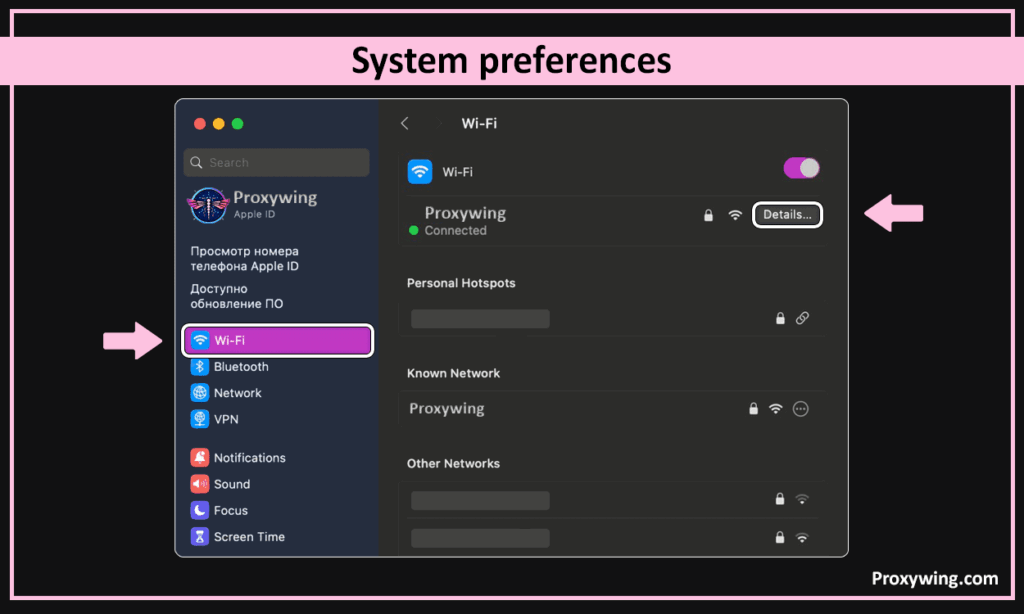
To get started, click the Apple Menu (top left corner) and select System Settings (System Preferences on older versions). Within the Settings windows, you should go to the Network in the sidebar of your System Settings.
Locate your active connection, which can either be Wi-Fi or Ethernet and click on it. Make sure the network you choose is actively being used.
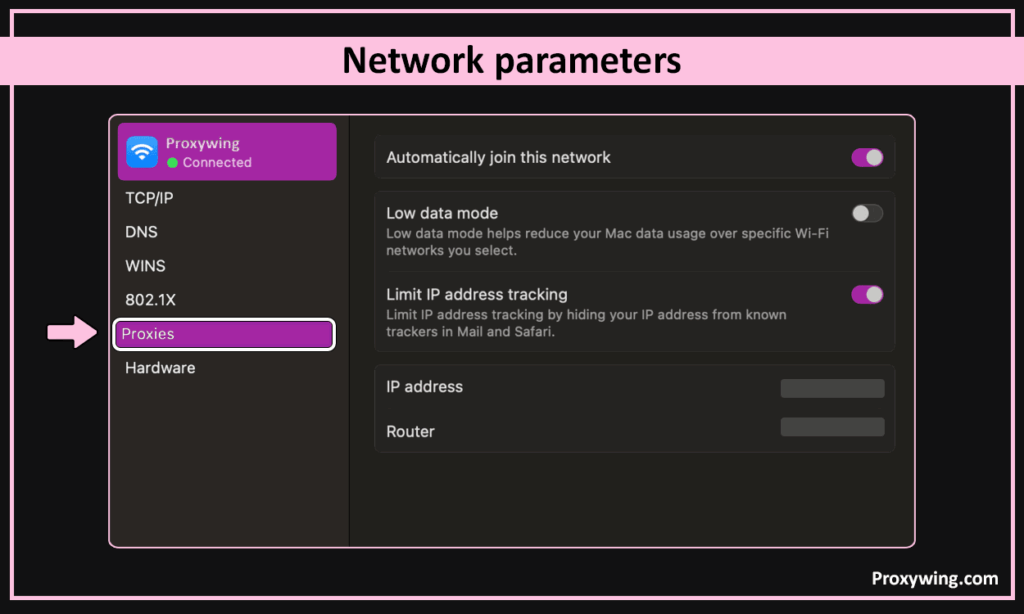
Click the Details button next to your connection, then click the Proxies option from the sidebar.
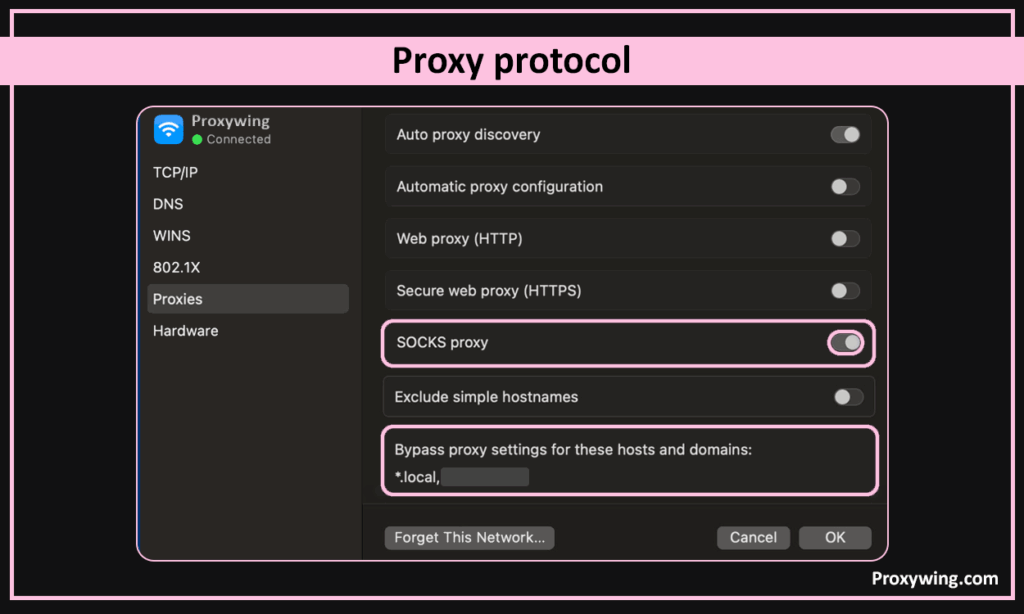
Toggle the protocol you need (e.g., SOCKS).
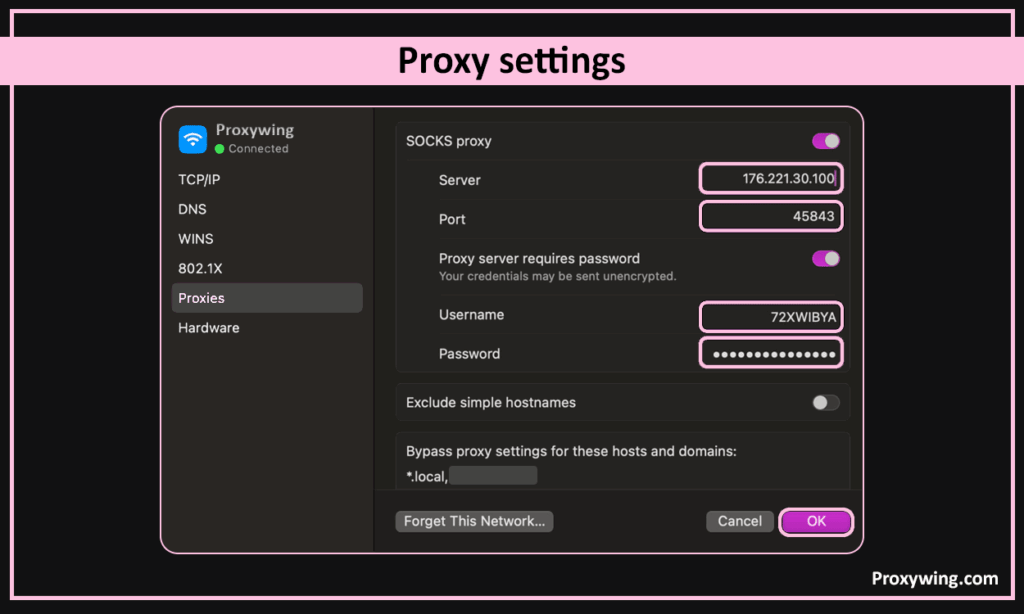
Enter the Server IP and Port. If your provider requires authentication, enable the toggle and enter your username and password.
Click OK to save these network configurations. Open the web client and visit a site like “ProxyWing Ip-check” to confirm that your device connects through the chosen IP address.
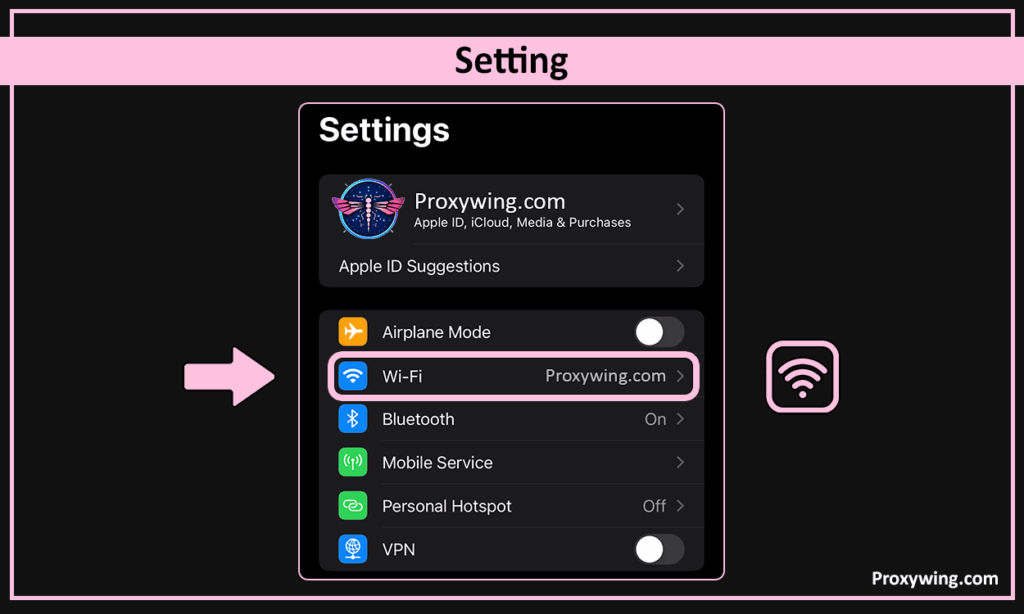
On your iOS device, launch the Settings app and tap Wi-Fi. Make sure you have an active Wi-Fi network that you are currently connected to. From your list of Wi-Fi networks, at least one of them should be active.
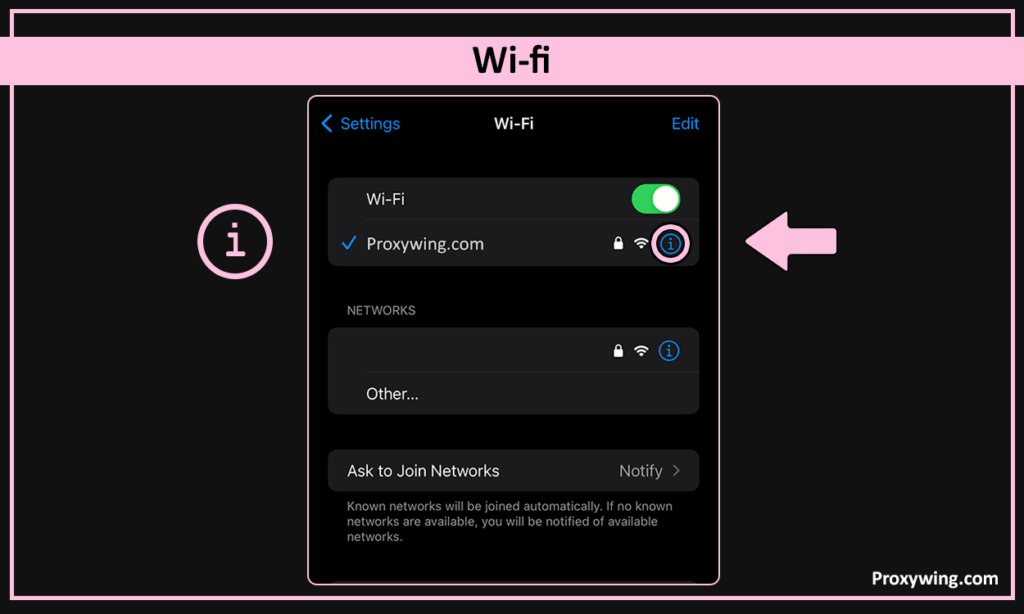
Tap the blue (i) icon next to the Wi-Fi network you are currently using. This opens the detailed settings for that particular WiFi network.
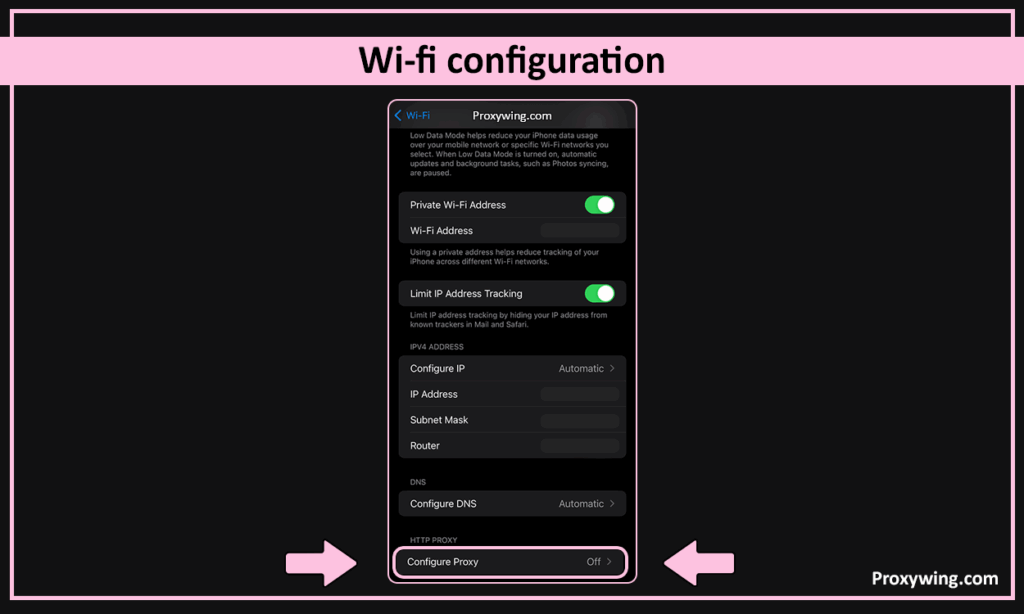
Scroll to the bottom and tap Configure Proxy. Selecting this option will open the proxy settings for your network.
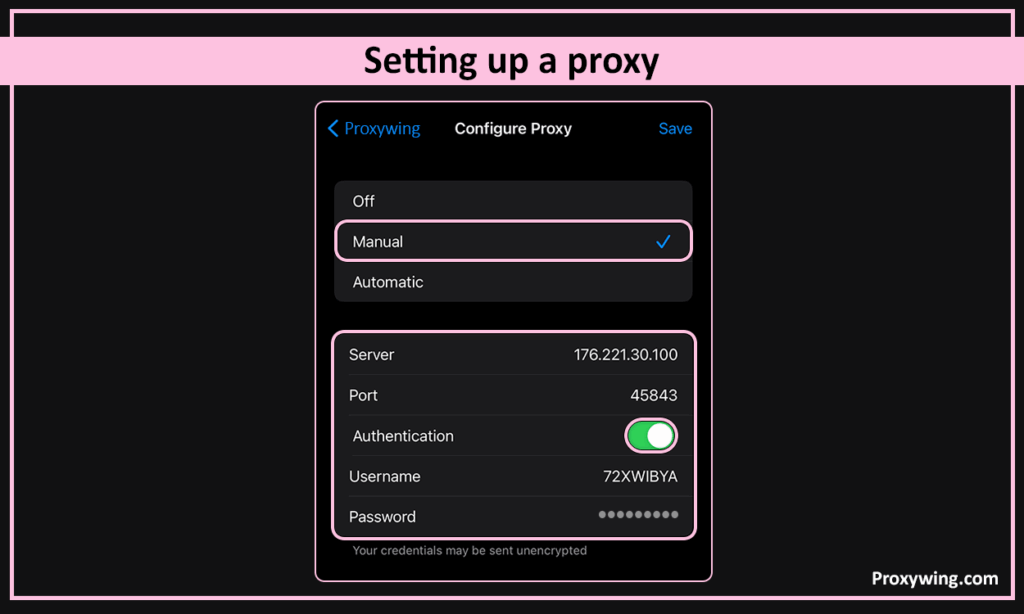
Switch from Off to Manual to enable remote server configuration. Fill in the Server and Port numbers field with the server details you acquired from your provider. Turn on Authentication to enter your credentials if your provider requires that.
Tap Save in the top-right corner. Refresh a page in the web client to ensure it reloads through the new IP. Just like with the Mac, you can check if your iOS device is using the intermediary IP address by using a tool like ProxyWing IP Chcker.
Click the Apple Menu > System Settings and return to Network. Choose the network your previous configure and click Details > Proxies. You should then select the toggle to turn off all active protocols and click OK.
Open Settings > Wi-Fi and choose the active network you previously configured. Tap on the blue (i) icon next to the Wi-Fi network and choose the Configure proxy option. To Disable it, Switch the toggle from Manual to Off, and tap Save.
As shared earlier, the most reliable way to verify is by visiting a “ProxyWing IP Chcker”. website. You may also opt for other websites like whoer.net or IPLeak.net. If the IP address and location shown match your server’s IP rather than your actual ISP info, the web client is successfully routing through the remote server.
If the web client displays “Unable to connect to the server,” check these common issues:
This is the most common reason for failed network connections. A single typo in the server address or port numbers (e.g., using 8080 instead of 8888) will break the connection. Entering a wrong authentication password can also cause connection issues. Always take your time when typing these details to avoid unnecessary errors.
This issue also often happens due to typos in your authentication credentials. Double-check your username and password to make sure they are correct. Remember, these are different from your provider’s user account credentials.
Your ISP or network administrators may block specific protocols. Try switching between HTTP and SOCKS5 to see if this resolves the issues. It is also possible that your ISP is blocking certain IP addresses, especially the free ones. Try switching to a different IP to see if the connection works this time.
Since they rely on unreliable IP addresses, free Safari proxy servers often go offline without notice. That’s why we recommend using premium proxy solutions to avoid such instabilities. If you’re using paid proxies, ensure your subscription is active and the specific proxy node is online.
Using free IPs can be tempting, but it does carry significant risks. Some of these risks include data logging, malware injection, and extremely slow speeds for your internet connections. Since the IP addresses are shared by thousands of users, they are often flagged or banned by major websites and internet services.
For secure web browsing without compromising performance, use ProxyWing’s anonymous proxies. We offer both static and rotating proxy solutions that you can choose from based on the task at hand.
A proxy works at the application level (routing device traffic), while a VPN works at the system or network level (encrypting all device traffic). While proxies can be set up at the application level, it is also common to configure them in system settings as we saw in this guide.
Since proxies don’t include the encryption overhead, they are generally much faster and more reliable than VPN services. They also offer large IP pools, giving users more flexibility when choosing a location. This makes them the ideal choice for tasks like web scraping and online gaming.
When you change settings to use proxies on Safari, it does affect Google Chrome traffic as well. By default, Chrome on Mac also uses the same system network settings. With intermediary server enabled, Google chrome traffic will also be routed using system configurations.
They can also be used with web scraping tools such as Selenium, Puppeteer, Playwright, and Scrapy. Proxies for these tools are usually set up independently, so they don’t always have to rely on system settings. Most web scraping tools also give you advanced options such as IP rotation.
Many macOS-based SEO and automation tools pull their connection data directly from these System Settings. However, there are some tools like Octoparse, ParseHub, and AdsPowerthat use independent settings. These also give you more advanced settings such as IP rotation.
Article written by:

CEO
Founder of Proxywing. Drives growth across EU, US, and Asian markets, combining B2B strategy with a hands-on focus on product quality, 99% uptime, and responsive support.
All articles by author (64)No, it doesn’t. To use proxies with this browser, you must configure them in your macOS/iOS system network settings.
Ensure you clicked “Apply” or “OK” after making the proxy configurations to save the settings. Also, check if the “Auto Discovery” option is overriding manual settings.
Yes, it supports both HTTP and SOCKS5 proxies. To use SOCKS5, make sure you choose it as your preferred protocol during setup.
This is usually due to high latency from the server or an overloaded free IP address. Switch to a different IP, preferably dedicated IPs for a better experience.
To disable Safari proxy settings, go to System Settings > Network > Proxies and uncheck any protocols you didn’t manually authorize.