Proxy Authentication Methods Explained: Username/Password vs IP Whitelisting
06.10.2026 10 min
Using a proxy is one of the most effective ways to bypass geo-restrictions on the internet. Proxies also enhance user privacy and anonymity since they hide your real IP address and location. If you’re on Windows 10 or 11 Operating Systems, there are several ways you can set up proxies on your devices. In this Windows proxy setup guide, we will discuss the key steps you should take to configure proxies using two common methods.
We will also share how you can turn the proxies off and the common issues you will likely face when setting up and using them. By the end, you will have all the information you might need to get started using proxies on your Windows machine. So, without wasting any more of your time, let’s jump right in!
Windows proxy settings are simply system-level controls that tell your device how to route internet traffic through an intermediary server.
These settings live in three places:
Before setting up proxies on your Windows devices, it is crucial to understand which layer your software follows to determine where you need to configure the proxy.
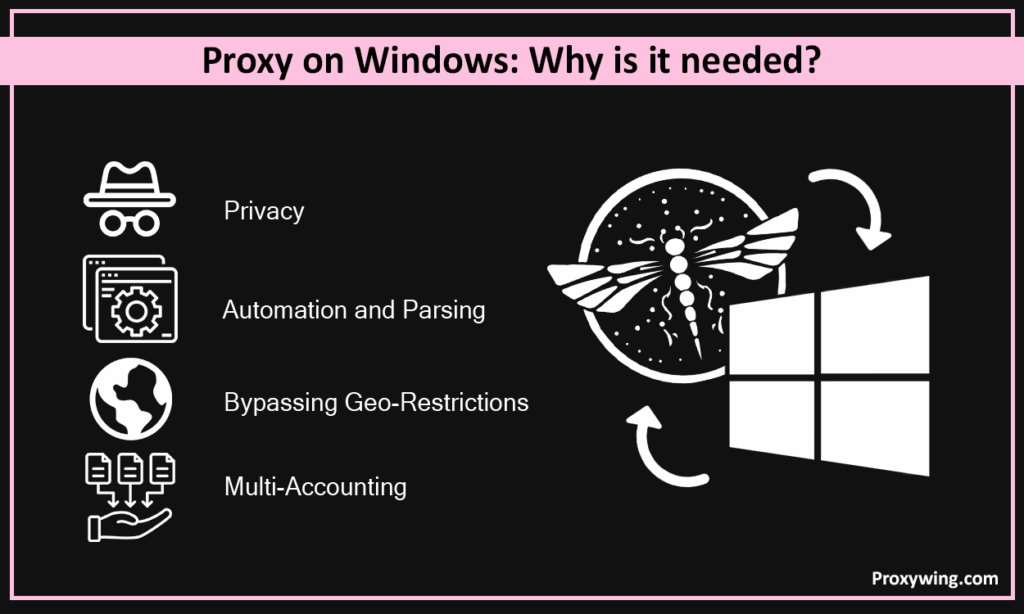
A proxy server for Windows is an intermediary server that sits between your Windows device and the internet, routing your traffic through a different IP address before it reaches its destination server.
On Windows, people use proxies for several purposes. Some of these includes:
Proxies come from three primary sources, including a commercial provider, a workplace IT team, or a self-hosted server. For most personal and business use cases, a commercial provider is the most viable route. ProxyWing offers residential, ISP, mobile and datacenter proxies suited to a wide range of Windows workflows. With these providers, you must subscribe to any of the plans they offer before you can get started.
Before automatically or manually configuring anything, you need to get the following details from your provider: proxy host (IP address or hostname) and port number. If your provider requires authentication, you will need to get a username and password from them.
Finally, you also need to know the protocols they support. Some of the common ones include SOCKS5, HTTP, and HTTPS proxy protocols. These determine which configuration fields Windows will accept and which apps will recognize the connection. SOCKS5 proxies are usually the most versatile.
There are several types of Windows proxies, with each having its own pros and cons that you must know. The standard ones you can choose from include:
These are some of the key things to look for:
You use the keyboard shortcut (Press Windows + I) or search “Settings” in the Start menu and open the app. This will launch your device settings.
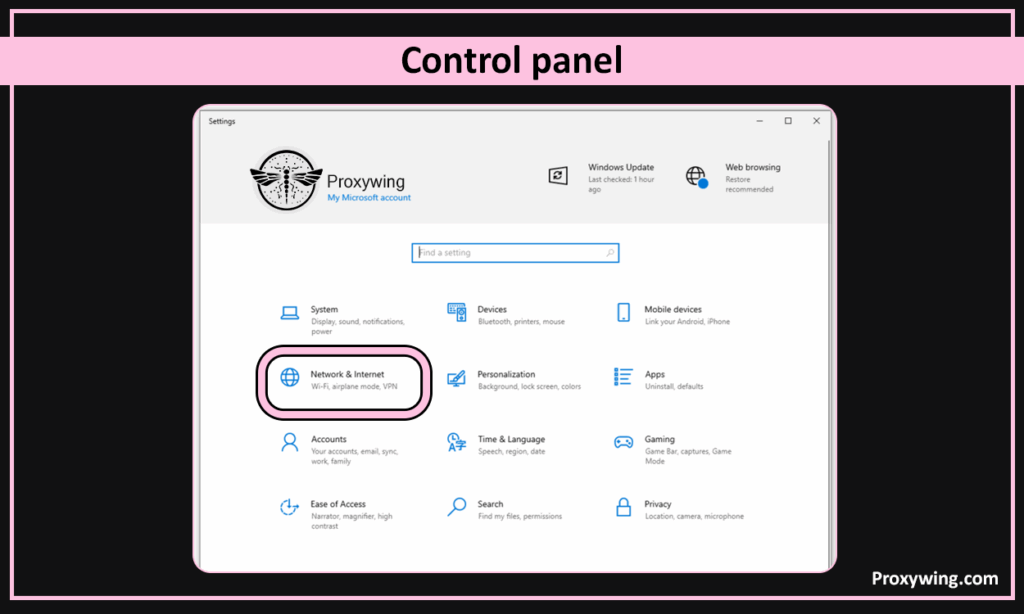
Go to Network & Internet > Proxy. On this settings page, you should see both the automatic and manual configuration options.
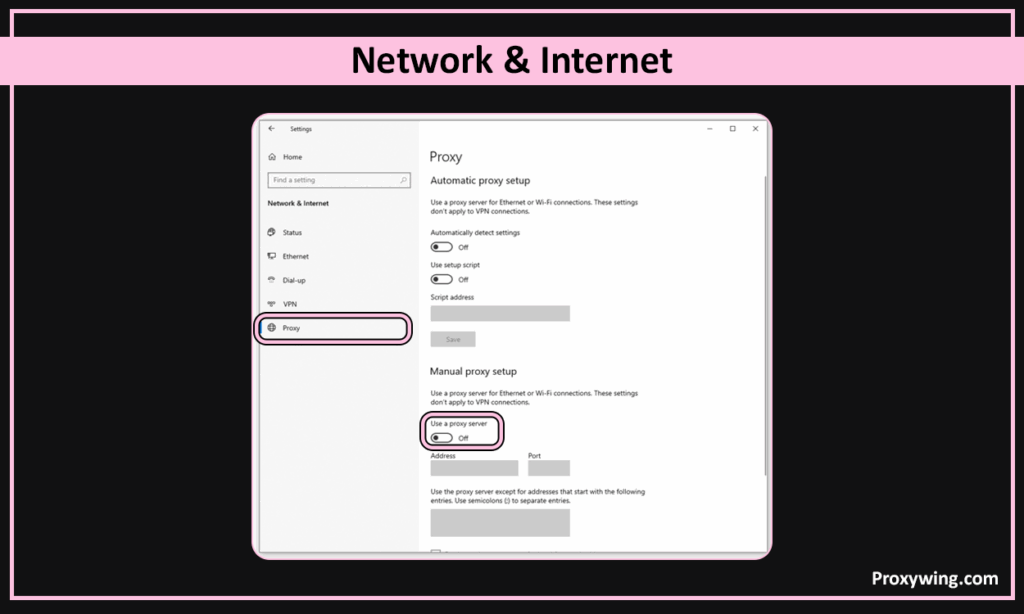
With this method, you will need to run a script that contains all your proxy settings. To proceed, click the “Use setup script” option, paste your PAC file URL into the Script address field, and click Save. Using this method is only possible if your provider or IT team supplies a PAC
URL for dynamic proxy routing. Once set up, Windows and all apps on your device will detect settings in the PAC script.
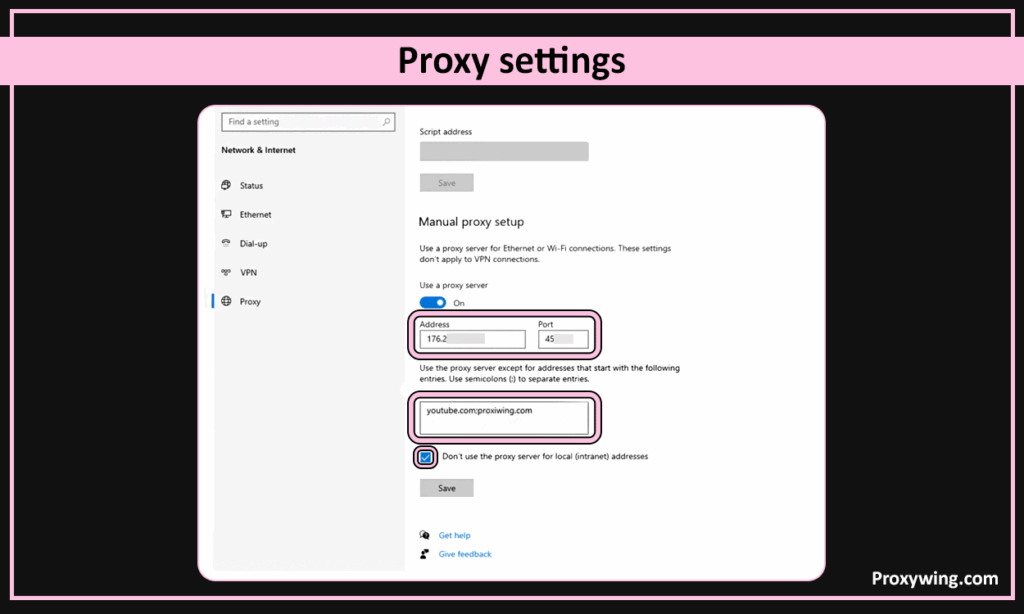
This involves manually typing the server details into the proxy configurations. To get started, click the “Use a proxy server”, then click the toggle button and enter the proxy IP address and port, then save the settings after. You will also see the “Don’t use the proxy server for local addresses” checkbox—enabling this option excludes internal network resources from being routed through the proxy. You may choose to enable it if you want to avoid breaking intranet access.
Open a web browser and load a few websites to see if your connection is live. Timeouts, captive portal web pages, or DNS errors typically indicate wrong credentials or an unreachable proxy server.
Use tools like Proxywing IP-checker to confirm if the public IP matches your proxy’s expected location. You may also run a DNS leak check. This checks your real network to ensure it is not leaking alongside the proxy connection.
In this setup section, we will cover the advanced settings.
If your app follows WinINET settings, go to Control Panel > Internet Options > Connections > LAN Settings. Enable the “Use a proxy server” option and enter the IP address and port, and click OK.
Some applications, including certain system services use WinHTTP, which ignores the Settings app and Internet Options entirely. These require proxy configuration within the application itself. You can also configure their proxy configurations via the netsh winhttp set proxy command in an elevated command prompt.
Windows will prompt for credentials when it encounters an authenticated proxy. If you don’t see the prompt, configure authentication directly within the application’s own proxy configurations. Proxy providers normally offer two authentication options—username/password and IP whitelisting.
IP whitelisting is a better option if you intend to connect to the proxy using the same IP address for an extended period. For those who rely on different networks or constantly changing IP addresses, it is best to use the username/password method to authenticate.
In the manual proxy setup screen, add domains or IP ranges to the exceptions field to prevent internal tools and local network resources from routing through the proxy. In Windows, the option to exclude certain IP addresses and domains is within the proxy settings right under the proxy hostname and port section.
Toggle Use a proxy server off in Settings > Network & Internet > Proxy and click Save. This is the same section we used when setting up the proxy. Please note that these proxy configurations will be maintained and you can always turn them on without re-entering the server details.
Disable Use setup script and clear the PAC URL field under the proxy configurations. This option can be found under Settings > Network & Internet > Proxy.
Visit an IP lookup tool and confirm that your real device IP address is showing instead of the proxy’s. All proxy toggles should read off and normal browsing should resume immediately using your real IP.
To fix this, check for credential typos, wrong protocol, or provider outage first. After making these fixes, remember to clear cache in your browser before reconnecting. The browser can cache your proxy configurations and may reuse them even after disabling the proxy.
This is common in remote managed devices. If your device is managed by an organization policy that locks proxy configuration, you will need to contact your IT team. Organizations can block proxy usage for several reasons, including enforcing policies, avoiding data exfiltration, complying with regulatory requirements, and more.
This can occur if the proxy IPs or ports are incorrect, or the server is unreachable. Double check the details and also verify with your provider if there are any issues that could be the cause of your failed network connections.
Such scenarios come with apps such as WinHTTP. If that’s the case, configure the proxy configurations within the app directly
This issue is common with free proxies. Datacenter proxies also often face frequent captchas. To resolve it, switch to residential or ISP proxies, reduce request rate, and match your proxy location to your target region.
With Windows, users can set up proxies automatically or manually depending on the option availed by their preferred proxy provider. These two configuration methods can be implemented within the network settings of your Windows device. Understanding the difference between WinINET and WinHTTP saves troubleshooting time after configuring the proxy configurations.
For a smooth experience, we recommend choosing the proxy type based on your application, gathering your credentials upfront, and always verifying the connection before going live. You can always use your provider’s dashboard to monitor proxy usage and make any changes that may be required to maintain access.
Article written by:

Full Stack AI Engineer
Full-stack engineer at Proxywing working across backend architecture, performance optimization, and AI-driven workflows. Node.js, React, cloud infrastructure, and RAG pipelines.
All articles by author (61)A proxy routes traffic from specific apps or browsers through a remote IP before forwarding it to the destination. A VPN on the other hand encrypts and tunnels all device traffic at the network level. Overall, proxies are faster and more flexible for specialized tasks. VPNs are primarily meant for broader protection, especially when using public networks. Both tools should be used while complying with the provider’s privacy policy and other TOS.
Go to Settings > Network & Internet > Proxy. Here you can choose either to do a manual or automatic setup( using a PAC script).
A PAC (Proxy Auto-Configuration) file is a script that tells your browser which proxy to use for different URLs. You can only use it if your provider or IT team offers a dynamic proxy routing URL instead of a static IP and port.
Visit an IP lookup tool like IPinfo.io after you have set a proxy in Windows. If the IP and location shown match your proxy rather than your real network, the proxy is working correctly.