




Using a proxy together with an anti-detect browser is one of the most effective ways to achieve full isolation when managing multiple accounts. An anti-detect browser like Hidemyacc generates a different fingerprint for each account, while the proxy assigns each one a unique IP address.
Of course, the trust score of the IP address still matters, and for account management, residential and mobile proxies offer the highest IP trust scores. To get started with Hidemyacc, you need to set it up using the proxy credentials you acquire from your proxy provider. The process typically takes a few minutes if you know what to do.
In this guide, we will walk you through all the steps you need to follow to complete this setup, including the common issues you may face and how to fix them. We will start with the basics of Hidemyacc.
What is Hidemyacc
Hidemyacc is an anti-detect browser that runs each profile as a separate browser with its own fingerprint, cookies, storage, and proxy. When managing multiple accounts, each is run within its current profile to create separation. By adding a proxy, each account is also assigned a unique IP address, making account linking almost impossible.
When setting it up, what matters most is the version you're running, since the protocol list and API access have changed between releases. Check the fact box below against your Hidemyacc app before you start.
Item | Details |
|---|---|
What it is | Antidetect browser where every profile runs as its own browser, with a separate fingerprint, storage, and option to integrate a proxy |
Current version | 3.1.8, released September 8, 2026 |
Browser sources | Marco (browser v151, still receiving updates) and Ghosty (older source, still listed in the API docs) |
Supported browsers | Google Chrome, Brave, Opera, Edge, Yandex. Ghosty: Chrome, Opera, Edge, Firefox |
Profile operating systems | Windows, macOS, Linux, Android, iOS (mobile requires Base plan or higher) |
Proxy tab choices | Free Proxy, Your Proxy, Without Proxy, Proxy Manager |
Your Proxy protocols | HTTP, Socks4, Socks5, and two service-specific options |
Proxy input format | ip:port:username:password |
Proxies per profile | One |
Local API | POST http://127.0.0.1:2268/profiles, available from the Team plan |
Free trial | 7 days with up to 30 profiles |
Last checked | Hidemyacc 3.1.8, October 2026 |
Which proxy type fits which Hidemyacc profile
Hidemyacc can be used with all the major proxy types depending on the use case. For example, using the IP that keeps a long-running seller account safe could be the wrong choice for checking ads in nine countries.
So instead of picking a proxy type in the abstract, start with what the Hidemyacc profile is for. That decides the IP type, rotation, session length, and even the WebRTC setting. The table below shows the different proxy types you can use with Hidemyacc, their capabilities, and best use cases.
Profile purpose | IP type | Rotation | Session length | WebRTC |
|---|---|---|---|---|
Single long-term marketplace or social account | Static, dedicated ISP | Off | Full plan term | Altered |
Group of accounts that should appear in one city | City-targeted residential | Sticky | Up to 1,000 minutes (Standard) or 7 days (Premium) | Altered |
Accounts on platforms that check carrier data | 4G or 5G mobile | Off during warm-up, timed afterward | Length of the task | Altered |
Ad and search result checks across locations | Rotating residential | Per request or short sticky | A few minutes | Disable |
Disposable research and layout-check profiles | Datacenter | Per session | One session | Disable |
Any profile | — | — | — | Never Real |
Static IPs for the accounts you intend to keep
Using static IPs is ideal for long-term accounts because the platform already trusts them. Months of logins from the same address build a pattern, and a sudden IP change is what breaks it, resulting in random authentication triggers.
The only downside is that a flagged static IP stays flagged. That's why each account should get its own dedicated IP rather than sharing one across several Hidemyacc profiles.
Rotating IPs for research and short-lived profiles
Rotating IP addresses are meant for tasks like web data scraping that don’t involve login sessions. If your IP changes mid-session, the platform notices and can flag your account. Use rotation only for Hidemyacc profiles that never sign in.
For everything else, use a sticky session with a TTL longer than the task. A one-hour task on a 10-minute TTL will switch IPs six times, which is not ideal.
What to have ready before you open the Proxy tab
- First, check your plan. Hidemyacc limits how many profiles you can create, so plan your profile count before buying proxies. The 7-day free trial includes 30 profiles, so take advantage of these first.
- Next, check your credentials. Hidemyacc splits proxy strings at each colon, so a colon or @ sign in your username or password can break the paste. If yours has either character, enter each field manually.
- Finally, skip the built-in Free Proxy for accounts. It's a shared datacenter proxy, so use it only for quick location checks. For more intentional workflows, use proxies from dedicated proxy providers.
Adding a proxy to a single Hidemyacc profile
- To get started, open Hidemyacc and select + Create a new profile. The setup window has nine tabs, starting with Overview and Proxy.
- On the Overview tab, name the profile after its account, then choose the operating system and browser. The available browser options include Google Chrome, Brave, Opera, Edge, and Yandex. Android and iOS profiles require the Base plan or higher.
On the Proxy tab, choose how the profile connects to the internet. You'll see four options:
- Free Proxy: Assigns a shared proxy from the country you select.
- Your Proxy: Lets you enter your own proxy's host, port, username, and password.
- Without Proxy: Use your real internet connection.
- Proxy Manager: Lets you pick a proxy you've already saved.
Filling in Your Proxy field by field
Pick the connection type first. HTTP and SOCKS5 both support username-and-password proxies, so use whichever your provider offers. You can choose SOCKS5 if the profile handles non-HTTP traffic. Skip SOCKS4, since it doesn't support passwords. Please note that there is no HTTPS option, so enter HTTPS endpoints as HTTP or SOCKS5.
Then add the proxy credentials: host, port, username, and password. Remember to use your proxy password, not your Hidemyacc login. ProxyWing residential usernames separate parameters with hyphens, so you can paste them as one line.
Hidemyacc field | What to enter | ProxyWing residential example |
|---|---|---|
Proxy type | HTTP or Socks5 | Both supported |
Host | Provider's gateway address | quality.proxywing.com |
Port | Gateway port number | 8888 |
Username | Proxy username, including any location or session parameters | Username with country, session, and TTL settings copied from the dashboard |
Password | Proxy password, not your Hidemyacc login | Copied from the dashboard |
What Check Proxy confirms, and what it does not
Click Check Proxy after filling in the proxy fields. A pass only means the proxy works, and it shows the exit country and city. However, a successful check doesn't check your timezone, WebRTC, or browser language. So a profile can pass and still look suspicious. In the next section, we will cover the three settings that fix this.
Matching Hidemyacc timezone, WebRTC and geolocation to the proxy
A proxy changes your IP, but not your clock, WebRTC data, or language. For example, a Paris IP address paired with an Asian timezone is an easy red flag. Hidemyacc sets the timezone from the proxy automatically using a checking server under Settings > Timezone. If the timezone looks wrong, switch to the other server or set it manually on the Timezone tab.
Geolocation also follows the proxy by default. Language is in the Navigator section of the Advanced tab, so make sure it matches the proxy country.
Setting | Must match | Where to find it | What sites see if it doesn't |
|---|---|---|---|
Timezone | Proxy's country and city | Timezone tab (auto-set from proxy) | Browser clock doesn't fit the IP location |
Timezone checking server | Must be reachable through the proxy | Settings > Timezone (two servers) | Profile keeps your computer's timezone |
WebRTC | Proxy rotation type | WebRTC tab | Your real IP shows up in WebRTC data |
Geolocation | Proxy's city | Geolocation tab (Prompt, Allow, Block) | Reported location is far from the IP |
Language | Proxy's country | Advanced tab, Navigator section | Browser language doesn't fit the region |
The screenshot below shows the WebRTC tab, where you can choose between Altered, Disabled, and Real, with Altered selected by default.
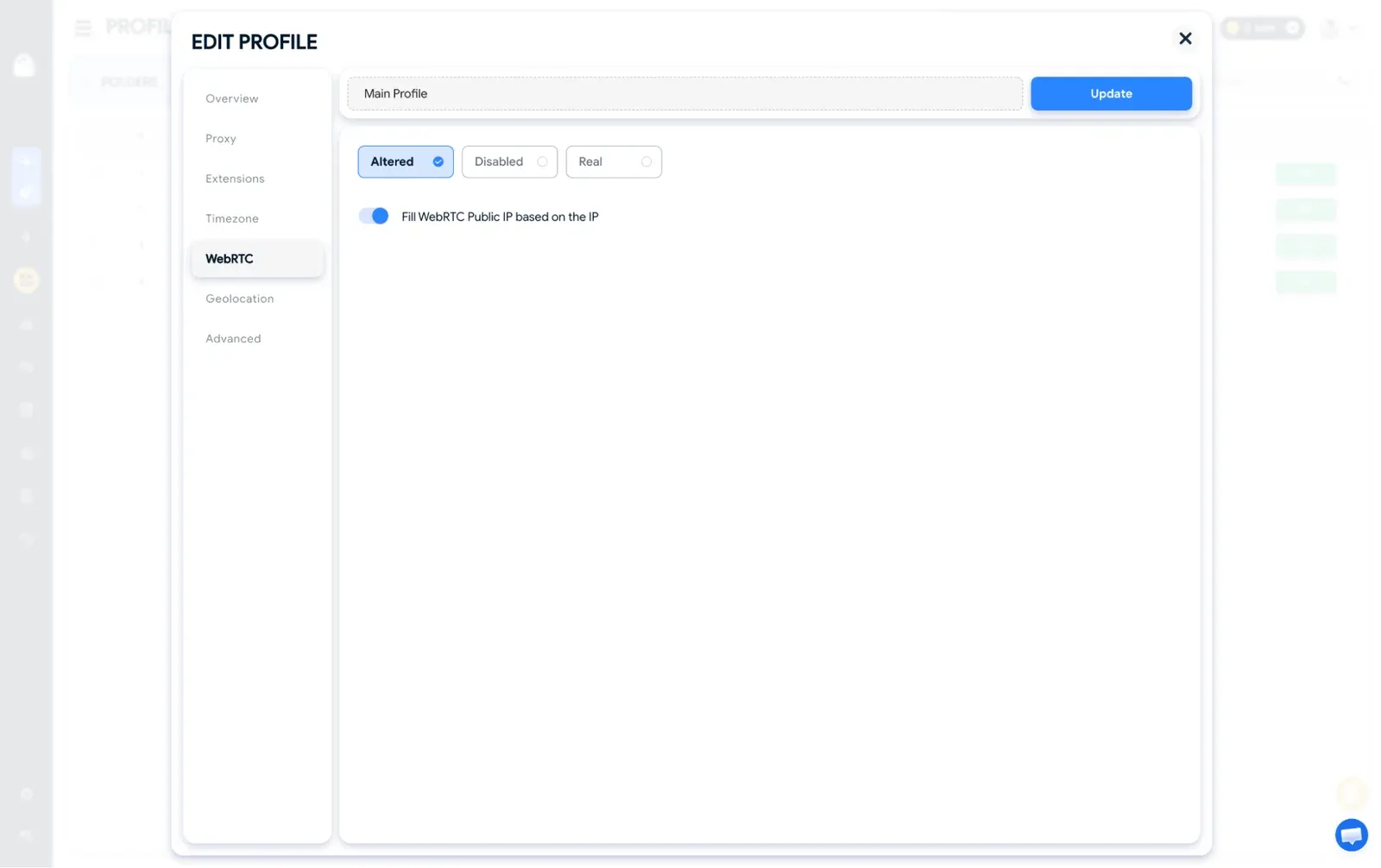
Choosing between Altered, Disable and Real
Here is the key difference:
- Altered shows websites the proxy's IP. It's the default and works best with static proxies.
- Disable turns WebRTC off, which suits rotating proxies since the WebRTC IP is set at launch and won't follow IP changes.
- Real exposes your actual IP, so use it only for local testing.
Summary: use Altered for static IPs, Disable for rotating IPs, and never Real on an account profile. Remember to verify with a WebRTC leak test, since Check Proxy doesn't cover this.
Adding proxies in bulk with Hidemyacc Proxy Manager
Proxy Manager stores proxies before you assign them to profiles. To add proxies in bulk, select Add proxy, choose HTTP or SOCKS5, and paste one proxy per line in IP:Port:Username:Password format.
The optional fields keep things organized. Use tags to group proxies, expiration dates as renewal reminders, and notes to track which account uses each proxy. Finally, run Check Proxy on the full list before assigning anything. Be careful when deleting, because removed proxies can't be restored.
Entry point | Supported protocols | Format | Key notes |
|---|---|---|---|
Proxy tab (Your Proxy) | HTTP, Socks4, Socks5, plus two service-specific options | ip:port:username:password or separate fields | One proxy per profile, no HTTPS option |
Proxy Manager (Add proxy) | HTTP, Socks4, Socks5 | IP:Port:Username:Password, one per line | Supports tags, expiration dates, and notes. Deletions are permanent |
CSV batch import | http, socks4, socks5, ssh | host:port:username:password in the proxy column | Protocol goes in a separate column |
Local API | http, socks4, socks5 | Escaped JSON string with host, port, mode, username, and password | Team plan or higher required |
The screenshot below shows the Add Proxy dialog in Proxy Manager, where you can paste several proxies at once and organize them with tags, an expiration date, and notes.
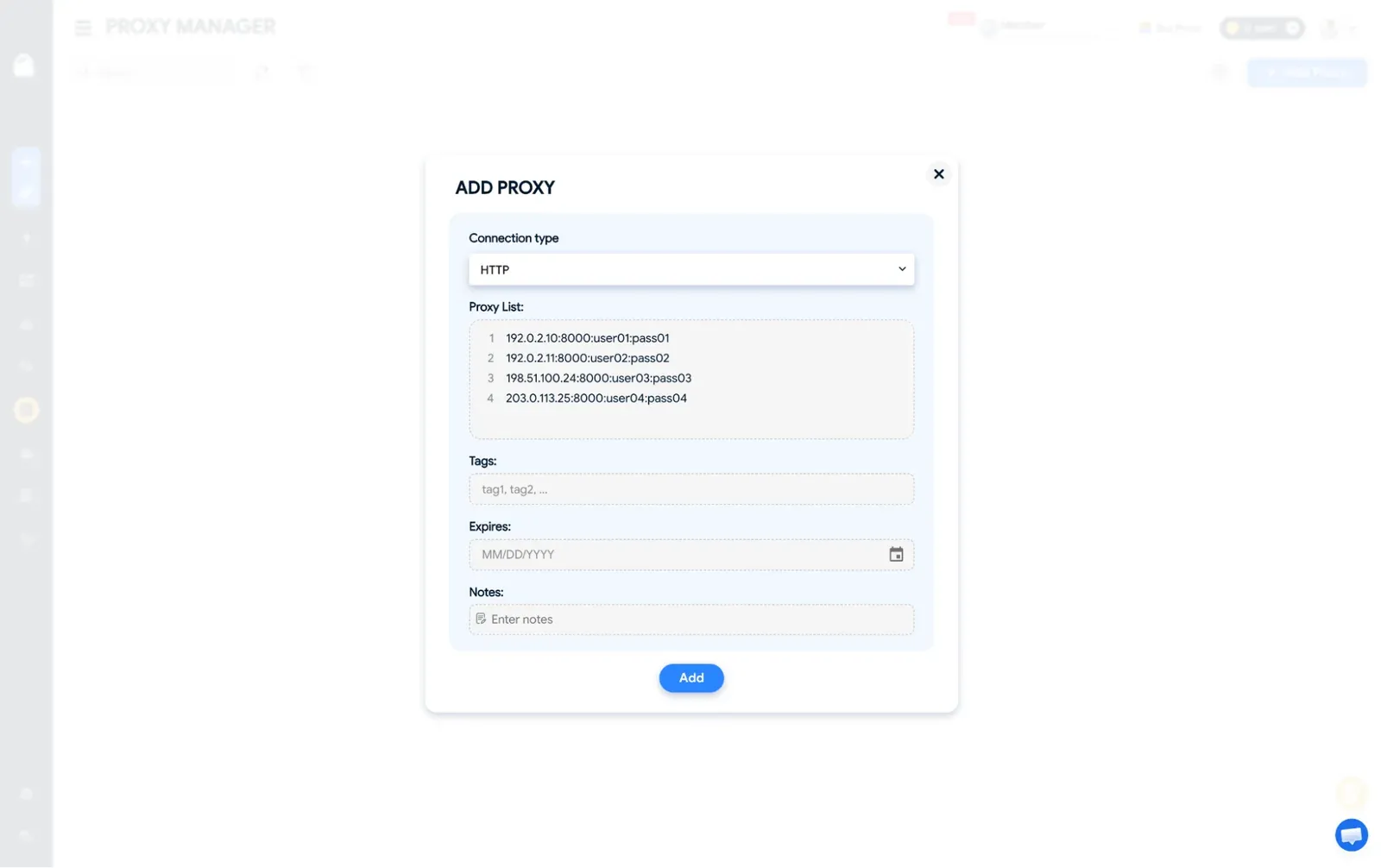
CSV import when you create profiles in bulk
When creating many profiles, you can add proxies in the same step. The Multi Profiles feature in Hidemyacc accepts a CSV template with columns for the profile name, cookies, proxy type, proxy, user agent, bookmarks, and notes. It's also the only option in Hidemyacc that supports ssh proxies.
To name profiles, enter one name for numbered profiles, leave it blank for random names, or list one name per profile. Click Check data before creating them. Each row in the CSV creates one profile with its proxy already attached.
The example below creates a profile called "shop-us-02" that connects through a SOCKS5 proxy and opens with a saved bookmark:
Profile name,Cookie,Proxy type,Proxy,User Agent,Bookmarks,Notes
shop-us-02,,socks5,203.0.113.25:8000:USERNAME:PASSWORD,,Store::https://example.com/dashboard,US store account
Assigning proxies through the Hidemyacc local API
If you create profiles with a script, add the proxy directly to the API request. The local API runs on 127.0.0.1 and only works while your Hidemyacc app is open. The proxy field must be a JSON string with escaped quotes, not a nested object. It supports HTTP, SOCKS4, and SOCKS5. Marco and Ghosty profiles share one endpoint but use different browserSource values.
Note: API access requires the Team plan or higher. Lower plans return a 402 error.
The request below creates a macOS profile called "shop-us-02" in Brave, with a SOCKS5 proxy attached:
POST http://127.0.0.1:2268/profiles
{
  "name": "shop-us-02",
  "os": "mac",
  "browserSource": "marco",
  "browserType": "brave",
  "proxy": "{\"host\":\"203.0.113.25\",\"port\":8000,\"mode\":\"socks5\",\"username\":\"USERNAME\",\"password\":\"PASSWORD\"}"
}
When a proxy will not connect in Hidemyacc
If the proxy is not connecting, start by testing the proxy outside Hidemyacc with curl or your provider's proxy checker. If it fails there, the issue isn't Hidemyacc. The error type you get when you use curl helps narrow it down:
- Authentication errors point to credentials
- Timeouts suggest a wrong host, wrong port, or expired proxy
- Wrong location usually means the username's targeting parameters need fixing.
If the proxy works outside the app, use the table below to find the fix.
What you see | Likely cause | Fix |
|---|---|---|
Check Proxy fails, but the credentials work elsewhere | A colon or @ sign in the username or password broke the string | Enter host, port, username, and password in separate fields |
Check Proxy passes, but the browser shows your real IP | Profile is set to Without Proxy, or the proxy was added to another profile | Reopen the profile, select Your Proxy or Proxy Manager, and save |
Check Proxy passes, but sites show the wrong country | Timezone, geolocation, or language still use your local settings | Match all settings to the proxy location (see Table 4) |
Timezone stays local after a successful check | The timezone checking server can't be reached through the proxy | Switch servers under Settings > Timezone and reopen the profile |
WebRTC test shows your real IP | WebRTC is set to Real or doesn't suit the proxy type | Use Altered for static proxies and Disable for rotating ones |
IP changes during a session | Sticky session is shorter than the task, or mobile rotation is on | Extend the session TTL or pause mobile rotation during account warm-up |
Bulk-added proxies show failed status | Some proxies have expired or use the wrong protocol | Run Check Proxy in Proxy Manager and replace failed entries |
API returns a 402 error | Your plan is below Team | Use Proxy Manager or CSV import, or upgrade your plan |
Matching ProxyWing proxies to Hidemyacc profiles
Choosing the proxy to use depends on the intended use case of each profile. ProxyWing residential proxies support country, city, and ISP targeting with rotating or sticky sessions. With this type, you can hold an IP for up to 1,000 minutes on Standard or 7 days on Premium, which suits profiles that need a local presence.
ISP proxies are static and dedicated, making them ideal for one account per IP. Mobile proxies run on 4G and 5G networks and rotate by timer, link, or button. Finally, datacenter proxies suit short-term profiles that never log in since they have the least IP trust scores. The table below shows a summary of the proxy types that suit the different use cases and why.
Hidemyacc use case | ProxyWing product | Why it fits |
|---|---|---|
Multiple profiles that should appear local to one city | Residential | Country, city, and ISP targeting with sticky sessions that last the full task. From $1.00 per GB |
One long-term account per profile with daily logins | ISP | Static, dedicated IPs with unlimited traffic and no rotation during the plan. From $1.71 per IP |
Profiles on platforms that check carrier data | Mobile | Real 4G and 5G carrier IPs with rotation by timer, link, or button. From $4.00 per day |
Short-term profiles for layout and price checks | Datacenter | Lowest cost per profile when no login needs protecting. From $0.87 per IP |
Quick checks across many countries in one session | Rotating residential | Coverage in 190+ countries with per-request or short sticky sessions. From $1.00 per GB |
Final Thoughts
Creating a reliable Hidemyacc proxy setup comes down to consistency. You need to make sure your timezone, WebRTC, language, and IP all point to the same location, and the IP should stay stable for as long as the account needs it. Once these match, adding a proxy in Hidemyacc takes less than a minute.
If you need reliable proxies, the ProxyWing residential, ISP, mobile, and datacenter pages list the locations, session options, and protocols for each. Residential proxies start at $1.00 per GB and ISP proxies at $1.71 per IP. Choose the type that suits your needs and get started within minutes.
FAQ
Can one Hidemyacc profile use more than one proxy?
No, each profile uses one proxy at a time. Profiles can share a proxy, but that undermines account separation and should be avoided, especially when managing accounts on strict targets.
Is Hidemyacc's Free Proxy good enough for running accounts?
Not for long-term accounts. It's a shared datacenter proxy, so it's best for quick location checks only. For sensitive workflows, using proxies from a dedicated provider is recommended.
Should I use HTTP or SOCKS5 in Hidemyacc?
Both support username-and-password proxies, so use whichever your provider offers. Choose SOCKS5 for non-HTTP traffic. Most providers offer a different port number for SOCKS5, so remember to check with your provider.
How many proxies can I paste into Proxy Manager at once?
Hidemyacc doesn't publish a limit. Add one proxy per line in IP:Port:Username:Password format and test larger batches in your version.
Does Hidemyacc set the timezone automatically when I add a proxy?
Yes, it matches the timezone to the proxy. If it looks wrong, switch the checking server in Settings or set it manually.
Do I need a paid plan to assign proxies through the API?
Yes, the local API requires the Team plan or higher. Proxy Manager and CSV import work on lower plans.