




Using proxies is one of the most effective ways to bypass strict targets, especially when managing multiple accounts or scraping web data. However, masking your IP address is only one part of the equation. Most strict targets also check browser fingerprints before allowing traffic. That's where using an anti-detect browser like GoLogin becomes useful.
Using a proxy alongside an anti-detect browser allows you to disguise both your IP address and browser fingerprints, making it even harder for targets to block your traffic. For account management, proxies allow you to assign each account a different IP, which makes each account seem like it is from a different user when used in combination with a unique browser fingerprint generated by GoLogin.
In today's guide, we will discuss how to set up GoLogin, including setting up a proxy in each profile, importing proxies in bulk, troubleshooting common issues, and more. Let's start by discussing the basics of GoLogin to ensure everyone is up to speed.
What GoLogin is and why every profile needs its own proxy
GoLogin is an anti-detect browser that gives each browser profile created its own fingerprint and cookies. Unlike mainstream browsers like Chrome or Safari, GoLogin profiles don’t share any fingerprints, making traffic seem like it is coming from different devices.
GoLogin can be run on desktop machines, in the cloud, and on Android devices. However, it doesn't give each profile its own IP address, so you need to add a proxy to every profile to add more anonymity to your traffic.
A proxy replaces your real IP with a proxy IP address. In GoLogin, it hides your device, places each profile in the right country, and keeps accounts from sharing one address, which is crucial for multi-accounting workflows. This setup works well for marketplace sellers, agencies, scrapers, and QA testers.
Feature | Details |
|---|---|
Type of tool | Antidetect browser with separate profiles, each running its own fingerprint |
Browser engine | Orbita, built on Chromium, with control over 50+ fingerprint settings |
Where it runs | Windows, macOS, and Linux desktop apps, a browser-based cloud version, and an Android app |
Free tier | Three profiles, without profile sharing or team members |
Paid tiers | Professional, Business, Enterprise, and Custom, covering 10 up to 100,000 profiles |
Supported proxy protocols | HTTP and SOCKS5, set individually for each profile |
GoLogin's own proxies | Traffic-based residential, mobile, and datacenter IPs, plus Dedicated IPs at $5/month each in 8 countries |
Automatic location matching | Adjusts timezone, geolocation, and language to the proxy IP when "Based on IP" is enabled |
Tested version | GoLogin desktop app version 4.2.4 as of September 2026 |
GoLogin features that matter for proxy setup
- "Based on IP" settings: When enabled, GoLogin matches the profile's timezone, location, and language to your proxy after you check it. This keeps your profile consistent and lowers the risk of detection.
- WebRTC protection: WebRTC is controlled separately. Set it to Altered so WebRTC traffic stays behind your proxy instead of exposing your real IP. Use Off only if the profile doesn't need calls or video, since turning WebRTC off breaks apps like Google Meet and Discord.
- Separate profiles, shared IPs: Each profile keeps its own cookies and fingerprint, but profiles don't get their own IPs automatically. Two profiles on the same proxy still look connected and may be blocked by strict platforms, so assign each profile its own proxy.
- Saved proxy settings: The proxy is stored in the profile and works the same way for teammates, cloud launches, and automation scripts.
Which proxy type to use in GoLogin
GoLogin supports all the major proxy types, including mobile, ISP, residential, and datacenter proxies. Your choice should be based on your goal and task at hand.
Proxy type | Trust level | How the IP behaves | Where it fits in GoLogin | Session setup | Trade-off |
|---|---|---|---|---|---|
Very high, since carrier IPs are shared with thousands of real phone users | Changes on a timer, via a rotation link, or manually | Instagram, TikTok, betting sites, and Android profiles | Keep one IP per task, switch between tasks | Higher cost (daily or per-port billing) and fewer countries | |
ISP (static residential) | High, as the IP is registered to an internet provider | Stays the same for the whole subscription, with no session expiry | Amazon, eBay, PayPal, Google Ads, and accounts meant to last for months | Static | Billed per IP, with a smaller country selection |
High, since traffic comes from real home connections | Holds one IP until the session time (TTL) runs out | Most social media and marketplace accounts, plus agencies working across many countries | Sticky, lasting from a few minutes to several days depending on the provider | Billed per GB, and the IP may change once the TTL ends | |
Low, because platforms can easily recognize server IP ranges | Can be fixed or rotating | Website layout testing and scraping sites with light protection | Any | Quickly flagged by social media and marketplace platforms |
Mobile proxies: the most trusted IPs for high-value accounts
Mobile proxies route traffic through Mobile IPs shared by thousands of real phone users, so platforms rarely block them. GoLogin recommends them for social media management for platforms like Instagram, TikTok, and betting sites.
ISP proxies: one fixed IP per profile
With an ISP proxy, your traffic is routed through an IP address of an ISP-managed server. An ISP proxy gives you one fixed IP that never changes while your plan is active, which makes it ideal for accounts that must stay stable for months for strict platforms like Amazon, eBay, and PayPal.
Residential proxies with sticky sessions: the value option
A residential proxy routes traffic through real home IP addresses. A sticky residential proxy keeps the same home IP for a set time. On ProxyWing, that's up to 1,000 minutes on Standard and up to 7 days on Premium. When the time runs out, you get a new IP in the same country, which most accounts handle fine.
Why GoLogin's built-in proxies are not enough for accounts
GoLogin's built-in proxies rotate and are shared with other users, which significantly lowers their trust scores. GoLogin itself advises against using them for long-term, especially when dealing with trust targets like Amazon, eBay, or financial accounts. They're fine for testing, but you will need to use a dedicated proxy for real account management.
Rotating vs. sticky sessions for multi-accounting
Rotating proxies change your IP often, which looks suspicious on a logged-in account, and can result in frequent authentication triggers. Use sticky or static IPs for anything with a login, and save rotating IPs for data scraping. On most providers, switching between the two in the users dashboard takes just a few clicks.
What you need before you start
- A GoLogin account
- Your proxy details (host, port, username, and password)
- No VPN running on your device
- Know the country and platform the profile is for.
GoLogin plans and the free tier
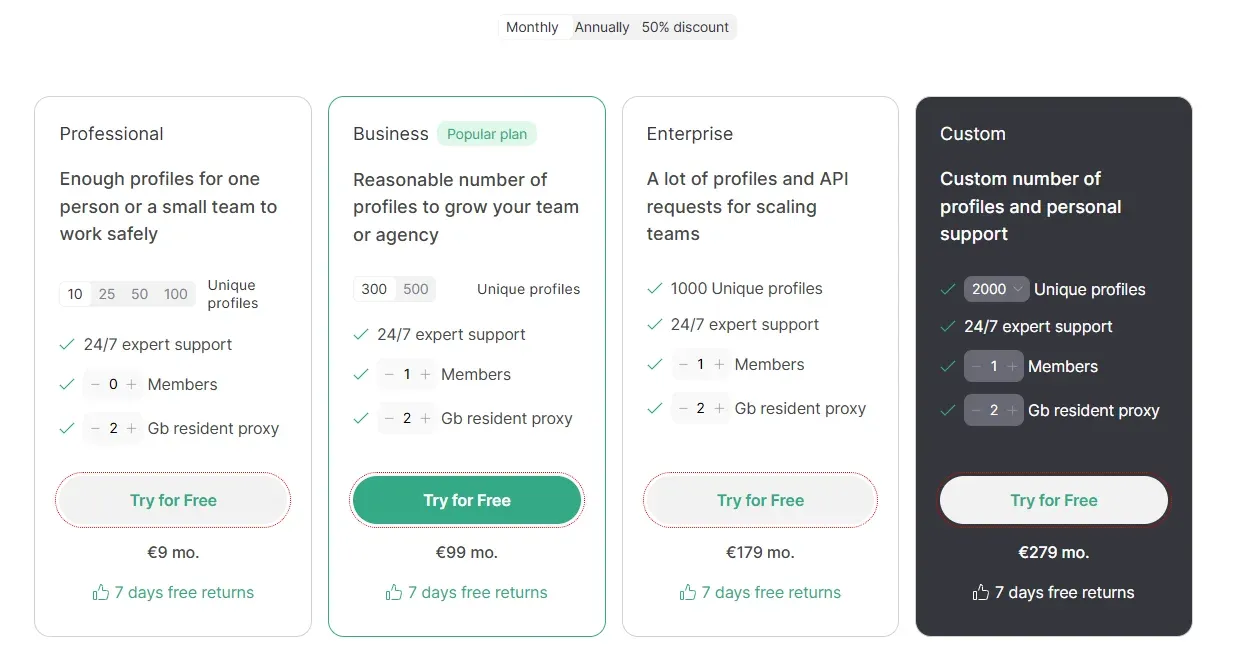
GoLogin offers a free plan that includes three profiles, which is enough to follow this guide. Paid plans start at 10 profiles. The paid plans are obviously necessary if you intend to manage multiple accounts (more than 3). Check GoLogin's pricing page for current prices.
Where to find your proxy credentials and what each field means
Your proxy details are in your provider's dashboard. On residential proxies, the username also sets the country and session, so copy it exactly instead of typing it. The table below shows the different proxy details (for the different types) and what they mean:
Proxy product | Server address | Port | Username format | GoLogin protocol | Key details |
|---|---|---|---|---|---|
Residential | quality.proxywing.com | 8888 | Created in the dashboard and includes the pool, country, session, and TTL, for example: pkg-private2-pool-onlyipv4-country-US-session-a1b2c3d4-ttl-60 | HTTP or SOCKS5 | Gives a new IP on every request unless you add a session ID. With a session, the IP holds for up to 1,000 minutes on Standard or up to 7 days on Premium. City-level targeting is supported |
ISP | Your assigned IP from the dashboard, for example: 203.0.113.10 | Listed next to each proxy in the dashboard | Dashboard login, or IP whitelisting as an alternative | HTTP or SOCKS5 | One fixed IP available in 11 countries. You can set the connection's OS signature (p0f) to match your GoLogin profile |
Mobile | Provided in the dashboard | Listed next to each proxy in the dashboard | Dashboard login and password | HTTP or SOCKS5 | Real 4G/5G carrier IPs in 15 countries. The IP can rotate on a timer, through a rotation link (paste it into GoLogin's Change IP URL field), or manually |
How to set up a proxy in GoLogin: step by step
Setting up a proxy in GoLogin takes about five minutes if you know what to do. In this guide, we use ProxyWing as the example, but the steps are the same for any provider.
Step 1. Install GoLogin and create an account
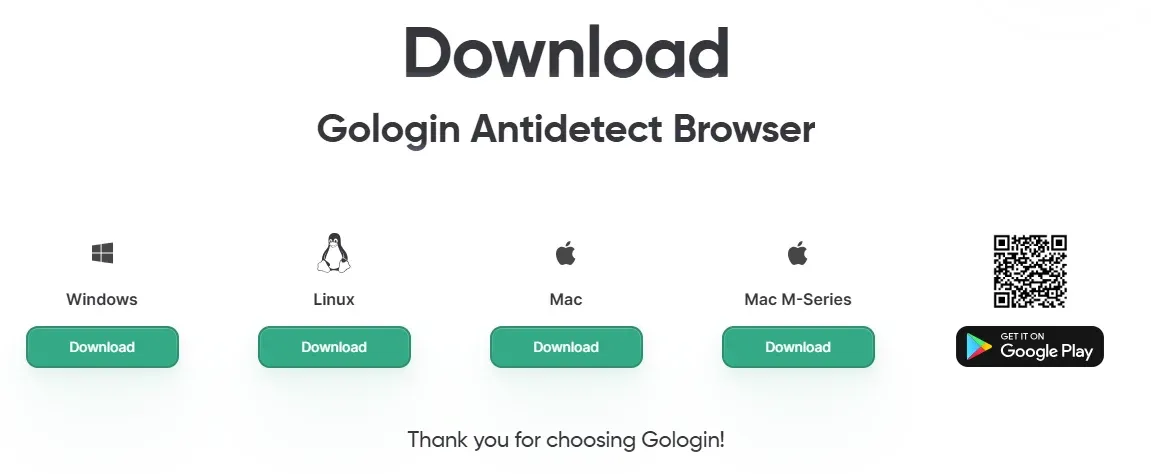
Download GoLogin from gologin.com and sign up with Google or use your email. You can also use the cloud version in your browser without installing any app on your device. For this guide, we will use the desktop version of this browser.
Step 2. Create a new profile and name it
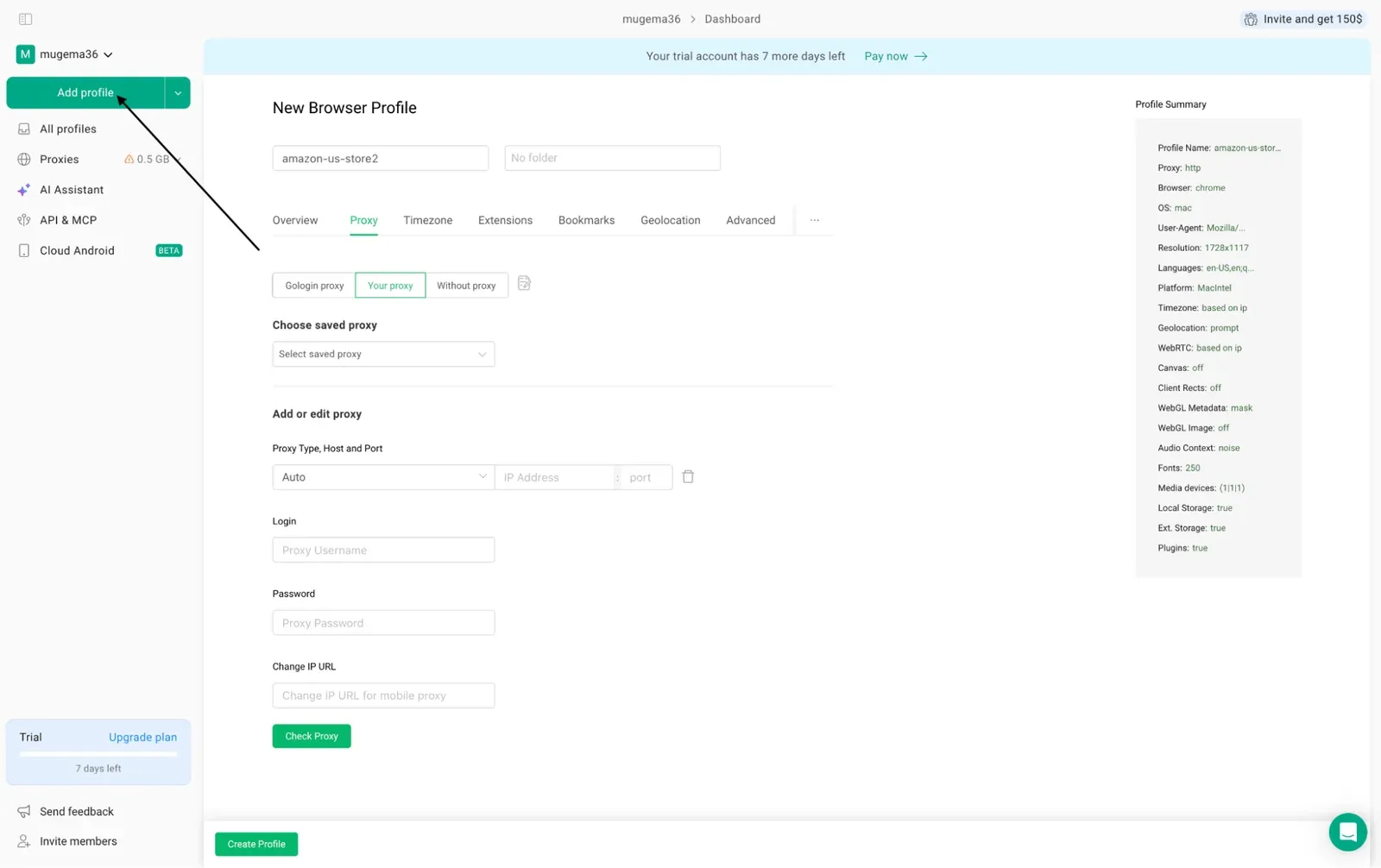
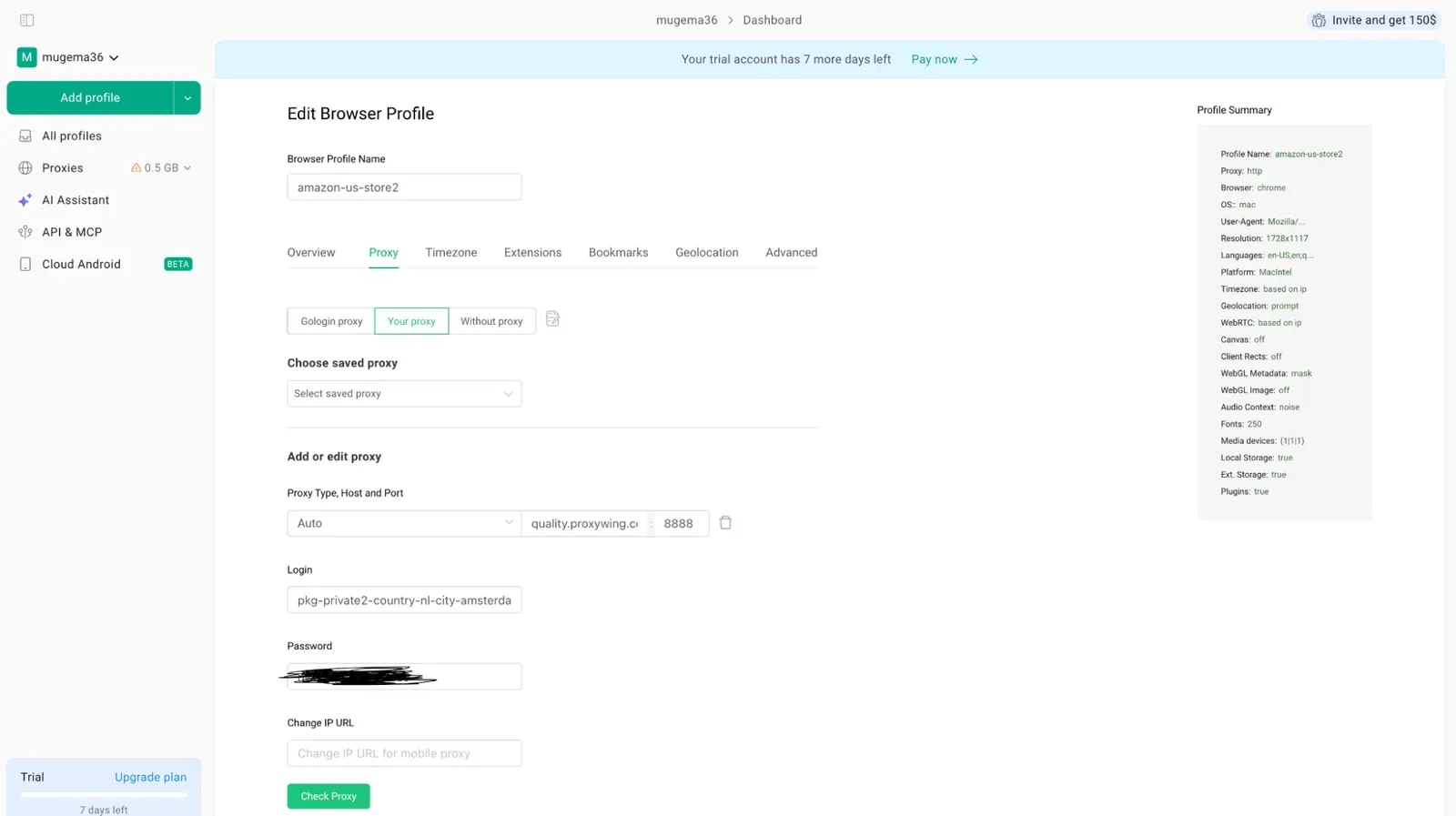
Click Add profile and give it a clear name, such as amazon-us-store2 or Facebook-account-1. To add a proxy to an existing profile, click the three dots on it, then Settings > Proxy to open a page with the field where you can input your proxy details. As shown in the screenshot below, click Add profile to create a new browser profile, then open the Proxy tab and select Your proxy.
Step 3. Open the Proxy section and choose the connection type
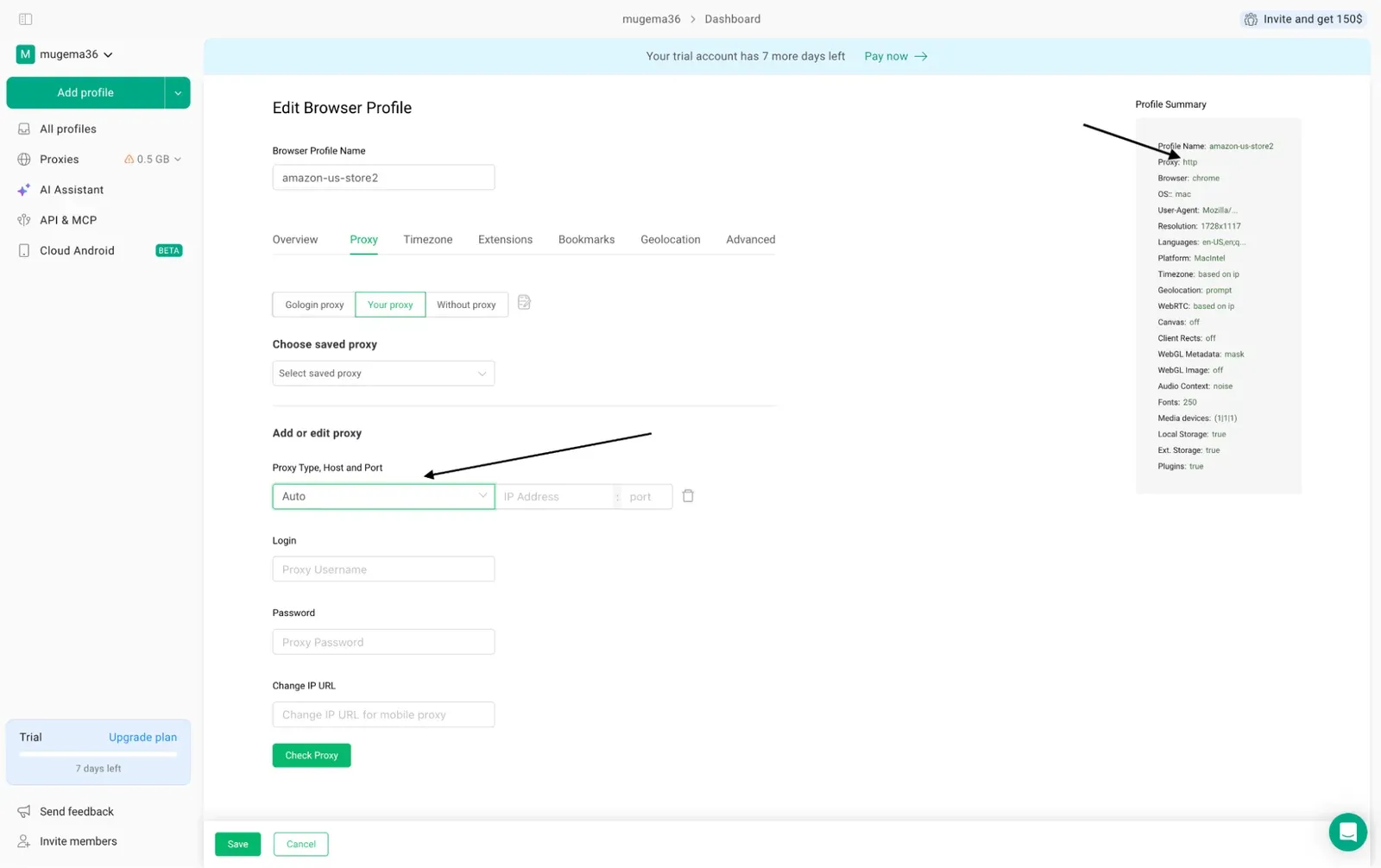
Open Proxy and select Your proxy. Choose HTTP unless your provider gives you a SOCKS5 port. HTTP should work fine, especially for account management since this mainly involves web traffic. SOCKS5 is necessary for workflows that involve other forms of traffic. As shown in the screenshot below, GoLogin defaults to HTTP.
As shown in the screenshot below, the Proxy tab lets you choose the proxy type and enter the host and port, while the Profile Summary on the right confirms the proxy protocol.
Step 4. Enter the host, port, username, and password
Enter your four proxy details. You can set them up for a fixed IP, a rotating IP, or paste them as one line that you can generate in your ProxyWing dashboard.
Sticky (static) IP configuration
For an ISP proxy, just enter the IP and port. For a residential proxy, the username controls the country, session, and how long the IP lasts. For example, country-US-session-a1b2c3d4-ttl-60 keeps one US IP for 60 minutes.
As shown in the screenshot below, we entered the ProxyWing host, port 8888, and the login containing our country and city targeting.
Rotating IP configuration and the Change IP URL field
Remove the session part from the username, and you'll get a new IP on every request. For mobile proxies, paste your provider's rotation link into the Change IP URL field. Leave it empty for account profiles.
Pasting a single connection string
You can paste all your details as one line (generated from your dashboard), and GoLogin fills in the fields for you. Below are few examples of how this string looks like:
quality.proxywing.com:8888:pkg-private2-pool-onlyipv4-country-GB-session-k7m2x9q4-ttl-120:PASSWORD
quality.proxywing.com:8888:USERNAME:PASSWORD:ebay-uk-shop1
socks5://USERNAME:PASSWORD@198.51.100.24:2080[https://rotate.example/x7y]:mobile-fr-03
Step 5. Click Check proxy and read the result
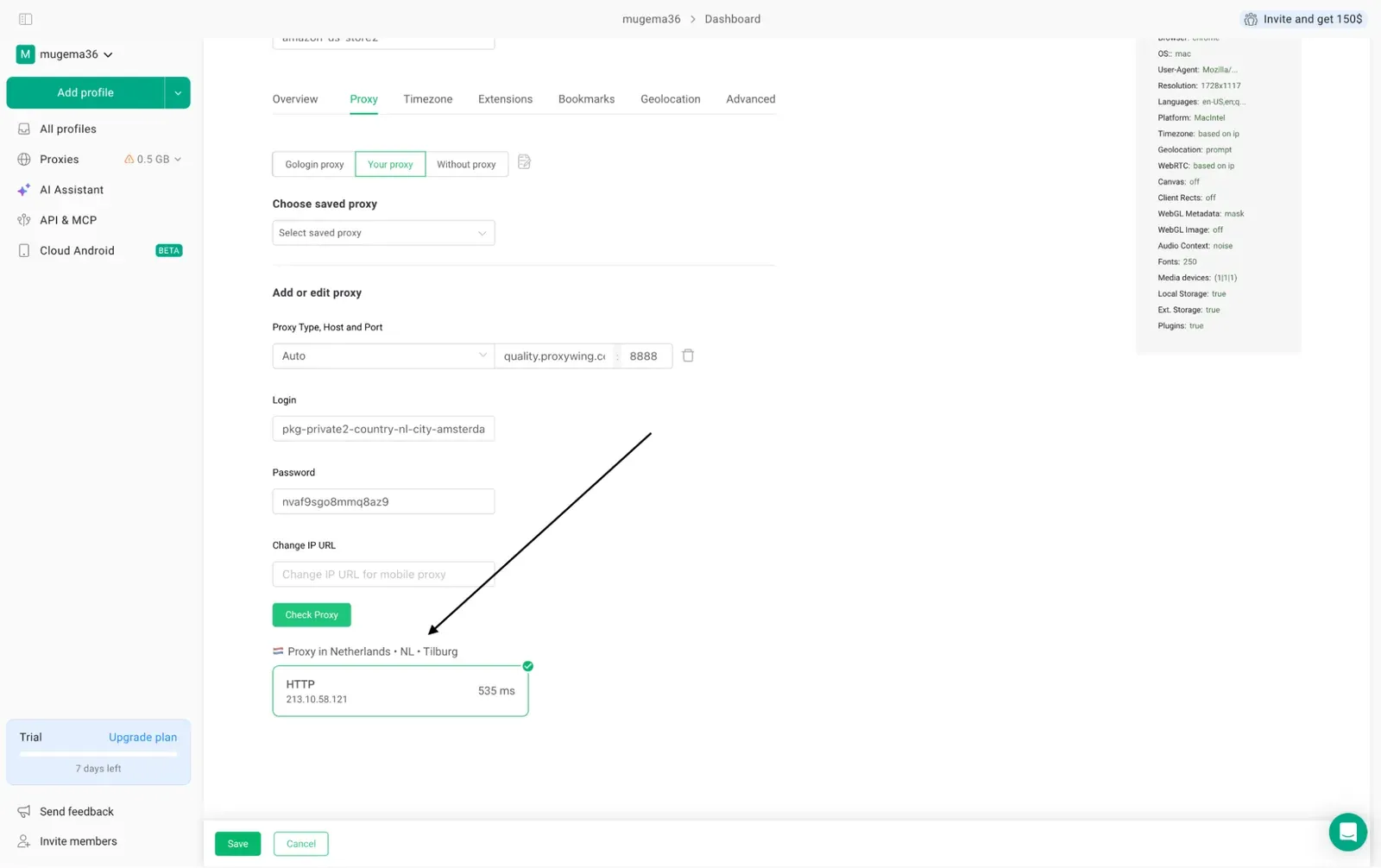
Click Check proxy. Green means it works and shows the new IP and location. Red means it failed, so see the troubleshooting section below to resolve whatever issues you encountered in the process. As shown in the screenshot below, clicking Check Proxy confirmed a working HTTP connection through a Netherlands IP with a 535 ms response time.
Step 6. Align the fingerprint with the proxy location
Make sure timezone, location, and language are set to "Based on IP." Then check that WebRTC doesn't show your real IP. This is a crucial step to avoid detection.
Step 7. Create the profile, run it, and confirm the IP in the browser
Click Create profile, then Run. Before logging in anywhere, visit an IP checker to confirm it shows the proxy's IP, not yours.
Authentication: username and password vs. IP whitelist
You can choose between the two authentication methods based on your environment. Use a username and password in GoLogin since you will likely rely on different source IP addresses. IP whitelisting stops working if your home IP changes and doesn't work with cloud launches.
How to add proxies to many GoLogin profiles at once
If you manage many profiles, follow these best practices to keep them separate and organized.
The golden rule: one unique sticky IP per profile
Never share one proxy across multiple profiles, or platforms will link the accounts. Give each profile its own session name, such as session-etsyca1 and session-etsyca2. Plan your budget around the number of IPs you need, not bandwidth.
Bulk-import a proxy list
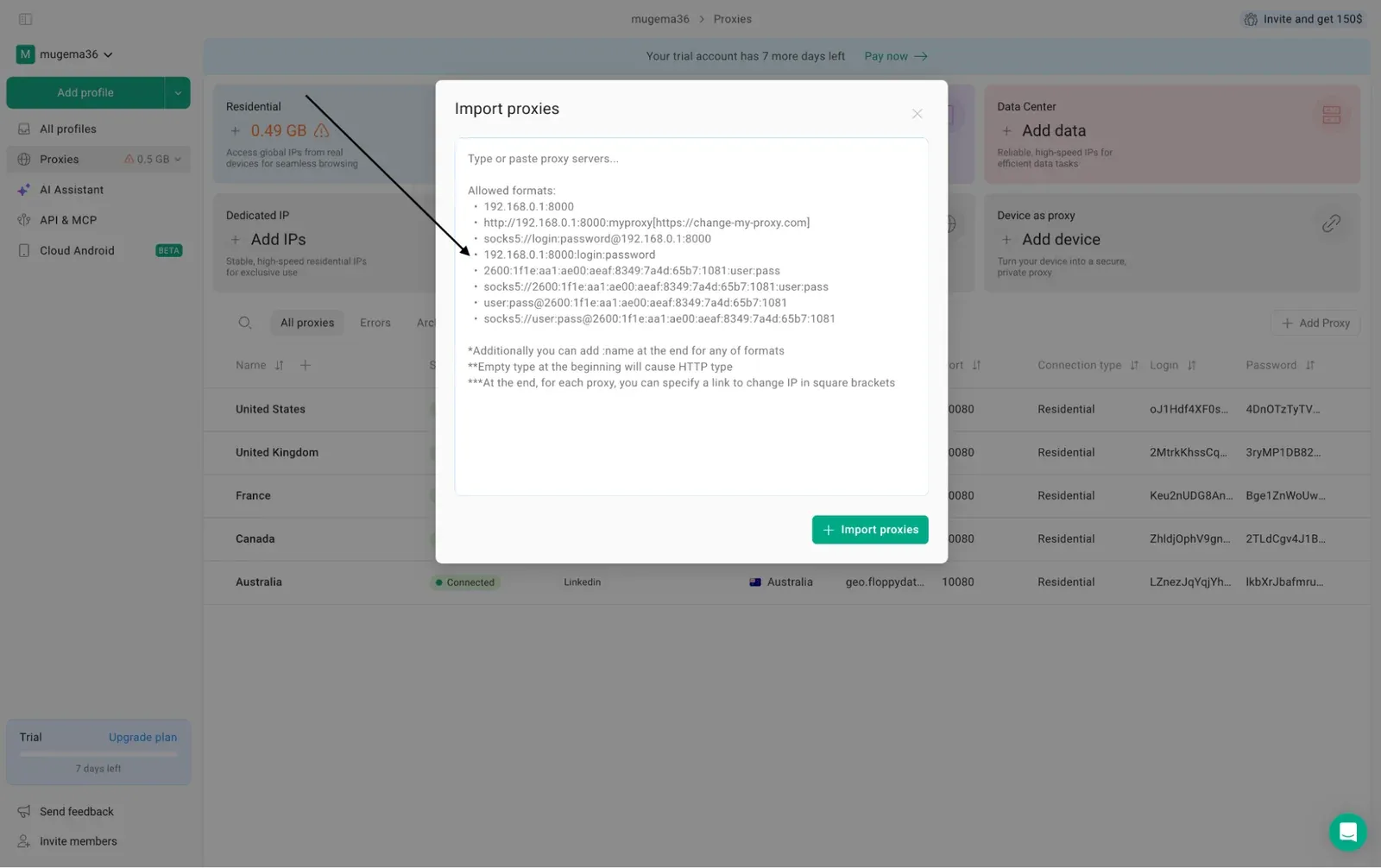
Go to Proxies > Import proxies and paste one line per profile, each with its own session. Test one line first before importing the full list. The format should resemble the examples below:
quality.proxywing.com:8888:pkg-private2-pool-onlyipv4-country-CA-session-igca11-ttl-1000:PASSWORD
quality.proxywing.com:8888:pkg-private2-pool-onlyipv4-country-NL-session-ignl12-ttl-1000:PASSWORD
quality.proxywing.com:8888:pkg-private2-pool-onlyipv4-country-ES-session-iges13-ttl-1000:PASSWORD
As shown in the screenshot below, GoLogin's Import proxies window accepts several formats, including host:port:login:password, which makes bulk imports quick.
Country and city targeting per profile
You set the country in the proxy username (generated using your provider dashboard), not in GoLogin. Keep each account in the same country it has always used.
How to verify the proxy connection
Check your proxy both inside and outside GoLogin. You can also test the profile's fingerprint on BrowserScan or Pixelscan.
Inside GoLogin: what a successful check looks like
- A green check with an IP and location means everything works and your traffic is being routed using the proxy IP address.
- Green with no location means the location lookup failed, so set the timezone manually.
- Red means the proxy didn't connect and requires resolving the issues before your traffic can be routed through the new IP address.
Outside GoLogin: curl and IP-check sites
Test your proxy with the command below. If it works here but not in GoLogin, the problem is most likely in the profile settings.
curl -x "http://USERNAME:PASSWORD@quality.proxywing.com:8888"
Advanced setups: SOCKS5, direct IPs, and cloud profiles
Cloud and API launches use the same proxy saved in the profile. Use a sticky or ISP proxy to keep the same IP across desktop and cloud.
SOCKS5 in GoLogin: what changes compared to HTTP
With some providers, SOCKS5 needs the country and session in the username, or the IP keeps changing. ProxyWing supports both HTTP and SOCKS5. Stick with HTTP unless your tool requires SOCKS5. HTTP works fine for all workflows that deal with only web traffic.
Direct IP lists and the IP:PORT format
ISP and datacenter proxies give you a real IP and port to paste into your GoLogin proxy configuration section. Residential and mobile proxies on the other hand use a gateway address instead, so the IP:PORT format won't work for them.
Common GoLogin proxy mistakes that get accounts banned
Most bans come from how the proxy is set up, not from GoLogin itself. The table below shows some of the common mistakes users make when setting up GoLogin with proxies.
Common mistake | Result | Better approach |
|---|---|---|
Running several profiles through the same IP | Platforms connect the accounts and can suspend all of them at once | Assign every profile its own sticky IP or session name |
Using a rotating proxy on an account you're logged into | Frequent IP changes look like someone took over the account, leading to logouts and security checks | Switch to a sticky residential, ISP, or static mobile proxy |
Running social or marketplace accounts on datacenter IPs | The platform flags the server IP range before it even checks the fingerprint | Use residential, ISP, or mobile IPs instead |
Picking a proxy country that doesn't match the account's past logins | The location mismatch triggers identity verification | Choose the country the account normally uses and leave "Based on IP" enabled |
Moving an active profile to a new country | The sudden location change makes the account look hacked | Keep each profile on the same country and session permanently |
Using fingerprint settings that clash or stand out too much | Inconsistent details get flagged, and rare setups are easier to track | Stick to GoLogin's built-in presets and test the result on a fingerprint checker |
Skipping warm-up or leaving profiles unused for long periods | Cookies expire, and an established account on a blank profile looks unusual | Warm up new profiles gradually and open them on a regular schedule |
Relying on free or shared proxies for real accounts | The IP may already be blacklisted because of other users' activity | Use paid dedicated or sticky IPs only |
Note: GoLogin is legal to use, but breaking platform rules or the law is not. So, ensure to check the platform’s rules before proceeding.
Troubleshooting: proxy not working in GoLogin
First, test your proxy with curl in the terminal. If it works, the problem is in your GoLogin profile. If it fails, then your proxy credential could be the issue. Check your credentials (ensure they are correct) and account balance.
Problem | Likely reason | How to fix it |
|---|---|---|
Check proxy shows red | Typo, wrong protocol, active VPN, or no traffic left | Recopy details, match protocol to port, turn off VPN |
No country or city shown | Location lookup failed or IP whitelist issue | Use username and password, set timezone manually |
Sticky profile keeps changing IP | Missing, reused, or expired session | Add a unique session ID and longer TTL |
Pages load slowly | Busy pool or distant city | Try another city or protocol |
Some sites won't load | Provider blocks the domain or firewall issue | Check provider's blocked list, test without proxy |
Wrong timezone or language | "Based on IP" is off | Turn it on and check the proxy again |
Cloud and desktop IPs differ | Rotating proxy or expired session | Use a sticky session or ISP proxy |
Import splits lines wrong | Unsupported format | Use host:port:user:pass |
Proxy works, account still flagged | Shared IP, datacenter IP, or location mismatch | Review Table 4 |
If the proxy works but your account still gets flagged, review the mistakes table above.
Which ProxyWing product to pick for each account type
Use the table below to match each platform with the right proxy.
Platform | Recommended proxy type | IP behavior | ProxyWing option |
|---|---|---|---|
Facebook, Meta Ads, LinkedIn | Residential or mobile | Fixed or sticky | Premium Residential with a 7-day session, or Mobile |
Instagram, TikTok | Mobile | Rotating | Mobile |
Amazon, eBay, Etsy | Residential or ISP | Fixed | ISP |
PayPal, Google Ads, KYC sites | Residential | Fixed | ISP |
Reddit and forums | Residential | Fixed or sticky | Standard Residential with a session |
Scraping and geo testing | Rotating residential or datacenter | Rotating | Residential without a session, or Datacenter |
Note: Proxy type and IP behavior are based on GoLogin's help center. The ProxyWing options are our recommendations.
Summary and next step
Overall, for account management workflows, use one sticky IP per profile, and never change it. Pick the proxy type based on how valuable the account is, and recheck the proxy after every change. When you're ready, ProxyWing proxies are ready to paste straight into GoLogin.
FAQ
How do I add a proxy to an existing GoLogin profile?
Click the three dots on the profile, then go to Settings > Proxy > Your proxy. Enter your proxy details, click Check proxy, and save.
Does GoLogin support SOCKS5?
Yes, GoLogin supports both HTTP and SOCKS5. Some providers use a different port for SOCKS5. For web traffic use cases, HTTP proxies are what we recommend.
Can I use one proxy for several GoLogin profiles?
You can, but it is not recommended. Profiles sharing one IP can get linked and banned together, so give each profile its own IP for maximum isolation.
Should I use rotating or sticky proxies in GoLogin?
It depends on the workflow. Use sticky proxies for accounts you log into. Use rotating proxies only for scraping and testing.
Can I set a different country for each profile?
Yes. Set the country in the proxy username (when generating the gateway in your provider’s dashboard), and GoLogin matches the timezone and language automatically.
Are GoLogin's built-in proxies safe for accounts?
They're fine for testing. However, for long-term accounts, GoLogin recommends using a dedicated proxy.
Why does GoLogin say the proxy is not working?
Some of the common causes include typos in proxy credentials, the wrong connection type, an active VPN, or zero balance. Test with curl to find the cause.