Proxy Authentication Methods Explained: Username/Password vs IP Whitelisting
06.10.2026 10 min
Anyone who works with Python has to learn how to run Python script tasks. Knowing how scripts run on Windows computers can help you work more quickly, whether you are new to programming or have been doing it for many years. A Python script is just a file with Python code in it. The Python interpreter then runs this code.
This post shows you how to run a Python script on Windows in every way that works. You will learn how scripts operate, how to set up your computer, and how to run them in various ways. Read this article till the end to learn how to get more done and avoid making common mistakes.
A Python script is a file with Python code in it that runs line by line. These files commonly have a .py extension. The interpreter examines the source code and then runs it. Python is an open sourced language, which means its documentation and sources are freely available. Python scripts are not compiled; they are interpreted. This implies they execute right away without creating separate executables.
A Python script is a file with Python code in it that runs line by line. These files commonly have a .py extension. The interpreter examines the source code and then runs it. Python is an open sourced language, which means its documentation and sources are freely available. Python scripts are not compiled; they are interpreted. This means they execute immediately without creating separate executables.
Generally, a Python script is a standalone file. It functions on its own and does a certain job. A module is a Python file, but it is meant to be imported. Modules let you use the same code in different Python programs. You may use python -m module_name to execute modules. This strategy is good for packages as well as extension modules.
In a lot of instances, you may need to execute a script. These tasks involve automating things, analysing data, and developing small tools. Web scraping, testing codes, and managing files containing data are some things that developers utilise scripts for. A lot of recent programming languages supports scripting, but Python is preferred. Many developers learnt because it is simple and can be used across different operating systems.
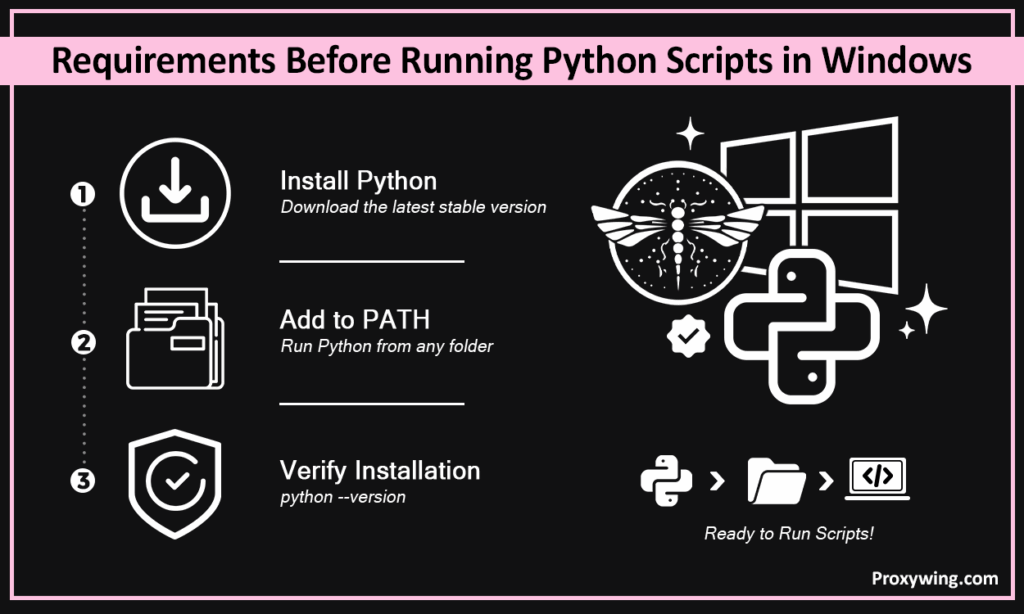
Your Windows system has to be set up correctly before you can execute a Python script. This makes sure that all commands operate as they should.
First, go to the official site and get Python. To prevent problems with compatibility, always use the latest version, like Python 3.x. These installers are available through official downloads and can be managed using an install manager.
When you install it, be sure to check the box that adds Python to PATH. This step makes it easier to execute scripts later. The installer can work with more than one Python version or multiple versions and makes basic installations easy. You may use the defaults configuration without altering many parameters. Your system is ready to create and execute basic scripts after installation.
PATH is a setting for environment variables. It informs your computer where to look for Python interpreters. The system can’t find the interpreter without PATH. This makes mistakes happen while the program runs.
By adding Python to PATH, you make sure that your scripts can execute from any directory. It also saves time since you are not required to spell out whole paths every time. Most commands will operate well in the command prompt after it is set up appropriately.
Type the following into the command prompt to verify Python installations:
python –version
If you set it up well, the system will display the newest version or the one you just installed.
You may also check by using:
py –version
This works when many versions are installed.
The command line is the most common way to run Python script on Windows. It provides you with more control as well as flexibility. This helps you understand logic as well as data types multiple times while learning.
Open the command prompt and type:
python script.py
This command instructs the interpreter to run the script. It is the easiest way and works in most environments.
To go to the working directory, type the ‘cd’ command:
cd path\to\your\folder
Then run this:
python script.py
This strategy works well when your files are stored in certain paths.
You may also launch a script by typing in its full location:
C:\Users\Name\script.py python
This strategy is helpful when you need to deal with multiple systems or directories.
If set up properly, Windows can start a Python script directly.
You may double-click on .py files in File Explorer. The system will execute the script on its own. This strategy works well with basic scripts that don’t need any input. But the window can shut just after it runs. It’s hard to tell what the script does because of this. You may add a pause or input line options to keep the window open.
The Python interpreter is linked to the .py extensions on Windows. When this connection is there, the script of Python works like any other software. If the association isn’t there, the file can open in a text editor instead. Setting Python as the default app for .py files will solve this. This makes sure that your scripts always work correctly.
The -m option lets you execute modules instead of scripts on their own. It lets Python find and run modules that are part of installed packages.
This strategy is helpful when using libraries or tools that are already on your computer. It makes sure that the module runs in the right environment as well as utilises the right paths.
Use the format given below:
python -m module_name
This command runs the module as a script of Python.
You can run built-in tools such as:
python -m http.server
This launches a simple server. It illustrates how modules function like programs.
The interactive shell makes it easy to test Python script quickly. It’s helpful for those who are just starting to understand how Python works. You may write small lines of code and see the results right away in this mode. This allows you to learn about logic, data types, and simple instructions without having to write whole scripts of Python.
Type this into the command prompt:
python
This opens the interactive mode.
You may input short lines of code and hit Enter. Before building entire scripts, this is a good way to test data types as well as scripts.
You may require one script to execute another at times. This happens a lot when you write large Python programs with more than one script. You may link various files together so that they all operate as one system. This method makes it easier to reuse code and organise complicated codes better.
You can import another file with the following command:
import script_name
When imported, its code is then executed.
The importlib module lets you dynamically load modules. It is helpful when dealing with files or plugins that change. It can also read settings from configuration files when needed. You may import a module while the Python program is running instead of at the start. This makes your script more adaptable and helpful when things change.
The exec() method executes source code that is contained in strings. It lets you run things in a flexible way, but you need to be cautious when doing this. It’s not safe to run unknown programs; thus, make sure the input is safe before using this technique.
Modern development environments make it easier to run code. They come with tools for developing, executing, and debugging Python scripts. Many tools support more than two ways to run scripts, such as buttons as well as terminal commands. These tools cut down on the need for manual commands and make it simpler to handle large applications. They also help you keep your files in order and make your workflow smoother overall.
Click the Run button after opening your file. VS Code finds the Python script and executes it using the interpreter you choose. You may also run commands at the terminal that is built in. The output is shown below, which makes it easier to evaluate and fix problems fast.
PyCharm makes run configurations on its own. It helps keep track of many scripts and large Python applications. When you open a Python script, it finds the file and gets it ready to run. You may either click the Run button or hit a shortcut key. It also has a separate panel for output and errors, which makes it simpler to find and fix bugs.
Python installsations come with IDLE. It lets you modify and execute scripts in a simple way. It makes it easy to change and run scripts in Python. You may open a file, change it, and then click Run to execute it. The output shows up in the shell window, which makes it easy to test quickly.
You can also run a Python script on Windows without using the terminal. This approach is easy to use and works well for simple scripts. You can launch py files straight from your computer without having to type commands. This method is useful for those who are just starting to learn how to use Python on Windows.
Click the Python script file twice. If set up, the system will start up on its own.
Double-click the script file of Python. The system will automatically launch it if configured.
Select “Run with Python” from the right-click menu on the file. This approach works if the file associations are set up appropriately.
A lot of people have issues when they attempt to execute a Python script on Windows. Some difficulties that consumers often have are:
Make sure that your machine can run the Python versions that you need. The script may not work properly if there are compatibility concerns. Some Python scripts need particular functionalities that are only accessible in certain versions. Before executing new code, always check the requirements.
There are a lot of methods to run Python script on Windows. You may utilise the command prompt, IDEs, or File Explorer. Depending on your requirements and configuration, any way will work.
The command line gives more control as well as flexibility for advanced tasks. Moreover, built-in tools and features in IDEs make the process simpler. For easy operations for novices, File Explorer has a fast option.
Learning how codes run will aid you in avoiding errors as well as improve efficiency. It also makes it simpler to fix things when they go wrong. You can execute any script of Python smoothly in case you set it up and use it in the appropriate way. Pick options that work best for your project and your workflow.
Article written by:

CEO
Founder of Proxywing. Drives growth across EU, US, and Asian markets, combining B2B strategy with a hands-on focus on product quality, 99% uptime, and responsive support.
All articles by author (64)You can run a Python script by double-clicking it, yes. This works if the file associations are set up appropriately. But the window can shut just after it runs. This strategy works well for basic codes that don’t need any input from the user.
This error happens when PATH is not configured. The system can’t find the Python interpreter. If the PATH option isn’t used, it generally occurs after installation. You may repair that by adding Python to the system settings manually.
Yes, you can use IDEs or File Explorer. You may execute Python scripts without inputting commands using these methods. They are useful for those who are just starting out and cut down on manual effort. Many tools also provide buttons that make it easy to execute and debug your Python script.
Type python –version in the command prompt. This shows that the installation worked. It will show the version number if it is set up properly. In case, your system has more than one version, you may alternatively use py –version.