Proxy Authentication Methods Explained: Username/Password vs IP Whitelisting
06.10.2026 10 min
Despite being around for more than 15 years, Viber still has a significant user base in 2026. It is available in over 190 countries, but not every country. Like most social media websites and instant messaging apps, Viber is banned or heavily restricted in several countries, including China, Qatar, Saudi Arabia, Egypt, Iran, Jordan, Kuwait, North Korea, Yemen, and the UAE.
If your country’s government is blocking this app, using a Viber proxy is one of the most effective ways to bypass such restrictions. You can also use proxy with Viber to enhance your privacy and bypass the local network restrictions of your organization or school. In today’s guide, we will walk you through the setup process on all the popular platforms to enable accessing this messaging app without restrictions.
This messaging app allows using system network settings since it has no built-in traffic routing capabilities. To route its traffic, you need to configure the Viber proxy at the device, browser, or network level, and the app picks it up through the system connection automatically. The good news is that the set up process is only done once and you can always enable and disable these settings whenever you need to.
It routes your traffic through a remote server IP, making the destination to see your IP as though it is coming from this server and not your device. Here is why this might be important.
School, office, and public Wi-Fi networks often block VoIP apps. Using a remote IP address instead of the device’s IP allows users to bypass these network-level restrictions.
A dedicated IP per account reduces session overlap and platform-level linking flags. If you intend to manage several accounts on the same device, using different IPs for each is a must to prevent the possibility of having your accounts blocked.
A high-quality proxy masks your real IP between your device and this app’s servers, which is useful when sharing a local network like WiFi with others. Network admins will also not know the destination of your traffic since it is always routed to the remote server first.
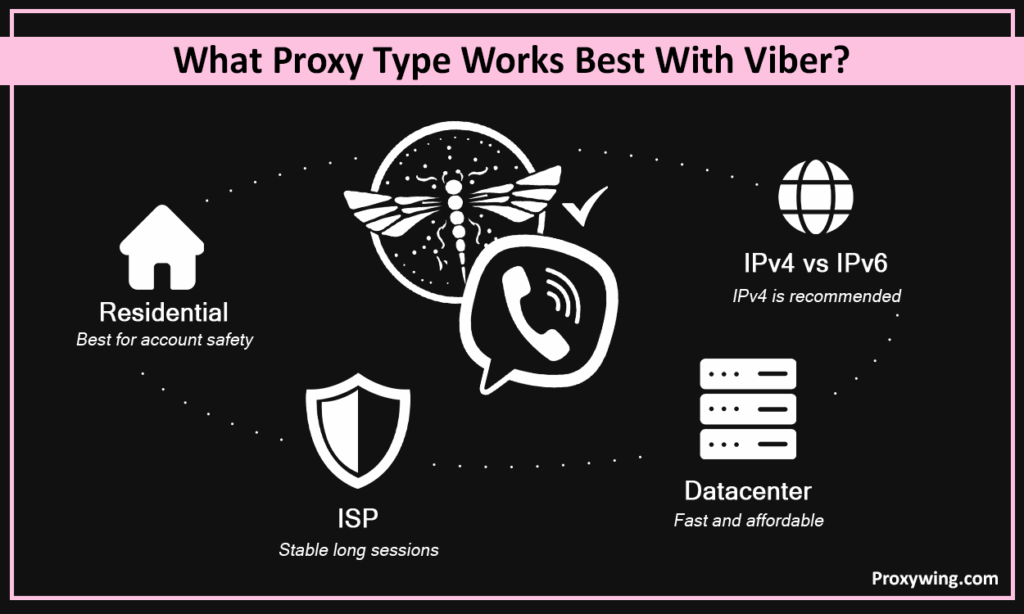
There are different types to choose from with each having its pros and cons. Let’s explore each to make this choice easier for you:
These route your traffic through real home devices with ISP-assigned IPs that look like normal user traffic. Such traffic is harder to block, making this type the best option for account-sensitive use.
These route your traffic through IPs of servers running in ISP-managed datacenters. They offer high speeds like datacenter IPs, but with ISP-assigned IPs, making them a good option for stable, longer sessions.
This type routes your traffic through remote server IPs. They are fast and affordable but easier to detect and flag, which makes them only ideal for basic access than active account management.
IPv4 is more broadly compatible with apps and account workflows. Stick with IPv4 unless your provider confirms IPv6 works with this messaging app.
Have these ready before configuring any device. We offer all them on your dashboard the moment you subscribe to any of our plans:
The server IP address and port number are the core details you’ll enter into any device or browser proxy settings field. Make sure to copy the correct details to avoid internet connection errors down the road.
Private proxies require credentials to authenticate. Without them, the connection won’t work. Some providers offer IP whitelisting that you could opt for if you don’t need to manually authenticate with your name and password.
HTTPS works for browser-based workflows. The SOCKS5 proxy protocol is the better choice for desktop and mobile app-level use since it also handles UDP traffic and is commonly used for voice and video calls.
This is the quickest setup for browser-based workflows since it requires no system-wide changes.
Install ProxyWing Proxy Manager or FoxyProxy from the Chrome Web Store to get started. We recommend staying away from unknown extensions that may log your data. Consider reading the reviews of these extensions and choose those with a good reputation.
Create a profile and enter your server details, including the IP address, port number, protocol, username, and password if manual authentication is required.
Activate the profile from the extension menu and confirm the connection is live. You can create several profiles if you need to manage multiple accounts — with each account having its profile.
Open the app only after the proxy is active. Don’t switch profiles mid-session as this could lead to security triggers that will interrupt your session.
On your Windows device, go to Settings > Network & Internet > Proxy. This will open a page that allows you to configure routing settings on your machine.
Toggle on Use a proxy server and enter your server IP address and port number acquired earlier from your provider.
Click Save, then fully close and relaunch the app to apply the new network route. When the app re-launches, all its traffic will now be routed through the remote server IP address.
Send a test message or make a short call to confirm the connection is stable.
On your Mac go to System Settings > Network
Click Details on the Wi-Fi or Ethernet interface you’re currently using. This will lead you to all the different configurations you can make on this network
Click the Proxies tab and enable HTTPS or SOCKS option. You should then enter the server IP address and port number.
Click OK to apply the set up configurations and then reopen this messaging app to test the connection.
Long-press your connected Wi-Fi network and tap Modify Network > Advanced Options.
Switch the Proxy option from None to Manual. This allows you to input the remote server details manually.
Enter the server IP address and port exactly as provided by your Viber proxy service provider. Double check these details to avoid connection errors down the road.
Reconnect to Wi-Fi if needed, then open the and send a test message. Try sending relatively large videos and files to test the speed of the network.
iOS settings apply per Wi-Fi network only and mobile data is not covered. Routing mobile traffic requires using dedicated routing apps.
On your iPhone or iPad, go to Settings > Wi-Fi and tap ⓘ next to your active network. You should then scroll to HTTP Proxy.
Tap Manual and enter your server details, including the IP address, port, and authentication credentials if they are needed by your provider.
Open this messaging app and check that messages, calls, and media load correctly. Make sure everything works just like before.
Standard Android and iOS proxy settings only cover Wi-Fi. For mobile data, use a proxy app or VPN-style proxy client that routes app-level traffic. APN-level configuration is possible on some Android carriers but is technically complex. For most users, staying on Wi-Fi is the simpler option. There are also a few Android OEMs that support mobile traffic routing through APN settings.
Visit an IP look up website like WhatIsMyIP.com before opening this messaging app and confirm the IP matches your remote server’s.
Send a test message and make a short call to check stability.
If calls drop, the proxy may not be passing UDP traffic. In this case, switch to SOCKS5 and retry since this protocol also handles UDP traffic.
Switch the active profile to Direct or System Proxy.
Yes, it is safe as long as you choose the right provider. Use a private dedicated server IP, stick to residential or ISP IPs for account use, and always use HTTPS or SOCKS5. We recommend staying away from free proxies for Viber since they often lack encryption and may log your personal information.
Most natural connection profiles for everyday use since they rely on ISP-assigned IP addresses of real home devices. Their low detection risk also makes them suitable for long account management sessions.
Best for stable, extended team workflows where speed and session consistency matter. They use IPs from servers in datacenters managed by internet services providers which have relatively high trust scores.
Works for simple connectivity tests but not recommended for account-sensitive activity due to the low trust scores of their IPs.
ProxyWing covers the core requirements for reliable use. With our services, you will have access to clean IPs, flexible sessions, and broad geo-coverage from $0.90/month.
Routing your Viber traffic through a remote server is necessary if you are in regions that restrict this platform’s usage. It also enhances your privacy, especially when using public networks. All traffic is routed through a remote IP address first, ensuring it is hard for network admins to track your browsing activities. If a user wants the best experience, we recommend choosing the right type, as this affects the speed and reliability.
Article written by:

Head of Partnerships
Leads partnerships at Proxywing with hands-on knowledge of residential, ISP, datacenter, and mobile proxies. Works with affiliates, bloggers, and tech communities, bridging tech and partner needs.
All articles by author (23)