


Proxy Authentication Methods Explained: Username/Password vs IP Whitelisting
06.10.2026 10 min
Using proxies is one of the most effective ways to bypass restrictions on the internet. Proxies hide your IP address, making it possible to access websites and online services in restricted regions. Since they mask your real IP, proxies also make your connection anonymous, which is good for privacy. The good news is that the set-up process for proxies is pretty straightforward if you know what to do.
In this manual proxy setup for WiFi guide, we will explore how to configure a proxy (one step at a time) when using WiFi on all the major platforms, including iOS, Android, Windows, and macOS. We will also discuss the common challenges you may encounter in the process and how you should go about them.
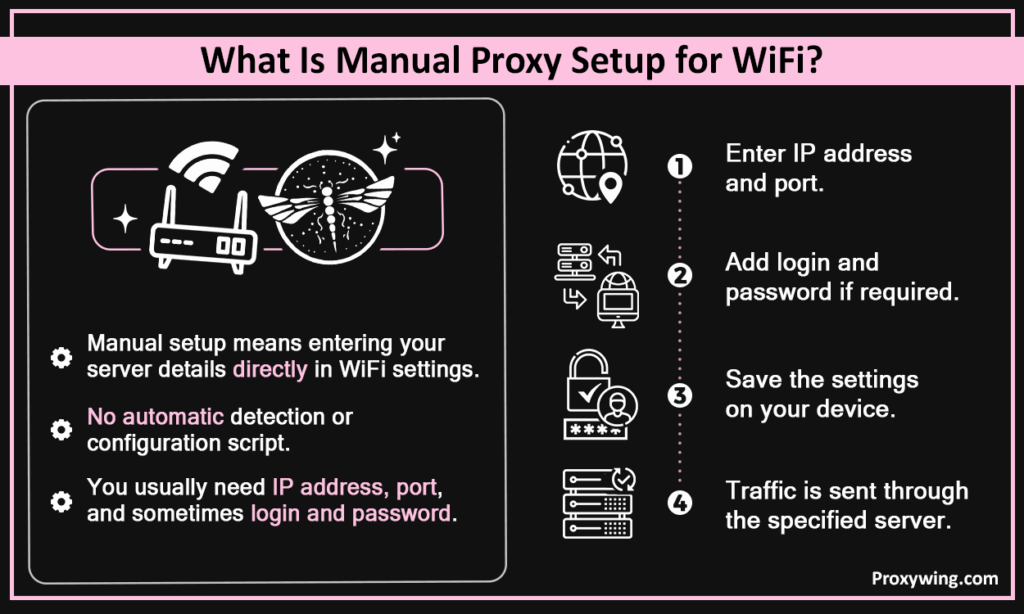
Manual configuration means entering your server details directly into a WiFi network’s settings rather than relying on automatic detection or a configuration script. This involves inputting all the server details, including the IP address of the server and the port numbers. In some cases, you will also need to provide a username and password for authentication.
Proxies are intermediary servers that act as a middleman between your device and the internet. When using one, your web requests are routed through a different IP address before it reaches the destination. That means the destination server will only see the IP address of the remote server and not your real one, making your connection more private and anonymous.
Users configure manual proxies for privacy, geo-specific access, workplace requirements, content filtering, or technical testing. Let’s explore these use cases in more detail.
A residential IP lets you route your connection requests through a specific server location, enabling access to internet services or platforms only available in certain regions or network environments. Streaming is one of the common use cases where this applies since several shows and movies are only available if you are in a certain region. Accessing content in restricted regions requires using IPs targeting the different locations where the content is accessible.
Many organizations require manual proxies settings so IT teams can control internet access, enforce content policies, and monitor network usage across devices. With WiFi proxies, IT teams can block access to certain websites or IP addresses at specific times or at all times.
Developers and technical users need a fixed IP address on WiFi to run scraping tools, test geo-specific behavior, or maintain separate account sessions from a single device. A manual configuration ensures the same WiFi proxy server credentials stay active for the duration of their session without interference from auto-switching, which can be necessary for these use cases.
The server IP address your device will connect through. This is provided by your service provider or network admin, requiring users to correctly input it into their settings.
The specific port tied to your connection. Some of the common ports include 8080, 3128, and 1080.
Some WiFi proxies require a username and password for authentication. Others use IP whitelisting and need no credentials. If your provider requires the former, then you will need to add the username and password when setting up.
Confirm whether your configuration requires HTTP, HTTPS, or SOCKS5. This is crucial since not all WiFi proxy fields support every type. Different types require different configurations.
When you enable manual proxies, your device routes outbound traffic through the server for that specific WiFi connection. That means all the outgoing traffic is routed through the remote servers before reaching the destination.
In most cases you configure the settings on the device, not the router. This means the setting applies only to that device on that WiFi network. The process for making these manual configurations is done through the WiFi settings of your device.
Most system-level traffic follows the proxies settings. However, some applications, particularly those with their own network stack may bypass them entirely. Using WiFi proxies for such apps requires setting them up within the app itself or using a tool like Proxifier that forces all app traffic through a specified IP address.
To get started, go to Settings > WiFi and long-press your connected network. You should then tap Modify Network, expand Advanced Options, and switch the proxy mode from None to Manual. This advanced settings option opens a page where you can input your server details.
Enter your server IP address in the hostname field and the port number in the port field. Double check the details as typing in the wrong ones will lead to connection issues.
Tap Save, then visit a site like proxywing.com/ip-check to confirm your web traffic is routing through the IP and your device IP address. This helps ensure all traffic is being routed through the configured remote server.
On your iPhone or iPad, go to Settings > WiFi and tap the ⓘ icon next to your active WiFi network. Scroll down to HTTP Proxy and select Manual. This turns on the option to input the server details.
Enter the IP address in the Server field, the port number in Port, and toggle Authentication on if your provider requires a username and password. You should then input the username and password created after making the purchase.
After entering the server details, click save to implement these settings. You should then visit an IP checker to verify the displayed IP matches your remote server. This checks that the IP your traffic is being routed through is the remote server’s.
On your Windows devices, go to Settings > Network & Internet > Proxy. Scroll to Manual proxy setup, and toggle Use a proxy server on.
Enter the IP in the Address field and the port number in Port. You should then click Save to implement the settings. Test if the settings work using an IP checker.
On your Mac, Open System Settings (System Preferences on older Macs) > Network. Select your active WiFi connection, click Details, then open the Proxies tab. Ensure you choose the right network name for the network you intend to configure the proxy for.
Select the protocol (HTTP, HTTPS, or SOCKS) and enter the server address and port. You should then click OK and Apply. Just like on iOS, macOS also allows entering the username and password for authentication if you need to.
Connection issues are usually caused by a wrong hostname, incorrect port, or expired credentials. If you are facing this issue, double-check all details with your service providers to ensure they match with what you input in the setting. Doing so eliminates the possibility of errors on your side.
If your internet only works sometimes or connection speeds are slow, it typically points to an overloaded server, high-latency location, or a mismatched protocol. You can try a different server or endpoint. We also recommend choosing dedicated IP addresses over shared ones. Yes, they may cost more, but the performance benefits they offer make the premium worth it. They are also more secure and reliable.
As shared earlier, there are some apps that ignore system network settings. With such apps, you will need to manually configure the proxies within the app itself or use a proxy-aware wrapper. Changing the routing settings within the app ensures that all its traffic goes through the added server.
For starters, temporarily disable the proxy to confirm it’s not the cause, then recheck every field. Test with a different remote server to rule out any server-side issue. You may also try using different web browsers to confirm it’s not a browser-related issue.
Manual configuration is better when you have fixed server credentials and want direct, persistent control over which server your device uses. This makes them a great choice for tasks that involve account management where maintaining the same IP address is crucial.
Automatic configuration suits users whose provider supplies a PAC URL or configuration script, handling server selection and failover automatically. With this option, settings automatically populate based on the provider’s configuration. This makes sense for tasks like web scraping where you may prefer your provider to automatically rotate IP addresses using IP lists to minimize chances of IP blocks and rate limits.
Safety depends almost entirely on the provider you use, not the configuration method itself. Choose a provider that has a good privacy reputation. You must also avoid public proxies as these are usually designed to collect user data. Data going through these WiFi proxies may also be logged, which is not good for your privacy. They are also slow and unreliable since one IP address is used by several users at any given time.
Low-quality or anonymous providers can log your internet traffic, inject content, or expose your data. Avoid free or unverified sources if you can. Choose paid proxies since they are designed to protect users from such risks.
Manual configurations on WiFi is straightforward once you have the right credentials from your provider. The process for setting up proxies manually is also nearly identical across all major platforms, including Android, iOS, Windows, and macOS. The standard set up steps include finding proxies settings in the network settings, switching to manual mode, and entering your server details.
As you might expect, the bigger decision you will have to make is choosing which provider to use. ProxyWing offers reliable and secured connections starting at $0.90/month with 70M+ IPs across 190+ countries, making it a solid starting point for any use case. You might require to choose the right type for the best experience. Check out our catalog to learn more about all our offerings.
Article written by:

Full Stack AI Engineer
Full-stack engineer at Proxywing working across backend architecture, performance optimization, and AI-driven workflows. Node.js, React, cloud infrastructure, and RAG pipelines.
All articles by author (61)It’s a configuration option that lets you enter a server IP address and port directly into your device’s WiFi settings instead of using automatic detection.
Your provider supplies the server address and port in your account dashboard after purchase. Make sure to accurately copy these details to avoid facing connection issues down the road.
Yes, you can. Both Android and iOS support manual configuration inside the WiFi network settings.
The most common causes include wrong server address, incorrect port details, expired authentication credentials, or a type mismatch.
Not always. System-level settings cover most traffic, but some apps manage their own network connections and won’t follow the system settings for proxies. In such cases, using a proxy manager like Proxifier or configuring the proxy directly within the app’s own network settings is the way to go.