




Managing multiple accounts has become common, and one of the most effective ways to do it without detection is by using an antidetect browser like MoreLogin alongside a reliable proxy service. Whether you manage social media accounts or online store accounts on Amazon, you will need both tools to prevent these accounts from being linked and potentially banned.
Using a ProxyWing residential or ISP proxy allows you to use a unique IP address for each account, while the antidetect browser enables full account isolation by assigning each account its own profile and browser fingerprint.
If you're keen to learn more about how to integrate your proxies into MoreLogin, this guide is for you. But first, let's briefly explain what MoreLogin is and how it works.
What Is MoreLogin
MoreLogin is a multi-account antidetect browser built for running many accounts using one computer. It gives each account an isolated browser profile, based on Chrome or Firefox, that keeps a separate fingerprint, cookie storage, and proxy configuration, so nothing links one account to another.
MoreLogin also offers cloud-based Android phones, but those are outside the scope of this guide. We will mainly focus on the browser application you can install on your desktop computer. Even though you can buy proxies directly in MoreLogin, its help center notes these are all static and limited to select countries.
If you need rotating IP addresses, city-level targeting, or carrier IPs, you'll need a MoreLogin proxy from an outside provider like ProxyWing. We recommend against using free proxies as they are typically unreliable and could expose your private data.
Feature | MoreLogin details |
|---|---|
Product type | Antidetect browser with a cloud phone service. Enables one profile per account to allow full isolation |
Latest release | V2.58.0 (June 2026) |
Supported operating systems | Windows, macOS, and Linux desktop apps |
Browser engines | Chrome and Firefox |
Free tier | Two profiles, two team seats, and 100 cloud phone minutes |
Paid tier | Pro, from 10 profiles (custom plans available for larger teams) |
Profile proxy settings | Local connection, proxy purchased from MoreLogin, or your own proxy |
MoreLogin's own proxies | Static residential, ISP, and cloud IPs in a limited set of countries |
Manual proxy entry | Accepts HTTP, HTTPS, and SOCKS5 |
Bulk proxy import | Accepts HTTP, HTTPS, SSH, and SOCKS5, 100 lines max per paste |
Last checked | MoreLogin V2.58.0, October 2026 |
Before You Start
Here are a few key things you need to get in order before getting started:
- Plan your profile count. MoreLogin's plans are capped by profiles rather than proxies. You get two profiles with the free tier and ten or more on Pro. So ensure to settle on a number before you pay for IPs.
- Inspect your proxy credentials. Bulk import breaks each line apart at colons and @ symbols, so any username or password containing them must be entered one at a time. Hyphenated parameters cause no issues.
- Get the app. Download the Windows, macOS, or Linux version from MoreLogin's official website, install it, and sign in using email, Google, or OKX. Make sure to download the installation file from the official site as there are several other clones that you may find on the internet.
How to Set Up a Single Proxy in MoreLogin
Adding one proxy to one profile takes six steps and a few minutes. Follow along to fully configure your MoreLogin proxy:
Create a Profile With Advanced Create
Open MoreLogin and go to + New Profile > Browser Profile > Advanced Create. Avoid Quick Create here, since it only asks for a browser and OS (creating up to 50 profiles at a time) and has no proxy field (which makes no sense considering we need to set up the proxy as well).
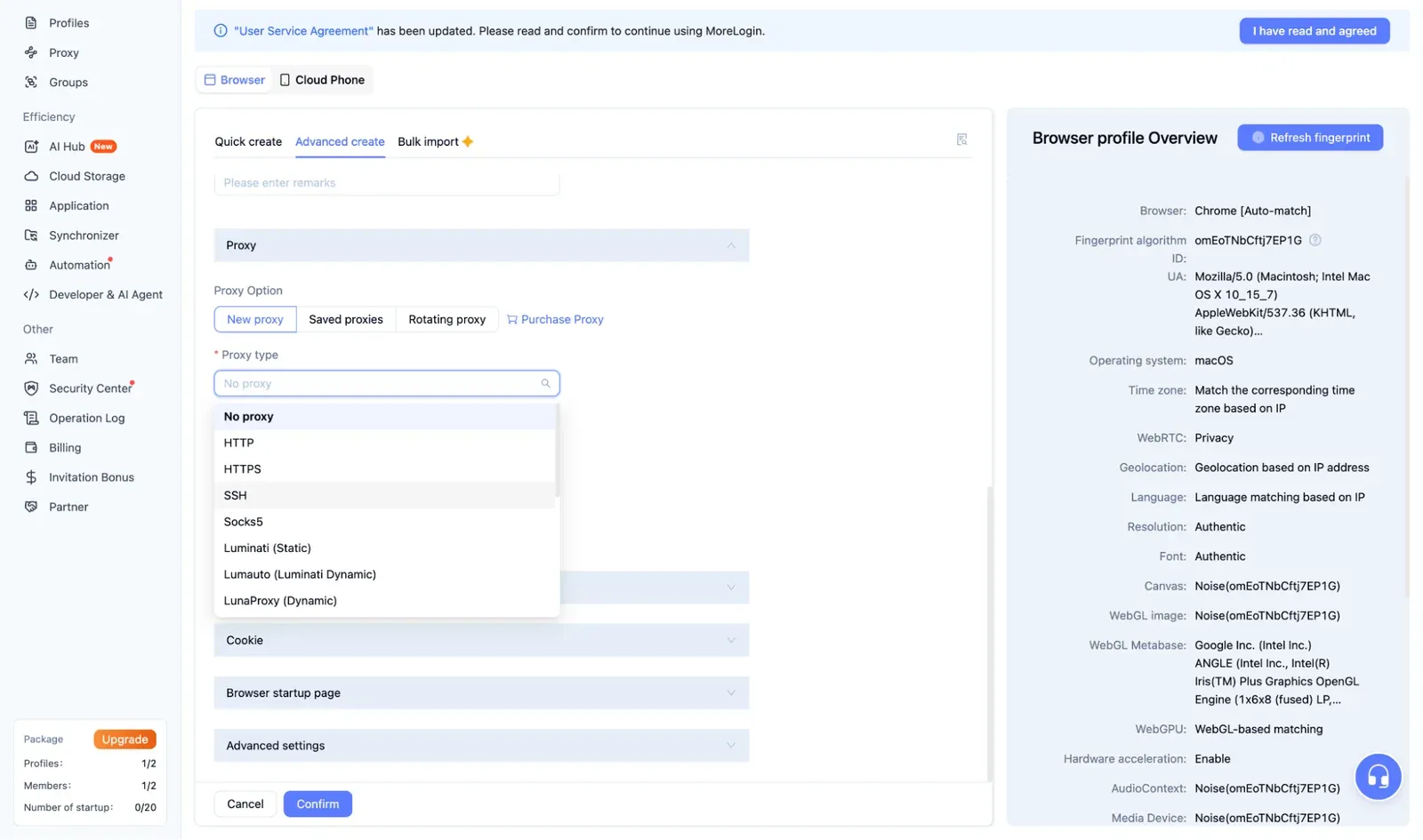
The Basic Settings fields, such as profile name, browser, OS, and user agent, have no effect on the proxy. Complete them, move down to Proxy Settings, and select the option for your own proxy.
The screenshot below shows the Proxy section of Advanced create with New proxy selected. The Proxy type dropdown is open, listing the supported protocols followed by the provider presets.
Choose the Proxy Type
MoreLogin supports various proxy protocols, so you can choose any based on what your provider supports. To make the choice, open the type menu and you'll see HTTP, HTTPS, and SOCKS5 at the top, then a list of provider presets that aren't needed for a self-owned proxy. Both protocols accept login credentials, so any that you choose will connect.
If you need to route more than just web traffic, we suggest SOCKS5 because it can route all kinds of TCP traffic. MoreLogin’s own documentation uses the SOCKS5 proxy protocol in its examples as well.
Fill In the Proxy Fields
Copy the hostname or IP address, port, username, and password from your proxy provider’s dashboard. Please remember that you need to use your proxy credentials here and not the ones for your MoreLogin account (the two are completely different).
Keep the default IP query channel unless the location it shows seems off, and only use the refresh URL field for mobile proxies.
MoreLogin field | What to enter | Example with ProxyWing residential |
|---|---|---|
Proxy type | Pick HTTP, HTTPS, or SOCKS5 | Either SOCKS5 or HTTP works |
Host | Server address supplied by your provider | quality.proxywing.com |
Port | Connection port supplied by your provider | 8888 for HTTP. Check your dashboard for the SOCKS5 port |
Account | Your proxy username, including any location or session parameters | Dashboard-generated username that includes country, session ID, and TTL. Added with hyphens |
Password | Your proxy password | Copy it from the ProxyWing dashboard |
IP query channel | The lookup database MoreLogin uses to show the IP's location: IP2Location, MaxMind, DB-IP, or IP-API | Keep the default. Switch only if the country shown differs from your dashboard. |
Refresh URL | Only used by mobile proxies that offer a rotation link | Leave blank for residential. ProxyWing mobile users paste their rotation link here |
Static or Rotating: What Changes in the Fields
Static and rotating proxies use identical fields. Only the values differ. Your choice will depend on the use case. If the profile is used to sign in to an account, the IP has to hold for the entire session, which means a static ISP proxy or a residential sticky session whose TTL outlasts your work. For use cases like ad monitoring, rotating IPs are fine.
One caution for mobile proxies: opening the refresh URL gives a new IP to every profile using that proxy. Assign each account-holding mobile proxy to a single profile to avoid unexpected IP changes in the middle of other logged-in sessions.
Test With Proxy Detection
Click Proxy Detection. If it passes, the proxy is reachable, and the location displayed is whatever your selected IP query channel reports. MoreLogin notes that its four databases sometimes disagree, so if the proxy connects but the location seems off, pick another channel and rerun the test. It won't flag mismatches in your browser's clock, language, location, or WebRTC settings.
Start the Profile and Check the Detection Page
Save your settings and press Start. The profile launches on a detection page by default. Make sure the IP shown is the same one from step 5, and note the timezone and language values, since the next section covers aligning them with your proxy.
Match Timezone, Language, Geolocation, and WebRTC to the Proxy
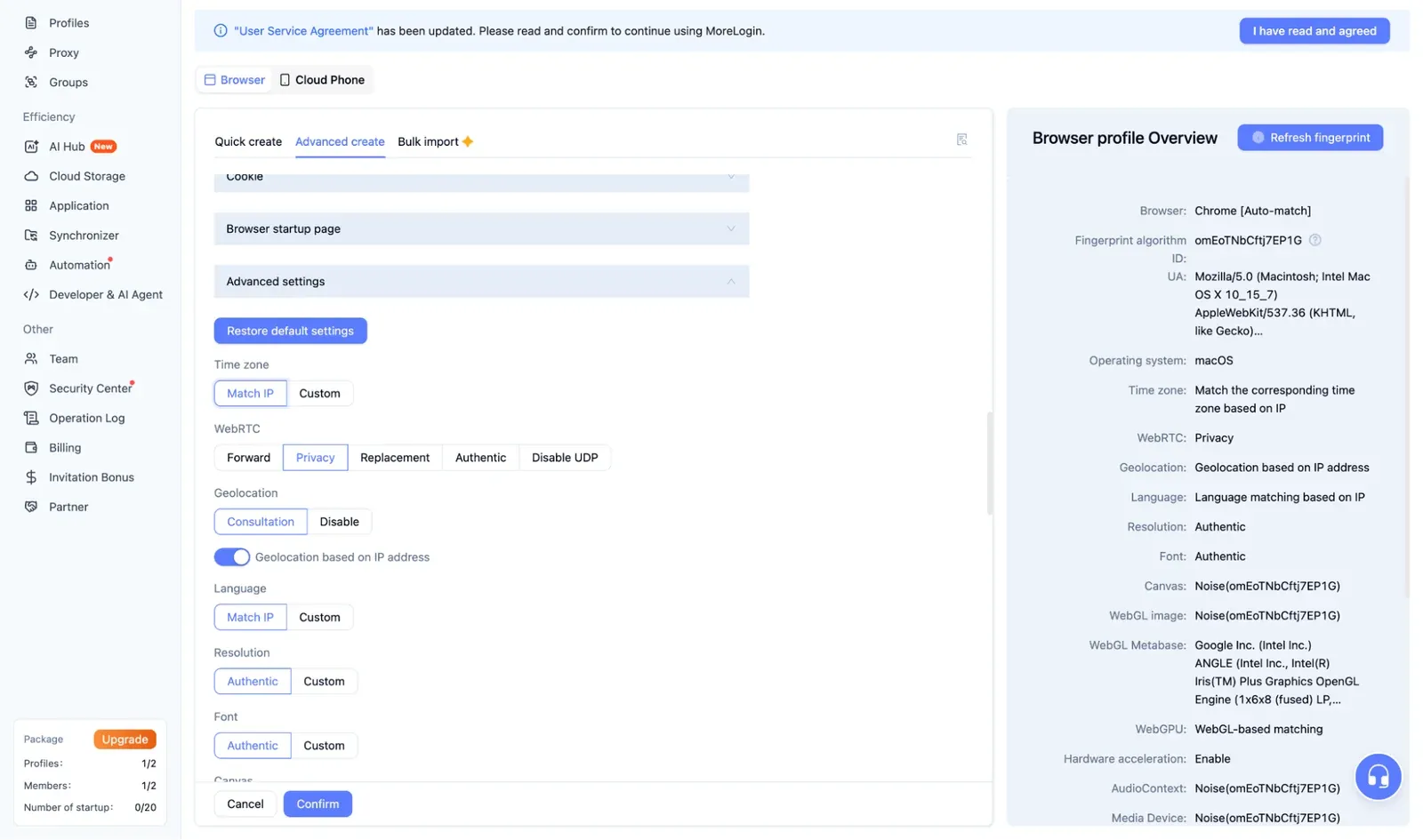
Swapping your IP is the only thing a proxy does. However, the browser's time zone, language, location coordinates, and WebRTC details still point to your actual device until you change them. Remember, most websites compare these signals, and inconsistencies can get an account flagged even on a clean IP. All four are under Advanced Settings when you edit a profile.
Setting | Recommended value | Why |
|---|---|---|
Time zone | Match IP (default) | Keeps the clock aligned with the proxy's location |
Language | Match IP | Sends language headers that fit the IP's country |
Geolocation | Consultation, with "Generate geolocation based on IP" on (default) | Keeps browser coordinates consistent with the IP |
WebRTC (static IP) | Replace (default) | Shows sites the proxy IP instead of your real one and masks your local IP |
WebRTC (rotating IP) | Disable | Turns WebRTC off so no outdated IP data leaks, but may break video calls |
WebRTC (never on account profiles) | Authentic | Exposes your real IP address |
The WebRTC dropdown has two more modes: Forward and Privacy. Check the in-app tooltip before using either one. For profiles you've already created, going to Bulk Modify > Fingerprint Parameters lets you update timezone, WebRTC, location, and language across many profiles at once.
Below is the Advanced settings panel. Time zone and Language are set to Match IP, geolocation is based on the IP address, and all five WebRTC modes sit side by side.
How to Set Up Batch Proxies in MoreLogin
If you’re using a few proxies, inputting one at a time can be feasible, but the same approach won’t be effective if you’re managing dozens or hundreds of proxies. For such cases, you will need to add your proxies as a list and assign them in bulk.
Prepare the List
Each line holds one proxy, written in one of the two formats below. Follow these simple rules:
- Begin every line with the protocol: if you leave it out, MoreLogin assumes SOCKS5, which fails on HTTP-only proxies.
- You can import up to 100 lines at a time, repeated entries are ignored, and credentials must not include colons or @ symbols.
These examples show the two formats you can use for your HTTP and SOCKS5 proxies:
socks5://192.0.2.10:1085:user01:pass01
http://192.0.2.11:3128:user02:pass02
socks5://user03:pass03@192.0.2.12:1085
http://user04:pass04@198.51.100.20:3128
Add Them in Proxy Service and Test
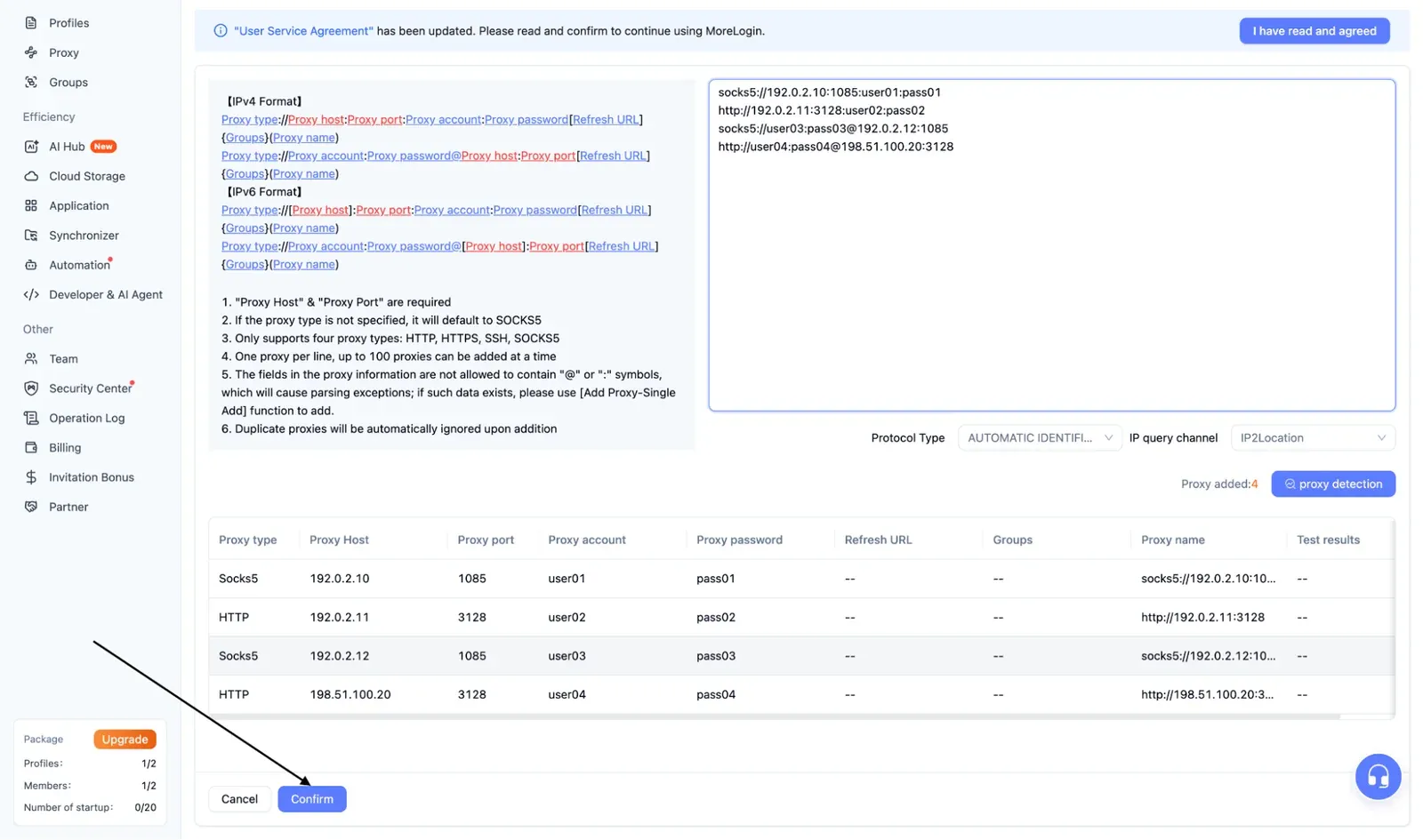
From the left sidebar, open the proxy list and go to Add Proxy > Batch Add. Paste the list, pick an IP query channel, and confirm. Then select the newly added proxies and run Batch Detection.
After testing, each entry is marked Normal or Detection Failed, and you can sort the list by type, status, location, or group for more seamless management. Deleting a proxy is permanent, so double-check before removing one.
The screenshot below shows the batch add window with four sample proxies pasted in. MoreLogin splits each line into the table underneath, so you can check that every field landed in the right column before clicking Confirm.
Bind the List to Profiles
Imported proxies sit unused until they're attached to profiles, and anything built with Quick Create has no proxy yet. Follow these simple steps to bind the proxy lists to profiles: highlight the profiles, choose Modify Proxy, and select Different Proxy to give every profile a unique IP.
The Same Proxy option shares a single IP across all selected profiles, which works for research but should never be used for accounts as it makes detection easier. Then run Bulk Detection in the profile list, where green indicates a working connection and magenta (close to red color) a failed one.
When Proxy Detection Fails
Rule out the proxy itself before adjusting MoreLogin. Run a quick test such as the command: curl -x socks5h://user:pass@host:port https://api.ipify.org in your terminal. A failure there points to the provider issue, not MoreLogin. If it works, use the table below.
Symptom | Probable cause | Solution |
|---|---|---|
Batch Add puts parts of a line in the wrong fields | The credentials include a colon or @ symbol | Delete the line and enter that proxy through Add Individually |
Profile opens on your real IP | Profile still set to No Proxy, or its proxy went to another profile | Run Bulk Detection, then fix it with Modify Proxy |
Test passes but shows the wrong city | Your IP query channel locates the IP differently than your provider does | Pick another channel and retest |
IP switches during a session | TTL expires before the task ends, or someone refreshed a shared mobile proxy | Lengthen the TTL and use one mobile proxy per account |
Your home IP appears in a WebRTC leak check | WebRTC mode set to Authentic | Switch to Replace (static IPs) or Disable (rotating IPs) |
Which ProxyWing Proxies to Use With MoreLogin
MoreLogin supports all the major proxy types, but your choice should depend on your intended use case. It also depends on whether you intend to use your browser profile to access websites that require signing in. The table below pairs common profile types with the matching ProxyWing product.
Profile's job | Recommended ProxyWing product | Reason |
|---|---|---|
Signs in and should appear to be in a specific city | Targeting by country, city, and ISP, plus static sessions with a custom TTL. From $1.00 per GB | |
Runs one account over the long term | Static IPs designed for long-lived sessions. From $1.71 per IP | |
Signs in to mobile-first apps and platforms | Genuine 4G/5G carrier IPs, with a rotation link that fits MoreLogin's refresh URL field. From $4.00 per day | |
Never signs in (price, ad, or page layout monitoring) | Top speed at the lowest cost per profile. From $0.87 per IP |
Closing Thoughts
By using a different proxy for each MoreLogin profile, you can manage multiple accounts without being detected. As you've seen throughout this guide, the setup process takes just a few minutes if you have the proxies ready in your provider's dashboard.
When your IP, timezone, language, and WebRTC settings line up, configuring a MoreLogin proxy is quick, and bulk import extends that to dozens of profiles at once. For IPs to use, ProxyWing's product pages break down available locations, session types, and supported protocols. Residential proxies start at $1.00 per GB and ISP proxies at $1.71 per IP. Check them out to get started today.
FAQ
Can I Use MoreLogin for Free?
Yes, you can. However, the free tier includes only two profiles and 100 cloud phone minutes. The Pro plans begin at ten profiles, making it the better choice for managing multiple accounts.
How Do Proxies Work in MoreLogin?
Every profile can be assigned its own proxy, which you configure in Proxy Settings when creating or editing the profile. All browsing in that profile is routed through it, and you can set the clock, language, and location to follow the IP under Advanced Settings.
Do I Need My Own Proxies for MoreLogin?
In many cases, yes. MoreLogin's built-in proxies are static and only available in some countries, so rotating IPs, city targeting, and mobile carriers require an outside provider.
Which Protocol Should I Pick in MoreLogin: HTTP or SOCKS5?
You can choose any of the two depending on your use case, since they both support username and password login. SOCKS5 is the stronger choice if you intend to route all kinds of TCP traffic, and MoreLogin applies it automatically to batch lines without a protocol.
What Is the Batch Import Limit in MoreLogin?
You can import 100 proxies per batch, one per line, and repeated entries are ignored. Proxies whose credentials include a colon or @ symbol need to be entered one at a time.
Why Is MoreLogin Showing the Wrong City for My Proxy?
This happens when MoreLogin reads the location from your chosen IP query channel, and its four databases don't always agree. Change the channel and run the test again. The proxy is often fine.