Proxy Authentication Methods Explained: Username/Password vs IP Whitelisting
06.10.2026 10 min
YouTube Error 400 is one of the most common errors you will encounter when using YouTube on any platform. Unlike server-side errors, error 400 is often caused by client-side issues such as bugs or misconfiguration in the Youtube app or browser used to access YouTube.
In this guide, we will discuss everything you need to know about server Error 400 on YouTube, including its causes, how to fix it, and best practices to permanently resolve it. Let’s start with a brief summary of how to fix error 400 on Youtube.
The YouTube server Error 400 is a “Bad Request” status code. It primarily means YouTube servers cannot process the request sent by your device because it is considered malformed or invalid. Error 400 occurs often due to client-side issues like network connections, misconfigurations, or bugs (coding errors). Fixing this issue requires changing a few things within your browser or the app you’re using to access YouTube. Some of the common causes include broken browser cookies, corrupted cache files, incorrect URL parameters, or underlying account session conflicts. More about these in the coming sections.
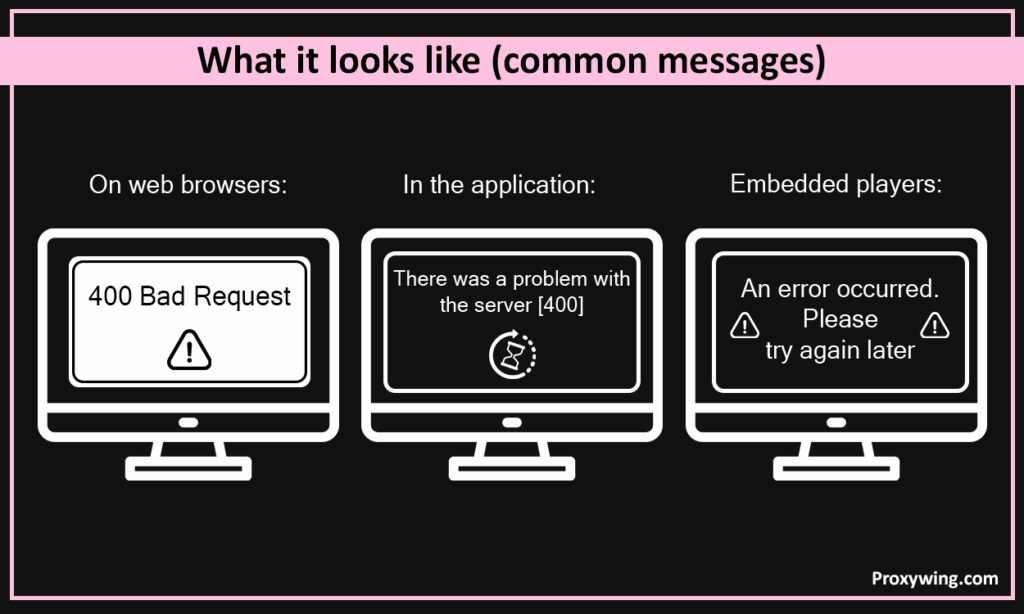
The error usually manifests in a few specific ways depending on your device and the client you’re using to access YouTube. These are some of the common messages you will see:
As stated earlier, Error 400 is a client-side issue, meaning the problem lies within your browser, app, or network configuration. However, there are slim chances that these error codes can happen during YouTube service glitches or regional routing updates where the system temporarily fails to interpret legitimate requests correctly.
This section explores in detail some of the common causes of the server 400 error:
This is one of the most common causes of this issue. YouTube cookies used to keep you logged in or the cache used to speed up page loading can become “stale” or corrupted. So, when your browser or app sends these outdated session tokens to YouTube, the server rejects them as invalid, resulting in the 400 error.
A YouTube URL is more than just the video ID. The URL contains several other details, including tracking parameters, timestamps, or referral codes. So, if you copy the link incorrectly or leave out a bracket or add a stray character, YouTube won’t recognize the address and will return error 400.
Extensions like ad blockers or some browser extensions work by intercepting and modifying your requests before sending them to YouTube. If an extension or ad blocker is overly aggressive or outdated, it might accidentally strip away a necessary header or block a critical script. Such scenarios can make YouTube see the request as incomplete or “broken.”
Sometimes, Restricted Mode (for accounts often managed by schools or workplaces) or specific account-level filters can clash with the contents you are trying to view. This conflict in permissions can sometimes surface as a generic YouTube server Error 400 rather than a “content blocked” message. Disabling Restricted Mode can resolve this issue.
Using network-level tools like a VPN or a custom DNS can sometimes reroute your traffic through a path that YouTube finds suspicious or incompatible. If your network firewall is stripping some data from headers, error 400 can sometimes be triggered.
If you need high-performance, consistent connections without these headers issues, using Proxywing’s high-quality YouTube proxies can help. ProxyWing’s proxies ensure your requests remain clean and recognizable to YouTube’s servers to prevent any potential errors.
This sounds like something simple and obvious. However, YouTube’s security protocols rely on synchronized timestamps to provide the correct responses for every request. If your device’s date or time is significantly different from the server’s time, the secure handshake (SSL/TLS) will often fail causing your request to be rejected before the page even loads.
Here are the common quick fixes for how to fix error 400 on youtube:
If you’re still experiencing the error problem after the above fixes, continue reading for more in-depth solutions.
If you are accessing YouTube using a desktop browser, use these fixes to resolve error 400:
A simple refresh can fix temporary script glitches. You can use keyboard shortcuts like Ctrl + F5 (for Windows) or Cmd + Shift + R (for macOS) to perform a “Hard Refresh.” A hard refresh forces the browser to ignore its cache and download the page entirely from scratch.
Sometimes a poor internet connection could be the cause for the bad requests. So, ensure your connection hasn’t dropped or become unstable. If you were initially using WiFi, try switching from standard Wi-Fi networks to a mobile hotspot then restarting your router to see if it resolves the issue. You can also try using any other sites to confirm the issue isn’t only with YouTube.
YouTube uses caching to improve user experience by loading frequently accessed data, such as video segments faster. To clear cache, go to your browser settings and delete cookies and browser cache specifically for https://www.google.com/search?q=google.com and youtube.com. Targeted clearing is best as it allows you to preserve your history on other sites while resetting your YouTube session alone.
Some of the common problematic plugins include Ad blockers, “dark mode” plugins, and video downloader. These often interfere with your requests before relaying them to YouTube, which can lead to bad request errors. Disable all extensions and reload the page. If the error disappears, you can then re-enable the plugins one by one to find the culprit.
Incognito modes launch a clean browser environment without using any of your saved cookies. For most browsers, extensions are disabled when you go to private or incognito mode. If YouTube works in this mode, then the problems are definitely within your primary browser profile.
An outdated app may lack the modern security certificates, JavaScript engines required by YouTube in 2026, or support for some modern protocols. Always ensure you are running the latest version of Chrome, Firefox, Edge, or Safari.
This is common when you follow a link from a message or another site. Sometimes these links might contain a typo or a broken tracking parameter that may trigger the bad requests error. Try opening youtube.com directly and searching for the video title instead of using the link.
If all the solutions we have shared don’t fix the issue, consider contacting YouTube support. Launch the “Send Feedback” tool in the YouTube application or website. In your query, make sure to include all the key details such as the browser version, OS, the exact time of the error, and a screenshot of the 400 message. The more information you include, the easier it becomes for their support team to resolve the issue.
Here are the common fixes for mobile devices, including iOS and Android devices:
Force-close the YouTube app from your “Recent Apps” switcher and reopen it. If one specific video fails, try playing a different one to see if the error is video-specific.
This can seem obvious, but sometimes you may get the bad request error simply due to an unstable internet that may be affecting your entire systems, including the Youtube app. Toggle Airplane Mode on and off to reset your network handshake. Try switching to mobile or another WiFi connection to determine if your current network is the issue.
Clearing cached data deletes temporary files created by the YouTube app. However, clearing data will reset the app to factory settings and log you out, so you will have to sign in. This method mainly works on Android devices since iOS doesn’t provide the option to clear cache or delete specific app data.
Visit the Apple App Store for iOS or Google Play Store for android devices and update the YouTube app. Google frequently releases patches for any possible “Bad Request” bugs caused by new OS updates. Updating the YouTube app will also generally lead to a better experience.
Reinstalling the YouTube app can help if the app’s internal files are corrupted. An update alone in such cases may not work if the app has some internal corrupted files. So, delete the YouTube app entirely and reinstall it to ensure a clean slate. You will also have to login again.
Make sure there are no “Data Saver” settings such as data limits that may restrict apps like YouTube from accessing the internet. These settings are often found in your network settings. If you’re using mobile data, make sure mobile data is not turned off for YouTube.
Restricted Mode is an optional setting designed to filter out “potentially mature” content. Sometimes this setting can incorrectly restrict some videos, resulting in “bad request” error messages. Toggle this setting off to see if the video loads.
YouTube and other Google services will not work correctly if you don’t have the correct data and time. So, ensure your date/time settings are set to “Set Automatically.” This allows your device to set time automatically in real time using the internet.
Sometimes the default DNS settings of your ISP may cause issues connecting to certain websites, including YouTube. Try switching to a reliable provider like Google DNS (8.8.8.8) or Cloudflare (1.1.1.1) to see if it resolves routing errors that trigger 400 responses.
Fully restarting your device, clears system RAM and resets your SIM/eSIM connection, which often fixes several network routing issues.
These work for both mobile and desktop users:
The YouTube server Error 400 can be frustrating, but fortunately, there are many ways to resolve it. As a client-side error, it typically requires a fix on your end—whether within the system, app, or network. The good news is that most solutions are quick and easy to implement.
Start with simple steps like refreshing YouTube apps or restarting your device before moving on to more complex troubleshooting, such as changing DNS settings. We encourage you to try these fixes until you find the one that resolves your issue. If the error persists, we recommend contacting YouTube support for further guidance. However, 99% of the time, the fixes we shared will resolve the issue.
Article written by:

Full Stack AI Engineer
Full-stack engineer at Proxywing working across backend architecture, performance optimization, and AI-driven workflows. Node.js, React, cloud infrastructure, and RAG pipelines.
All articles by author (61)No, the server Error 400 it’s primarily a connection error that occurs when sending requests to YouTube. So, it does not affect your uploaded or saved data.
Not exactly. Video playback errors usually happen when playing a video. Error code 400 on the other hand happens when the page tries to load and fails due to client side connection issues.
Server Error 400 is a temporary state caused by a specific request. Once fixed, it may not necessarily happen again unless another connection issue arises.
You will be logged out and your offline downloads may be removed. So, you will have to login again to access your account.