Proxy Authentication Methods Explained: Username/Password vs IP Whitelisting
06.10.2026 10 min
Have you ever received a “blocked” message after clicking on a website? Or maybe you only want to browse without having your internet activities monitored. Anyhow, that can be solved by a proxy.
Think of a proxy like a helper that sits between you and the internet. It covers your real location so you can browse more freely. It covers your actual location, allowing you to browse more freely. The best aspect is that you don’t need to install any additional software to use proxy in Opera.
This guide covers it all. You’ll learn how to set it up, how to test it for functionality, and what to do if something goes wrong. Keep reading.
A proxy handles your browser traffic. A VPN encrypts everything on your device. Different tools, different jobs.
The built-in VPN in Opera limits your selection of location and does not give you a fixed IP. It will not fit you when you require a particular country or stable address.
Before you touch any settings, make sure you have these details from your proxy provider:
HTTP/HTTPS proxies handle regular web traffic. The HTTPS provides an additional layer and is more effective on secure sites. These are most popular to use in the browser.
SOCKS5 proxies are more flexible. They deal with any form of traffic and not web browsing only. They also assist in authentication and are effective in tasks that require greater control.
Not sure which connection type to buy? Here is a simple way to decide:
You must have a good source before you can establish anything. Free services are very appealing, but they have more issues than benefits. ProxyWing is a good option for stable, clean connections that actually works. They provide residential, ISP, and datacenter proxies with simple setup instructions that you can simply put in the Opera.
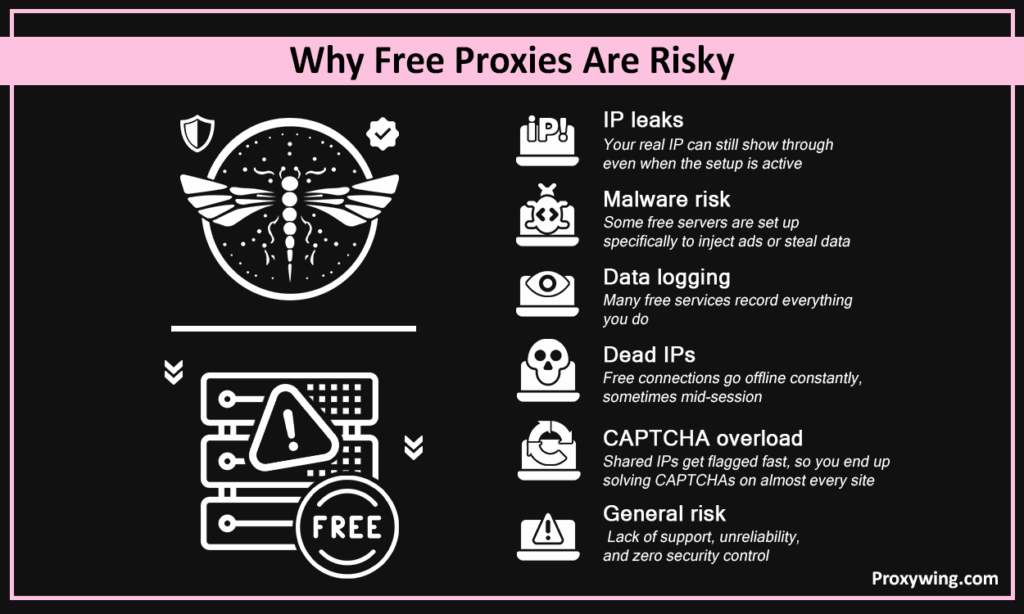
Free connections are everywhere, but most of them are not worth your time. Here is what usually goes wrong:
Two key methods of configuring a proxy in Opera. All of them do it in different ways depending on what you require. Let’s go through both.
The system-level setup is configured by this method. It is automatically picked by Opera since it adheres to the network settings of your device.
It is the reliable method of ensuring that all your browser traffic is passing through the connection. No extra tools needed.
Here is how to do it on Windows:
On Mac:
Once done, Opera will route traffic through your proxy without any extra steps.
An extension will provide you with greater control if you do not wish all sites to pass through a proxy. You can switch proxies on and off for specific sites without changing anything system-wide.
It works well when you need to quickly alternate between proxies or when you want to check the appearance of a site in a new location.
The disadvantage is that extensions do not necessarily cover everything. WebRTC requests and some internal browser calls can still leak your real IP if the extension does not handle them.
ProxyWing provides a extension that is designed specifically to do this. It is also clean, simple to set up, and provides you with quick switching without the headaches.
Opera GX does not have built-in network settings. It draws off your network settings in your system instead. The following is the way to get there.
Close every other browser before you start. Chrome, Firefox, Edge, and all of it. That way you know exactly which app is using the connection when you test it.
Look for the Opera logo or hamburger icon at the top of the left sidebar. Click it to open the main menu. New users sometimes look for a top menu bar, but in Opera GX everything starts from the left side.
Click Settings from the menu. If your version looks different, just use the search bar at the top and type “proxy.” It will take you straight there.
Scroll to the System section and click “Open your computer’s proxy settings.” On Windows this opens the Proxy page in Network settings. On a Mac, it opens the Proxies tab in Network preferences. Enter your server address, port, and login details. Save and you are done.
Setting up a proxy for Opera depends on your device, since Opera uses your system’s network settings instead of its own built-in panel. Follow the one that matches your operating system.
Open Settings on your device and go to Network and Internet. Click on ”Proxy” from the left-side menu.
Scroll down to Manual proxy setup and switch it on. In the first box, insert your server address, and in the second box, insert your port number. When you do not want to use a proxy, make sure you check this option.
Hit Save when done.
If your provider provided you with a PAC script URL, rather than a specific address, visit Automatic proxy setup at the top of the same page. Enter the script URL. This is effective when your proxy automatically rotates addresses.
After saving, restart the Opera, and all traffic in the Opera will pass through the proxy.
Open System Settings and click Network. Select your active connection, Wi-Fi or Ethernet, and then click Details.
Go to the Proxies tab. You will see a list of different types on the left. Tick the one that matches what your provider gave you:
After clicking a checkbox, the fields will appear on the right. Enter your port and address of the server. If your provider needs a login, please fill in your username and password in the following fields.
Click OK, then hit Apply to save everything.
Setting it up is only half the job. You need to confirm it is actually working.
Before turning on the setup, open our IP Checker and note your real IP and location. Then turn on the proxy and reload the page. The IP should be different, and the country or the city should be what your provider has assigned. In case it continues to reveal your actual position, the proxy is not set up correctly.
Sometimes browsers cache old settings. To ensure that the change has taken place, switch the setup off and on, and then again check your IP. It is also possible to open another browser or device without the setup and compare. When the two indicate the same IP, then there is something wrong.
Although you have a connection, it is still possible that your real IP will leak through two leaks.
DNS leakage occurs when your browser makes domain requests using your standard connection rather than the endpoint server. Test with a DNS leak test tool to verify.
The WebRTC leaks are more difficult. WebRTC is also used by the browser to facilitate other activities such as video calls, and it is also capable of revealing your actual IP despite the presence of a connection. In Opera, you can turn WebRTC off in the settings or by installing an extension that blocks it.
Most of the setup problems are reduced to a wrong setting or dead IP. Here is the way to mend the most common ones.
Your OS settings might not have been saved. Check the server address, port, and protocol twice. Look through your setup list bypass list too and clear it. In some cases the setup is by default bypassed in local addresses.
The server is probably dead or the port is closed. Confirm the same setup in a different app. When it fails there as well, switch to a new endpoint or attempt switching to SOCKS5.
Your IP has a bad reputation or keeps changing. Switch to a residential or ISP connection and use sticky sessions to keep the same IP. Reduce the speed of what you do because fast repeated requests are detected fast.
In your system’s network settings, go to the bypass list and delete the entries that are not required. In the case of an extension, not all requests are covered. Switch to a full coverage system level setup.
It is as important to turn off as to turn on. Here is how to go back to your normal connection.
Windows: Go to Settings → Network and Internet → Proxy. Under Manual setup, switch it off. Hit Save.
macOS: Go to System Settings → Network → select your connection → Details → Proxies. Uncheck any of the connection types that you allowed. Click OK, then Apply.
When this is done, go to ProxyWing IP Checker and ensure that your actual IP and location are restored. When they are, the setup is completely off.
If you configure the setup by using an extension, it is not sufficient to disable system settings. Enter the extension and turn on the feature to direct connection or turn it off.
If you had used a separate connection application, close or shut it down completely. There are apps that will keep on running even when you have closed the window. Look in your system tray to ensure that it is not still running.
You have everything set up. Here is how to use Opera proxy in the correct way and remain in the shadow.
When using a proxy for Opera in more than one account, each account should be in a different browser profile. Each profile has its cookies and fingerprint. This prevents bleeding of data between sessions.
One proxy, one profile, one task. The accounts are linked and flagged through mixing.
Use rotating proxies when scraping data or making lots of requests. New IP every time makes the server more difficult to identify a pattern.
Use sticky proxies when logging into accounts or staying in one session. Changing IPs during a session is suspicious and makes it undergo verification.
Find an IP strategy that suits the job, and you will run into much fewer blocks.
Article written by:

Full Stack AI Engineer
Full-stack engineer at Proxywing working across backend architecture, performance optimization, and AI-driven workflows. Node.js, React, cloud infrastructure, and RAG pipelines.
All articles by author (61)No, Opera contains a built-in VPN but not a proxy. Opera proxy requires using your browser extension to set up system network settings.
Yes. Opera GX uses system proxy settings, and thus you can configure a SOCKS5 proxy using your Windows or macOS network preferences, and Opera GX will automatically use it.
Usually it depends on location or proxy type. Choose a closer location to your target site and determine to use a datacenter proxy if speed is the priority.