Proxy Authentication Methods Explained: Username/Password vs IP Whitelisting
06.10.2026 10 min
Several platforms today use p0f and TCP/IP fingerprinting to detect proxy traffic by reading the packet-level “handwriting” of your OS. Even when your proxy hides your IP, your connection can get flagged once proxy usage is detected. That means even a clean IP can get flagged when the TCP/IP layer reveals you’re connecting from a Linux server instead of a real user’s device.
OS spoofing fixes this by rewriting your outgoing packets to mimic a legitimate OS fingerprint, making your proxy traffic indistinguishable from a real user. In this guide, we will explain how this works and how to set it up correctly. Keep reading if you’re keen to learn more about how OS spoofing actually works.
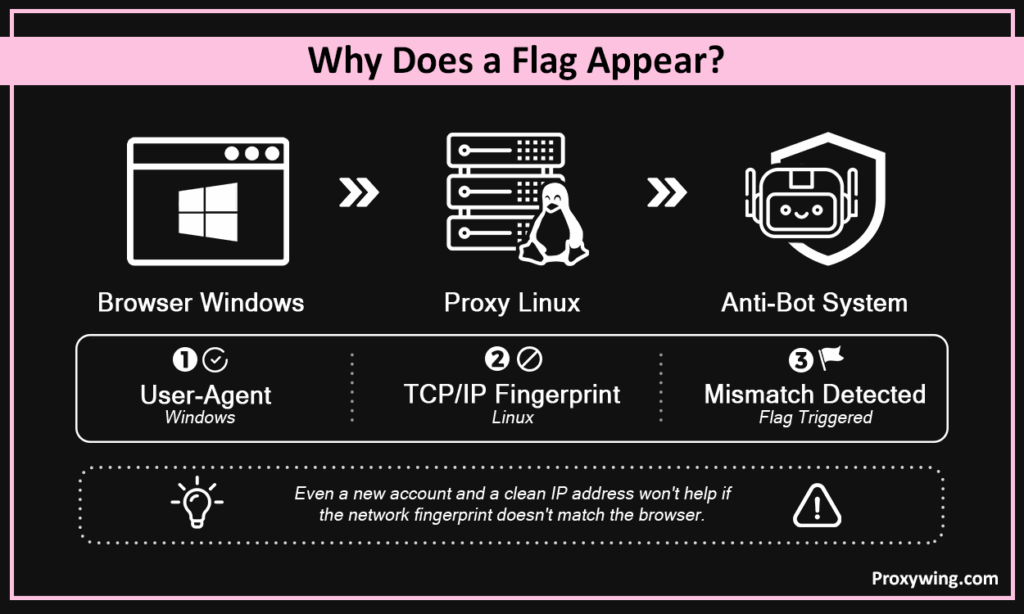
For those who may not know, proxies work by routing your traffic through a remote IP address before sending it to the target. However, proxy usage can still be detected if the target uses systems that analyze traffic on a deeper level. You may use a clean IP, fresh account, and a matching User-Agent, and the flag still comes. That’s where OS spoofing comes in.
Your browser says Windows. Your proxy server runs Linux. The TCP/IP packet headers read Linux. Anti-bot systems see a Windows browser arriving with Linux packet handwriting, and that contradiction is enough to trigger a flag.
This is the mismatch most proxy users never address, because fixing it requires changes at the TCP/IP layer. Antidetect browsers can’t reach that layer since they operate at HTTP and JavaScript, one level up. The only place it can be fixed is at the proxy itself and it has to be done by the provider. That’s why choosing a provider that implements OS spoofing significantly reduces the chances of detection.
Think of a web request as a letter inside nested envelopes. Your browser writes what’s inside, which includes the HTTP request, the User-Agent, the TLS handshake. But the outer envelope is sealed and postmarked at the OS network layer, just like a post office stamp you don’t control. You can rewrite the letter contents all you want, but the outer postmark still reveals who sent it. That’s why browser-level tools alone aren’t enough, the outer envelope can only be changed at the proxy, where the OS stamp is applied.
From outermost to innermost:
When using a proxy, the exit server talks to the target site and not your local machine. That means the TCP/IP envelope is built by the proxy server’s OS.
If that server runs Linux, the outer envelope looks like Linux regardless of what browser or User-Agent you’re running above it. Your browser can claim to be anything. But the outer envelope, the one the target site reads first, is stamped by the proxy server’s OS.
If that stamp says Linux and your browser says Windows, the contradiction is visible before a single request is processed. OS spoofing addresses this contradiction before your traffic leaves the proxy, ensuring consistency in your outgoing packets from the TCP/IP layer up.
The TCP/IP standard leaves certain implementation details such as the window size, TTL, TCP option order up to each OS. Every OS makes these choices consistently, creating recognizable packet “handwriting” that fingerprinting tools can read. For instance, traffic coming for a macOS device will have a few differences from that coming from a Windows or Android device. These differences can easily be detected by most fingerprinting tools.
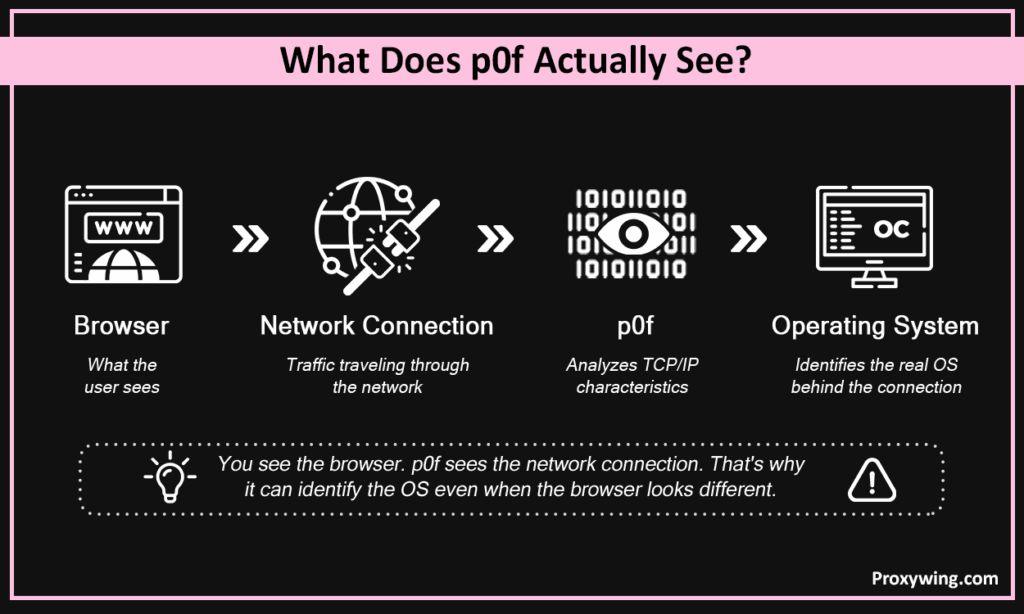
p0f is a passive OS fingerprinting tool. It identifies the OS of a connecting client by reading TCP/IP packet headers without sending anything itself. Antidetect browsers cover the inner layers, including canvas, fonts, User-Agent, TLS. But p0f reads the outer envelope (the TCP/IP layer), which antidetect browsers never touch. That’s the gap. A perfectly configured antidetect profile still leaks the proxy server’s OS through the TCP/IP layer, and p0f catches it silently, before you even know you’ve been flagged.
Active tools like nmap send crafted packets and analyze responses, which is a knock you can potentially detect. p0f just listens to traffic that was already happening, like a CCTV camera. Nothing unusual is sent, so there’s nothing to detect. A growing number of detection systems use passive TCP/IP fingerprinting to detect disguised traffic.
With p0f reads the fingerprint from the very first SYN packet, even before the page loads, before any request is made. There’s no point at which you can intervene after the fact, which makes it an incredibly tricky challenge to deal with. The only place you can intervene is the exit node (the proxy layer), which is exactly what OS spoofing does.
No single parameter gives you away, but a combination of different parameters. It is like identifying someone by both their height and their gait. Let’s explore some of the details fingerprinting tools use to identify your traffic:
Linux, macOS, iOS, and Android default to a TTL of 64. Windows on the other hand defaults to 128. It’s the single most readable signal in the packet. This is used in combination with the rest of the indicators to determine the OS the traffic is coming from.
Each OS has its own default window size, often a multiple of MSS (~1460 bytes on Ethernet). MSS (Maximum Segment Size) shrinks on VPN tunnels and mobile connections, which can itself be a signal.
The set and order of TCP options vary by OS. Windows omits the Timestamps option that Unix systems such as Android, Linux, and macOS typically include. Option order is often more telling than any individual option’s presence.
Remember a proxy replaces your IP address and not your Operating System fingerprint. Instead it replaces it with the proxy server’s fingerprint. That’s the problem.
Your browser claims Windows Chrome. The proxy server is Linux. The TCP/IP envelope has a TTL of 64, Linux-ordered TCP options, and a Linux window size. In this case, the anti-bot system sees a Windows browser arriving with Linux packet headers, which is a contradiction that can raise suspicion and may lead to blocks. With OS spoofing enabled, the proxy rewrites those headers to match Windows too. The browser says Windows, the TCP/IP layer says Windows, and the contradiction disappears.
The vast majority of proxy servers run Linux. The majority of datacenter proxies carry a Linux TCP/IP fingerprint regardless of provider, no matter what the browser claims above it. Anti-bot systems may easily detect and block proxy traffic for this very reason. This is the exact gap that the spoof closes.
ProxyWing rewrites TCP/IP parameters at the exit node so outgoing packets match a client-chosen OS profile, whether that is Windows, macOS, iOS, or Android. This consistency significantly reduces the chances of having your traffic flagged by anti-bot systems.
Spoofing happens at the exit node because that’s where the TCP/IP envelope is built. Antidetect browsers can’t reach this layer since they operate at HTTP and JavaScript level. Only the proxy can make TCP/IP-level changes. So, even when you use an anti-detect browser, TCP/IP fingerprinting tools can detect the inconsistencies in your traffic details, triggering flags.
Whatever OS your browser or antidetect profile claims, the proxy spoof must match it. That means if your browser is set to Windows, the proxy must be set to Windows too. Any mismatch reintroduces the contradiction, which may lead to blocks.
iOS and macOS profiles may run at higher latency. MSS tuning and TCP option adjustments interact with carrier NAT and DPI middleboxes in ways that add overhead. Windows desktop profiles on the other hand avoid most of this and remain the fastest option.
Spoofing one or two parameters, say just the TTL produces a packet that doesn’t match any real OS profile. That inconsistency is rarer and more uncommon than a clean Linux or Windows fingerprint, making it easier to flag than no spoofing at all. This is why a partial spoof is worse than none.
The spoof has to be complete and coherent to work. ProxyWing applies a full OS profile at the exit node. When doing your setup, you simply pick the target system (Windows, Linux, Android, or macOS/iOS) and the entire TCP/IP fingerprint is rewritten to match it.
| Layer | Signal | What Reads It | Who Can Change It |
| TCP/IP | TTL, window size, TCP options | p0f, anti-bot systems | Proxy provider (ProxyWing p0f spoofing) |
| TLS | Cipher suite order, extensions | JA3/JA4 fingerprinting | You / antidetect browser |
| HTTP | User-Agent, Accept headers | Server-side inspection | You / antidetect browser |
| Browser/JS | Canvas, WebGL, fonts, plugins | In-page JavaScript | You / antidetect browser |
To build a clean identity, every layer must tell the same OS story. One contradiction anywhere in the stack is enough to trigger proxy detection. To prevent this, here are the six simple steps you should follow:
Choose one OS and commit to it. Windows is the strongest default for desktop use and the most common on the internet, well-understood profile, minimal speed overhead.
Set the anti-detect browser profile to the same OS. That means the user-Agent, platform string, timezone, locale, and fonts must all match to ensure consistency and no contradiction that could trigger flags.
ISP and mobile proxies carry higher trust scores. Datacenter proxies are faster, cheaper, and they have the spoof on every location. p0f spoofing works across all three, but you need to check the product card for ISP and mobile availability since spoofing depends on the location.
However, if success rate is your main priority, mobile or ISP proxies are the best choice. They rely on ISP-assigned IPs, which make your traffic seem like it is coming from real users.
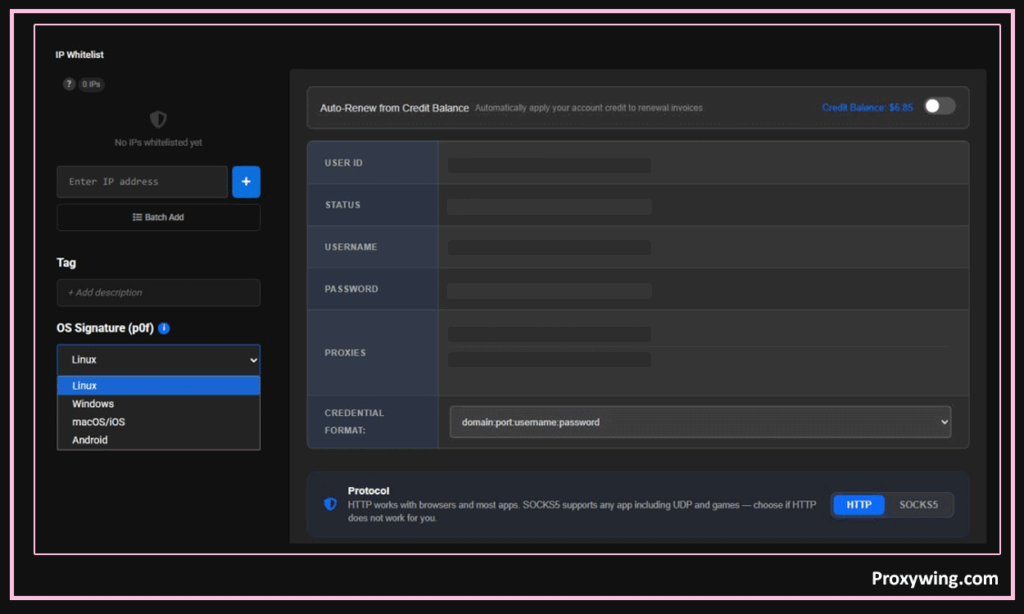
In ProxyWing, enable p0f spoofing and select the same OS to align the TCP/IP layer with everything the browser claims above it. This disguises your traffic to make it seem like it is coming from your preferred OS.
Changing OS profiles within an active session is itself suspicious. A sudden shift in TCP/IP handwriting on the same account raises flags. Change deliberately, between sessions. We only recommend changing to different settings when managing multiple accounts — each account can have a different TCP/IP handwriting.
Use a TCP/IP fingerprint checker like connection checker or IP-checker to confirm the OS reported at the TCP/IP layer matches your browser profile before running any workflow. After this confirmation, you can go ahead and connect to the target website.
p0f spoofing is live on ProxyWing’s datacenter proxies, ISP proxies, and mobile proxies. Select the OS profile that matches your anti-detect browser setup. ISP and mobile availability varies by location, so check the product card and choose the region of your choice. Used together with a matched browser profile, it closes the detection gap most proxy setups leave open at the TCP/IP layer.
Article written by:

Full Stack AI Engineer
Full-stack engineer at Proxywing working across backend architecture, performance optimization, and AI-driven workflows. Node.js, React, cloud infrastructure, and RAG pipelines.
All articles by author (61)p0f reads TCP/IP header values, including TTL, window size, and TCP option order, from the first SYN packet of an incoming connection and matches them against known OS profiles. It sends nothing and requires no interaction, making it a detection layer that is difficult to bypass. This makes it an effective method for identifying disguised traffic from VPNs and proxies.
No, it can not. A standard proxy replaces your IP but uses its own server’s OS to build the TCP/IP envelope. Without OS spoofing, that fingerprint belongs to the proxy server, which is typically Linux. Anti-bot systems can easily detect and block this traffic.
Active fingerprinting (using tools like nmap) sends probes and analyzes responses. Passive fingerprinting (p0f) only reads traffic already being sent. Passive is silent and there’s no probe to detect, which makes it more effective.
Anti-detect browsers cover HTTP, TLS, and JavaScript layers. TCP/IP is built by the proxy server’s OS kernel, which is a layer antidetect browsers have no access to. To stop TCP/IP detection, changes need to happen at the proxy level.
Somewhat, for iOS and macOS profiles. Windows desktop profiles see minimal overhead and are the fastest option for most tasks. But overall, the slowdown is not significant enough to be a major issue for most workflows.
All the major proxy types, including datacenter, ISP, and mobile proxies. Please note that ISP and mobile aren’t available in every location. So, check the product card to confirm that your target region is supported.