Proxy Authentication Methods Explained: Username/Password vs IP Whitelisting
06.10.2026 10 min
Many iPhone users rely on proxy servers to browse the internet more privately and bypass geo-restrictions on certain websites and content. However, it’s also common for these proxies to cause connectivity issues, ranging from slow speeds to certain websites not loading. In such cases, you may need to turn off proxy on iPhone to regain a seamless browsing experience.
In this article, we’ll explain the steps to stop your iPhone traffic from being routed through an intermediary server before reaching the online services you want to use. But first, let’s walk you through the basics of proxies on iPhone and what they do to ensure we’re all on the same page.
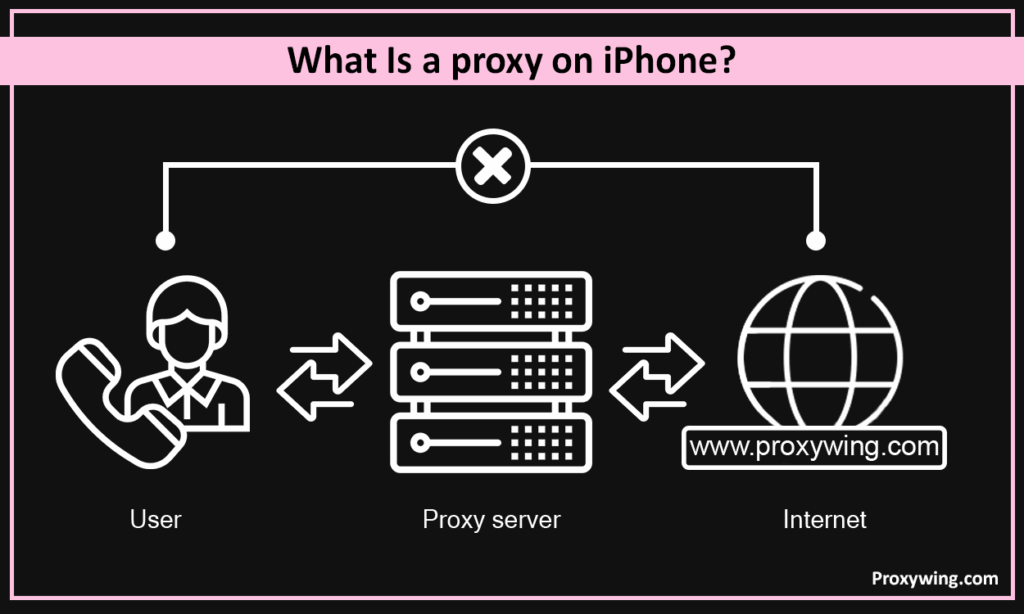
It is a server that sits between your iPhone and the internet connection. Instead of your iPhone connecting directly to the sites you intend to use, your traffic is first routed through this server. In the process, your iPhone IP address is replaced with that of the server. That means the target website will view your connection as though it was coming from this server and not your iPhone.
By hiding their IP address, iPhone users bypass geo-restrictions and also browse the internet privately since their location is hidden as well. Many use proxies on their iPhone for accessing region-locked content on platforms like Netflix and to scrape data while minimizing risks of IP bans. So, in situations where these benefits make sense, it can come in handy.
However, using proxies on your iPhone also has some drawbacks such as potentially being blocked by some websites or slowing down the connection. In such circumstances, you may want to turn it off for a better experience. You could maybe enable it again in the future whenever the need arises.
On iPhone, the proxy you can configure in Settings is specifically an HTTP proxy (or HTTPS, which uses the same configuration screen). iOS does not natively support SOCKS5 proxies. Those require a third-party app like Shadowrocket or Potatso to work. Another thing to keep in mind: iPhone proxy settings only apply to Wi-Fi networks. Cellular data (4G/5G/LTE) bypasses these settings entirely, since mobile data is managed through APN configurations from your carrier.
So when you see options like «Configure Proxy» or «HTTP Proxy» in your Wi-Fi network settings, that’s the layer we’re going to disable in the steps below.
Let’s explore some of the common scenarios when you may want to disable the proxy on iPhone.
A service like Netflix, Spotify, or a banking app blocks your connection with a «proxy detected» or «anonymizing service» warning. These platforms actively scan incoming IP addresses against known proxy databases, and when they spot one, they restrict access to prevent fraud or licensing violations.
If you’re seeing one of these messages on your iPhone, here’s what’s happening:
In all of these cases, turning off the proxy on your iPhone usually resolves the issue immediately. Follow the three steps below to disable the connection. If you still need a proxy for other tasks (like accessing geo-blocked content), consider switching to a residential proxy. These use real consumer IPs and aren’t flagged by detection systems the same way datacenter proxies are.
Follow these three simple steps to turn off the proxy connection on your iPhone;
On your iPhone, tap Settings > WiFi and choose the network with an active proxy connection. This is probably the network your iPhone is currently connected to. You must also need to be in the vicinity of this network for it to appear in the iPhone WiFi settings.
While in the settings of the network selected above, scroll till the button to find the HTTP proxy option. Tap “Configure Proxy”. This will open another page with all proxy configuration options (Off, Manual, and Automatic). We will explain more about this in the next section.
If the proxy is enabled, you simply need to select the “Off” option to disable it. This step turns off the proxy connection on your iPhone. After turning it off, its settings will still be preserved, so you can always enable it whenever you need to.
Note: You can only turn off proxies for connected networks or active ones you previously connected to. Also, the steps for configuring iPhone settings to turn the proxy on are similar to the above, with the only difference being that instead of choosing “off” in step 3, you choose “automatic” or “manual.”
If you scroll through your iPhone Wi-Fi network details, you may also notice settings called “Limit IP Address Tracking” and “Private Wi-Fi Address”. These are not the same as a proxy, they’re Apple’s built-in privacy features that mask your IP from network operators and randomize your MAC address on each connection.
Some users search for «how to disable anonymizing services on iPhone» when they really mean one of these settings. If a website or app is blocking you and you’ve already turned off the proxy, try also disabling “Limit IP Address Tracking” in the same Wi-Fi network details screen. Just keep in mind that turning it off reduces your privacy on that network.
In step 2 of turning off proxy on iPhone, you may have noticed that we briefly talked about an HTTP proxy. You might be wondering what an HTTP proxy on iPhone is and why you may need it in some cases. Simply put, an HTTP proxy allows your iPhone web traffic to be routed through a server before being sent to the websites and web apps you are using.
Under the HTTP proxy settings of any network, there are three options:
A common question we see is whether HTTP Proxy on iPhone should be left on or off by default. The short answer: leave it Off unless you have a specific reason to turn it on.
Here’s a quick decision guide:
If you didn’t deliberately set up a proxy and the option is showing as Manual or Automatic, it was likely added by an MDM profile (common on work-issued phones), a misconfigured VPN app, or malware. In those cases, disabling it is the right move.
Proxies and VPNs on iPhone may have several overlapping use cases and goals, but the way they work to help you achieve them is different. The table below shows the key differences between the two tools.
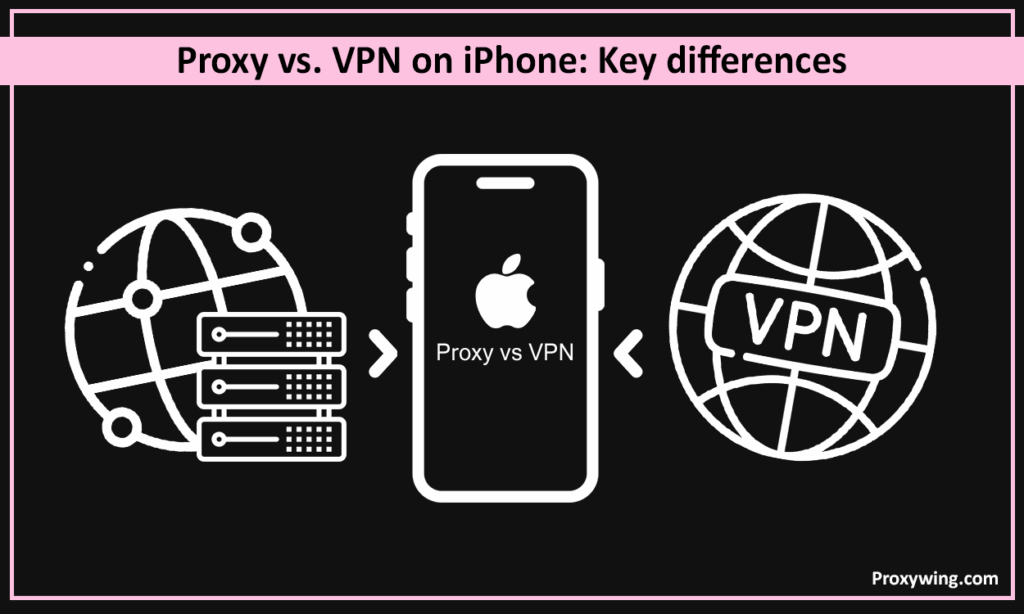
| Feature | Proxy | VPN |
| How it works | Routes traffic through a server before being sent to the target | VPN services route traffic through a VPN server before being sent to the target |
| Encryption | No encryption | Encrypts all traffic being sent and received by the iPhone |
| Privacy | Only hides your IP addresses | Hides both the IP address and the traffic data being sent and received on your iPhone |
| Speed | The speeds of network connections are faster than VPNs since proxies do not have the encryption step | VPN connections can slightly slow down speeds due to the extra encryption step |
| Set up process | Configured in Wi-Fi settings | Installed via a VPN app or profile |
| Price | Less Costly | VPN providers usually charge more |
Use a proxy for IP masking and when you need quick access to restricted websites and content. However, if you need maximum privacy, including hiding your IP address and all your traffic data, using a VPN on your iPhone is the way to go. But remember, VPNs can sometimes throttle connection speeds more than proxies, so keep this in mind as well.
Here’s how to check both in under a minute:
A useful shortcut: look at the top of your iPhone screen. If you see a «VPN» badge in the status bar, a VPN is active. There’s no equivalent icon for proxy connections, which is why proxies are easier to miss.
If both are configured, disable them one at a time and test your connection between each change so you know which one was causing the issue.
Using proxies can be an effective way to hide your device location and bypass restrictions while browsing the web. However, in some situations like those covered in this article, turning off the proxy might be the best option to ensure a smooth experience.
The good news is that the steps to turn off the proxy on iPhone are straightforward. So, you can always enable the proxy when hiding your IP is necessary and turn it off when it’s no longer needed. Please note that the steps we covered work for all iPhone proxy types, including datacenter, ISP, and residential proxy solutions.
Article written by:

Product & Support Operations Lead
Built Proxywing's support department from scratch — documented workflows, clear escalations, consistent quality. Now bridges the CEO and engineering, keeping infrastructure projects on track.
All articles by author (68)This message usually means a proxy is configured in your Wi-Fi settings but the server is unreachable, either offline, misconfigured, or blocked by the network. The fix is to either correct the server address under Configure Proxy-> Manual, or set Configure Proxy to Off to remove the proxy entirely.
iOS does not provide a native proxy setting for cellular (4G/5G) data — proxy configuration only exists in Wi-Fi network settings. If you suspect a proxy is affecting your mobile data, check whether you have a configuration profile installed under Settings > General > VPN & Device Management. Removing a configuration profile installed by a third-party app will usually restore a clean cellular connection.
No. Selecting “Off” under Configure Proxy disables the proxy for that network but keeps the server address, port, and credentials saved. You can re-enable the same proxy anytime by switching Configure Proxy back to Manual or Automatic.
Yes. Proxy settings on iPhone are stored per Wi-Fi network. You can have a proxy enabled on your home network and disabled on your office network without any conflict.
No. Proxy and VPN are independent on iOS. To disable a VPN, go to Settings -> General -> VPN & Device Management and toggle off the active VPN. Disabling the proxy in Wi-Fi settings has no effect on VPN status.
“Configure Proxy” is the menu under iPhone Wi-Fi network details where you set whether traffic on that network is routed through a proxy server. The three options are Off (direct connection, default), Manual (you enter the server details), and Automatic (iOS loads proxy rules from a PAC file URL).