Proxy Authentication Methods Explained: Username/Password vs IP Whitelisting
06.10.2026 10 min
ZennoPoster is an application for Windows PCs and servers used for automating web browsing tasks. To avoid restrictions like IP bans, especially on websites with strict anti-bot systems, it is best to use ZennoPoster alongside a proxy. By using ZennoPoster proxy servers, you can distribute your requests among different IP addresses to make it seem like your traffic is coming from different devices.
In today’s article, we will discuss how to use and set up a ZennoPoster proxy for seamless browser automation. We will also cover the different proxy types, steps for setting up a proxy, and the common issues users face with their respective fixes. So, without wasting any more of your time, let’s jump right in!
It is an all-in-one automation suite that is designed to replicate human actions in a browser. ZennoPoster programs can be installed on Windows PCs or servers, allowing users to automate different kinds of tasks including automation tasks.
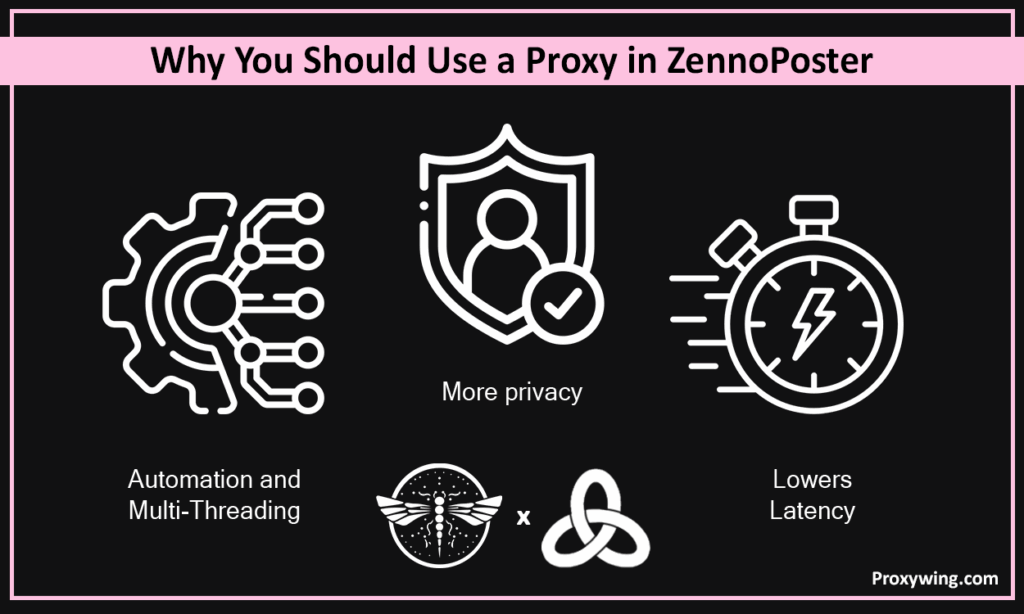
Using proxies alongside ZennoPoster allows the distribution of requests across several IP addresses, which reduces the possibility of IP blocks. Proxies also enable traffic to be sent to specific websites that might be blocked by local ISPs or network admins. In some cases, they can help boost speeds, especially when the local ISP is not using efficient routes.
Datacenter proxies give you access to high-speed IPs hosted on servers in several data centers around the world. They are the most affordable option and offer the fastest speeds, but they are the easiest to detect. This makes them only feasible for data collection at web sites with basic security.
These give you access to IPs of real home users. These IPs are the hardest to detect, which is why residential IPs have the highest success rate. Residential IPs are ideal for handling sensitive tasks such as account management and scraping data from websites with sophisticated security systems.
ISP IPs offer a balance between datacenter and residential IPs. They provide the speed of datacenter IPs since they run on servers hosted in ISP-managed datacenters. However, they also offer the trust of residential proxies since their IP addresses (primarily static IPs) are assigned by local ISPs. This also makes them a good choice for tasks like account management that require maintaining the same IP over a long session.
The HTTP(S) protocol primarily handles web traffic. SOCKS5 on the other hand is more versatile and faster for complex data transfers. It also handles different kinds of traffic, including web traffic and UDP traffic, making it the ideal choice for tasks that need the speeds of the UDP protocol.
Free proxies often rely on IPs that are unstable and slow. These IPs are also usually blacklisted and can easily be compromised since they’re shared among thousands of users, making them less reliable for sensitive tasks. Even though ZennoPoster allows using free proxies, we don’t recommend them because of these downsides.
For reliable datacenter or residential proxy solutions, consider providers offering high uptime, IP rotation capabilities, and API access for easy integration. ProxyWing’s ZennoPoster proxies are a great choice. They guarantee 99.9% uptime, bandwidth of up to 1Gbps, and support automated IP rotation.
These are the common methods for configuring proxy settings.
This method is meant for bulk management.
This method allows you to map specific proxies to specific user profiles or multiple accounts within your database.
With this method, add action step in your workflow to navigate to a site like Proxywing IP-checker or icanhazip.com. Use the Get Text action to verify that the displayed IP matches your proxy.
If you see the 407 error, it usually indicates a username/password error or an unauthorized IP. Double-check your provider’s dashboard to confirm that your local IP is whitelisted or credentials are correct.
ProxyWing offers high-speed residential proxies for ZennoPoster optimized for performance and stability. IP rotation is handled automatically in the background using a complex IP addressing system, so no need to manually manage individual IP lists.
If you intend to use a rotating IP, enter the provider’s entry point into the Set Proxy action. For ProxyWing, use proxy.proxywing.com:8000 or username:password@proxy.proxywing.com:8000 if authentication is required.
Choose between using static IPs and automatic rotation. Sticky sessions maintain the same IP for longer periods, which makes them a good option for any tasks that involve account logins. On the other hand, automatic rotation is best for automation processes since you need your requests to use differ IPs to make detection harder.
When handling large-scale tasks, format your list as IP:Port:Login:Password. Within your ZennoPoster browser settings, go to the ProxyChecker tab, click Add Proxies, and select your file that contains your proxy lists data.
To make sure each request uses a new IP, use Get Line action and set it to Delete after use. This step prevents multiple instances from overlapping on the same connection, which can trigger IP bans.
If your proxies are not working due to a timeout error, it is likely due to slow residential IPs. To resolve this issue, increase the Timeout period in the browser properties. This prevents ZennoPoster from filtering out a working IP just because a page took a few extra seconds to load. You may also consider buying private proxy solutions to achieve the faster speeds.
Build If/Then logic into your flowcharts. Using this logic gives your system an option to retry when it fails after the first attempt. If a proxy fails to load a page, your bot is automatically instructed to retry in 30 seconds with a fresh IP.
Add a step to navigate to an IP-check URL like Proxywing-checker or other websites like whoer.net at the start of every run. After doing the checks, save the result to a log file to verify that your real IP is hidden.
This error simply means your provider doesn’t recognize your traffic. It normally occurs when your credentials are wrong or your IP address isn’t whitelisted. Ensure your login:password is formatted correctly in the proxy string or double check your provider’s dashboard to confirm that your IP is whitelisted.
Standard settings may at times leak your real DNS. Consider enabling “Send DNS through proxy” in the ZennoPoster settings for total anonymity.
Avoid assigning the same IP to different requests at the same time. Use a Global Variable or a Lock to ensure every request secures its own unique IP before proceeding.
Overall, using proxies increases the reliability of your automation tasks with ZennoPoster. By using proxies, you can run automaton tasks without triggering IP bans since they enable assigning unique IPs for each thread. However, your experience will depend on the proxy type and provider you choose. Consider the pricing, speed, and success rate of residential vs datacenter IPs and then make a choice based on what you can afford to compromise.
It is also important to correctly configure rotation since it is one of the benefits of using ZennoPoster. Finally, knowing the common issues such as Error 407, DNS Leaks, and Thread Conflicts and how to fix them will give you a much better experience.
Article written by:

Head of Partnerships
Leads partnerships at Proxywing with hands-on knowledge of residential, ISP, datacenter, and mobile proxies. Works with affiliates, bloggers, and tech communities, bridging tech and partner needs.
All articles by author (23)The choice of which type to use depends on the task at hand. Residential proxies are best for social media management and automated tasks on websites with strict anti-bot policies since they rely on trustworthy IPs assigned to real home devices. Datacenter IPs on the other hand are best for high-speed scraping, especially for websites with less anti-bot policies.
You need to use the ProxyChecker tool that is built into ZennoPoster. To get started, open the software and click the ProxyChecker tab. Then click Add Proxies from a file and select your .txt file.
Yes, ZennoPoster programs support the use of rotating IPs. This is enabled by the rotating gateway address provided by your vendor.
Ideally, one IP per thread or request. For automation tasks, we recommend using a rotating pool with thousands IPs to increase the success rate.