



To connect to Standard residential proxies, use:
- Domain.
- Port.
- Username.
- Password.
The password may be long when many settings are used. Default proxy format:domain:port:username:password
Example: quality.proxywing.com:8888:username:password_with_parameters
domain | quality.proxywing.com |
|---|---|
port | 8888 |
username | username |
password | password_with_parameters |
Basic format

By default:domain:port:username:password
Also available:domain:port@username:passwordusername:password:domain:portusername:password@domain:port
If you need a different format, use the free Proxy Formatter.
Hostname and IP address

In the Hostname field, you can use:
- DNS Hostname.
- IP Hostname.
When IP Hostname is selected, a list of entry IP addresses becomes available.
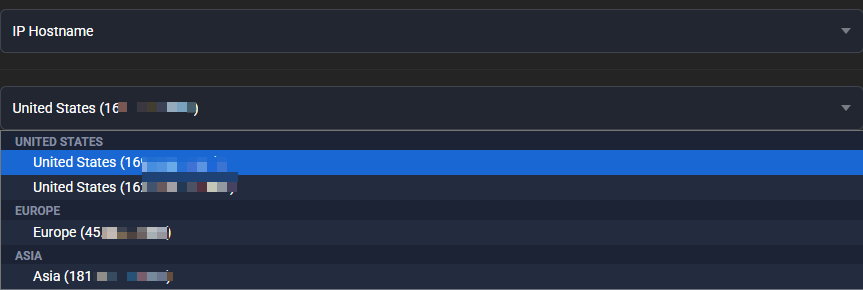
Selecting an IP address allows you to choose an entry server that is closer to the user on the network. This can reduce latency if the connection to the DNS Hostname has high ping.
The geolocation of the exit residential IP is configured separately through country, city, and ISP. Selecting an entry IP address does not change the selected geolocation of the exit proxy.
UDP
Standard residential proxies support UDP through SOCKS5 UDP ASSOCIATE.
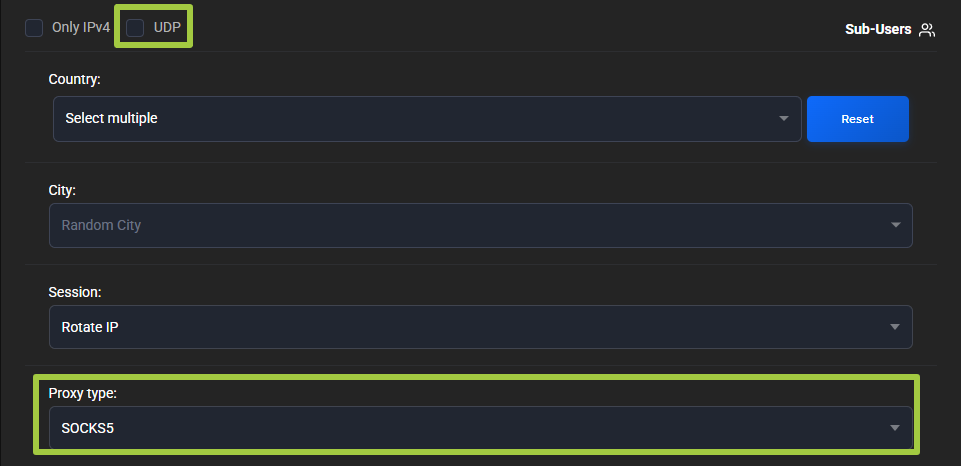
To use UDP:
- Select
SOCKS5in the generator. - Enable
UDP. - Generate the proxies again.
- Use the new connection details.
UDP is available only when the SOCKS5 proxy type is selected. After enabling UDP, the connection parameters change, so you need to generate the proxies again and use the new details.
TCP controls connection establishment and data delivery. UDP sends packets without waiting for confirmation of each one, so it is typically used where low latency is important: online games, voice calls, video calls, and other real-time applications.
SOCKS5 UDP ASSOCIATE allows a compatible application to transmit UDP traffic through a SOCKS5 proxy. The application must support this mechanism.
Check
To check UDP, you can use the free WebRTC/UDP Checker.
Run the check while the proxy is active with UDP enabled and SOCKS5 selected.
If UDP does not work
Check:
- Whether SOCKS5 is being used.
- Whether UDP was enabled when generating the proxies.
- Whether you are using the new connection details generated after enabling UDP.
- Whether the application supports SOCKS5 UDP ASSOCIATE.
- Whether a local firewall or other network software is blocking the connection.
Authentication
Standard residential proxies use username and password authentication.
IP whitelist is not supported for Standard residential proxies.