



Renewal, billing cycle changes, and service cancellation
You can renew the service, change the billing cycle, enable automatic renewal from your balance, and submit a cancellation request to stop renewal invoices.
Manual renewal
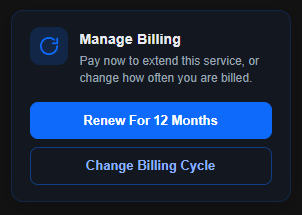
In the billing management block, click the service renewal button.
Before the invoice is created, a window opens showing:
- Product
- Current Cycle
- Next Due Date
- New Next Due Date
- Total Due
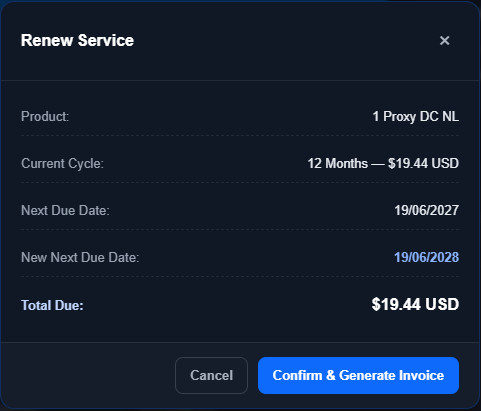
The Confirm & Generate Invoice button creates a renewal invoice.
Changing the billing cycle
The Change Billing Cycle button opens the available billing cycle options.
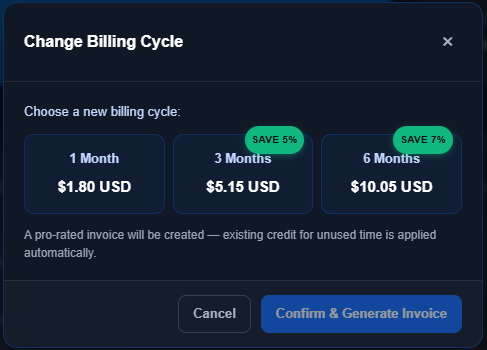
When the billing cycle is changed, a renewal invoice is created for the selected period.
After selecting the new period, click Confirm & Generate Invoice.
Automatic renewal from balance
The Auto-Renew from Credit Balance switch automatically uses the available account balance to pay renewal invoices.

The current account balance is displayed next to it.
Service cancellation
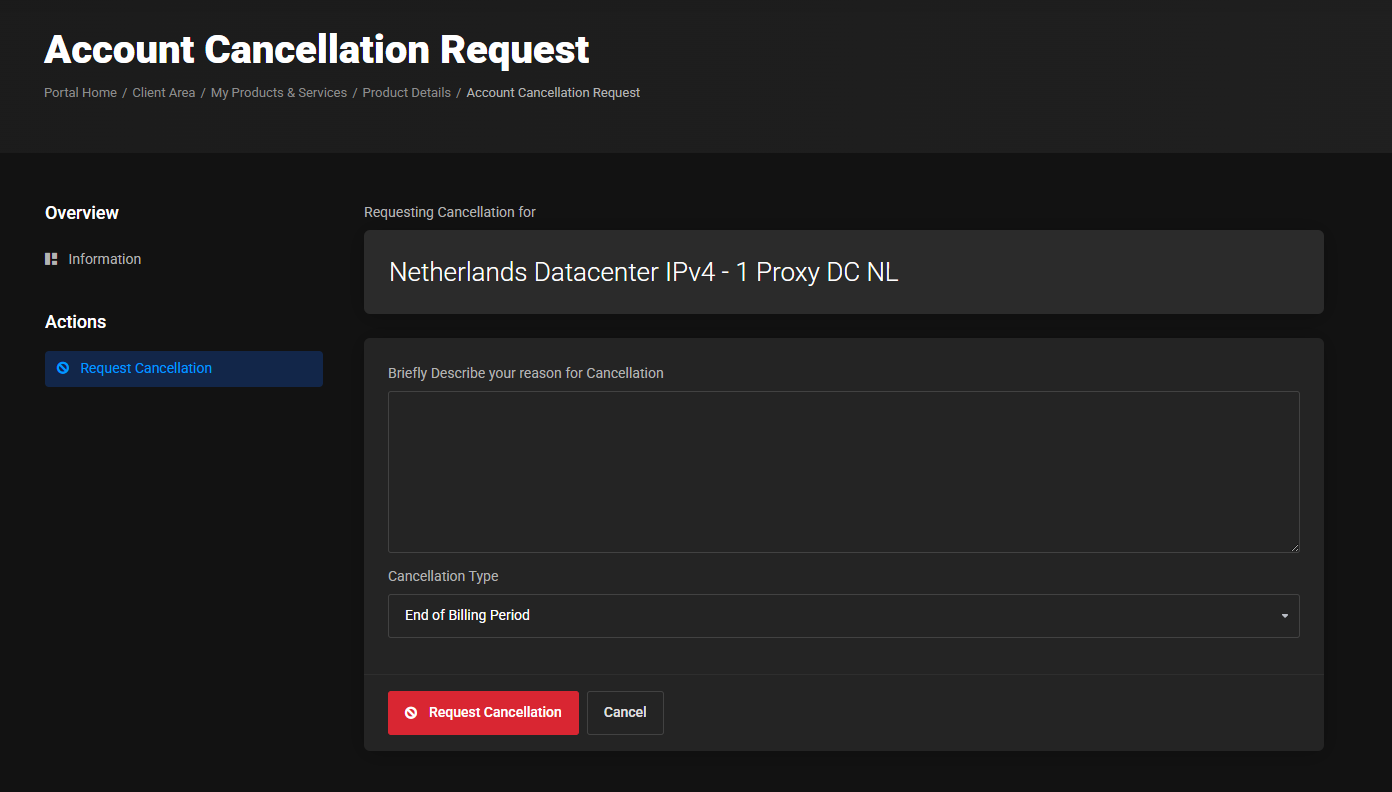
The Request Cancellation option is available in the actions menu. Cancellation stops automatic renewal invoices from being created. The proxies will be removed at the end of the paid period.
After cancellation:
- The proxies continue to work until the end of the paid period.
- New automatic renewal invoices are no longer created.
- The user can manually create an invoice and renew the service.

On the cancellation page:
- The product for which the request is being submitted is displayed.
- You can specify the reason for cancellation.
- The cancellation type is selected.
- Submit the request using the
Request Cancellationbutton.
Important: service cancellation disables automatic invoice creation but does not disable automatic payment of an invoice that has already been created from the internal balance. If you manually create a renewal invoice after cancellation while Auto-Renew from Credit Balance is enabled, the invoice will be paid automatically if the balance is sufficient.